How to Watch Max on Roku Devices
As a Roku user, I always seek new streaming services and apps to enhance my viewing experience. Recently, I’ve been hearing a lot of buzz about Max, the latest streaming platform from WarnerMedia. If you’re a Roku owner like me, you might wonder how to access Max and get the most out of it. In this comprehensive guide, I’ll walk you through setting up Max on your Roku device and share some tips and tricks to make the most of your streaming experience.
Table of Contents
What is Max, and why is it popular?
Max is the newest player in the streaming wars, combining the best of HBO, Warner Bros., and other WarnerMedia properties into a single, robust platform. With a vast library of movies, TV shows, and original content, Max offers something for every viewer. From blockbuster films to critically acclaimed dramas, Max has quickly become a must-have streaming service for entertainment enthusiasts.
Compatibility of Max with Roku devices
Fortunately, Max is fully compatible with Roku devices, allowing you to integrate it seamlessly into your existing streaming setup. Whether you have a Roku TV, a Roku Streaming Stick, or any other Roku device, you can access the Max app and enjoy its content.
Setting up Max on Roku
Getting Max up and running on your Roku device is a straightforward process. Here’s a step-by-step guide:
- Navigate to the Roku Channel Store: From your Roku home screen, scroll to the “Streaming Channels” section and select the Roku Channel Store.
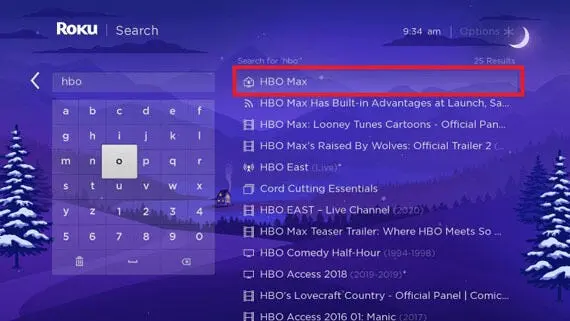
- Search for “Max”: Use the search function to find the Max app, and then select it to begin the installation process.
- Install the Max app: Follow the on-screen instructions to download and install the Max app on your Roku device.
- Sign in to your Max account: Once the app is installed, you’ll be prompted to sign in to your Max account. You can create a new account directly from the app if you don’t have one.
How to subscribe to Max on Roku
There are a few different ways to subscribe to Max on your Roku device:
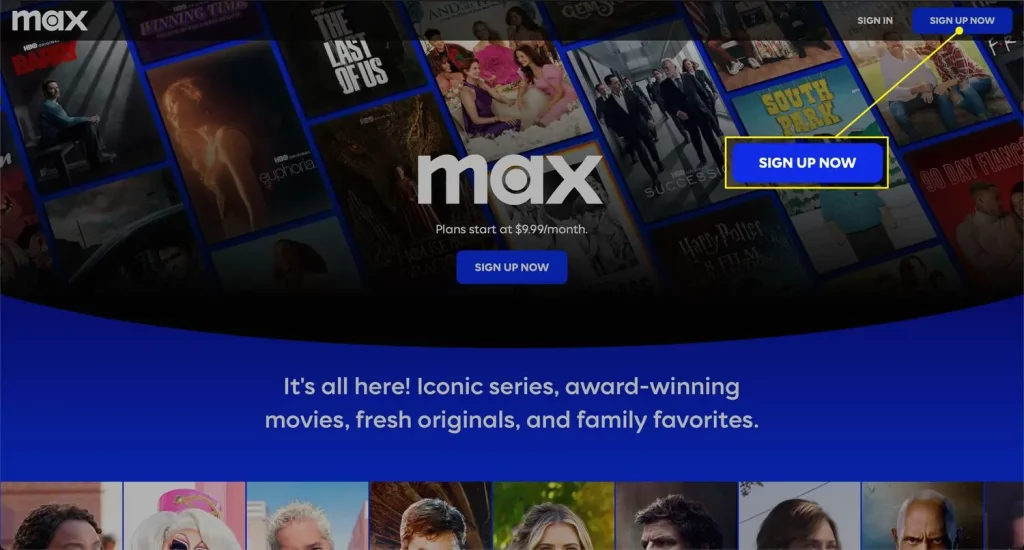
- Subscribe through the Max app: When you first launch the Max app, you’ll be given the option to sign up for a new subscription. Follow the on-screen instructions to complete the process.
- Subscribe through the Roku Channel Store: You can also subscribe to Max directly through the Roku Channel Store. Search for “Max” and select the “Subscribe” option.
- Subscribe through the Max website: If you prefer, you can visit the Max website on your computer or mobile device and sign up for a subscription. Once you’ve completed the process, you can log in to the Max app on your Roku device.
Navigating the Max app on Roku
The Max app on Roku is designed to be intuitive and user-friendly. Here’s a quick overview of the main features and navigation:
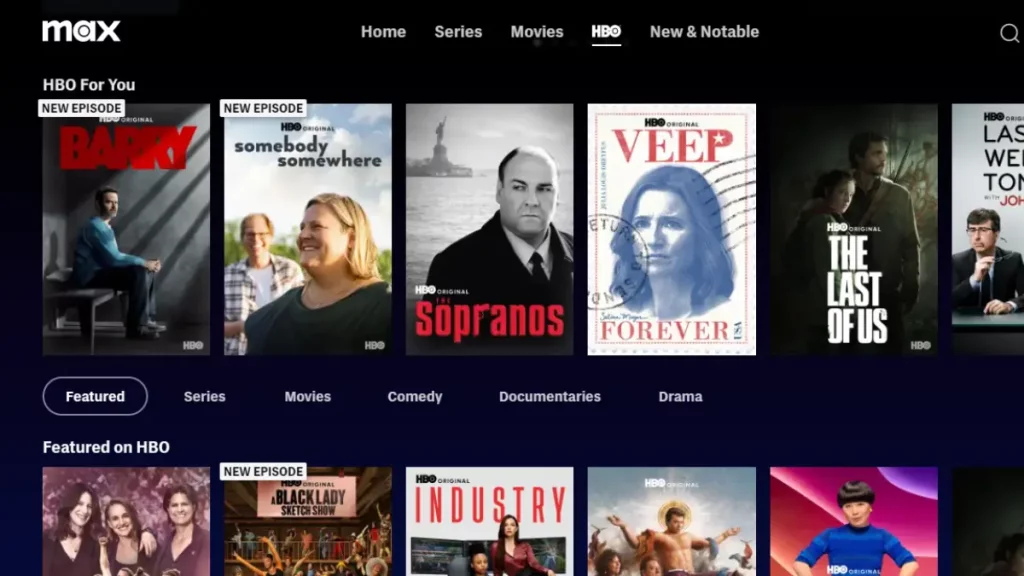
- Home Screen: The home screen of the Max app provides quick access to featured content, personalized recommendations, and the ability to browse by genre or category.
- Search: The search function lets you quickly find specific titles, actors, or genres within the Max library.
- My Stuff: This section allows you to access your watchlist, continue watching, and see your previously purchased content.
- Downloads: If you have a Max subscription that includes offline viewing, you can download content to watch later in this section.
Tips and tricks for watching Max on Roku
To help you get the most out of your Max experience on Roku, here are some valuable tips and tricks:
- Customize your profile: Take the time to set up your profile and preferences within the Max app. This will help the platform provide more accurate recommendations and personalized content.
- Utilize the Max Hubs: Max offers several “Hubs” that group content by genre, theme, or franchise. Explore these Hubs to discover new shows and movies you might not have found otherwise.
- Enable parental controls: If you have children in your household, enable the parental controls within the Max app to ensure age-appropriate content.
- Check for updates: Regularly check for app updates to ensure you’re using the latest version of Max on your Roku device, which may include new features or bug fixes.
Also Read: How to Use Microsoft Office on Chromebook
Frequently Asked Questions
Q: Do I need a separate subscription to access Max on my Roku device?
A: Yes, you must subscribe to the Maxhe service on your Roku device. Sign up for a Max subscription through the Roku Channel Store or the Max website.
Q: Can I download content from Max to watch offline on my Roku device?
A: Yes, certain Max subscriptions include the ability to download content for offline viewing. Look for the “Downloads” section within the Max app on your Roku device to access this feature.
Q: Can I cast Max content from my mobile device to my Roku?
A: Max does not offer a casting feature to connect your mobile device to your Roku. You’ll need to access Max directly through the Roku app.
Q: How do I troubleshoot if I’m having issues with the Max app on my Roku device?
A: If you’re experiencing any problems with the Max app, try restarting your Roku device or the Max app. You can also check the Roku support website for troubleshooting tips or contact Max customer support for further assistance.
Conclusion
In conclusion, accessing Max on your Roku device is a straightforward process that can unlock a world of entertainment. Following the steps outlined in this guide, you can set up Max, subscribe to the service, and easily navigate the app. Remember to take advantage of the tips and tricks to maximize your Max experience on Roku. Happy streaming!
Ready to start streaming the best movies, TV shows, and original content from Max on your Roku device? Click here to sign up for a Max subscription and get started today!