How to Cancel DashPass: 4 Simple Ways to End Your Subscription
Services such as DashPass make life easy for people who order food delivery frequently. Although this might be a convenient service, knowing how to cancel DashPass is still very important. Perhaps you are moving to another location, changing your eating behavior, or no longer finding the helpful service helpful; whatever the case, canceling DashPass is relatively easy—though it’s essential to follow the correct steps to avoid extraneous charges.
This post will examine four easy ways to cancel DashPass. We will also discuss related issues, like subscription traps, and offer honest advice on how to avoid them. By the end of this article, you will have a crystal-clear idea of how to cancel DashPass effectively and manage your account according to your preference.
Table of Contents
Solution: How to Cancel DashPass – Step-by-Step Methods
Since we’ve established why you might want to cancel DashPass, let us look into different ways of accomplishing that. The good thing is that there are various ways to do this; thus, you can cancel DashPass whichever way you prefer.
Method 1 – How to Cancel DashPass Online
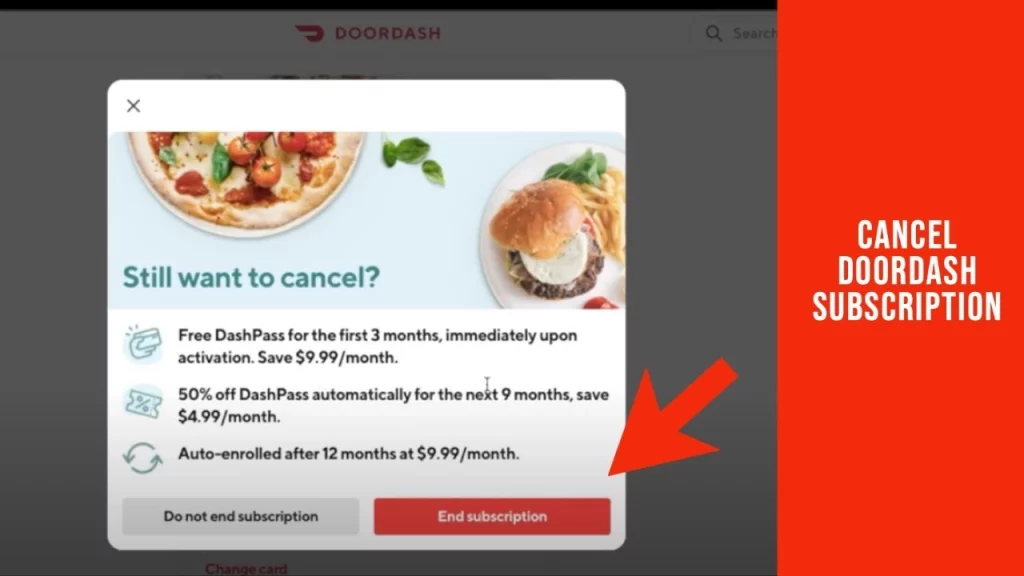
Canceling online is an easy process with DashPass, particularly for those preferring to work from a desktop or laptop. You may do it in these ways:
- Log in to DoorDash: Visit DoorDash’s official website and log into your account.
- Access Menu: Click on the hamburger menu (three horizontal lines) at the top left corner of the page.
- Manage DashPass: Navigate to the “Manage DashPass” section.
- Cancel Membership: Select “Cancel Membership” and follow the prompts to complete the cancellation process.
Note that if you cancel, you’ll continue to get DashPass benefits until the end of the current billing period. However, the perks will end immediately if you’re ending a free trial.
Method 2 – How to Cancel DashPass Through the App
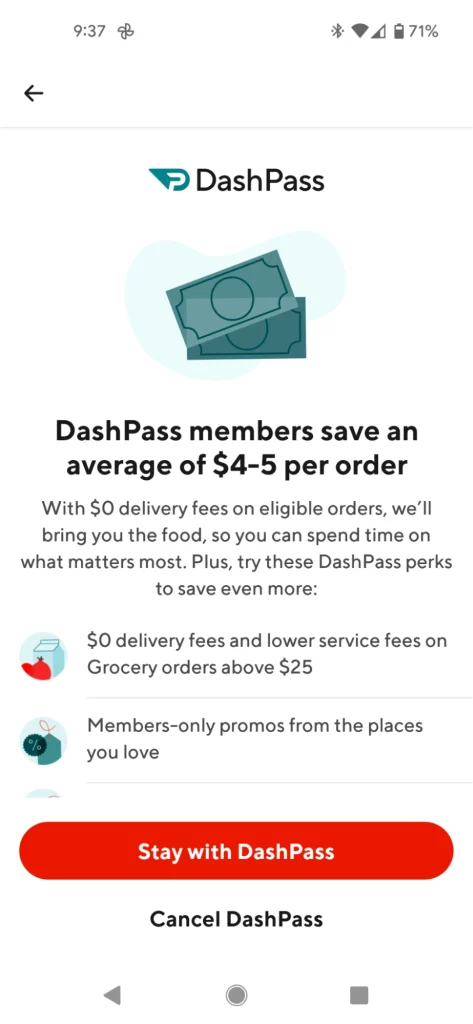
You can cancel your DashPass subscription directly from the DoorDash mobile app if you are more comfortable doing so. The application is ready for use on Android and iOS devices. Follow these steps:
- Open the DoorDash App: Launch the app on your device.
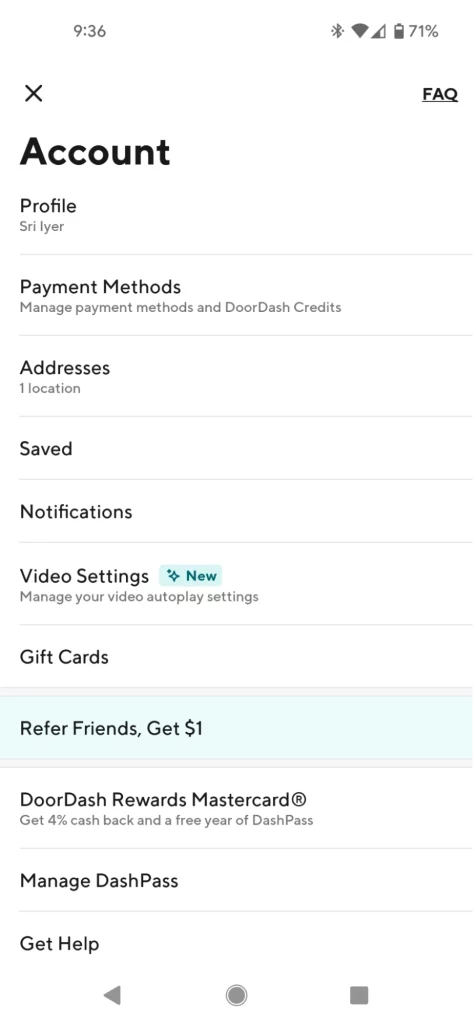
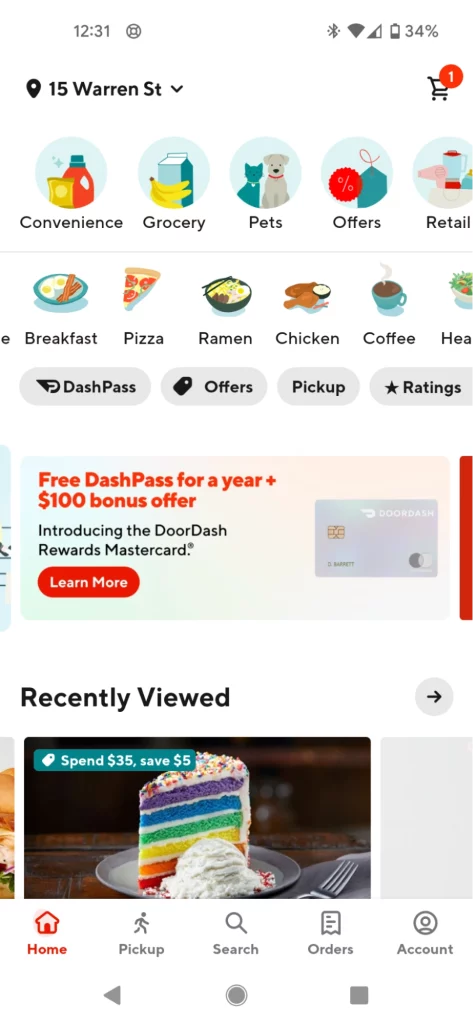
- Go to Account Settings: Tap the “Account” icon, typically found in the bottom right corner.
- Manage DashPass: Select the “Manage DashPass” option from the menu.
- End Subscription: Choose “End Subscription” or “Cancel Membership.”
- Select a Cancellation Reason: Pick a reason for canceling your subscription.
- Confirm Cancellation: Confirm by tapping “End Subscription” or “Cancel Membership” again.
Pro Tip: Some users have reported that canceling through the app is complex. If that doesn’t work out for you, use the website method or call them directly to customer service.
Method 3 – How to Cancel DashPass Over the Phone
For those who like the more direct method of communication, you can cancel DashPass over the phone. Here’s how to do that:
- Call DoorDash Customer Service: Dial (855) 973-1040 to reach DoorDash’s customer support line.
- Request Cancellation: Ask to speak with a representative and request to cancel your DashPass subscription.
- Confirm Details: Provide the necessary account details and confirm your cancellation.
Note: The following will ensure that a representative cancels on your behalf but ask for a confirmation email to verify the cancellation.
Method 4 – How to Cancel DashPass via Email
You have previously told us how to cancel your DashPass subscription by mail if the website, app, and phone are sources you’d instead not resort to. Here’s how:
- Write an Email: Compose an email requesting the cancellation of your DashPass subscription.
- Include Account Details: Provide all necessary account information to confirm your identity (e.g., email address, phone number, account name).
- Send the Email: Send your cancellation request to [email protected].
Pro Tip: This method may take a little longer than the others since it involves email communication, and sometimes delays can occur. If there is no answer, follow up within a few days.
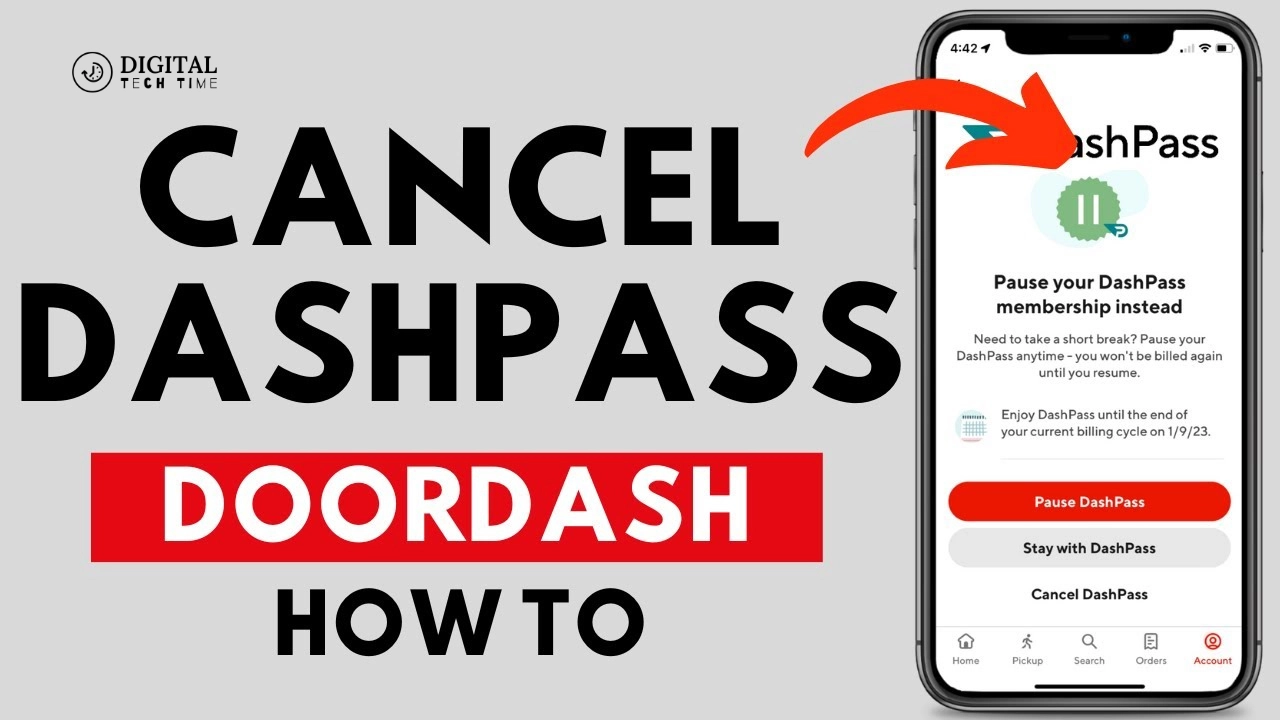
How to Pause DashPass Instead of Canceling
Sometimes, you may want to cancel your DashPass membership only partially and put it on hold. That can become handy if you return to using DoorDash after a little break. Here’s how you can pause the DashPass:
- Log in to Your Account: Open the DoorDash app or visit the website and log in.
- Manage DashPass: Navigate to the “Manage DashPass” section.
- Pause Membership: Select the “Pause Membership” option.
- Confirm Your Choice: Confirm by clicking on “Pause DashPass” in the pop-up window.
Note: If you choose to pause, we will keep your subscription settings and benefits in your account and reactivate your account once you decide to join us.
Frequently Asked Questions (FAQs)
What if I cancel DashPass after paying for the month?
If you cancel after being charged for your current month, you can keep using your benefits until the end of that billing period; then, your subscription will end, and no further charges will be applied.
When do changes take effect?
The cancellation will take effect immediately. However, if you encounter any problems, like surprise charges, you should contact customer support to confirm.
Will canceling DashPass remove my credit card information from DoorDash?
No. Your DashPass cancellation won’t remove your credit card details. If you wish to delete them, you would need to do so from your account by visiting the payment settings and manually removing the credit card details.
Can I cancel my DashPass subscription before it ends, and will I receive a refund?
DashPass does not regularly provide a cancellation option. However, you get to continue enjoying the benefits until the end of the billing period.
What happens if I move to a place where very few restaurants are open to DashPass customers?
When you move anywhere across the United States, you will find that you would hardly need DashPass benefits due to the absence of DashPass-friendly restaurants. It means you’ll cancel that subscription at no point.
Read Also: How to Cancel Audible Membership: A Complete Guide
Conclusion
Canceling DashPass doesn’t have to be frustrating. Follow the steps of this guide to quickly terminate your subscription using the method that works best for you—whether that’s online, through the app, over the phone.