How to Install Stardew Valley Mods: Complete Guide for Beginners
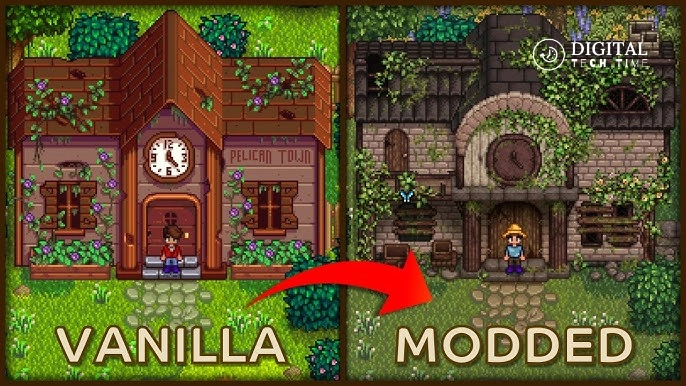
When it comes to modding Stardew Valley, everything from enhancing game mechanics to adding new content is done. This will help to renew freshness in the game. You’d like to tack something small onto your farm or maybe create a new world with new characters and places. Whatever the case may be, knowing how to install Stardew Valley mods is where you begin. This guide will help you through the process of installing mods on different platforms to ensure a smooth and enjoyable modding experience.
Table of Contents
Setting Up for Modding
Before diving into the actual process of installing mods, there are a few prerequisites you need to take care of.
1. Backup Your Game Files
Before you do any modding, make sure that you have a backup of your game files in case something goes wrong and you need to restore the original game.
- Windows/Mac/Linux: Locate your Stardew Valley save files and make a copy of them in a safe location.
- Android: Use a file manager to back up your game files.
2. Install SMAPI (Stardew Modding API)
SMAPI is a modding framework that enables most mods to work in Stardew Valley. It’s about the most essential tool you’re going to use while running mods, and it’s compatible with Windows, Mac, and Linux, as well as Android devices.
- Download SMAPI: Visit the official SMAPI website and download the latest version.
- Installation: Follow the instructions provided by the installer. For Windows, run the
install on Windows.batfile. For Mac, use theinstall on macOS.commandfile, and for Linux, run theinstall on Linux.shfile.
3. Locate Your Game Folder
First of all, mod installation requires one to know the location of your Stardew Valley game files. The guide below explains quickly how to find the game folder on different platforms:
- Windows (Steam):
C:\Program Files (x86)\Steam\steamapps\common\Stardew Valley - Mac:
~/Library/Application Support/Steam/SteamApps/common/Stardew Valley/Contents/MacOS - Linux:
~/.local/share/Steam/steamapps/common/Stardew Valley - Android:
/storage/emulated/0/StardewValley/Mods
How to Install Stardew Valley Mods on Different Platforms
Installing Mods on Windows
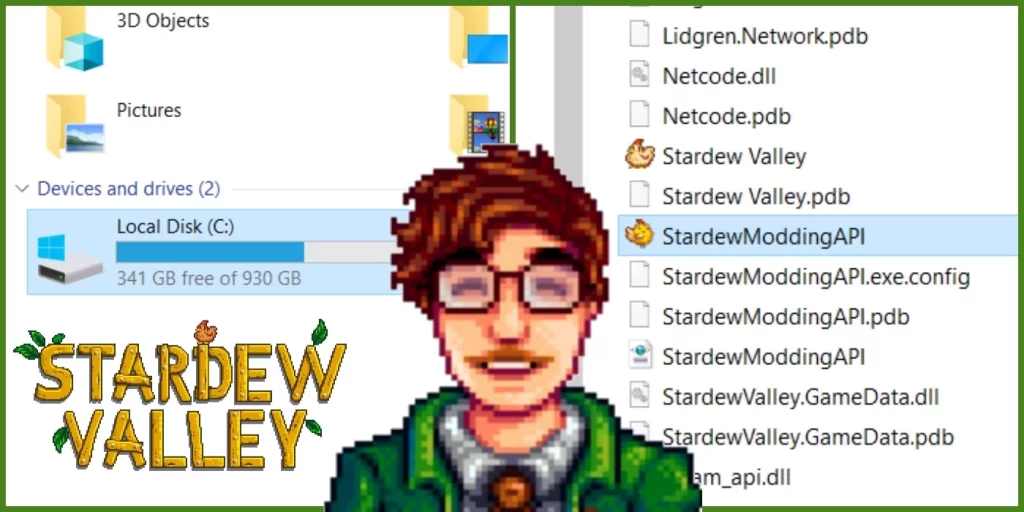
- Download the Mod: Head over to trusted sites like Nexus Mods or ModDrop and download the mod you want.
- Unzip the Mod: Extract the mod file into the
Modsfolder located within your Stardew Valley game directory. - Run the Game: Launch Stardew Valley through the SMAPI launcher to ensure the mod is working correctly.
Installing Mods on Mac
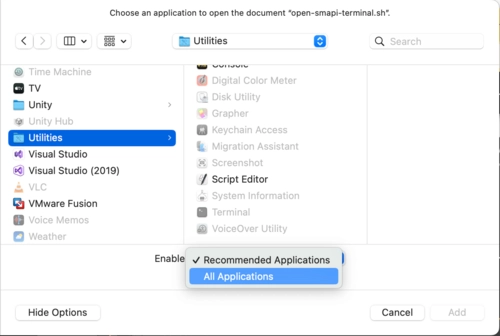
- Download the Mod: As with Windows, download your desired mod from a trusted site.
- Extract the Files: Unzip the mod into the
Modsfolder in your game directory. - Launch the Game: Open Stardew Valley as you usually would, and the modded version should run automatically.
Installing Mods on Linux
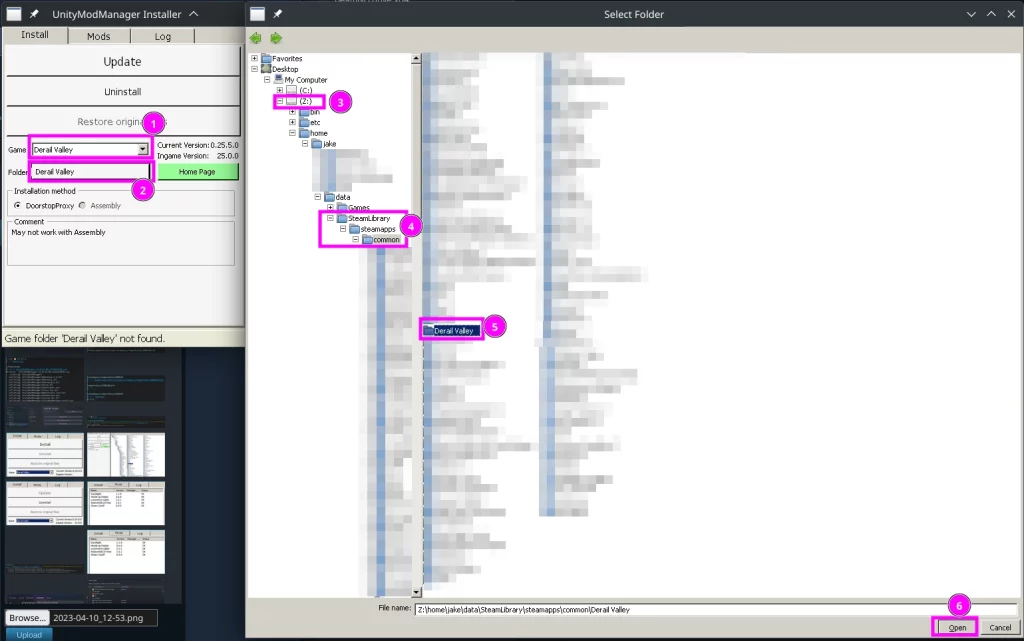
- Install Necessary Prerequisites: Depending on your Linux distribution, you might need to install specific SSLs (e.g.,
sudo apt install libssl1.1for Debian-based systems). - Download and Unzip SMAPI: Download SMAPI and unzip it to your
Downloadsfolder. - Extract Mods: Place your mods in the
Modsfolder within your game directory. - Launch the Game: Start Stardew Valley through the SMAPI launcher.
Installing Mods on Android
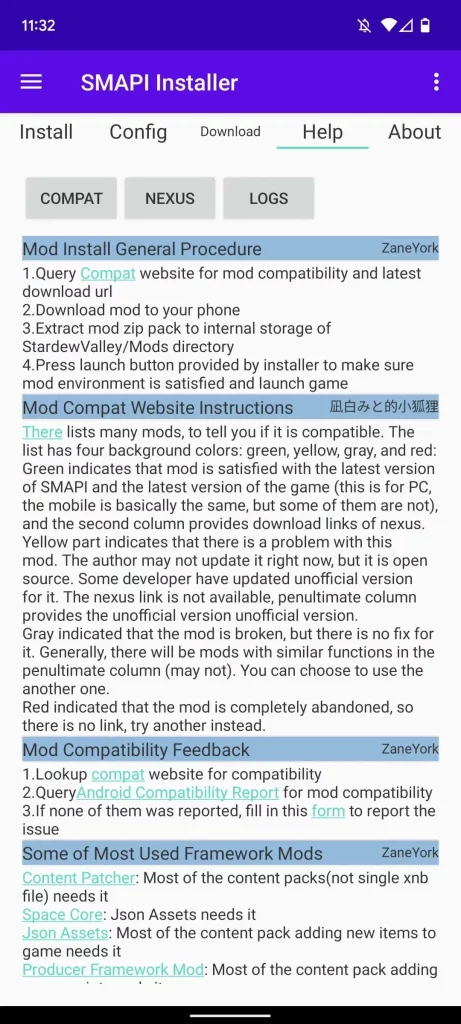
- Prepare the Game: Install Stardew Valley from the Google Play Store and run it once before modding.
- Download SMAPI APK: Use the SMAPI installer to get the APK and install it on your device.
- Install Mods: Download mods from trusted sources and place them in the
/Modsfolder. - Run the Game: Always use the SMAPI launcher to start the game with mods enabled.
Common Issues and Troubleshooting
Even with careful installation, you might encounter some issues. Here are some common problems and how to solve them.
1. Game Folder Not Located
If the installer can’t detect your game folder on its own, then manually locate your game folder using the paths mentioned earlier. If you have changed the location of the game, ensure that SMAPI does know where to find it.
2. Mods Not Loading
- Check Mod Dependencies: Some mods require other mods to function correctly. Make sure all necessary files are installed.
- Outdated Mods: If a mod hasn’t been updated for the latest version of Stardew Valley, it might not work. Always download the latest versions.
3. Game Crashes
If your game crashes after having installed a mod, delete the mod and rerun the game. Make sure that the mod is compatible with the version of your game and that no file is missing.
Frequently Asked Questions
Q: Can I safely install mods on Stardew Valley?
Yes, it is safe, assuming one downloads extended mods from trusted sources like Nexus Mods or ModDrop. One should also read descriptions and reviews before downloading mods.
Q: Does modding Stardew Valley affect achievements?
No, you would still get achievements, though to keep everything running, you will need to run the game with SMAPI.
Q: Can I install mods in the mobile version of Stardew Valley?
Modding Stardew Valley is possible on Android, but it is slightly more complicated than on a PC. You can follow the specific instructions for Android if you wish to do so.
Q: What should I do if a mod breaks my game?
If there are modding issues, delete the .mod file from the Mods folder and see if you can rerun the game. Always back up game files before installing new mods to avoid losing campaigns/levels’ progress.
Q: How do I uninstall mods?
Delete the folder of a mod from the Mods directory. Done. Your mod is now uninstalled from your game.
Related Post: 30 Best Idle Clicker Games for iOS and Android
Conclusion
Installing mods to Stardew Valley can enrich your experience with the game by giving you new challenges, customization options, and content. With this guide, you will be well on your way toward installing and managing mods on any platform. Make sure you back up your files, download from trusted sources, and enjoy the never-ending possibilities brought into Stardew Valley by modding.
Want to change the game mechanics, add some new content, or enhance the beauty of your farm? Only a few clicks stand in your way to magic in Stardew Valley mods. Happy farming!
This blog post covers all significant steps and considerations for installing Stardew Valley mods on various platforms. Please feel free to edit any sections or add more information as necessary!