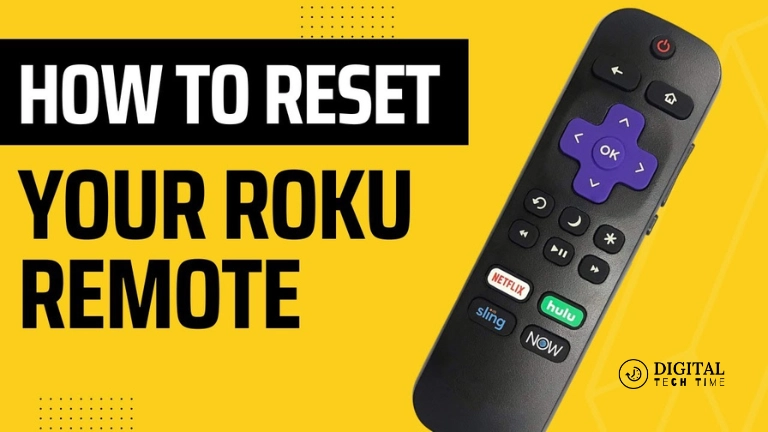
How to Reset Your Roku Remote: Troubleshooting Guide
Roku devices are designed to turn any TV into a smart one by quickly giving them access to thousands of various streaming choices. However, when your Roku remote goes out of order, it might wrench your viewing. From an unresponsive remote to wanting to re-pair it, knowing how to reset your Roku remote can save you both time and frustration. It will help you reset different Roku remote controls, troubleshoot some common problems, and get the streaming device back to work.
Table of Contents
Types of Roku Remotes
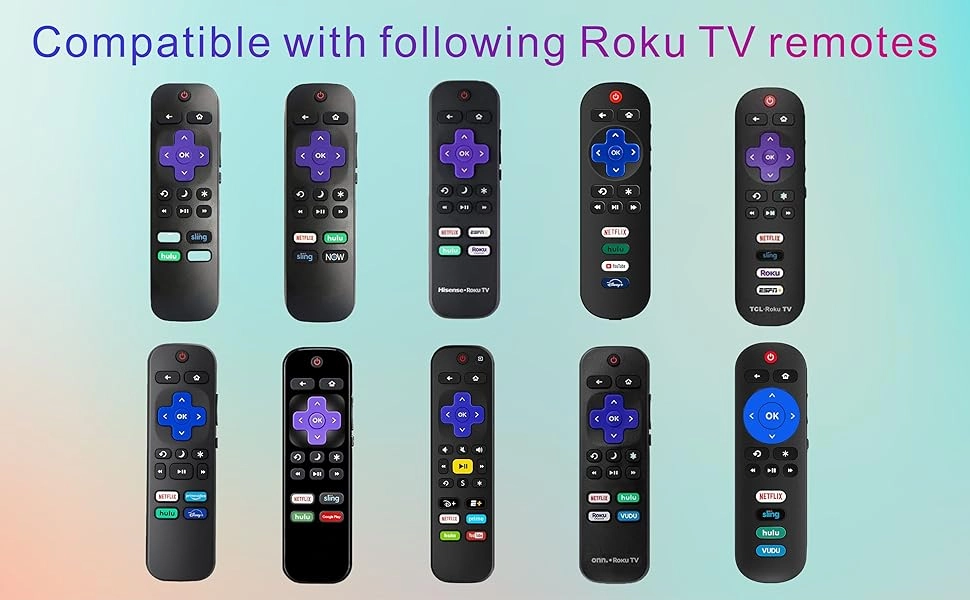
But before going into the reset instructions proper, let us familiarize ourselves with the two types of Roku remotes:
Simple Remote: This bare-bones remote control works using infrared light to control your Roku. This remote requires line-of-sight to operate and has no reset function. Therefore, most problems are easily remedied by merely putting in new batteries or actually performing a reset on the Roku itself.
Voice Remote: This is included on higher-end models. It uses Wi-Fi to communicate with your Roku device to support voice commands and eliminates the need for direct line of sight. This should be reset if this advanced remote fails to work.
How to Reset Your Roku Simple Remote
Check for Infrared Light
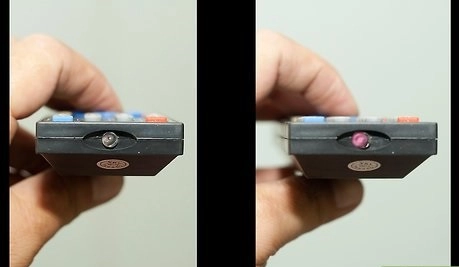
A simple Roku remote relies on infrared light to send signals to your Roku device. If the remote isn’t working, one fast way to test whether the infrared light from the remote control is working is with your smartphone’s camera:
- Step 1: Open your smartphone’s camera app.
- Step 2: Point the remote at the camera.
- Step 3: Press any button on the remote. If the infrared light is working, you should see a faint light on your phone’s screen. If not, the remote may be malfunctioning.
Replace the Batteries
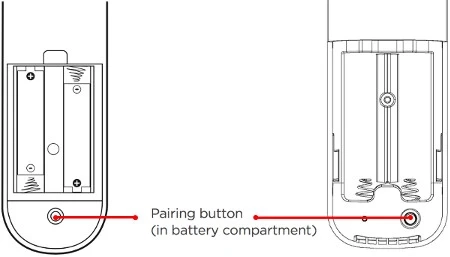
If the infrared light is working but the remote still isn’t responsive, the problem may lie with the batteries. Follow these steps:
- Step 1: Remove the batteries from the remote.
- Step 2: Wait for a few seconds, then reinsert the batteries.
- Step 3: If the remote still doesn’t work, replace the old batteries with new ones.
Reset the Roku Device
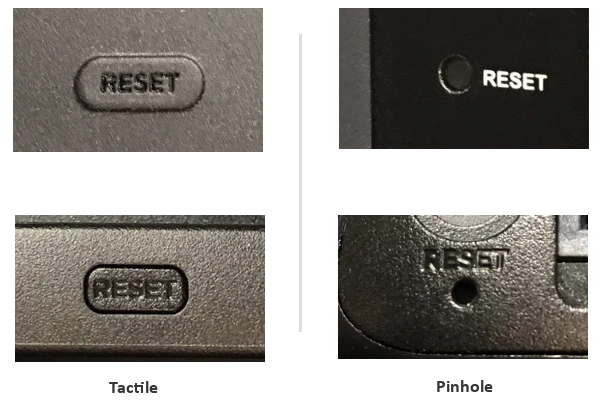
If replacing the batteries doesn’t work, you may need to reset your Roku device itself:
- Step 1: Locate the reset button on your Roku device. This is usually found on the back or bottom of the device.
- Step 2: Press and hold the reset button for about 10 seconds.
- Step 3: Release the button when the device restarts, and check if the remote is now functioning.
How to Reset Your Roku Voice Remote
Step 1: Unplug Your Roku Device
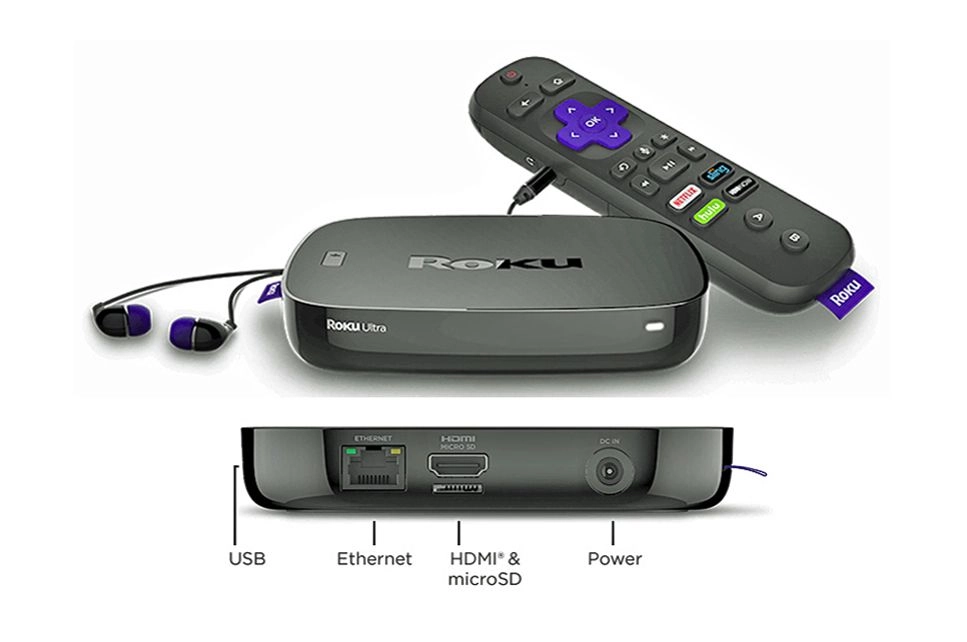
Reset your non-responsive Roku voice remote by unplugging your device from its power source. It will ensure a clean reboot and might help solve connectivity issues between your device and the remote.
Step 2: Remove the Batteries
Now, take out the batteries from your Roku voice remote. This step is of paramount importance since it helps you to allow the remote to shut down entirely before you reset it.
Step 3: Wait for 5 Seconds
After removing the batteries, allow it to stay off for at least 5 seconds. This will help the remote drain residual power.
Step 4: Plug Your Roku Device Back In
Plug your Roku player again into the power source upon expiration of the hold time. It would help if you waited until the Roku logo appeared on your screen, which means it’s ready.
Step 5: Re-insert the Batteries
Now, insert the batteries again in your Roku voice remote. Notice that they are correctly aligned with the plus and minus terminals.
Step 6: Press and Hold the Pairing Button
Finally, locate the pairing button on your Roku voice remote. Depending on the model, this may be inside the battery compartment or on the remote’s back. Press and hold down the pairing button for about 5 seconds or until the pairing light begins to blink.
Step 7: Complete the Pairing Process
This should only take 30 seconds at most. When it is done, it will show on your TV screen that your remote is now paired with your Roku device.
Additional Troubleshooting Steps
If resetting your Roku remote doesn’t resolve the issue, there are a few additional steps you can take:
Wi-Fi Connectivity Issues
If you have a voice remote, remember that it connects to your Roku device via Wi-Fi. First of all, ensure that your Wi-Fi network is working and your Roku is connected.
Use the Roku Mobile App
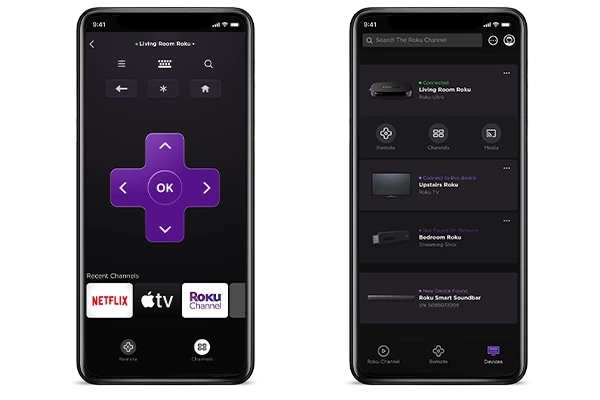
If your remote is still nonresponsive after these steps, you can use the Roku mobile app as a virtual remote. This application is available for iOS and Android and works temporarily, just like a real remote, until your remote is working again.
Factory Reset Your Roku Device
If all else fails, then factory reset your Roku device; it resets all settings back to default and deletes all personal settings.
- Step 1: Press the Home button on your Roku remote.
- Step 2: Navigate to Settings > System > Advanced system settings.
- Step 3: Select Factory reset and follow the on-screen instructions.
Related Post: How to Sync Roku Remote Without Pairing Button
Frequently Asked Questions
Q: How often am I supposed to reset my Roku remote?
You do not need to reset your Roku remote at any given frequency. You only reset it when you have problems—either it is unresponsive or otherwise malfunctioning.
Q: Can I reset my Roku remote without removing its batteries?
No, taking the batteries out is an inherent part of the reset of the Roku remote. This ensures that the remote is entirely shut off before the reset is underway.
Q: I reset my Roku remote, but it still doesn’t work; what do I do now?
If this does not work, you can use the Roku Mobile App as a temporary remote. You may also need to troubleshoot the Wi-Fi connection or even replace your remote.
Q: Will resetting my Roku remote delete any settings?
No, resetting your Roku remote will not erase any settings on the device. You will, however, lose all settings when you reset the factory settings of the Roku device.
Q: How on earth would I know when my Roku remote needed new batteries?
If your Roku remote isn’t responding, or if the pairing light doesn’t flash when a reset is done, it assures you that the batteries need changing.
Conclusion
Knowing how to reset a Roku remote saves one from unnecessary frustrations, ensuring you can get back to your favorite streaming without any hassle. This guide will walk you through troubleshooting common issues with your remote and get it working again, whether you have the primary or voice remote. If everything else fails, then remember that the Roku mobile app is always good as a backup while you figure out the problem. It will ensure long-term flawless streaming if you properly take care of your remote and device.
This is a detailed blog post containing everything necessary to guide you through the process of resetting your Roku remote. Feel free to edit any subpoints in the sections or add more where you find the need!