How to Recall an Email in Outlook: Simple Way
As a regular user of e-mails, I know how important it is to be able to recall an e-mail in Outlook. You may have experience with accidentally sending the message to the wrong recipient, realizing your mistake in e-mail content, or having changed your mind. At these moments, the e-mail recall feature can help a person out of an embarrassing situation. I am going to take you through how to recall an email in Outlook in this step-by-step guide, leaving you with many tips and insights so you can sail through it with ease.
Table of Contents
Understanding the Limitations of Email Recall in Outlook
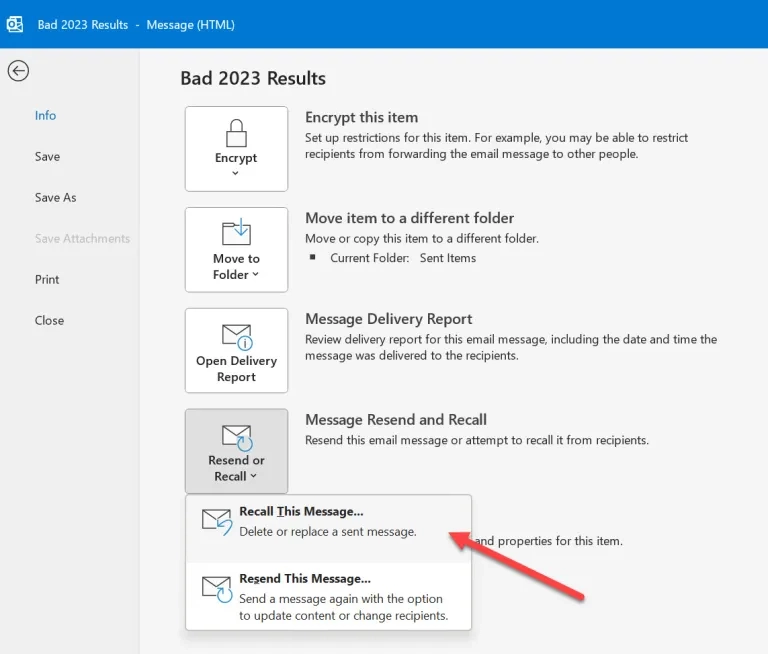
While it sounds powerful, let’s understand the limitations of Outlook regarding its email recall feature.
- Recipient’s Email Client: The recipient must be on Outlook for them to recall effectively. This might not happen if they use some other email program.
- Timing: Email recall is most successful right after the message has reached the recipient’s email address but has not been opened or read. It may fail once it has been read.
- Network Connectivity: Recall needs decent network connectivity to the internet on both the sender’s and the recipient’s side. If any of these two sides are offline or have issues with network connectivity, this may fail.
- Email Forwarding: If the recipient forwarded the email to other recipients, then the recall will not come into effect for those additional recipients.
- Delayed Delivery: Sometimes, an email is delayed in delivery, and by that time, the recipient might have already read it before the recall was processed.
These will help you set your expectations right and give you a better chance of successfully recalling an email in Outlook.
Step-by-Step Guide on How to Recall an Email in Outlook
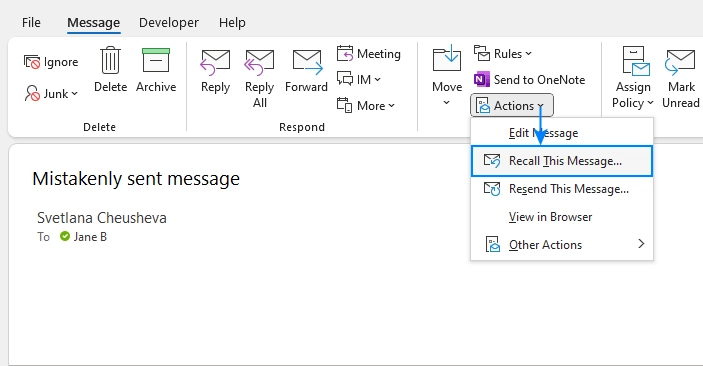
The process of recalling an email in Outlook is quite straightforward. Yet, it would help if you acted very quickly to get to it before the recipient reads the content. Here is how to recall an email.
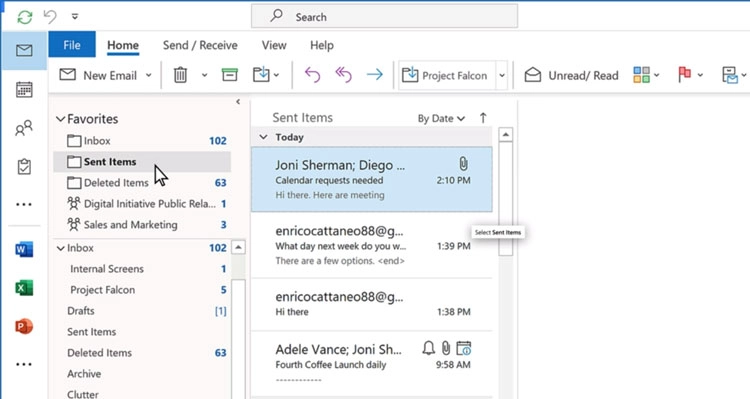
- Open Outlook and go to the “Sent Items” folder: The folder that you will be working in is called the “Sent Items” folder, where you will have to look for the email that you want to recall.
- Right Click -> Recall This Message: Once you right-click on that email, the “Recall This Message” dialogue box will open.
- Choose your recall option: You have two choices, namely “Delete unread copies of this message” or “Delete unread copies and replace with a new message”. The latter gives you the chance to send a revised edition of the email.
- Click “OK”: This is where Outlook tries to recall the message. If the recall is effective, then the recipient will be notified of the email being retrieved.
The success of this process rests on factors like the recipient’s client emails and the timing of the recall.
How to Recall an Email in Outlook Online
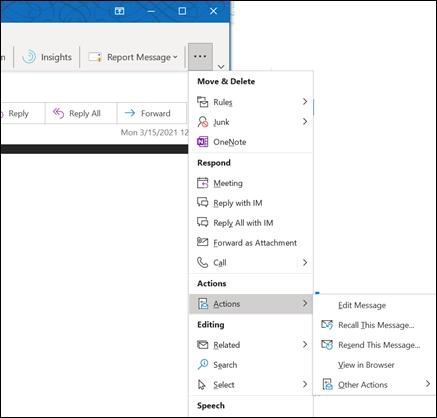
While the email recall feature is one for the desktop application of Outlook, there’s still a way to perform an email recall in Outlook Online. Here is the procedure:
- Open Outlook Online and go into the “Sent” folder: Locate the email you want to recall.
- Click the email and hit “Recall this message”: This can be found under the menu “More actions.”.
- Choose Your Recall Option: As with the desktop version, you have the option of moving the unread copies or replacing the message with a new one.
- Click “Recall”: This will attempt to recall the message in Outlook Online.
Recalling messages in Outlook Online will not work nearly as often and as well compared with the desktop client since that depends on the recipient’s email client and the network connectivity.
Alternatives to Email Recall in Outlook
As handy as the Outlook e-mail recall is, it doesn’t always apply in every situation, and sometimes it’s not successful. In this case, here are some other choices you have:
- Undo Send: The “Undo Send” feature in Outlook allows you to cancel the delivery of an email up to 10 seconds after it has already been sent. It would be quicker and more reliable compared to the whole recall process itself.
- Email Tracking: Use email tracking services like Boomerang or Streak to let you know if and when your emails have been read. Sometimes, this will catch when a message has been opened, providing you with an opportunity to act accordingly.
- Email Expiration: A few of the email services, such as Outlook.com, allow setting an expiration date for an email. That might be useful for those very sensitive or time-sensitive messages where you’d want assurance that after a certain period, the message is no longer accessible.
- Secure E-mail Services: You can opt for secure e-mail services like ProtonMail and Tutanota, among others, offering enhanced capabilities related to end-to-end encryption and the ability to perform remote deletion of sent messages.
- Writing Offline Email: Type your e-mails offline, then send them at your convenience, thus minimizing the chances of sending incomplete or incorrect mail.
These and other options, if you so want, you can try in the quest for that perfect way your particular needs of email management will be met.
Frequently Asked Questions
Q: What is the time limit for recalling an email in Outlook?
A: In general, the recall function in Outlook only works if the message has not been opened or read by the receiver. The quicker you undertake the process, the likelier it will be successful.
Q: I forwarded an e-mail to others; can I still recall it?
A: No-if If you forward that e-mail to other additional recipients, the recall will never work because the recall process works with the original recipient.
Q: What if the recipient is not using Outlook?
A: That would fail if he used a third-party email client. The recall feature in Outlook requires that the recipient must use the same email client.
Q: Can an e-mail that the recipient has read be recalled?
A: Once the recipient has already read an e-mail, it becomes much less effective to recall. The Email Recall feature works best when the message has not yet been opened.
Q: How can I tell if the email recall worked?
A: You will receive a message from Outlook stating whether your recall was successful or not. In many instances, you may need to contact the recipient and manually ask them to delete the message.
Conclusion
In this tutorial, the person who has ever been in that position where they wish to recall an email in Outlook is equipped with information on how to go about it. Speed and understanding of the feature limitations are very important variables when recalling emails. By following these tips and practices, you will cut down on instances where you would need to recall an email, and you will also keep professional communications. If you still have any other questions or need further assistance, feel free to contact our team of experts in email management.
Read Also: How to Share Disney Plus on Zoom