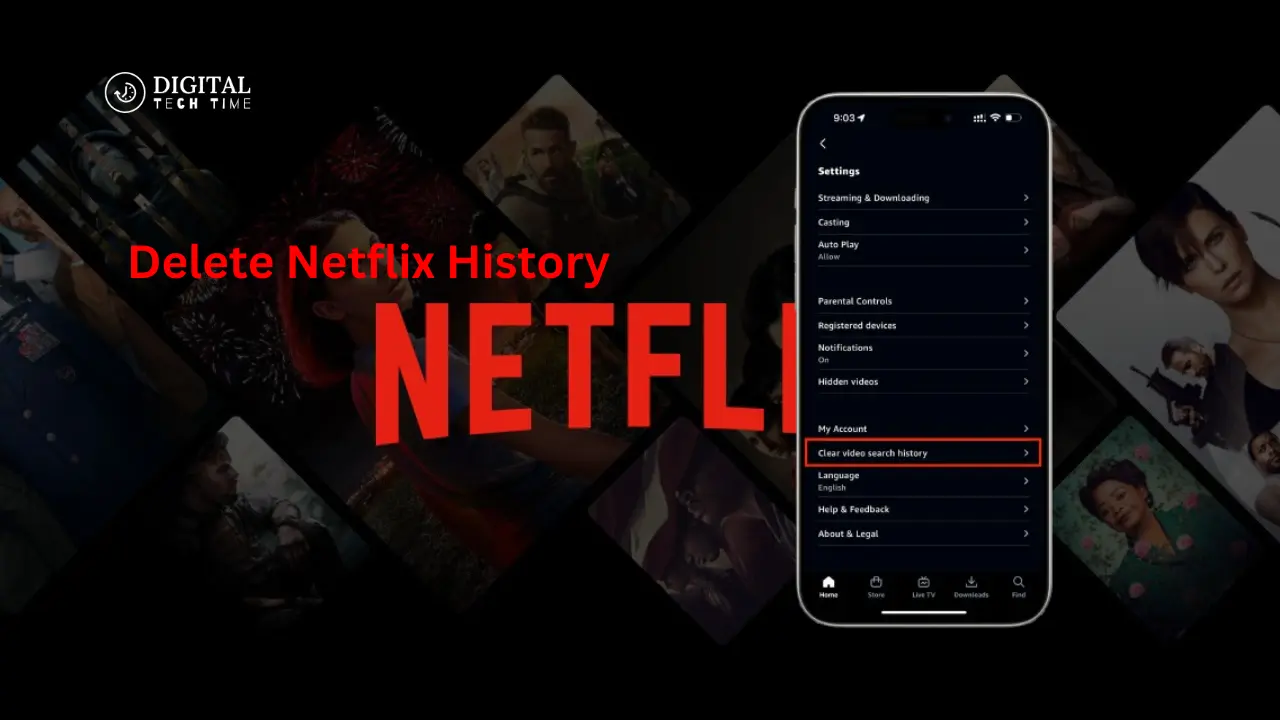
Clear Your Streaming Slate: How to Delete Netflix History
As avid Netflix users, we’ve all been there – scrolling through our viewing history, cringing at the embarrassing titles that linger, reminding us of our questionable binge-watching choices. Whether it’s a guilty pleasure rom-com or a reality show you’d rather keep under wraps, sometimes we need a fresh start. In this comprehensive guide, I’ll walk you through deleting your Netflix history across various devices, ensuring your streaming slate is wiped clean and ready for new adventures.
Maintaining privacy and control over our digital footprint is paramount in today’s connected world. By learning to delete Netflix history, you’ll regain the freedom to explore new content without the weight of past indiscretions haunting your recommendations. So, let’s dive in and reclaim your streaming sovereignty!
Table of Contents
Delete your Netflix History on Different Devices
Netflix’s user-friendly interface allows you to access your account from multiple devices, including computers, smartphones, tablets, and smart TVs. However, this convenience also means your viewing history is synced across all platforms. We’ll tackle each device individually to ensure a thorough erasure, leaving no stone unturned.
Delete Netflix History on a Computer
If you primarily stream Netflix on your computer, whether a laptop or desktop, follow these simple steps to bid farewell to your viewing history:
- Open your preferred web browser and navigate to the Netflix website.
- Log in to your account using your credentials.
- Hover your cursor over the profile icon in the screen’s top-right corner.
- From the drop-down menu, select “Account.”
- Under the “Profile & Parental Controls” section, click on the profile you wish to edit.
- Scroll down to the “Viewing Activity” section and click the “View” button.
- Here, you’ll find a comprehensive list of everything you’ve watched on Netflix, organized by date.
- Click the “X” icon next to the respective entry to delete individual titles.
- If you prefer to start with a clean slate, click the “Hide All” button at the top.
- Confirm your decision by clicking “OK” in the pop-up window.
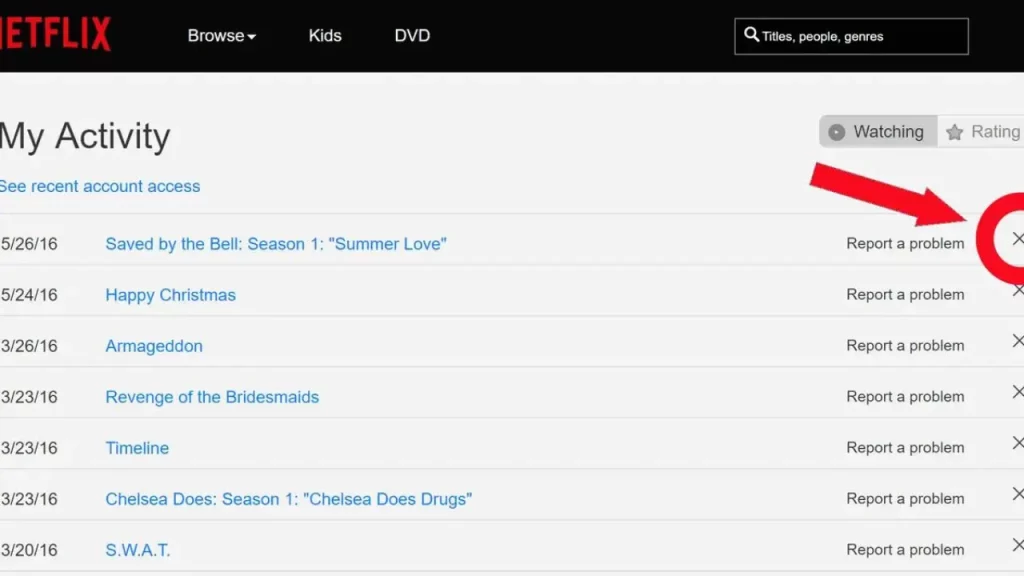
Voilà! Your computer’s Netflix history has been erased, leaving you with a fresh canvas to explore new content without the burden of past choices.
Delete Netflix History on a Mobile Device
For those who prefer the convenience of streaming on their smartphones or tablets, the process of deleting your Netflix history is equally straightforward:
- Open the Netflix app on your mobile device.
- Tap on the profile icon located in the top-right corner of the screen.
- Select “Account” from the menu.
- Under the “Profile & Parental Controls” section, tap on the profile you wish to edit.
- Scroll to the “Viewing Activity” section and tap the “View” button.
- Here, you’ll find a list of everything you’ve watched on Netflix, organized by date.
- Tap the “X” icon next to the respective entry to delete individual titles.
- If you prefer to start fresh, tap the “Hide All” button at the top.
- Confirm your decision by tapping “OK” in the pop-up window.
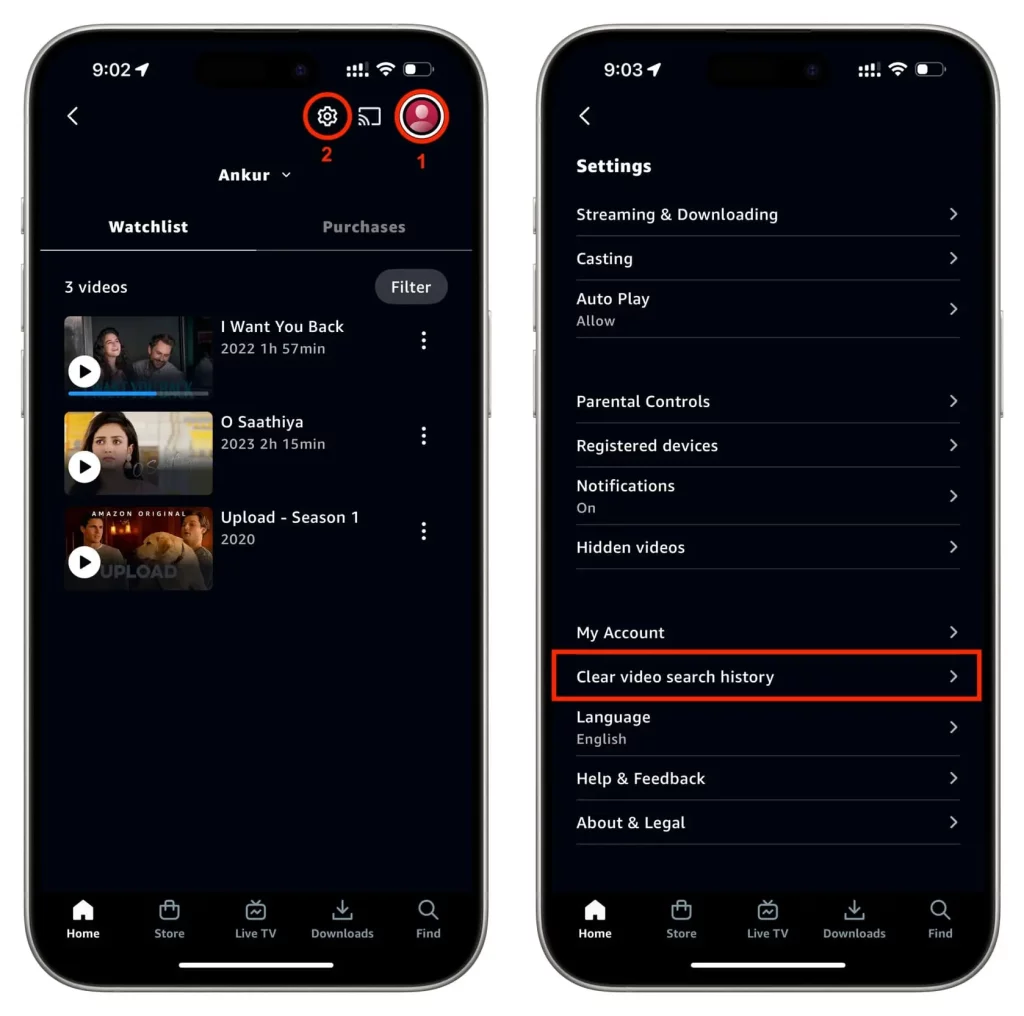
With a few taps, your mobile device’s Netflix history is now spotless, allowing you to explore new content without the weight of past choices weighing you down.
Other Ways to Enhance Your Streaming Privacy
While deleting your Netflix history is a significant first step towards reclaiming your streaming privacy, there are additional measures you can take to protect your digital footprint further:
- Create a separate profile: Netflix allows you to create multiple profiles within a single account. By creating a dedicated profile, you can keep your viewing history separate from other household members, ensuring your privacy and avoiding unwanted recommendations based on someone else’s preferences.
- Use a VPN: A Virtual Private Network (VPN) encrypts your internet connection, making it more difficult for third parties to track your online activities, including your Netflix usage. Using a reputable VPN service can add an extra layer of privacy to your streaming experience.
- Clear browser cache and cookies: Periodically clearing your browser’s cache and cookies can help remove any traces of your Netflix activity that may be stored locally on your computer.
- Be mindful of shared devices: If you frequently use shared devices, such as a family computer or a smart TV in a common area, be cautious about your viewing history being visible to others. Consider logging out of your Netflix account after each use or creating a separate profile to maintain your privacy.
By implementing these additional measures, you can enhance your streaming privacy and enjoy your Netflix experience without worrying about prying eyes or unwanted recommendations.
Also Read: Exploring the FintechZoom Netflix Stock Phenomenon
Frequently Asked Questions
Q: Will deleting my Netflix history remove my “Continue Watching” list?
A: No, deleting your viewing history will not affect your “Continue Watching” list. This separate feature will remain intact, allowing you to pick up where you left off on your favorite shows and movies.
Q: Can I delete specific titles from my history without clearing the entire list?
A: Yes, Netflix allows you to delete individual titles from your viewing history. Locate the entry you wish to remove and click or tap on the “X” icon.
Q: How often should I delete my Netflix history?
A: There is no rule for how frequently you should delete your Netflix history. It ultimately depends on your personal preferences and privacy concerns. Some users choose to clear their history after binge-watching a particular series or genre, while others prefer to do it regularly, such as monthly or quarterly.
Q: Will deleting my Netflix history affect my recommendations?
A: Yes, deleting your viewing history will impact the recommendations Netflix provides you. Since these recommendations are based on your past viewing patterns, removing that data may initially result in less personalized suggestions. However, as you continue to watch new content, Netflix’s algorithms will adapt and provide more relevant recommendations over time.
Q: Can I delete my Netflix history on a smart TV or streaming device?
A: Yes, deleting your Netflix history is similar across various platforms, including smart TVs and streaming devices like Roku or Apple TV. Navigate to your account settings, locate the “Viewing Activity” section, and follow the prompts to clear your history.
Conclusion
Maintaining privacy and control over your digital footprint is essential in today’s connected world. Following the steps outlined in this guide, you can quickly delete your Netflix history across various devices, ensuring your streaming slate is wiped clean and ready for new adventures. Remember, taking proactive measures to protect your privacy enhances your streaming experience and empowers you to explore content without the weight of past choices.
Navigating this step-by-step guide will help you regain control over your Netflix history and ensure a seamless streaming experience tailored to your preferences. Embrace the freedom of a fresh start and confidently embark on new entertainment journeys.