How to Connect a Laptop to a TV and Enjoy Viewing Experience
In today’s digital age, laptops have become our constant companions, allowing us to work, stream content, and stay connected from virtually anywhere. However, sometimes, we crave a larger screen for an immersive viewing experience. Fortunately, Connect a Laptop to a TV is a straightforward process that can transform your entertainment and productivity. In this comprehensive guide, I will walk you through various methods to seamlessly integrate your laptop with your TV, ensuring you never miss a moment of your favorite movies, shows, or presentations.
Table of Contents
Different ways to Connect a Laptop to a TV
Before delving into the specifics, it’s essential to understand that there are multiple ways to connect your laptop and TV. Each method has advantages and requirements, so choosing the right one depends on your device’s capabilities and personal preferences. Let’s explore the most common options:
Connecting via HDMI
The High-Definition Multimedia Interface (HDMI) is the most popular and straightforward method for connecting a laptop to a TV. HDMI cables transmit audio and video signals, ensuring a high-quality, uncompressed experience. Here’s how to connect your computer to a TV using HDMI:
- Locate the HDMI port on your laptop and TV. HDMI ports are typically labeled with the HDMI logo and are distinct from other ports.
- Connect one end of the HDMI cable to your laptop’s port and the other to your TV.
- Turn on your TV and switch the input source to the HDMI channel you connected your laptop to.
- Your laptop’s display should now appear on your TV screen.
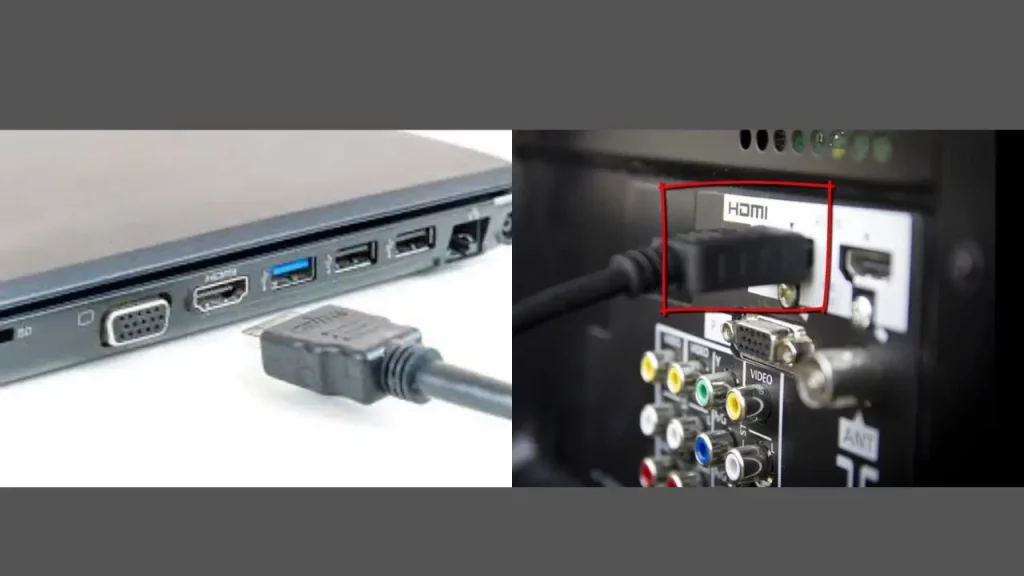
HDMI connections are generally plug-and-play, making them incredibly user-friendly. However, ensure that your laptop and TV have compatible HDMI ports and that your laptop’s graphics card supports the desired resolution.
Connecting via VGA
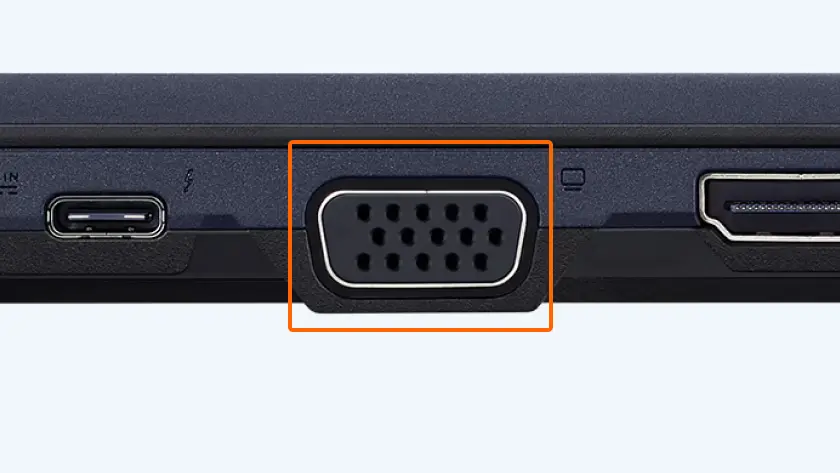
While HDMI is the modern standard, some older laptops and TVs may only have a VGA (Video Graphics Array) port. VGA cables transmit video signals but not audio, so you must connect separate audio cables or use your TV’s built-in speakers. Here’s how to connect your laptop to a TV using VGA:
- Locate the VGA port on your laptop and TV. VGA ports are typically blue or white and have a trapezoid shape with multiple pinholes.
- Connect one end of the VGA cable to your laptop’s VGA port and the other to your TV’s VGA port.
- Connect an audio cable from your laptop’s headphone jack to your TV’s audio input if you want to transmit audio.
- Turn on your TV and switch the input source to the VGA channel you connected your laptop to.
- Your laptop’s display should now appear on your TV screen.
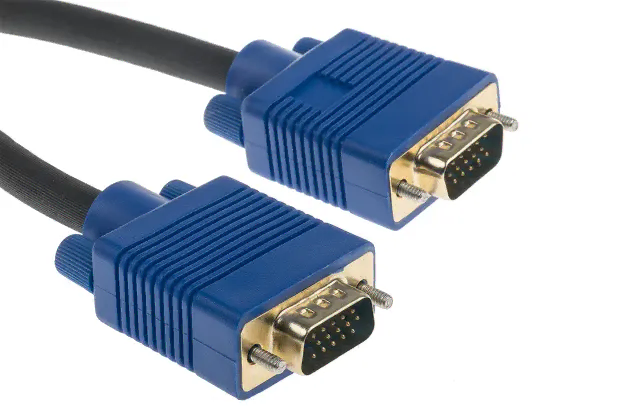
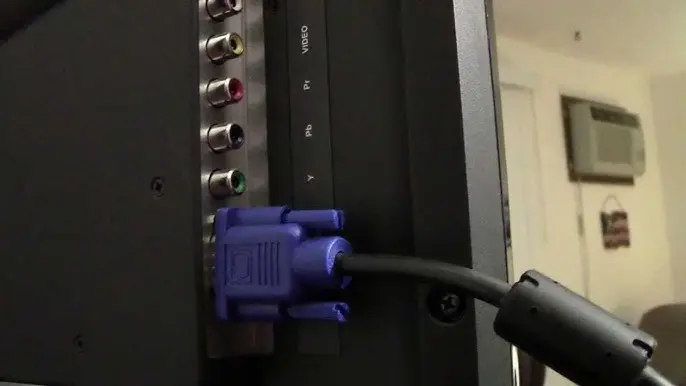
While VGA connections are generally reliable, they may not support the highest resolutions or provide the same video quality as HDMI. Additionally, the separate audio setup can be cumbersome.
Connecting via Chromecast
A wireless connection can be a convenient option if your laptop and TV are compatible with Chromecast. Chromecast is a small device that plugs into your TV’s HDMI port and allows you to stream content from your computer (or other compatible devices) wirelessly. Here’s how to connect your computer to a TV using Chromecast:
- Plug the Chromecast device into your TV’s HDMI port and follow the on-screen setup instructions.
- Open Google Chrome, browse on your laptop and navigate to the Chromecast extension or app.
- Select the “Cast” option and choose your Chromecast device from the list.
- Your laptop’s display should now appear on your TV screen.
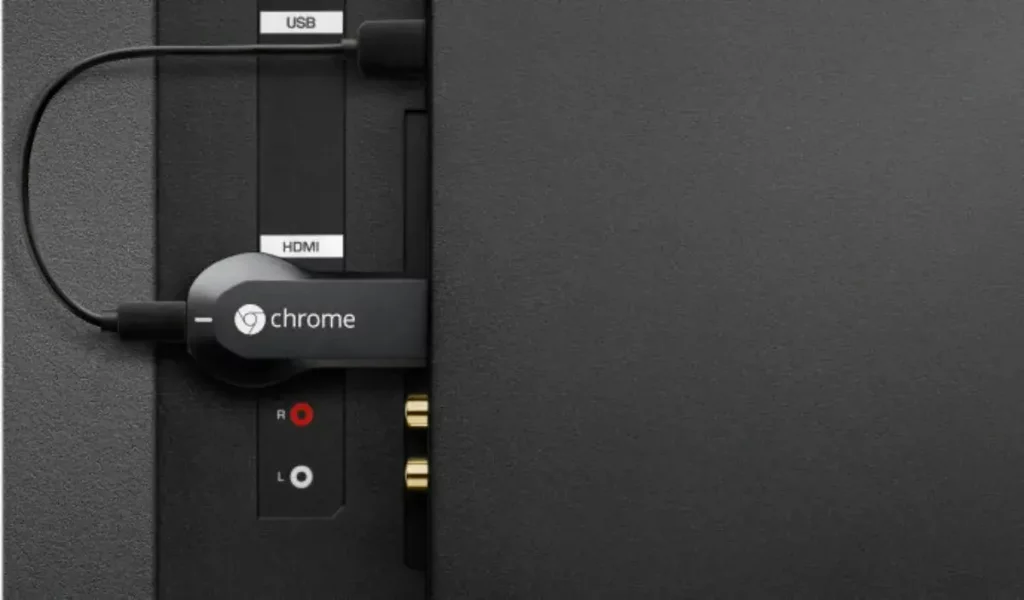
Chromecast offers a seamless wireless experience and supports various apps and services, including Netflix, YouTube, and Google Photos. However, it may introduce some latency or lag, which can be problematic for specific gaming or video editing applications.
Connecting via Apple TV
Connecting your MacBook to an Apple TV can be a convenient solution if you’re an Apple user. Apple TV is a digital media player that allows you to stream content from your Apple devices, including your MacBook. Here’s how to connect your MacBook to a TV using Apple TV:
- Ensure your MacBook and Apple TV are connected to the same Wi-Fi network.
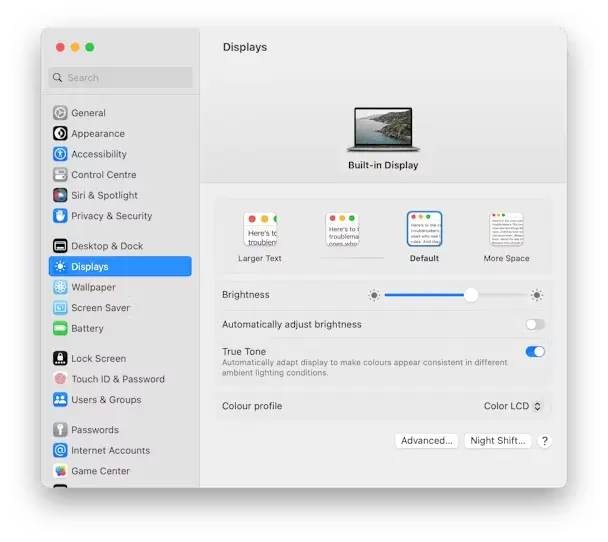
- Open the System Preferences on your MacBook and click the “Displays” option.
- Select the “AirPlay Display” option and choose your Apple TV from the list.
- Your MacBook’s display should now appear on your TV screen.
Apple TV offers a seamless experience within the ecosystem, allowing you to mirror your MacBook’s display or stream content directly from various Apple apps and services. However, investing in the Apple ecosystem may only be the most cost-effective solution.
Connecting via Miracast
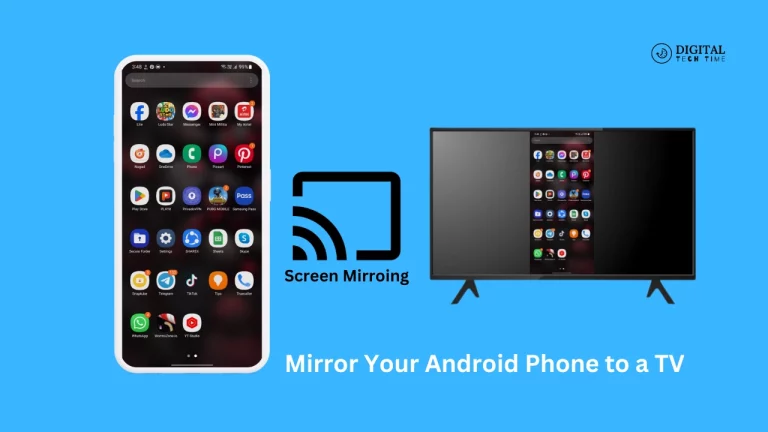
Miracast is a wireless display technology that mirrors your laptop’s screen on a compatible TV or display. Many modern laptops and TVs support Miracast, making it a convenient option for a wireless connection. Here’s how to connect your computer to a TV using Miracast:
- Ensure that both your laptop and TV support Miracast.
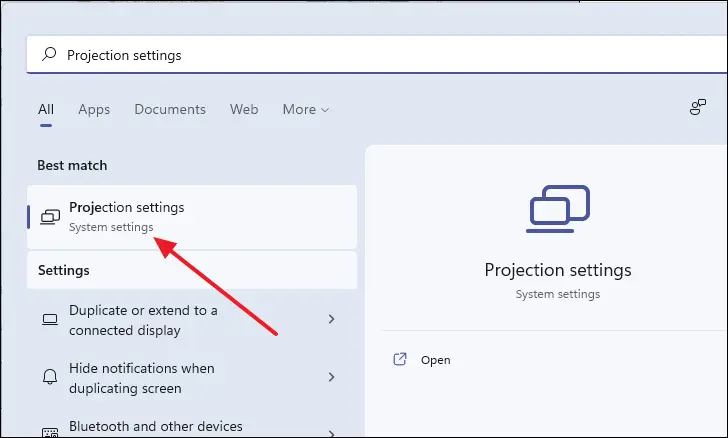
- On your computer, open the “Connect” or “Project” settings and select the option to “Connect to a wireless display.”
- Select your TV from the list of available devices.
- Your laptop’s display should now appear on your TV screen.
Miracast offers a wireless solution without additional hardware like Chromecast or Apple TV. However, it may require specific settings or configurations on both your laptop and TV and the connection quality can vary depending on the strength of your Wi-Fi signal.
Troubleshooting common issues
While connecting a laptop to a TV is generally straightforward, you may encounter some common issues. Here are a few troubleshooting tips to help you resolve any problems:
- Ensure that all cables are securely connected and that you’ve selected the correct input source on your TV.
- Check if your laptop’s graphics card supports your TV’s desired resolution and refresh rate.
- Update your laptop’s graphics drivers to the latest version for optimal performance.
- If you’re experiencing audio issues, check your audio settings and ensure that the correct output device is selected.
- Restart both your laptop and TV if you encounter any persistent issues.
Also Read: Chromebook vs Laptop – Which One is Right for You?
Frequently Asked Questions
Q: Can I connect my laptop to a TV wirelessly without additional hardware?
A:While wireless connections like Miracast and Apple TV’s AirPlay offer wireless mirroring, most laptops, and TVs require additional hardware like Chromecast or an Apple TV device for a seamless wireless experience.
Q: Will connecting my laptop to a TV drain my laptop’s battery faster?
A: Connecting your laptop to a TV can drain your battery faster, especially if you’re using a wired connection like HDMI or VGA. It’s recommended to keep your laptop plugged in to avoid running out of battery.
Q: Can I use my TV remote to control my laptop’s display?
A: Unfortunately, most TV remotes are not designed to control laptop displays. However, some smart TVs or streaming devices like Chromecast or Apple TV may offer limited control options through their respective apps or interfaces.
Q: Will connecting my laptop to a TV affect the performance or resolution?
A: The performance and resolution of your laptop’s display on the TV will depend on various factors, including your laptop’s graphics capabilities, the connection method used, and the TV’s supported resolutions. Wireless connections like HDMI provide better performance and resolution than wireless options.
Conclusion
Connecting your laptop to a TV can be a game-changer, elevating your viewing experience and productivity. Whether you prefer the convenience of a wireless connection or the reliability of a wired setup, there’s a solution that fits your needs. Following the step-by-step instructions outlined in this guide, you can seamlessly integrate your laptop with your TV, unlocking a world of entertainment and productivity possibilities.