Fixing Ubuntu Window Manager Compatibility Issues for Show Desktop Feature
I have been using Ubuntu for years and have faced common Windows Manager compatibility problems. Among the many frustrations, one really bugs me: the “your window manager does not support the show desktop” error might hold you from using Ubuntu’s very handy “show desktop” feature.
This general guide will explain some common causes of such incompatibilities, provide step-by-step troubleshooting solutions, and suggest alternative options so that you can continue to use the show desktop feature seamlessly on your Ubuntu system. By the end of this article, you’ll understand how to diagnose and resolve such window manager problems so you can quickly be back up and productive on your Ubuntu desktop.
Table of Contents
Common Causes of Window Manager Compatibility Issues in Ubuntu
These are the prevalent reasons you may face compatibility issues with the Ubuntu window manager, which could appear as follows: “Your window manager does not support the show desktop.” Some of the most frequent causes would be:
- Outdated Window Manager: You may be using an older version of a window manager, which could be incompatible with Ubuntu’s more recent features and functionality, including the show desktop feature.
- Unsupported Window Manager: Sometimes, third-party or custom-built window managers do not work well with Ubuntu’s native desktop and the show desktop feature.
- Configuration Conflict with Windows Manager: Incorrect or conflicting settings could prevent the show desktop feature from working well.
- Incomplete Installation of Window Manager: If your window manager is either not installed properly or was never configured, one or more components necessary to support the show desktop feature may be missing.
- Incompatible Desktop Environment: You are using a window manager incompatible with the desktop environment installed on your Ubuntu system.
Knowing these common causes will help you diagnose and solve the window manager compatibility issues you’ve encountered.
Troubleshooting Steps for Fixing Window Manager Compatibility Issues
Now that we’ve identified the common causes of window manager compatibility issues, let’s dive into the troubleshooting steps you can take to fix the “your window manager does not support the show desktop” error:
Update and Upgrade Your Window Manager:
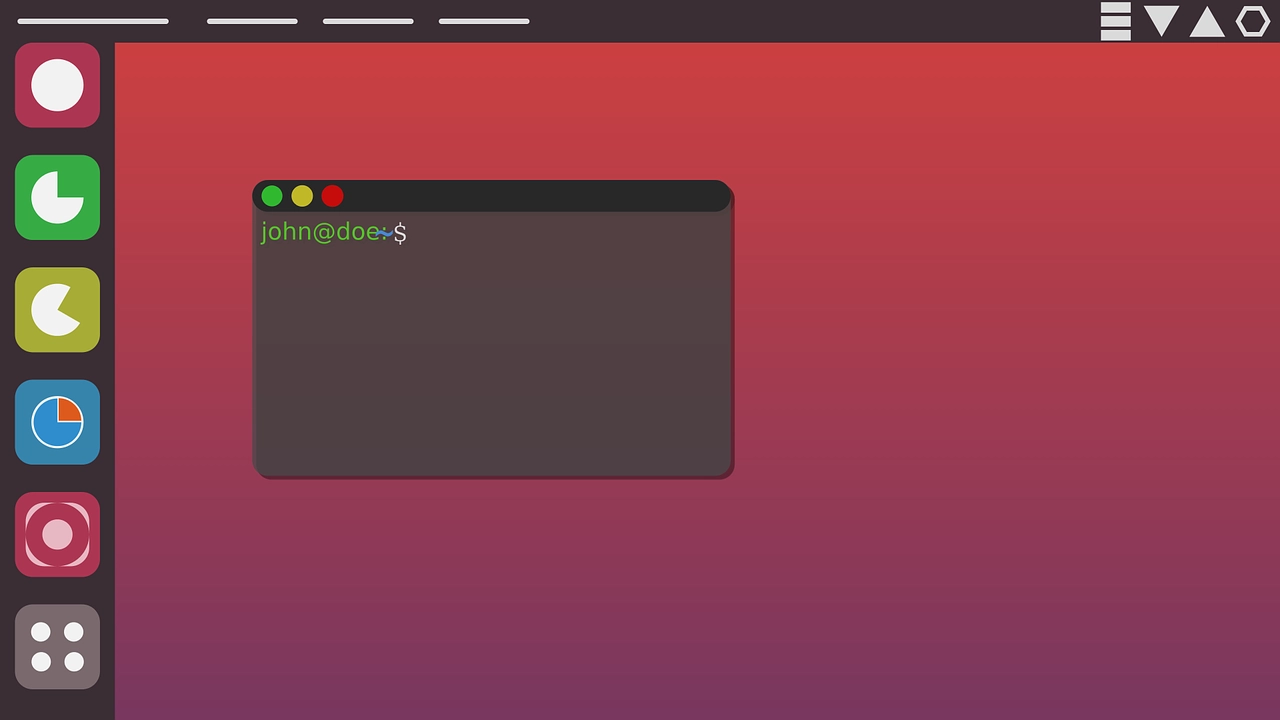
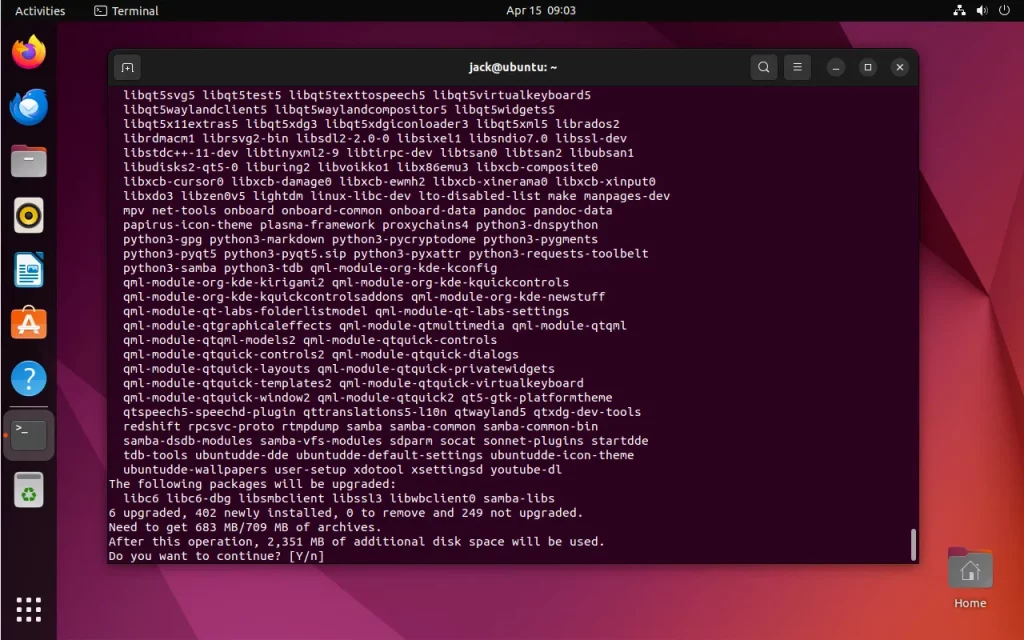
Start by ensuring your window manager is up-to-date. Open the Terminal and run the following commands:
sudo apt-get update
sudo apt-get upgrade
This will update your system’s package repositories and install the latest available version of your window manager.
Install a Compatible Window Manager:
If updating your current window manager doesn’t resolve the issue, you may need to install a different, compatible window manager.
sudo apt-get install gnome-session
sudo apt-get install kde-full
sudo apt-get install xfce4
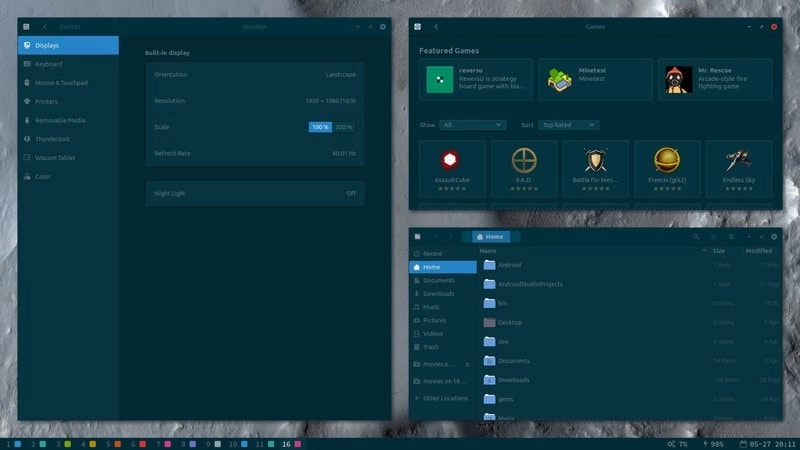
After installation, log out of your current session and select the new window manager from the login screen.
Configure Window Manager Settings:
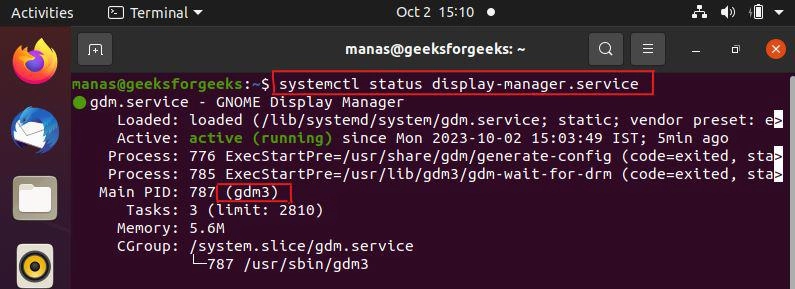
- Check your window manager’s settings and ensure that the show desktop feature is enabled and properly configured.
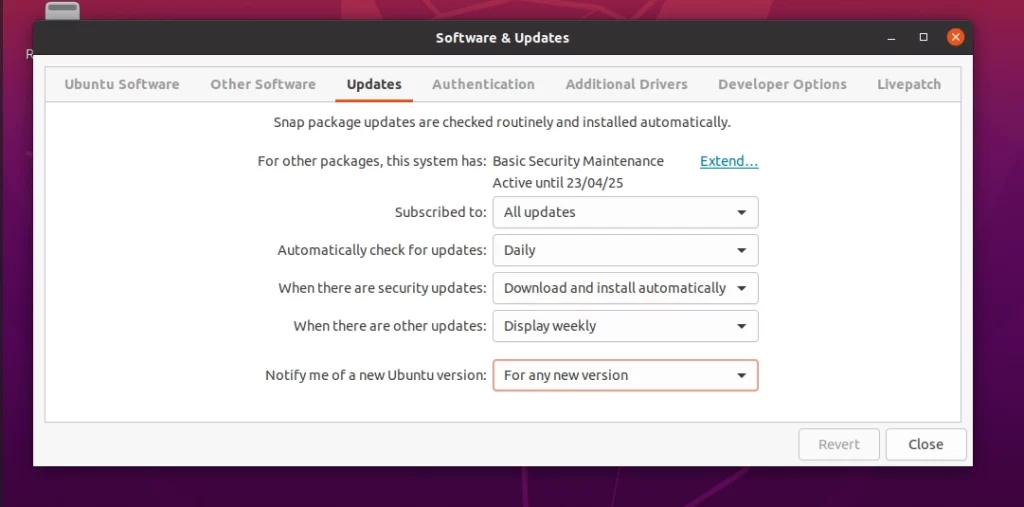
- The specific steps will vary depending on your window manager, but you’ll typically find the show desktop settings in the desktop or window management sections of your window manager’s settings.
Troubleshoot Desktop Environment Compatibility:
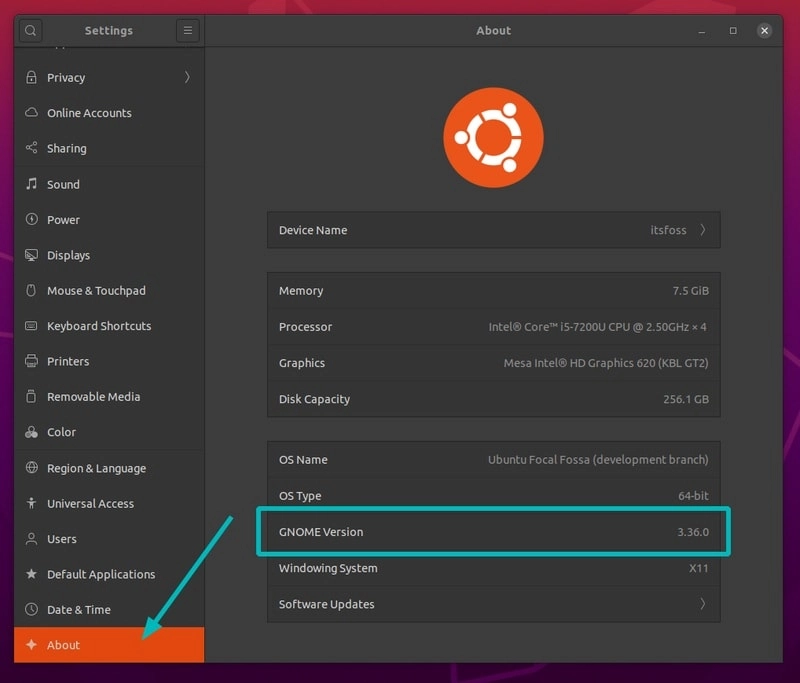
- If the above steps don’t work, the issue may be related to the compatibility between your window manager and the desktop environment you’re using.
- Try switching to a different desktop environment, such as GNOME, KDE, or Xfce, and see if the show desktop feature works as expected.
Explore Alternative Solutions:
- If you’re still unable to resolve the window manager compatibility issues, there are alternative solutions you can try, such as using a third-party tool or script to provide the show desktop functionality.
By following these troubleshooting steps, you should be able to identify and fix the window manager compatibility issues that are preventing you from using the show desktop feature in Ubuntu.
Updating and Upgrading Your Window Manager in Ubuntu
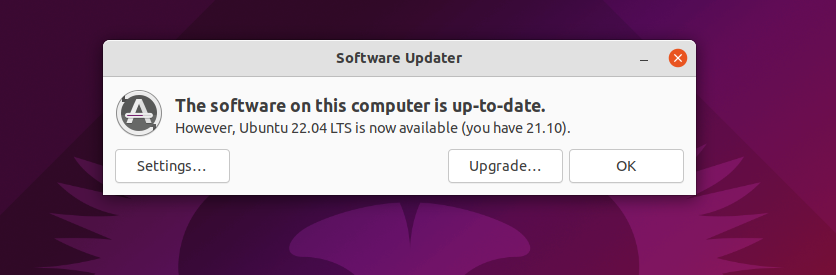
One of the first steps in troubleshooting window manager compatibility issues is to ensure that your window manager is up-to-date. Outdated window managers may not be compatible with Ubuntu’s latest features and functionality, including the show desktop feature.
- To update and upgrade your window manager, follow these steps:
- Open the Terminal on your Ubuntu system.
- Run the following commands to update your system’s package repositories:
sudo apt-get update- Next, run the following command to upgrade your installed packages, including your window manager:
sudo apt-get upgrade- After the upgrade process, restart your Ubuntu system to ensure the changes take effect.
Updating and upgrading your window manager will ensure that you’re using the latest version, which may resolve any compatibility issues you were experiencing with the show desktop feature.
Installing a Compatible Window Manager in Ubuntu
If updating your current window manager does not solve the “your window manager does not support the show desktop” error, you may need to install a different and compatible window manager on your Ubuntu system.
Here are the steps for installing some of the most popular/compatible window managers for Ubuntu:
GNOME:
sudo apt-get install gnome-sessionKDE:
sudo apt-get install kde-fullXfce:
sudo apt-get install xfce4After installing the new window manager, log out of your current session and select the new window manager from the login screen. This will ensure that the show desktop feature is compatible with your updated window manager.
Remember to configure the window manager settings, as described in the previous section, to ensure the show desktop feature is properly enabled and working as expected.
Configuring Window Manager Settings for the Show Desktop Feature
The specific steps will vary depending on the window manager you’re using, but the general process is as follows:
- Open your window manager’s settings or control panel.
- Look for a section related to desktop or window management.
- Locate the “show desktop” setting or “minimize all windows” feature.
- Ensure that this setting is enabled and properly configured.
For example, in the GNOME window manager, you can find the Show Desktop setting by navigating to the “Keyboard” section of the GNOME Settings and looking for the “Show the Desktop” shortcut.
The show desktop setting can be found in the “Window Management” section of the System Settings in the KDE window manager.
Properly configuring your window manager’s settings ensures that the show desktop feature is fully integrated and working as expected on your Ubuntu system.
Related Post: How to Installing Linux on Chromebook
Frequently Asked Questions
Q: What is the “your window manager does not support the show desktop” error?
A: Actually, this is a compatibility issue when your currently using window manager does not support integration with the Ubuntu feature of Show Desktop. Thus, you cannot minimize all the opened windows and present a clean desktop.
Q: What normally causes window manager incompatibility on Ubuntu?
A: The most common causes of window manager incompatibility on Ubuntu include running an obsolete or unsupported window manager, conflict in window manager settings, partial installation of a window manager, and the incompatibility of a window manager with the desktop environment.
Q: How do I configure the window manager settings for the show desktop feature?
A: Steps to configure your window manager settings for the show desktop feature vary depending on the specific window manager you are using. Generally speaking, look for the “show desktop” or “minimize all windows” setting in your window manager’s settings or control panel and ensure it is correctly enabled and configured.
Conclusion
If the window manager still has compatibility issues and you encounter problems with the show desktop feature in Ubuntu, never hesitate to let our Ubuntu experts know. We can troubleshoot this problem and help you fix it. Contact us today!