How to Unhide Apps on iPhone in iOS 18
As iPhone users, we often find ourselves in a situation where we want to keep certain apps hidden from the home screen or library. This could be for various reasons, such as maintaining privacy, decluttering the device, or simply organizing our digital lives. In iOS 18, Apple has enabled us to easily hide and unhide apps, giving us more control over our iPhone’s interface.
Table of Contents
Reasons for Hiding Apps on iPhone
There are several reasons why someone might want to hide apps on their iPhone:
- Privacy: Some apps contain sensitive information or personal data that you may not want to be easily accessible to others who might use your device.
- Decluttering: Hiding less-used apps can help declutter your home screen and app library, making it easier to find the apps you use most.
- Organization: Hiding certain apps can help you better organize your iPhone by grouping related apps or separating work and personal apps.
- Parental Control: Parents may want to hide certain apps from their children’s view to limit access to inappropriate or distracting content.
How to Unhide Apps on iPhone in iOS 18
Unhiding apps on your iPhone in iOS 18 is a straightforward process. Here’s a step-by-step guide:
- Open the Settings app on your iPhone.
- Tap on “General“.
- Scroll down and select “iPhone Storage“.
- Tap on “Hidden Apps“.
- You will see a list of all the currently hidden apps on your device.
- To unhide an app, tap the “Unhide” button next to the app you want to make visible again.
- The app will now appear on your home screen or library.
Step-by-step Guide to Unhide Apps on iPhone
- Open the Settings app: Start by opening the Settings app on your iPhone.
- Navigate to “General”: Tap the “General” option in the Settings menu.
- Select “iPhone Storage”: Scroll down and select the “iPhone Storage” option.
- Locate “Hidden Apps”: Under the “iPhone Storage” menu, you should see an option for “Hidden Apps”.
- View Hidden Apps: Tap on the “Hidden Apps” option, and you will see a list of all the currently hidden apps on your device.
- Unhide Apps: To unhide an app, tap the “Unhide” button next to the app you want to make visible again.
- Confirm the Unhide Action: You may be prompted to confirm the unhide action. Tap “Unhide” to complete the process.
- Verify the App’s Visibility: After completing the steps, the app should be visible on your home screen or library.
Troubleshooting Common Issues when Unhiding Apps on iPhone
- App Still Hidden: If an app you’ve tried to unhide is still not appearing on your device, try restarting your iPhone. This can sometimes resolve any lingering issues.
- Unable to Find Hidden Apps: If you cannot find the “Hidden Apps” option in the iPhone Storage menu, ensure you’re running the latest version of iOS 18. This feature was introduced in iOS 18, so it may not be available on older operating system versions.
- Restricted Apps: If you cannot unhide certain apps, they may be restricted by parental controls or other security settings on your device. In this case, you may need to adjust your device’s settings to grant access to the restricted apps.
Additional Methods to Unhide Hidden Apps on iPhone
In addition to the steps outlined above, there are a few other methods you can try to unhide apps on your iPhone:
- Use the Search Function: You can search for the hidden app using the search function on your iPhone. Swipe down from the middle of your home screen to access the search bar, and type in the name of the app you want to unhide.
- Check the App Library: If the app you’re looking for does not appear on your home screen, it may be in your App Library. Swipe to the right on your home screen to access the App Library, and search for the app there.
- Restore from Backup: If you’ve recently backed up your iPhone, you may be able to restore the backup and have your hidden apps reappear on your device.
How to Unhide Apps on iPhone 13
The process for unhiding apps on an iPhone 13 is the same as the steps outlined earlier for iOS 18. Follow the same “Step-by-step Guide to Unhide Apps on iPhone” to locate and unhide any hidden apps on your iPhone 13.
How to Unhide Apps on iPhone 12
The process for unhiding apps on an iPhone 12 is the same as the steps outlined earlier for iOS 18. Follow the same “Step-by-step Guide to Unhide Apps on iPhone” to locate and unhide any hidden apps on your iPhone 12.
Unhiding Apps on iPhone in iOS 14
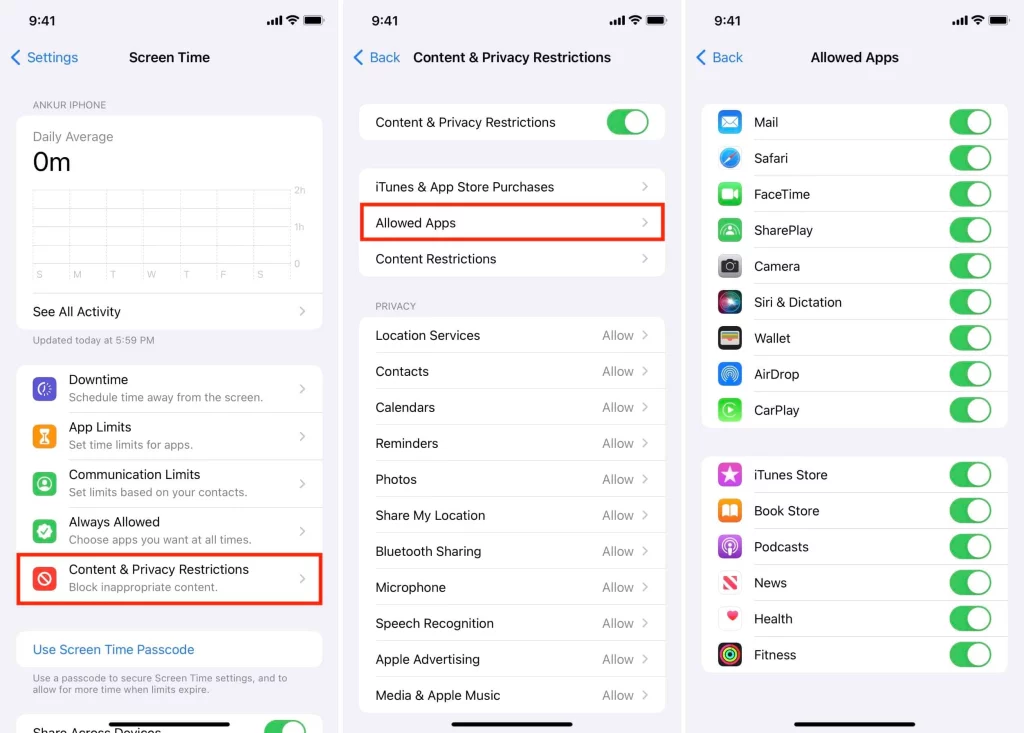
If you’re still using an older version of iOS, such as iOS 14, the process for unhiding apps may be slightly different. In iOS 14, you can access the list of hidden apps by going to the Settings app, then tapping on “General,” followed by “iPhone Storage,” and finally “Hidden Apps.” From there, you can follow a similar process to unhide the apps you want to make visible again.
Frequently Asked Questions
Q: How do I know which apps are currently hidden on my iPhone?
A: To see a list of all the hidden apps on your iPhone, follow the “Step-by-step Guide to Unhide Apps on iPhone” outlined earlier in this article.
Q: Can I hide apps on my iPhone without using the “Hidden Apps” feature?
A: You can also hide apps by moving them to a separate folder or the App Library. However, the “Hidden Apps” feature is the most straightforward way to hide and unhide apps on your iPhone.
Q: Will unhiding an app restore all of its data and settings?
A: Yes, when you unhide an app, it will restore the app to its previous state, including any data and settings you had configured before hiding it.
Q: Can I hide system apps or pre-installed apps on my iPhone?
A: No, you cannot hide system apps or pre-installed apps on your iPhone using the “Hidden Apps” feature. This feature is primarily designed for third-party apps that you have installed yourself.
Conclusion
Now that you know how to unhide applications on your iOS 18-running iPhone, take a minute or two and go through your hidden applications to decide which one you want to bring into view. Take back the power of control over the look of your device interface to help you stay organized and focused. Of course, do not hesitate to contact our support team with any other questions or further detailed support insight.