The Ultimate Guide to Reset End-to-End Encrypted Data
In today’s digital age, safeguarding your personal and sensitive information is more critical than ever. End-to-end encryption provides a robust layer of security by ensuring that only you and the intended recipient can access your data. But what happens when you need to reset this data? This comprehensive guide delves into why, when, and how to reset end-to-end encrypted data, ensuring your digital security remains uncompromised.
Table of Contents
Understanding End-to-End Encryption
What is End-to-End Encryption?
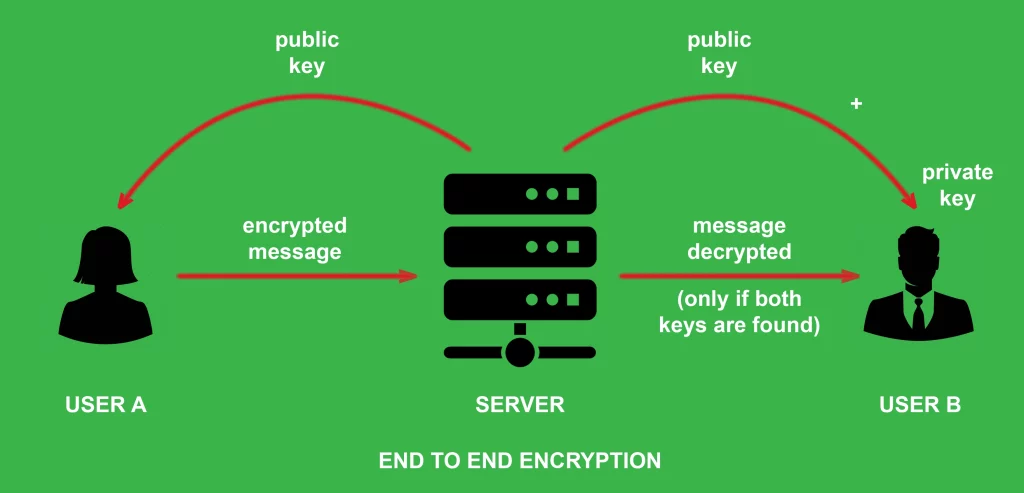
End-to-end encryption (E2EE) is a secure communication method that prevents third parties from accessing data while it’s transferred from one end system or device to another. It ensures that data is transformed into a secure form that only the recipient can decrypt, making it virtually impenetrable to eavesdroppers.
Why Reset End-to-End Encrypted Data?
Common Reasons for Resetting Encrypted Data:
- Device Changes: Upgrading to a new phone or computer often necessitates resetting encrypted data to secure the transfer of private information.
- Data Corruption: Unexpected software glitches or hardware failures can corrupt your data, requiring a reset to regain access.
- Security Breaches: If your encryption keys are compromised, resetting encrypted data helps prevent unauthorized access.
Preparing to Reset End-to-End Encrypted Data
Steps to Ensure a Safe Reset:
- Backup Your Data: Before initiating a reset, ensure all your data is backed up using encryption-supported platforms like iCloud or Google Drive.
- Verify Data Integrity: Confirm that your backups are complete and the data can be accessed without issues.
- Secure Your Backups: Use strong passwords and enable two-factor authentication to enhance the security of your backups.
How to Reset End-to-End Encrypted Data
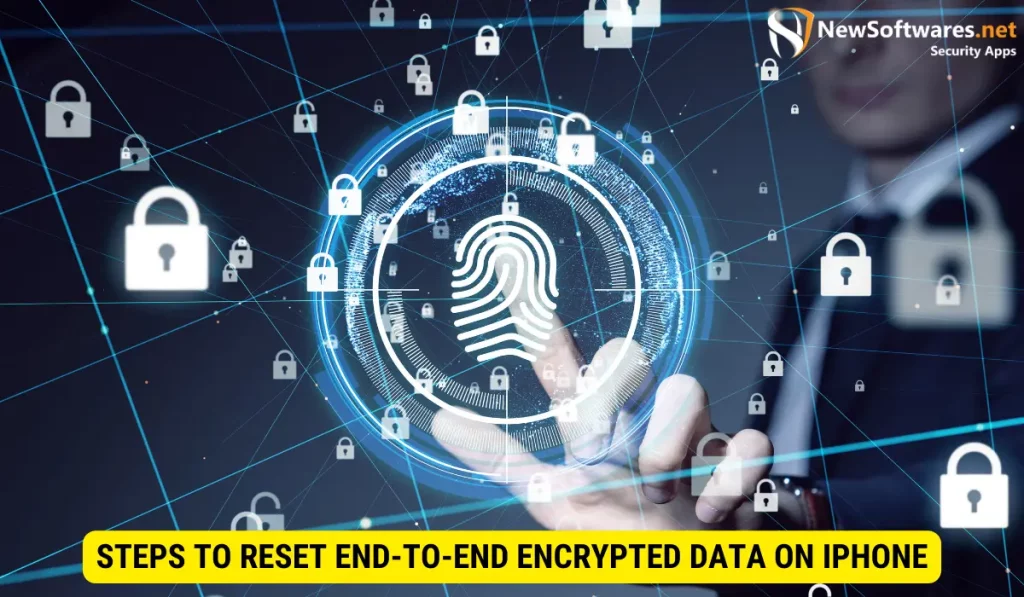
For iOS Users:
- Backup your data: Use iCloud to ensure all personal data is securely backed up.
- Navigate to reset settings: Go to Settings > General > Reset > Erase All Content and Settings.
- Restore from backup: After resetting, restore your iPhone from iCloud to regain access to your data.
For Android Users:
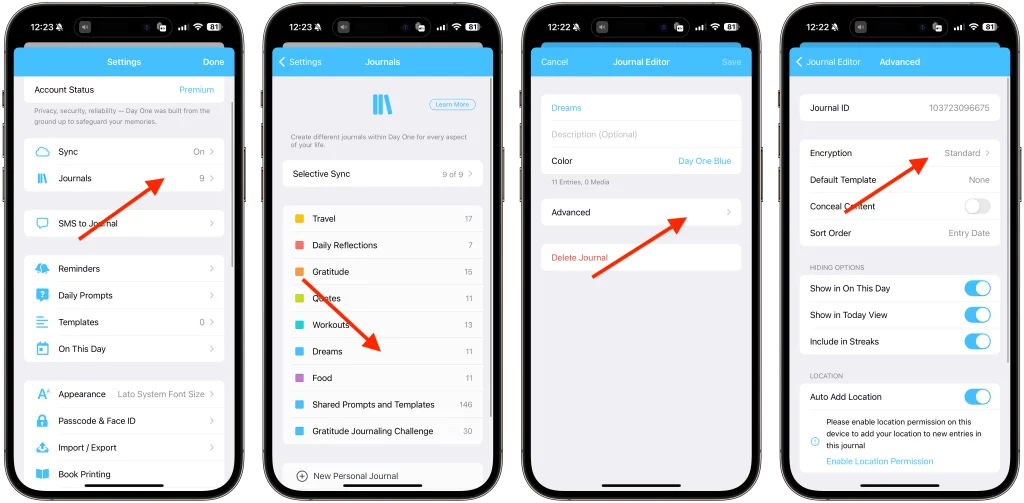
- Secure backup: Utilize Google Drive for a comprehensive backup of your Android device.
- Factory reset: Access Settings > System > Reset options > Erase all data (factory reset).
- Data restoration: Restore your device from the Google Drive backup.
For Windows Users:
- Data backup: Use OneDrive or an external drive to back up your data securely.
- Perform the reset: Navigate to Settings > Update & Security > Recovery > Reset this PC.
- Remove everything: Opt for complete data erasure and restore from your backup post-reset.
Best Practices Post-Reset
- Update Passwords Regularly: Keep your accounts secure by regularly updating passwords.
- Conduct Regular Data Audits: Check your encryption settings and data integrity frequently to ensure your information remains secure.
Frequently Asked Questions About Reset End-to-End Encrypted Data
Q: What is the impact of resetting end-to-end encrypted data?
A: Resetting encrypted data does not usually result in data loss but will require you to restore data from a backup to maintain access.
Q: Is resetting encrypted data safe?
A: Yes, if done correctly. Always ensure you have secure backups before proceeding with a reset.
Q: How often should I reset my encrypted data?
A: Resetting should be done based on necessity, such as after a device change, a security breach, or data corruption.
Conclusion
Resetting end-to-end encrypted data is vital for maintaining the security and integrity of your personal information across devices. Following the guidelines in this comprehensive guide, you can navigate the complexities of encryption resets and ensure your data is protected in any scenario. Refer to the official Apple Support Page or Android Help Center for more detailed information on device-specific processes.