How to Access Disney Plus on Roku
Disney Plus is the highly anticipated streaming service by the entertainment giant Disney. Offering a vast library of movies, shows, and original content from Disney, Pixar, Marvel, Star Wars, and National Geographic, Disney Plus has quickly become a must-have for many households.
On the other hand, Roku is a popular streaming device allowing you to access a wide range of streaming services, including Disney Plus, on your TV. With its user-friendly interface and extensive app selection, Roku has emerged as one of the leading platforms for cord-cutters and those who want to enjoy their favorite content on the big screen.
In this article, we’ll explore how you can access Disney Plus on your Roku device, providing a step-by-step guide to ensure a seamless streaming experience.
Table of Contents
Why you need Disney Plus on Roku
Accessing Disney Plus on your Roku device offers several benefits:
- Convenient Viewing Experience: By integrating Disney Plus into your Roku, you can enjoy all the magical content from the comfort of your living room without switching between devices.
- Larger Screen and Better Audio: Watching Disney Plus on your TV through Roku provides a more immersive and cinematic experience, with a larger screen and better audio quality than smaller devices.
- Seamless Integration: Roku’s intuitive interface allows you to easily navigate and access Disney Plus, along with all your other favorite streaming services, from a single platform.
- Expanded Content Library: With Roku, you can access the entire Disney Plus library, including the latest movies, shows, and exclusive originals, ensuring you never miss out on the latest Disney magic.
How to set up Roku for Disney Plus
To get started with Disney Plus on your Roku device, follow these simple steps:
- Connect your Roku to your TV: Ensure your Roku device is properly connected using the provided HDMI cable.
- Connect to the internet: Make sure your Roku device is connected to a stable internet connection, as a strong Wi-Fi or Ethernet connection is essential for a smooth streaming experience.
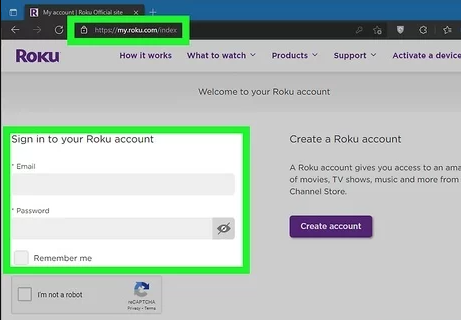
- Create a Roku account: If you still need one, visit the Roku website or follow the on-screen instructions on your Roku device.
- Add the Disney Plus channel: Navigate to the Roku Channel Store and search for the Disney Plus channel. Select “Add Channel” to install the Disney Plus app on your Roku device.
- Sign in to Disney Plus: Once the Disney Plus app is installed, open it and sign in with your Disney Plus credentials. If you don’t have an account, you can sign up for one directly within the app.
Now that your Roku is set up for Disney Plus let’s dive into the step-by-step guide to accessing the service.
A step-by-step guide to accessing Disney Plus on Roku
- Launch the Disney Plus app: From your Roku home screen, locate and select the Disney Plus app.
- Sign in to your Disney Plus account: If you still need to be signed in, enter your Disney Plus username and password to access your account.
- Browse and select content: Once logged in, you’ll be greeted with the Disney Plus home screen. Use the on-screen navigation to browse the extensive library of movies, shows, and original content.
- Start streaming: When you’ve found something you want to watch, click on the title, and the Disney Plus app will begin streaming the content to your Roku device.
- Customize your experience: Utilize the various settings and features within the Disney Plus app, such as adjusting the video quality, enabling subtitles, or creating user profiles to personalize your viewing experience.
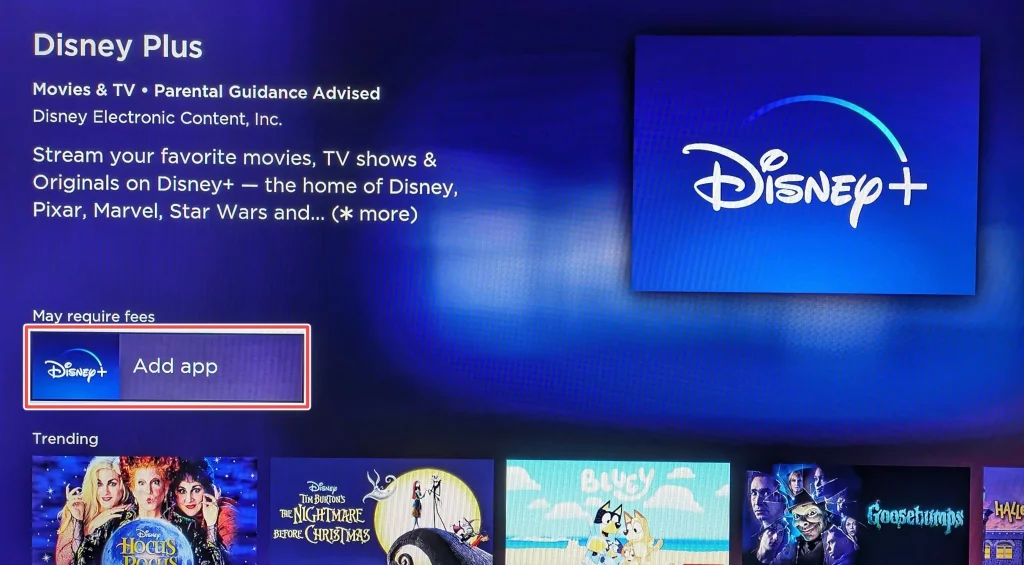
Remember, the Disney Plus app on Roku offers the same great features and content as the standalone Disney Plus service, allowing you to enjoy the magic of Disney, Pixar, Marvel, Star Wars, and more on your big-screen TV.
Troubleshooting common issues when accessing Disney Plus on Roku
While accessing Disney Plus on Roku is generally straightforward, you may occasionally encounter some common issues. Here are a few troubleshooting tips to help you resolve any problems:
- Connectivity issues: If you’re experiencing buffering, lagging, or the Disney Plus app is not loading correctly, ensure that your Roku device has a stable and fast internet connection. You can restart your router or modem to resolve any network-related problems.
- App crashes or freezes: If the Disney Plus app on your Roku device is crashing or freezing, try force-closing the app and reopening it. If the issue persists, you can try uninstalling and reinstalling the app.
- Compatibility issues: Make sure your Roku device is compatible with the latest version of the Disney Plus app. Roku models may need to support the latest features or experience compatibility issues.
- Signing-in problems: If you need help with your Disney Plus account, double-check your login credentials and ensure your account is active and in good standing. You can also clear the app’s cache, sign out, and back in.
- Audio or video quality issues: Adjust the video quality settings within the Disney Plus app to ensure you get the best possible streaming experience based on your internet connection speed.
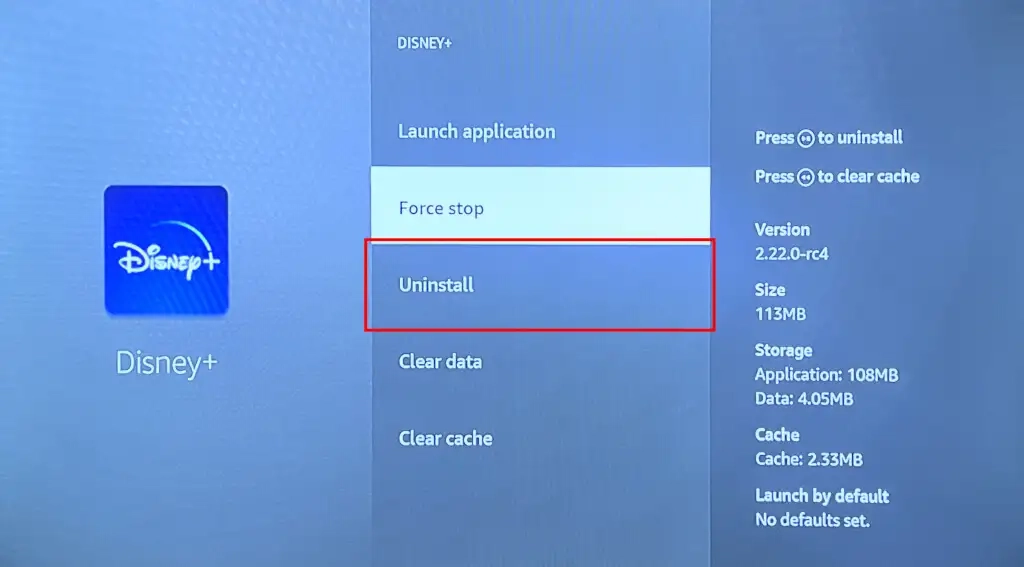
If you continue to encounter any issues, you can refer to the Disney Plus or Roku support resources for further assistance.
Alternative ways to access Disney Plus if Roku is not available
While Roku is a popular and convenient way to access Disney Plus, other options exist. Here are a few alternative methods you can consider if you don’t have a Roku device:
- Smart TV Apps: Many smart TV platforms, such as Android TV, Apple TV, and Samsung Smart TV, offer the Disney Plus app, allowing you to stream directly on your television.
- Gaming Consoles: Popular gaming consoles, including PlayStation, Xbox, and Nintendo Switch, have Disney Plus apps available for download.
- Mobile Devices: You can access Disney Plus on your smartphone or tablet by downloading the app from the App Store (iOS) or Google Play Store (Android).
- Web Browser: If you prefer, you can access Disney Plus directly through your web browser by visiting the Disney Plus website and signing in to your account.
- Casting from Mobile Devices: If you have a compatible smart TV or streaming device, you can cast the Disney Plus app from your mobile device to your TV using features like Chromecast or Apple AirPlay.
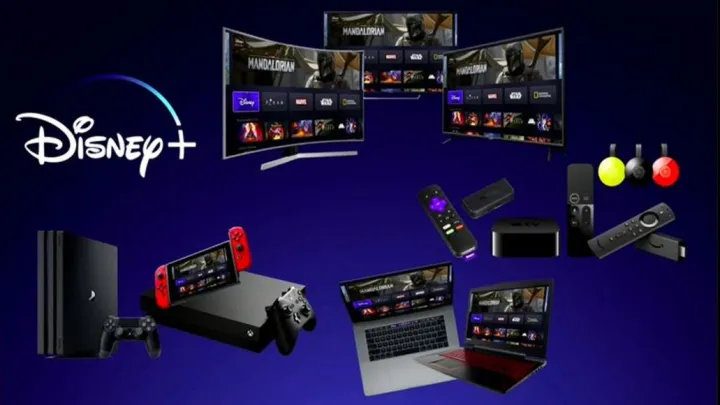
Regardless of your chosen device, the Disney Plus experience should remain consistent, allowing you to enjoy the full breadth of content across various platforms.
Tips and tricks for optimizing your Disney Plus experience on Roku
To get the most out of your Disney Plus experience on Roku, consider these tips and tricks:
- Enable Surround Sound: If your home theater setup supports it, enable surround sound in the Disney Plus app settings to enjoy a more immersive audio experience.
- Customize User Profiles: Create individual user profiles within the Disney Plus app to personalize each household member’s recommendations, watch histories, and parental controls.
- Utilize Parental Controls: Take advantage of the robust parental control features in the Disney Plus app to ensure your children have access to age-appropriate content.
- Download Content for Offline Viewing: If you have a Roku device with sufficient storage, download select Disney Plus titles to watch offline, perfect for travel or areas with limited internet connectivity.
- Optimize Streaming Quality: Adjust the streaming quality settings in the Disney Plus app to balance picture quality and data usage, especially if you have a slower internet connection.
- Integrate with Voice Assistants: If your Roku device supports voice commands, you can integrate it with virtual assistants like Amazon Alexa or Google Assistant to easily search for and control Disney Plus content using voice commands.
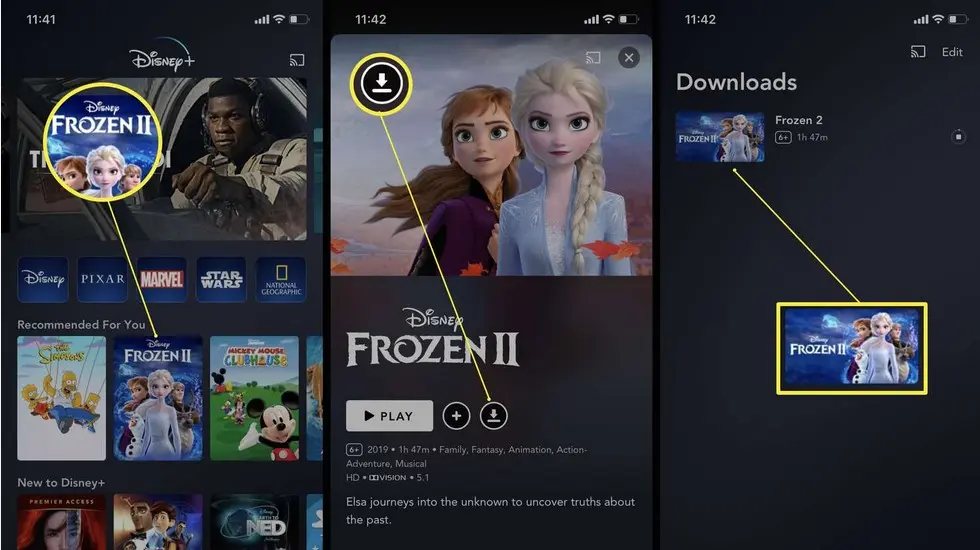
By implementing these tips and tricks, you can elevate your Disney Plus viewing experience on your Roku device and make the most of the platform’s features.
Also Read: How to Taking Screenshots on Chrome Browser: Step-by-Step
Frequently Asked Questions
Q: Do I need a separate Disney Plus subscription if I already have Roku? No, you do not need a separate Disney Plus subscription if you have a Roku device. You must sign in to the Disney Plus app on your Roku using your existing Disney Plus account credentials.
Q: Can I watch Disney Plus in 4K on Roku?
A: The Disney Plus app on Roku supports 4K Ultra HD streaming, provided your Roku device and internet connection can handle the higher video quality. However, remember that 4K streaming may consume more data and require a faster internet speed.
Q: Can I download Disney Plus content for offline viewing on Roku?
A: Yes, the Disney Plus app on Roku allows you to download select titles for offline viewing. This feature is handy for watching content on the go or in areas with limited internet connectivity.
Q: Is there a limit to how many devices I can access Disney Plus?
A: Disney Plus lets you stream on up to four devices simultaneously with a single account. This includes your Roku device and any other compatible devices you may use to access the service.
Q: Can I use my existing Disney Plus login credentials on Roku?
A: You can use your existing Disney Plus login credentials to sign in to the Disney Plus app on your Roku device. This will allow you to access your personalized content, watch history, and user profiles.
Conclusion
In conclusion, accessing Disney Plus on your Roku device is a seamless and enjoyable experience. Following the step-by-step guide outlined in this article, you can easily set up and start streaming your favorite Disney, Pixar, Marvel, and Star Wars content on your Roku. Remember to take advantage of the tips and tricks to optimize your viewing experience, and don’t hesitate to explore the vast library of content that Disney Plus offers.
If you’re ready to take your Disney Plus experience to the next level on your Roku device, sign up for a Disney Plus subscription today and explore the magic. [Click here] to get started!