A Step-by-Step Guide on How to Cancel a Roku Subscription
Roku is a popular streaming platform that offers a wide range of content from various providers, including popular streaming services like Netflix, Hulu, and Amazon Prime Video. While many of the Roku channels are free to use, some require a paid subscription. These subscriptions can be convenient but can also add up over time, especially if you’re no longer using or interested in a particular service.
If you’ve decided to cancel a Roku subscription, you’ll be happy to know that the process is relatively straightforward. In this comprehensive guide, I’ll walk you through the step-by-step process of cancelling a Roku subscription and provide some alternatives.
Table of Contents
Reasons for Canceling a Roku Subscription
There are several reasons why you should cancel a Roku subscription. Here are some of the most common ones:
- Cost Savings: As mentioned, Roku subscriptions can add up over time, and you may be looking to cut back on your monthly expenses.
- Lack of Use: If you’ve stopped using a particular streaming service or channel, it may be time to cancel the subscription and free up that budget for something else.
- Changing Preferences: Your entertainment preferences may have changed, and you no longer find the content on a particular subscription worth the cost.
- Bundling Conflicts: Some streaming services offer better deals when bundled with other services, so you may want to cancel a Roku subscription for a more cost-effective bundle.
Regardless of your reason, the process of cancelling a Roku subscription is the same. Let’s dive in and explore the steps.
How to Cancel a Roku Subscription
Cancelling a Roku subscription is a straightforward process that can be completed in just a few steps. Here’s a step-by-step guide:
Step 1: Accessing Your Roku Account
- Sign in to your Roku account on the Roku website.
- Click on the “Account” icon in the top right corner of the page.
- Select “Manage Account” from the dropdown menu.
Step 2: Navigating to the Subscription Section
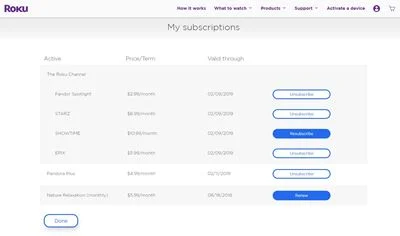
- On the “Manage Account” page, scroll down to the “Subscriptions” section.
- This section will display all the active subscriptions associated with your Roku account.
Step 3: Selecting the Subscription You Want to Cancel
- Locate the subscription you want to cancel in the “Subscriptions” section.
- Click the “Manage Subscription” button next to the subscription you wish to cancel.
Step 4: Confirming the Cancellation
- On the “Manage Subscription” page, you’ll see an option to cancel your subscription.
- Click the “Cancel Subscription” button and follow the on-screen instructions to complete the cancellation process.
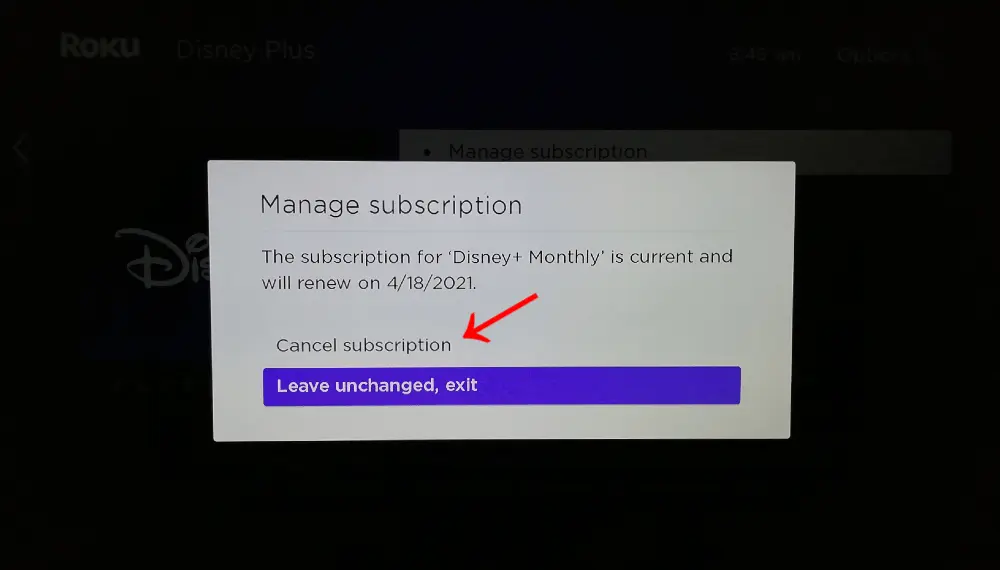
It’s important to note that the specific steps may vary slightly depending on the type of subscription you’re cancelling, but the overall process should be similar.
Alternatives to Canceling a Roku Subscription
If you’re not quite ready to cancel your Roku subscription, there are a few alternatives you can consider:
- Downgrade to a Lower Plan: Many streaming services offer different subscription tiers, so you can downgrade to a lower-cost plan that still provides access to the content you want.
- Pause the Subscription: Some services allow you to pause your subscription for a certain period, which can be a good option if you take a break from the service but don’t want to cancel it altogether.
- Explore Free or Lower-Cost Alternatives: There are many free or low-cost streaming options available, such as Pluto TV, Tubi, or The Roku Channel, that you can use to supplement or replace a paid subscription.
Also Read: How to Play Roblox on a Chromebook: A Step-by-Step Guide
Frequently Asked Questions
Q: Can I cancel a Roku subscription directly on my Roku device?
A: You can cancel a Roku subscription directly on your Roku device. The process is similar to the steps outlined above, but the navigation on the device interface may differ slightly.
Q: Will I receive a refund if I cancel a Roku subscription?
A: The refund policy may vary depending on the specific subscription you’re cancelling. Some services may offer a prorated refund, while others may not provide any refund. It’s best to check the service’s terms and conditions or contact customer support for more information.
Q: What happens if I cancel a Roku subscription?
A: When you cancel a Roku subscription, you will typically lose access to the content or features associated with that subscription. However, you may still be able to access free or essential content on the Roku platform.
Conclusion
Cancelling a Roku subscription is a straightforward process that can be completed in just a few steps. Whether you’re looking to save money, reduce your subscription load, or change your entertainment preferences, this guide has provided the necessary information to cancel a Roku subscription successfully.
Remember, if you need more time to be ready to cancel your subscription, there are alternatives, such as downgrading to a lower plan or exploring free or lower-cost streaming options.
Please get in touch with our customer support team if you need further assistance cancelling your Roku subscription or have any other questions. We’re here to help you navigate the process and ensure a seamless experience.