How to Clear Cache on Fire TV Stick for Optimal Performance
As an avid streamer, I know how frustrating it can be when your Fire TV Stick starts to slow down or experience performance issues. One of the most effective ways to address these problems is by clearing the cache on your device. In this comprehensive guide, I’ll walk you through the process of clearing the cache on your Fire TV Stick and provide you with additional tips and troubleshooting advice to help you get the most out of your streaming experience.
Table of Contents
Introduction to Fire TV Stick and Its Cache
The Fire TV Stick is a popular streaming device that allows you to access a wide variety of content from various online platforms, such as Netflix, Hulu, Amazon Prime Video, and more. Like any other device, the Fire TV Stick stores temporary data, known as cache, to help improve the overall performance and speed of your streaming experience.
Why Clearing Cache is Important for Optimal Performance
Over time, the cache on your Fire TV Stick can become cluttered with outdated or unnecessary data, which can lead to a variety of issues, such as:
- Slow loading times
- Freezing or lagging during playback
- App crashes or malfunctions
- Increased storage usage
Regularly clearing the cache on your Fire TV Stick can alleviate these problems and ensure your device runs at its optimal performance level.
How to Clear Cache on Fire TV Stick
There are two main methods for clearing the cache on your Fire TV Stick:
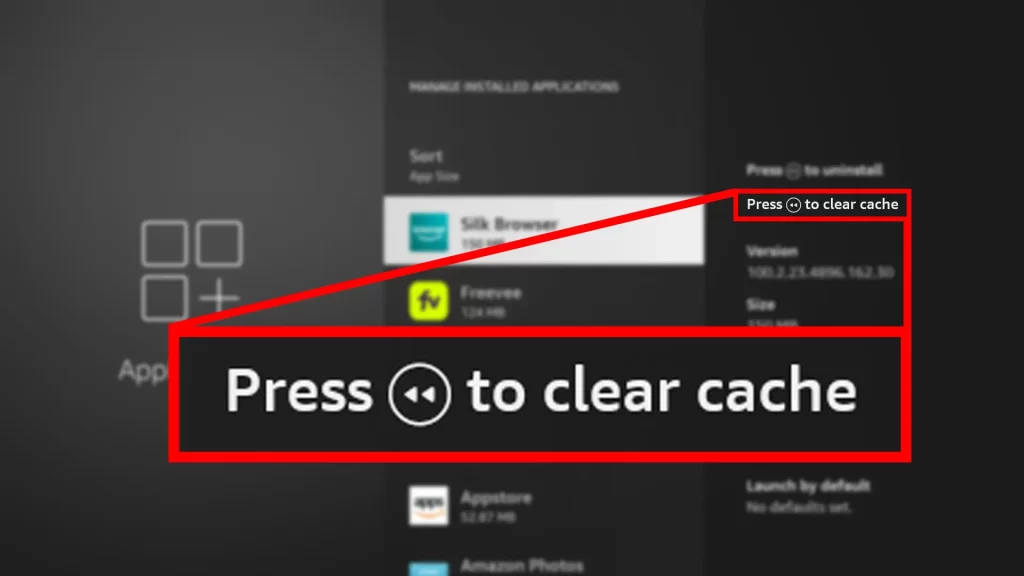
Method 1: Clearing Cache for Individual Apps
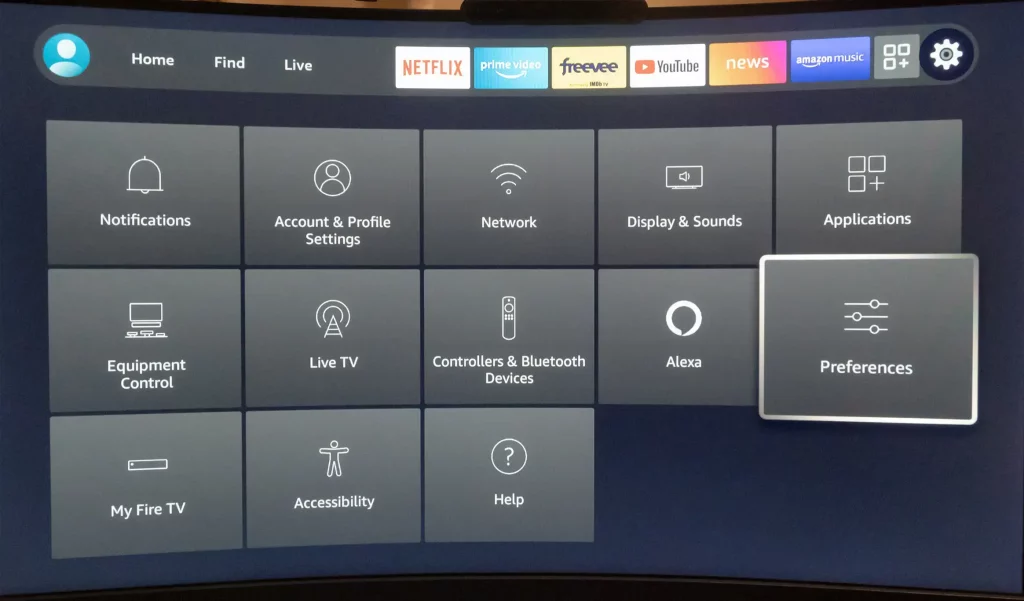
- Navigate to the home screen of your Fire TV Stick and select the “Settings” option.
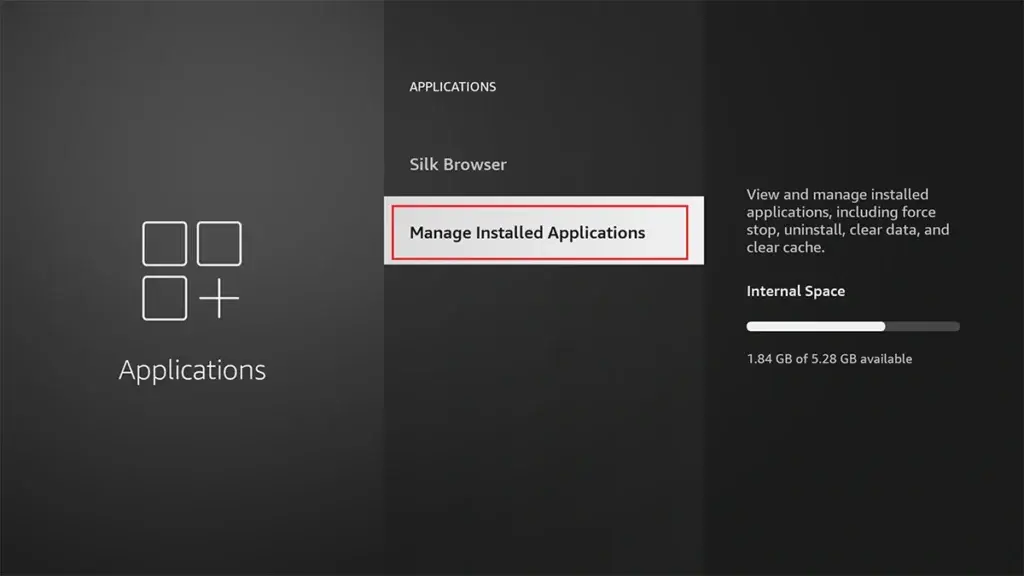
- Scroll down and select “Applications.”
- Select “Manage Installed Applications.”
- Locate the app for which you want to clear the cache and select it.
- Select “Storage” and then choose “Clear Cache.”
- Repeat steps 4-5 for any other apps you want to clear the cache for.
Method 2: Clearing Cache for All Apps at Once
- Navigate to the home screen of your Fire TV Stick and select the “Settings” option.
- Scroll down and select “Applications.”
- Select “Appstore” and then choose “Clear Data” and “Clear Cache.”
- Repeat step 3 for the “Amazon Fire TV” option.
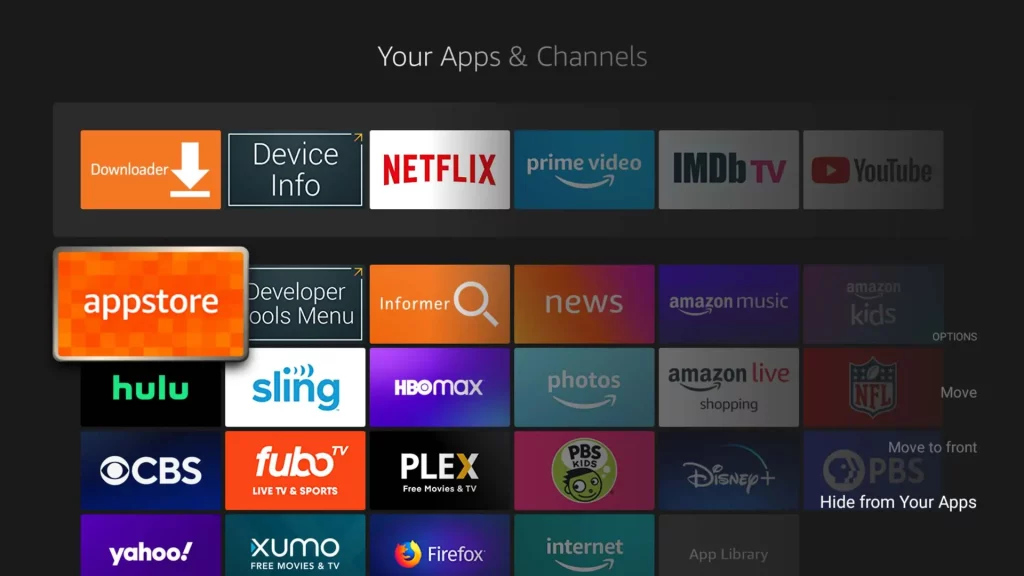
Clearing the cache for individual apps or all apps at once can improve the overall performance of your Fire TV Stick.
Additional Tips for Improving Fire TV Stick Performance
In addition to clearing the cache, there are several other steps you can take to improve the performance of your Fire TV Stick:
- Update Your Firmware: Ensure that your Fire TV Stick is running the latest firmware version, as this can help to address any known issues or bugs.
- Restart Your Device: Regularly restarting your Fire TV Stick can help clear any temporary problems or glitches affecting its performance.
- Limit Background Apps: Close any apps or services you’re not actively using, as they can consume valuable system resources and impact the overall performance of your device.
- Optimize Storage: Delete unused apps, media files, or other data that may take up valuable storage space on your Fire TV Stick.
Common Cache-Related Issues on Fire TV Stick
While clearing the cache can help to address a wide range of performance-related issues, there are some common cache-related problems that you may encounter on your Fire TV Stick:
- App Crashes or Malfunctions: If an app is consistently crashing or behaving erratically, clearing that specific app’s cache may help resolve the issue.
- Slow Loading Times: Excessive cache buildup can lead to slow loading times for apps, videos, and other content on your Fire TV Stick.
- Increased Storage Usage: The cache on your Fire TV Stick can take up a significant amount of storage space, which can impact the overall storage capacity of your device.
Troubleshooting Cache-Related Problems
Suppose you’re still experiencing issues after clearing the cache on your Fire TV Stick. In that case, there are a few additional troubleshooting steps you can take:
- Perform a Factory Reset: If the cache-related issues persist, you may need a factory reset on your Fire TV Stick to restore it to its default settings.
- Check for Software Updates: Ensure that your Fire TV Stick runs the latest software version, as updates may include bug fixes or performance improvements.
- Contact Customer Support: If you cannot resolve the issue independently, consider contacting Amazon’s customer support team for further assistance.
Also Read: How to Stream Apple TV on Fire TV Stick: A Full Guide
Frequently Asked Questions
Q: How often should I clear the cache on my Fire TV Stick?
A: It’s generally recommended to clear the cache on your Fire TV Stick every few months or whenever you notice a significant decline in performance.
Q: Will clearing the cache delete my apps or personal data?
A: Clear the cache will not delete your apps or any personal data stored on your Fire TV Stick. It will only remove temporary files and data associated with the cache.
Q: Can I clear the cache for individual apps instead of all apps simultaneously?
A: Yes, you can clear the cache for individual apps on your Fire TV Stick, which can be a more targeted approach if you’re experiencing issues with a specific app.
Conclusion
In conclusion, clearing the cache on your Fire TV Stick is a simple yet effective way to improve its overall performance and address various issues. Following the steps outlined in this guide, you can ensure that your Fire TV Stick is running at its best, providing you with a seamless and enjoyable streaming experience.