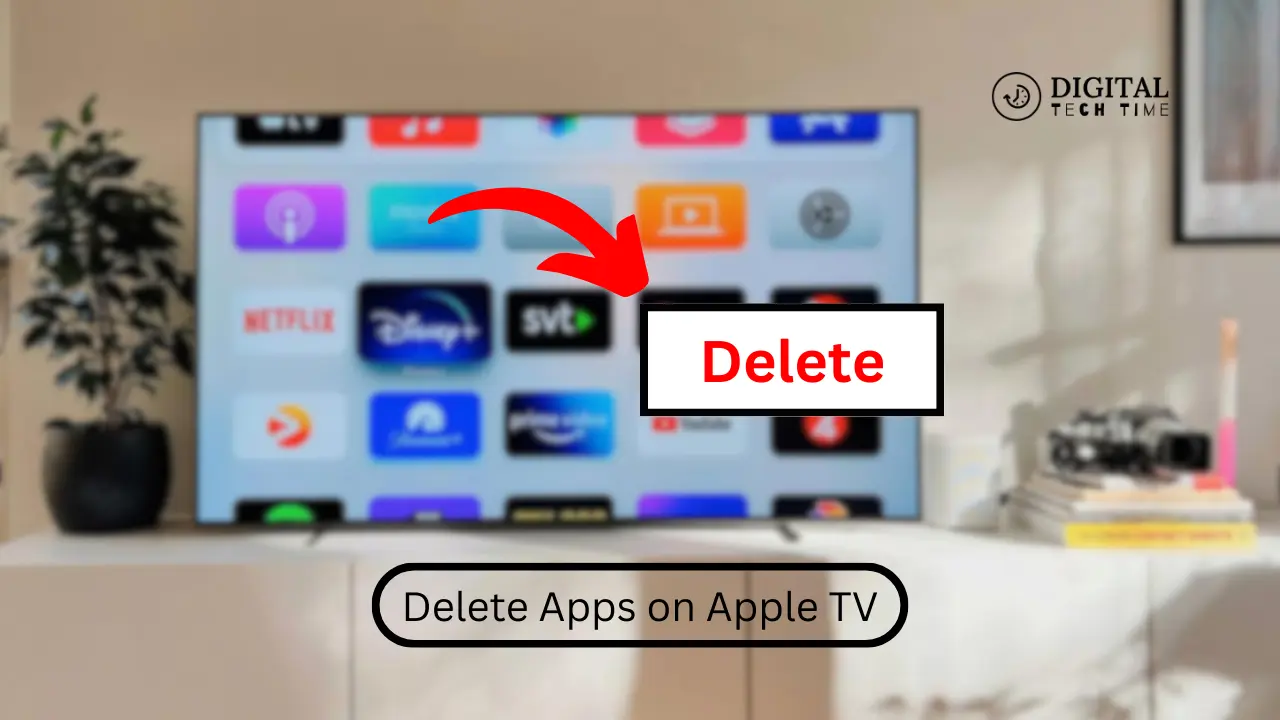
How to Delete Apps on Apple TV: A Step-by-Step Guide
As an avid Apple TV user, I understand the importance of keeping your device organized and clutter-free. Over time, we accumulate a variety of apps on our Apple TV, some of which we may no longer use or need. In this comprehensive guide, I’ll walk you through the step-by-step process of deleting apps on your Apple TV and provide troubleshooting tips, app management strategies, and answers to frequently asked questions.
Table of Contents
Step-by-Step Guide on How to Delete Apps on Apple TV
Deleting apps on your Apple TV is a straightforward process. Follow these steps to remove unwanted apps:
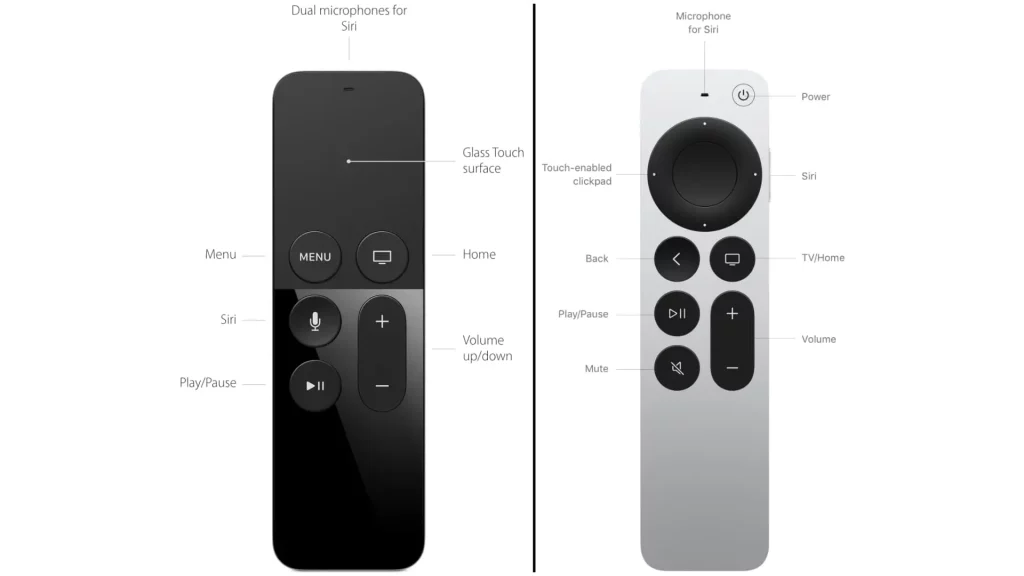
- Navigate to the App Library: From the Apple TV home screen, use the Siri Remote to navigate to the app you want to delete.
- Select the App: Highlight the app you want to remove by pressing the touchpad on the Siri Remote.
- Open the App Options: Press and hold the touchpad on the Siri Remote until the app options menu appears.
- Choose “Delete App”: In the app options menu, select the “Delete App” option.
- Confirm the Deletion: You will be prompted to confirm the deletion. Select “Delete” to permanently remove the app from your Apple TV.
That’s it! The app will now be removed from your device, freeing up storage space and decluttering your library.
Troubleshooting Common Issues When Deleting Apps on Apple TV
While deleting apps on Apple TV is generally straightforward, you may encounter some common issues. Here are a few troubleshooting tips:
- App Stuck in Deleting Process: If an app appears stuck in the deleting process, try force-restarting your Apple TV. To do this, press and hold the Menu and Home buttons on the Siri Remote for about 5 seconds until the device restarts.
- Unable to Delete System Apps: Some pre-installed system apps on your Apple TV cannot be deleted. These apps are essential for the proper functioning of your device and are not meant to be removed.
- Restricted Deletion: If you have set parental controls or restrictions on your Apple TV, you may be unable to delete certain apps. Review your device’s settings and adjust the limits if necessary.
- Reinstalling Deleted Apps: If you accidentally delete an app you still need, you can reinstall it from the App Store on your Apple TV. Search for the app and download it again.
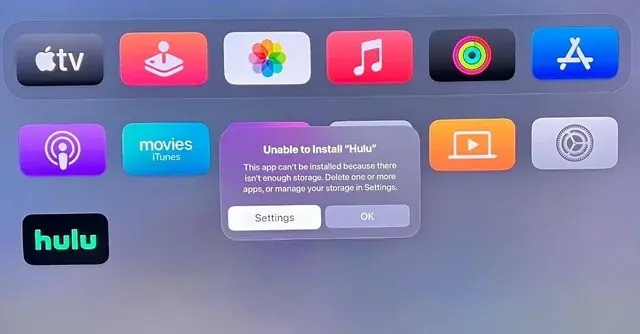
Alternative Methods for Removing Apps on Apple TV
While the primary method for deleting apps on Apple TV involves using the Siri Remote, there are a few alternative approaches you can consider:
- Using the App Store: Open the App Store on your Apple TV, navigate to the app you want to delete, and select the “Delete App” option.
- Through Settings: Go to Settings > Apps > Manage Apps, select the app you want to remove, and choose the “Delete App” option.
- With a Connected iOS Device: If you have an iPhone or iPad connected to the same Apple ID as your Apple TV, you can manage and delete apps from the Apple TV app on your iOS device.
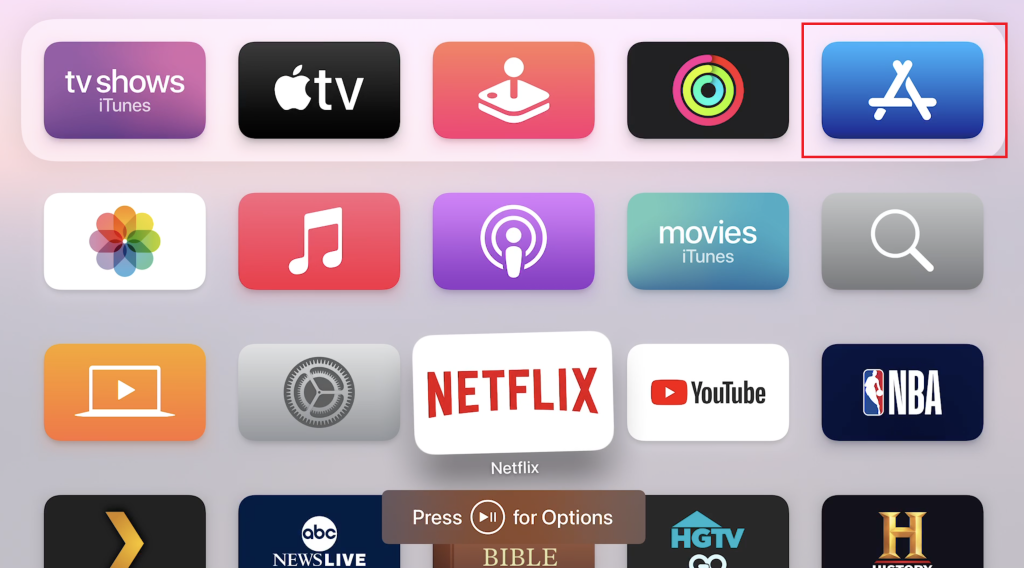
Also Read: How to Use Microsoft Office on Chromebook
Frequently Asked Questions
Q: Can I delete pre-installed apps on my Apple TV?
A: You cannot delete pre-installed system apps on your Apple TV. These apps are essential for the device’s functionality and are not meant to be removed.
Q: Will deleting an app delete my data and settings?
A: Deleting an app will remove all its associated data and settings from your Apple TV. If you want to keep this information, consider backing it up or transferring it to a different device before deleting the app.
Q: Can I reinstall deleted apps on my Apple TV?
A: You can easily reinstall any deleted apps from the App Store on your Apple TV. Search for the app and download it again.
Q: Will deleting apps affect my Apple TV’s performance?
A: Deleting unused apps can improve your Apple TV’s performance by freeing up storage space and reducing the number of background processes running on the device.
Q: How do I know which apps to delete on my Apple TV?
A: Consider deleting apps you haven’t used in a while, apps that are taking up a lot of storage space, or apps you no longer need. You can also review your app usage data to identify underutilized apps.
Conclusion
Maintaining a well-organized and clutter-free app library on your Apple TV is essential for optimizing its performance and enhancing your overall user experience. Following this article’s step-by-step guide, you can quickly delete unwanted apps, troubleshoot common issues, and implement effective app management strategies.
If you found this guide helpful, share it with your fellow Apple TV users to help them streamline their app libraries. Feel free to comment below if you have any additional questions or feedback.