How to Reset Apple Watch and Restore It to Factory Settings
Being a long-time Apple Watch user, it has dawned on me how necessary it is to reset one’s gadget for performance issues, software glitches, or an urge to start anew. Therefore, in this fully informed guide, I will show you step by step how to reset Apple Watch to its factory settings.
Table of Contents
Step-by-Step Guide on How to Reset Apple Watch
As far as this is concerned, there are several ways to reset your Apple Watch, depending on whether you have your iPhone with you or not. So here is how you can do it in two different conditions:
Reset Apple Watch Without iPhone
- Turn Off Your Apple Watch: Press and hold the side button until the Power Off slider appears, then drag the slider to turn off your watch.
- Press and Hold the Digital Crown: Start by pressing and holding the Digital Crown while your watch is turned off.
- Continue Holding the Digital Crown: Until the Apple logo appears on the screen, continuously press the Digital Crown.
- Release the Digital Crown: When the Apple logo appears, you will be able to let go of the Digital Crown.
- Wait for the Restoration Process: At this point, your Apple Watch will initialize the restoration process. It may take some time, typically a few minutes, to complete the process.
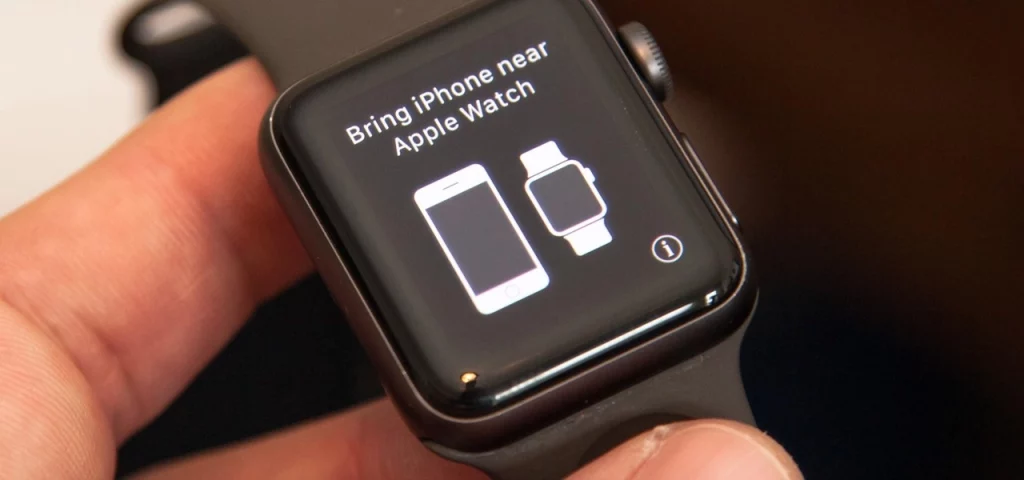
- Setting up Your Apple Watch: You will then need to set up your Apple Watch after the reset.
Resetting Apple Watch With iPhone
- Open the Apple Watch app from your iPhone: Find and tap the Apple Watch app icon from the home screen or App Library. Tap the “My Watch” tab: This is the tab selected by default when the app is launched.
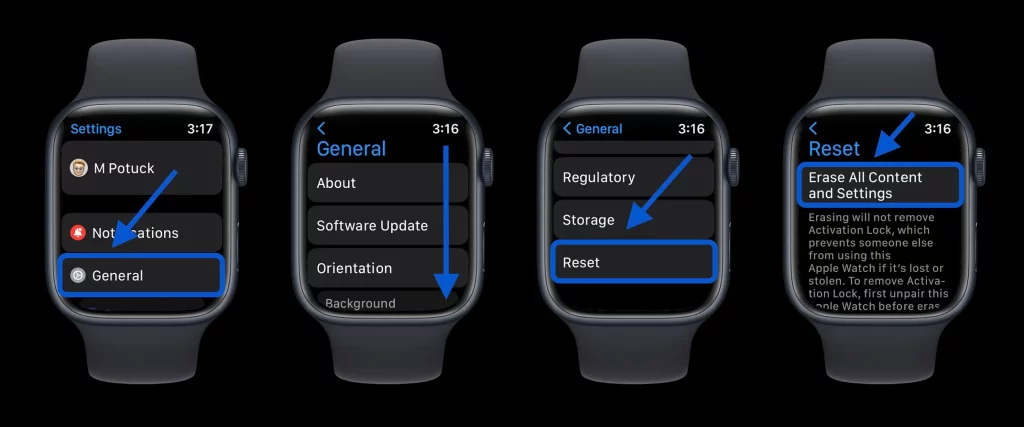
- Scroll down and tap on “General” The option can be accessed from the settings listing. Tap on “Reset” The options to reset your Apple Watch will be opened for viewing.
- Tap “Erase Apple Watch Content and Settings” This will start the resetting process.
Confirm that You Want to Reset: A box will pop up, asking if you are sure you want to reset. Tap “Erase All” to confirm.
Wait for the Reset Process: The Apple Watch now enters the resetting process. This will take a couple of minutes to get through.
Set Up Your Apple Watch: You will now need to set up your Apple Watch as if it were brand new.
Restoring Apple Watch to Factory Settings
Once your Apple Watch has been erased, you can restore it to its factory settings. It will definitely return to how it was originally with the preset factory settings and configurations. To restore your Apple Watch to factory settings:
- Unpair Apple Watch from the iPhone: You will have to unpair your Apple Watch from your iPhone if you haven’t done that. This should be done by opening the Apple Watch app on your iPhone, tapping on your watch, and selecting “Unpair Apple Watch”.
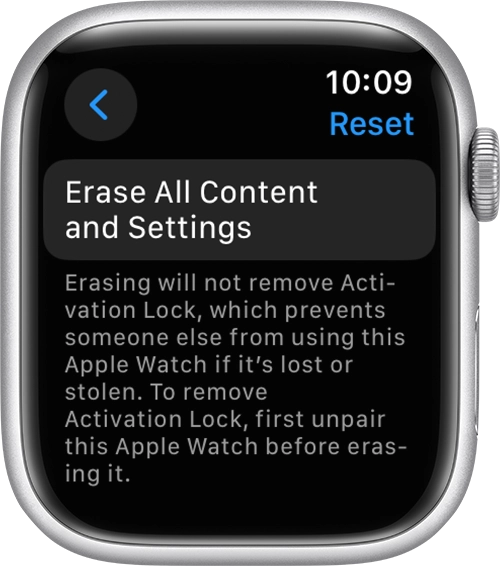
- Erase All Content and Settings: With your Apple Watch successfully unpaired from your iPhone, you can erase all content and settings from the Apple Watch. To do this, open your watch’s “General” settings, tap “Reset”, and then tap “Erase All Content and Settings”.
- Confirm the Restore Process: You will be presented with the confirmation screen. On confirmation, the Apple Watch will begin the restoration process and erase itself.
- Set Up Your Apple Watch as a New Device: Once the restore process is complete, you will be required to set up your Apple Watch as new, just like when you purchased it for the first time.
Important Things to Consider Before Resetting Apple Watch
Before resetting your Apple Watch, here are a few things you want to make sure you do:
- Backup Your Data: A backup of your activity data, app settings, and other personal information is important. You do this by merely unpairing your Apple Watch from your iPhone; this automatically creates a backup.
- Unpair Apple Watch: You need to unpair the Apple Watch from your iPhone before you reset it; in that way, the watch will be properly disconnected from the smartphone, and all your data will stay intact.
- Enough Battery Life: Make sure that your Apple Watch has at least 50% battery life in case you wish to begin the process. In this way, you can be assured that the system will reset without any glitches.
Alternative Methods to Reset Apple Watch Passcode
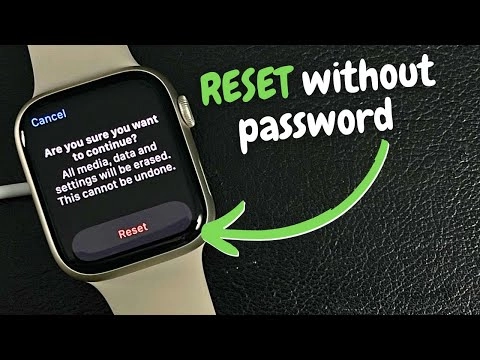
Below are alternative steps you can try in case your Apple Watch passcode is forgotten and unlocking the device becomes impossible.
Unlock Your Apple Watch Using iPhone: Definitely, an ideal method when your Apple Watch is paired with your iPhone is unlocking your watch using an iPhone by entering the passcode.
Resetting Apple Watch using the Apple Watch App: Besides, you can reset the Apple Watch using the Apple Watch app on your iPhone. Just tap the “My Watch” tab, tap on your watch, then tap “Reset” from there; it will erase all content and settings.
Apple Support: In case you could not reset the Apple Watch yourself for some reason, then you might want to get Apple Support to do it. You can also let them do further troubleshooting or replace your device, if needed.
Frequently Asked Questions
Q: Will the resetting of my Apple Watch delete all my data?
A: Yeah, all your data, like activity history, app settings, and other stuff that may be personal to you, gets deleted when you reset your Apple Watch. That’s just why you are supposed to back up your data before going into the settings to reset the device.
Q: Can I reset my Apple Watch without my iPhone?
A: Yes, you can reset your Apple Watch without an iPhone. Though the steps are a little different, you can still restart your watch by pressing and holding the Digital Crown while it is off.
Q: How long does an Apple Watch take to reset?
A: Depending on how full it is and how fast your device is, this can take anywhere between a few minutes to 15 minutes.
Q: Should I update my Apple Watch before resetting?
A: No, there is no need to update your Apple Watch before you reset it. In any case, the resetting process will return your gadget to its factory settings; hence, it will remove anything that has to do with the software version.
Related Post: Easy Steps to Turn Off Your Apple Watch
Conclusion
The process of restoring the Apple Watch is a powerful means of troubleshooting. Still, it needs to be employed with a great deal of caution and utmost attention to detail. Suppose you follow the steps in this guide. In that case, you will be able to reset your Apple Watch to factory settings in no time and get your device operating optimally.
Having decided to restore your Apple Watch to its default settings and give it a fresh start, follow the steps described below carefully. Make sure you have already backed up your data and unpaired your watch with your iPhone before commencing the restoration process. If some problem is still being faced by following these steps, then one can feel free to contact Apple Support for more assistance. Enjoy your reset!