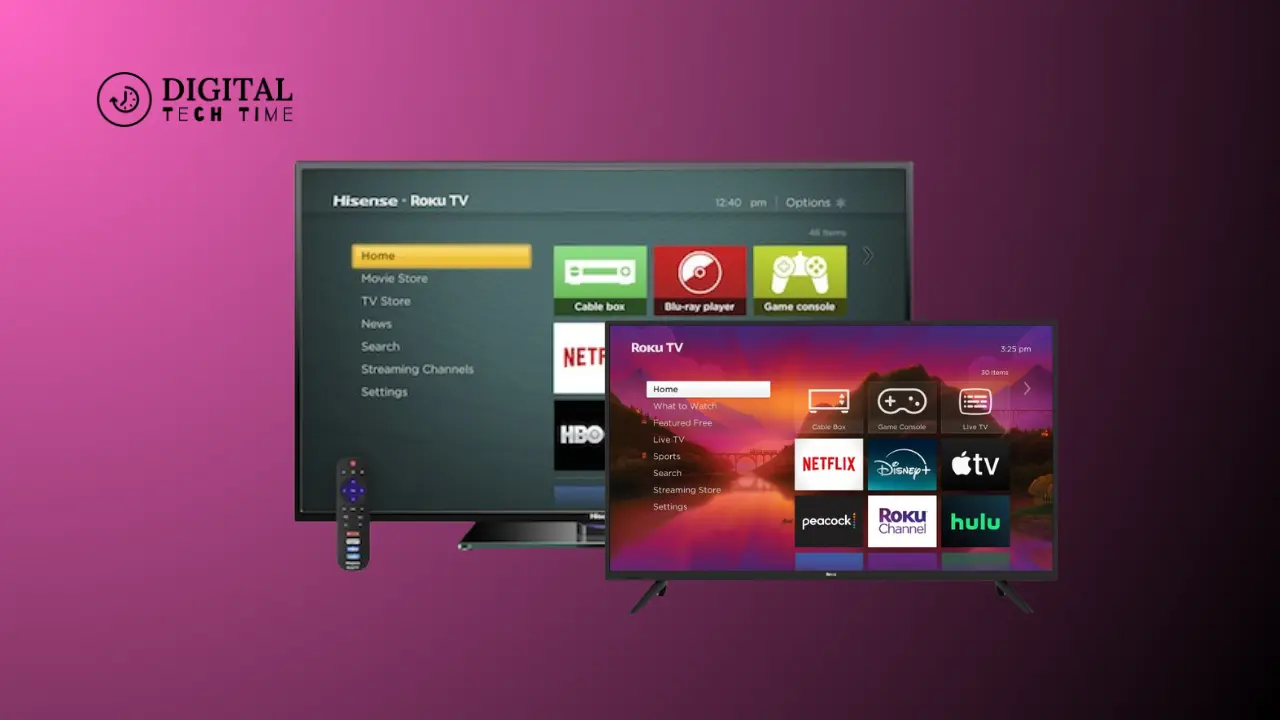
A Step-by-Step Guide on How to Restart Your Roku TV
As a Roku TV owner, I understand the importance of keeping your device in optimal condition. One of the most effective ways to maintain the performance and responsiveness of your Roku TV is by restarting it regularly. In this comprehensive guide, I will walk you through the different methods to restart your Roku TV and provide troubleshooting tips and best practices to ensure your device is running smoothly.
Table of Contents
Why Do You Need to Restart Your Roku TV?
Restarting your Roku TV can help resolve a variety of issues, including:
- Slow Performance: Over time, your Roku TV may feel sluggish or unresponsive, which can be caused by a buildup of temporary data or a software glitch. Restarting the device can help clear the cache and improve its overall performance.
- Connectivity Issues: If you’re experiencing problems with your Roku TV’s ability to connect to the internet or your home network, a restart can often help resolve these connectivity issues.
- Software Bugs: Occasionally, Roku TVs may encounter software bugs or glitches that can affect the device’s functionality. Restarting the TV can help reset the software and address these issues.
- Frozen or Unresponsive Behavior: If your Roku TV becomes unresponsive or appears frozen, a restart can often get the device back up and running.
Restarting your Roku TV can maintain optimal performance and ensure a seamless viewing experience.
Different Ways to Restart Your Roku TV
You can use several methods to restart your Roku TV, each with its own set of advantages and use cases. Let’s explore the three most common ways to restart your device:
Step 1: Power Cycling Your Roku TV
Power cycling is the most straightforward way to restart your Roku TV. Here’s how to do it:
- Locate the power button on your Roku TV or the power button on your Roku remote.
- Press and hold the power button for 5-10 seconds until the TV turns off.
- Wait 30 seconds to a minute, then press the power button again to turn the TV back on.
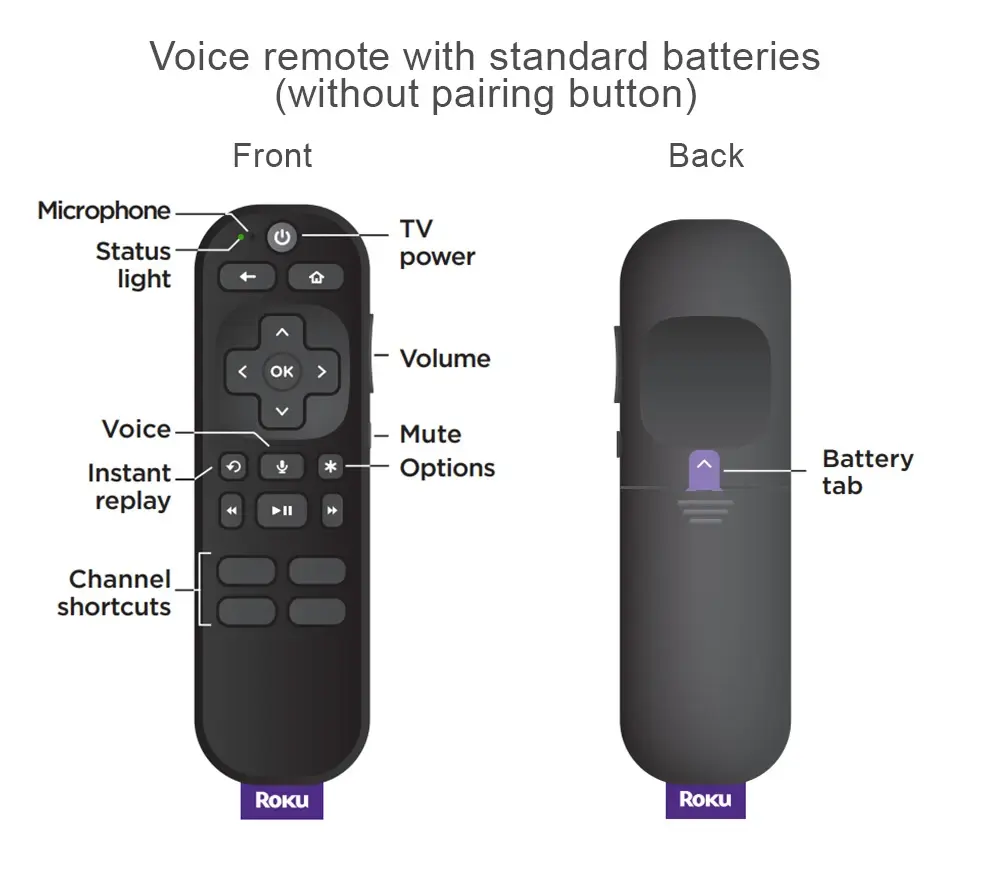
This process of turning the TV off and then back on is known as power cycling, and it can help resolve a wide range of issues with your Roku TV.
Step 2: Restarting Your Roku TV from the Settings Menu
If power cycling doesn’t work or you prefer a more controlled restart, you can restart your Roku TV directly from the settings menu:
- Press the Home button on your Roku remote to access the main menu.
- Please navigate to the Settings menu and select it.
- Scroll down to the “System” option and select it.
- Locate the “Power” or “Restart” option and select it.
- Choose the “Restart” option to initiate the restart process.
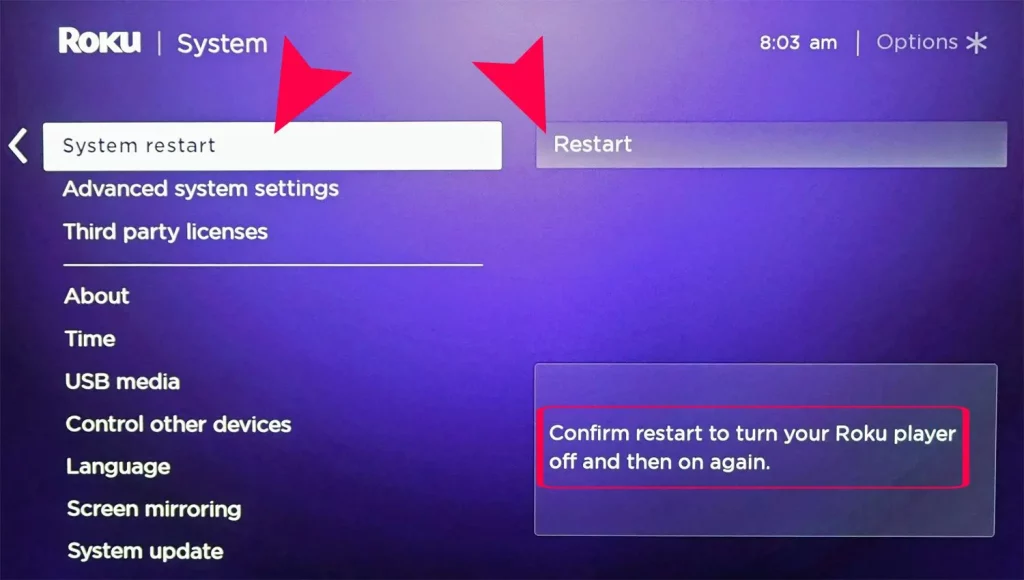
This method allows you to restart your Roku TV without physically turning it off and on, which can be more convenient in some situations.
Step 3: Performing a Factory Reset on Your Roku TV
Sometimes, you may need a factory reset on your Roku TV to address more complex issues. This process will restore your device to its original factory settings, wiping all your data and settings. Here’s how to do it:
- Press the Home button on your Roku remote to access the main menu.
- Please navigate to the Settings menu and select it.
- Scroll down to the “System” option and select it.
- Locate the “Advanced system settings” option and select it.
- Choose the “Factory reset” or “Factory reset and delete everything” option.
- Follow the on-screen instructions to complete the factory reset process.
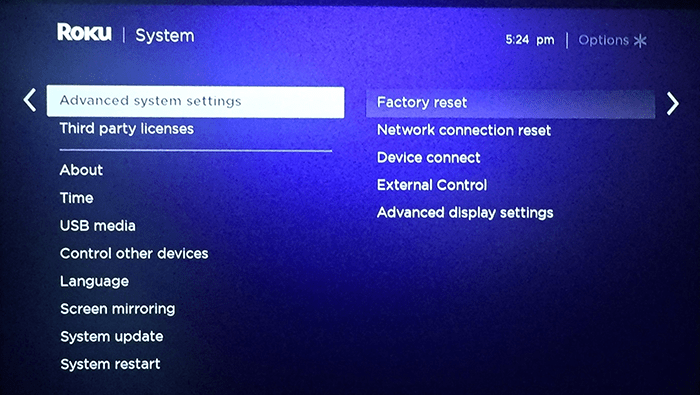
It’s important to note that a factory reset will erase all your personal settings, apps, and data, so back up any important information before proceeding.
Common Issues and Troubleshooting Tips When Restarting Roku TV
While restarting your Roku TV can help resolve a wide range of issues, you may encounter some common problems during the process. Here are a few troubleshooting tips to help you address these issues:
- Roku TV Won’t Turn On After Restart: If your Roku TV doesn’t turn on after a restart, check the power cable to ensure it’s properly connected. You can also try unplugging the power cable, waiting for 30 seconds, and then plugging it back in.
- Roku TV Gets Stuck During Restart: If your Roku TV appears to be stuck during restart, try power cycling the device by pressing and holding the power button for 10-15 seconds until it turns off, then turn it back on.
- Roku TV Keeps Restarting Repeatedly: If your Roku TV keeps restarting on its own, it could be a sign of a more severe issue, such as a hardware problem or a software bug. In this case, you should contact Roku support for further assistance.
- Roku TV Doesn’t Respond to Remote Commands: If your Roku TV doesn’t respond to remote commands during or after a restart, try replacing the batteries in your remote or pairing the remote with the TV again.
Remember, if you encounter any persistent issues or the troubleshooting steps don’t work, it’s always best to contact Roku’s customer support for further assistance.
Tips to Optimize Your Roku TV’s Performance
In addition to regularly restarting your Roku TV, there are a few other steps you can take to help optimize its performance and ensure a smooth viewing experience:
- Keep Your Roku TV’s Software Up-to-Date: Regularly check for and install any available software updates for your Roku TV. These updates often include bug fixes and performance improvements.
- Clear the Cache and Data: Over time, your Roku TV’s cache and data can accumulate, leading to slow performance. You can clear this data by going to the Settings menu, selecting “System,” and then choosing the “Cache and data” option.
- Limit the Number of Installed Apps: While installing a wide range of apps on your Roku TV is tempting, too many can slow down the device’s performance. Keep your app selection focused on the ones you use most frequently.
- Ensure Proper Ventilation: Ensure your Roku TV has adequate ventilation to prevent overheating, which can cause performance issues. Avoid placing the device in enclosed spaces or on top of other electronics.
- Upgrade Your Internet Connection: If you’re experiencing buffering or lag during streaming, consider upgrading your internet service to a faster plan. This can help ensure a smooth and uninterrupted viewing experience on your Roku TV.
By following these tips, you can help maintain the optimal performance of your Roku TV and enjoy a seamless entertainment experience.
Also Read: Record Audio on Chromebook: Step-by-Step Tutorial
Frequently Asked Questions
Q: How often should I restart my Roku TV?
A: It’s generally recommended to restart your Roku TV at least once a week or whenever you notice any performance issues. This can help prevent the buildup of temporary data and address any software-related problems.
Q: Will restarting my Roku TV erase the data and settings I saved?
A: Restarting your Roku TV through the power cycling or settings menu methods will not erase your saved data and settings. However, a factory reset will restore the device to its original factory settings, deleting all your personal information and customizations.
Q: Can I restart my Roku TV remotely?
A: Unfortunately, you cannot restart your Roku TV remotely. The restart process must be initiated directly on the device or through the Roku remote.
Q: What should I do if my Roku TV doesn’t respond to the restart process?
A: If your Roku TV doesn’t respond to any restart methods, you may need to contact Roku’s customer support for further assistance. They can help you troubleshoot the issue and provide additional guidance.
Conclusion
Restarting your Roku TV is a simple yet effective way to maintain its optimal performance and address various issues. Following the step-by-step guide outlined in this article, you can quickly power cycle, restart from the settings menu, or perform a factory reset on your device.
Remember, regular restarts and other optimization tips can help ensure your Roku TV continues to provide a seamless and enjoyable viewing experience for years to come.
If you found this guide helpful, check out our other Roku TV-related articles for more tips and tricks to get the most out of your device. And remember to subscribe to our newsletter for the latest updates and exclusive content.