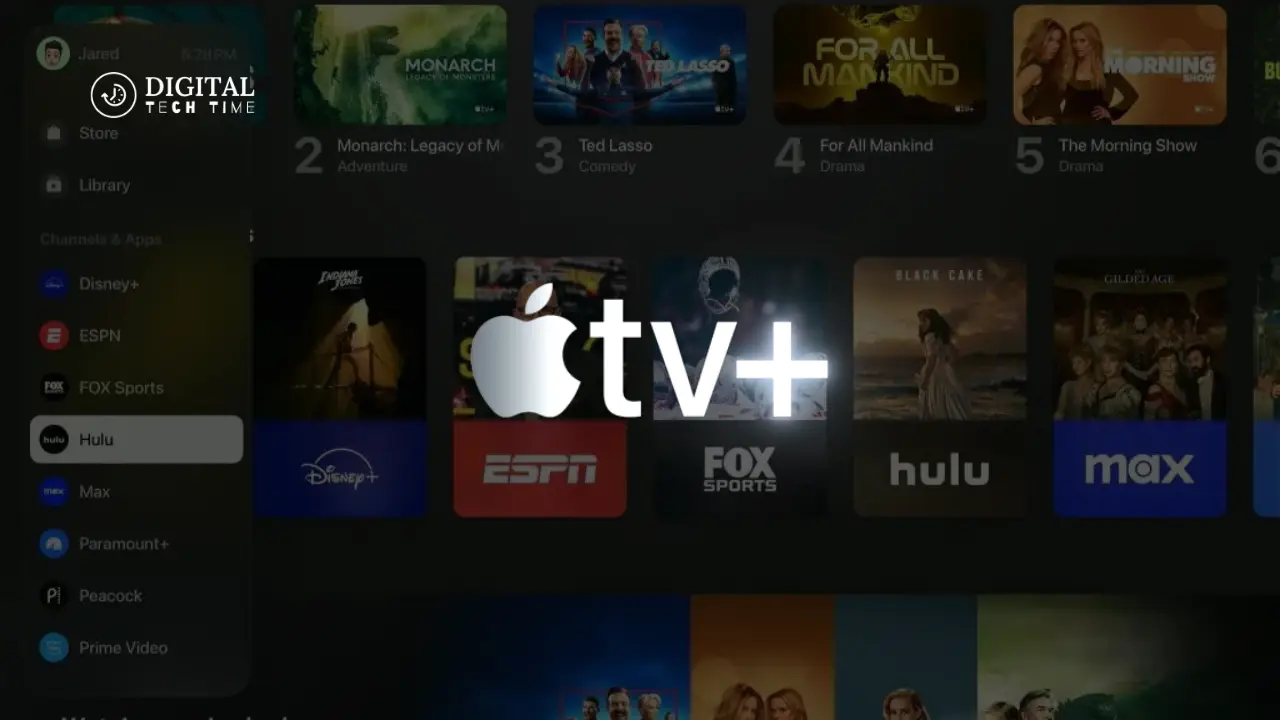
How to Watch Apple TV Plus on Roku: A New Experience
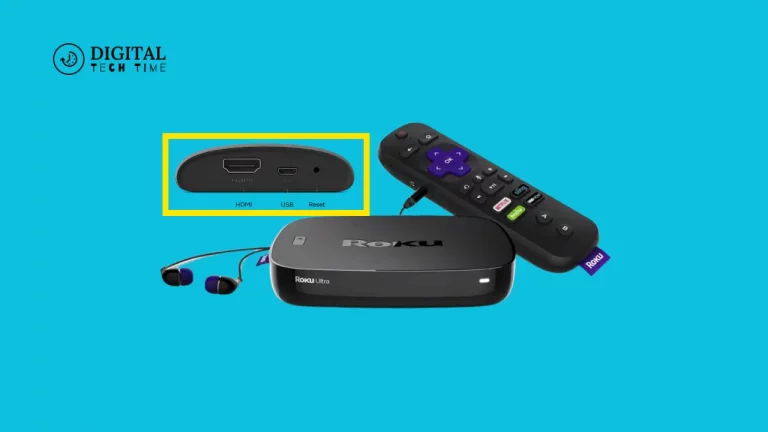
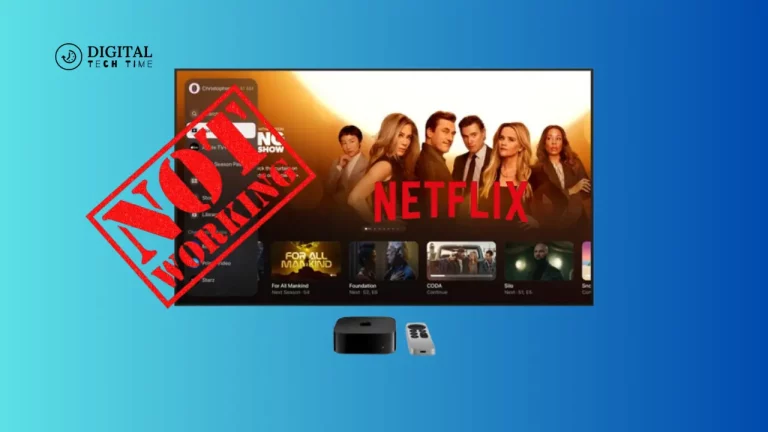
As the streaming landscape continues to evolve, the recent partnership between Apple and Roku has opened up a world of possibilities for viewers. Apple TV Plus, the tech giant’s premium streaming service, is now available on Roku devices, providing users seamless access to high-quality content. This comprehensive guide explores the benefits of watching Apple TV Plus on Roku, walks you through the setup process, and delves into the features and content that await you.
Table of Contents
Benefits of Watching Apple TV Plus on Roku
Integrating Apple TV Plus with your Roku device offers several advantages:
- Expanded Content Access: With the Apple TV app on Roku, you can access a diverse library of original shows, movies, documentaries, and more from Apple TV Plus, complementing the already impressive selection of content available on your Roku device.
- Convenience and Accessibility: Roku’s user-friendly interface and widespread compatibility make integrating Apple TV Plus into your existing streaming setup easy, allowing you to enjoy your favorite shows and movies with just a few clicks.
- Seamless Viewing Experience: The Apple TV app on Roku provides a consistent and intuitive experience, ensuring a smooth transition between your various streaming services and content.
- Cross-Device Compatibility: Your Apple TV Plus subscription can be accessed across multiple devices, including your Roku, iPhone, iPad, and Mac, allowing you to pick up where you left off on any compatible device.
Setting up Roku for Apple TV Plus
To start watching Apple TV Plus on your Roku device, you’ll need to ensure that your Roku is connected to the internet and that you have an active Apple TV Plus subscription. Follow these steps to get started:
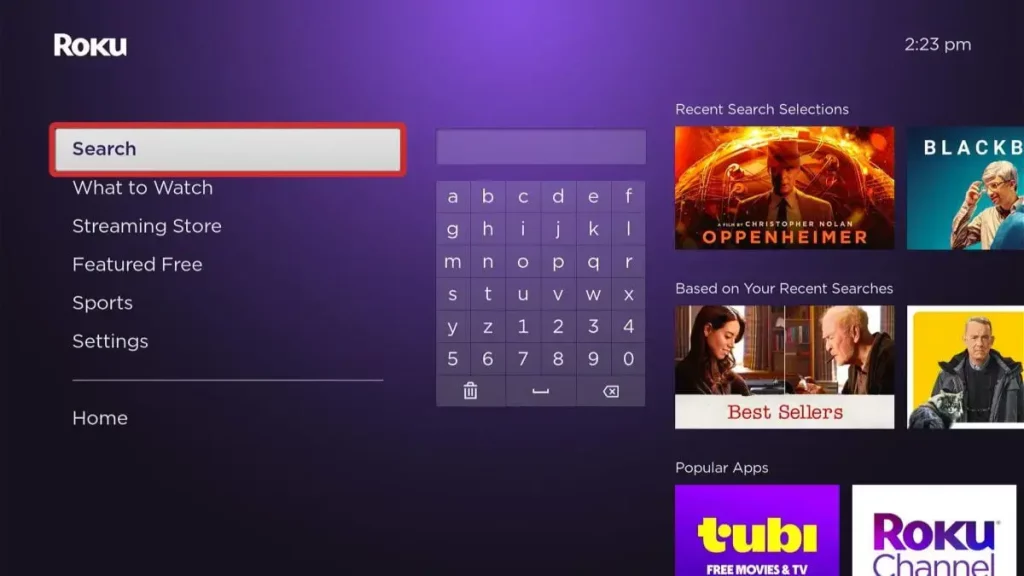
- Add the Apple TV App: Navigate to the Roku Channel Store and search for the “Apple TV” app. Select the app and click “Add Channel” to install it on your Roku device.
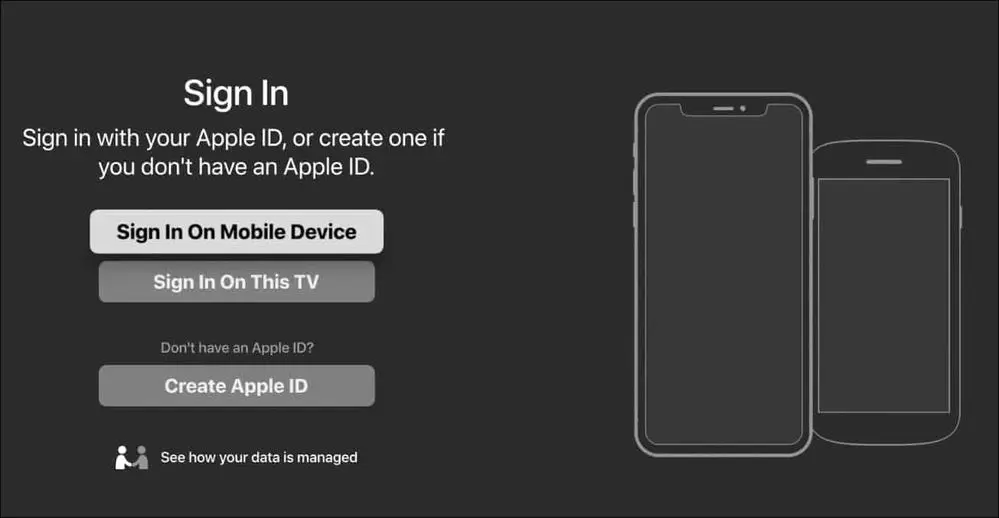
- Sign in to Apple TV Plus: Launch the app and sign in with your Apple ID once the app is installed. If you don’t have an Apple TV Plus subscription, you can sign up for one directly within the app.
- Customize Your Experience: Explore the Apple TV Plus interface on Roku, where you can browse the available content, create watchlists, and adjust your viewing preferences to personalize your experience.
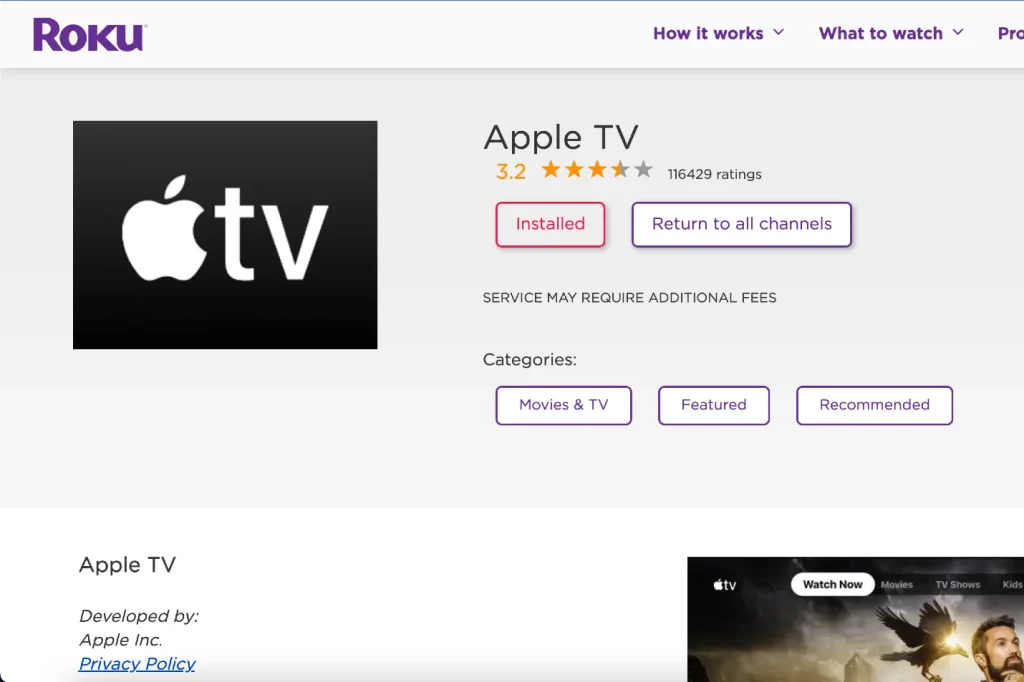
Downloading and Installing the Apple TV App on Roku
Once your Roku is set up, it’s time to download and install the Apple TV app. Here’s how:
- Access the Roku Channel Store: From the Roku home screen, navigate to the Roku Channel Store and search for the “Apple TV” app.
- Select and install the app: Click on the Apple TV app and select “Add Channel” to begin the installation. This may take a few minutes, depending on your internet connection speed.
- Launch the Apple TV app: Once the installation is complete, you’ll find the Apple TV app in your Roku’s app list. Click on it to launch the app and start exploring the content.
Logging in to Your Apple ID on Roku
To access your Apple TV Plus subscription on your Roku device, you’ll need to log in with your Apple ID. Here’s how:
- Sign in to the Apple TV app: When you first launch the Apple TV app on your Roku, you’ll be prompted to sign in with your Apple ID.
- Enter your credentials: Enter the email address and password associated with your Apple ID, then follow the on-screen instructions to complete the sign-in process.
- Verify your subscription: Once you’ve signed in, the Apple TV app will automatically detect your active Apple TV Plus subscription and grant you access to the content.
Navigating the Apple TV Plus Interface on Roku
The Apple TV app on Roku offers a clean and intuitive interface that makes it easy to find and enjoy your favorite content. Here’s a quick overview of the key features:
- Home Screen: The home screen provides quick access to your recently watched shows and movies and personalized recommendations based on your viewing history and preferences.
- Browse and Search: Use the intuitive browse and search functions to explore the extensive library of Apple TV Plus content, including original Series, films, documentaries, and more.
- Watchlist: Create a personalized watchlist to keep track of the shows and movies you want to view, making it easy to pick up where you left off.
- Parental Controls: Manage your family’s viewing experience by setting up parental controls and restricting access to age-appropriate content.
- Subtitles and Audio Options: Customize your viewing experience by adjusting subtitles, audio languages, and other accessibility options.
Exploring the Content Available on Apple TV Plus
Apple TV Plus offers a diverse and ever-expanding library of original content, including critically acclaimed Series, blockbuster movies, and thought-provoking documentaries. Some of the highlights include:
- Original Series: “Ted Lasso,” “The Morning Show,” “Severance,” “Mythic Quest,” and many more.
- Movies: “CODA,” “Greyhound,” “Finch,” and a growing selection of feature films.
- Documentaries: “The Velvet Underground,” “Boys State,” and “Tiny World.”
- Kids and Family Content: “Wolfwalkers,” “Snoopy in Space,” and “Helpsters.”
As you explore your Roku device’s Apple TV Plus catalog, you’ll discover a wealth of engaging and high-quality content that caters to a wide range of interests and age groups.
Watching Apple TV Plus Shows and Movies on Roku
Enjoying Apple TV Plus content on your Roku device is a seamless experience. Once you’ve set up the Apple TV app and signed in to your account, you can:
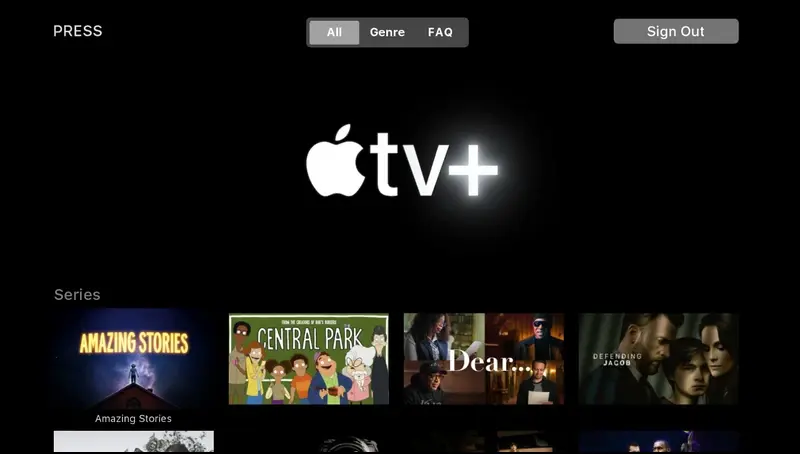
- Browse and Search: Use the intuitive browse and search functions to find the specific show or movie you want to watch.
- Start Watching: Click the title you wish to view, and the content will begin playing on your Roku device.
- Resume Playback: If you need to pause or stop watching, the Apple TV app on Roku will remember your progress, allowing you to pick up where you left off on any compatible device.
- Adjust Playback Settings: Customize your viewing experience by adjusting the subtitles, audio language, or other playback options.
- Add to Watchlist: Easily add titles to your personalized watchlist for easy access later.
Also Read: 7 Effective Ways to Fix a Frozen Chromebook and Get Back to Work
Frequently Asked Questions
Q: Do I need a separate subscription for Apple TV Plus if I already have a Roku device?
A: Yes, you will need an active Apple TV Plus subscription to access the content on your Roku device. The Apple TV app on Roku is simply the platform to view the content, while the subscription provides access to the library of shows, movies, and documentaries.
Q: Can I share my Apple TV Plus subscription with family members?
A: You can share your Apple TV Plus subscription with up to six family members using the Family Sharing feature. Each family member can create their profile and access the content on their Roku or other compatible devices.
Q: Does the Apple TV app on Roku support 4K and HDR?
A: Yes, the Apple TV app on Roku is capable of streaming content in 4K resolution and supporting HDR formats, such as Dolby Vision and HDR10, as long as your Roku device and TV are compatible with these technologies.
Q: Can I use other streaming services on my Roku device alongside Apple TV Plus?
A: Absolutely! Roku devices are designed to integrate multiple streaming services, allowing you to access content from various providers, including Netflix, Hulu, Amazon Prime Video, and more, in addition to Apple TV Plus.
Conclusion
The integration of Apple TV Plus with Roku devices has opened up a world of possibilities for streaming enthusiasts. By leveraging the convenience and accessibility of Roku, you can now seamlessly access the compelling content offered by Apple TV Plus, creating a truly immersive and enjoyable viewing experience. Whether you’re a fan of original Series, captivating movies, or thought-provoking documentaries, the Apple TV app on Roku provides a platform that caters to your diverse entertainment needs.
Ready to dive into the world of Apple TV Plus on your Roku device? Sign up for your subscription today and unlock a new level of streaming entertainment. Click here to get started!