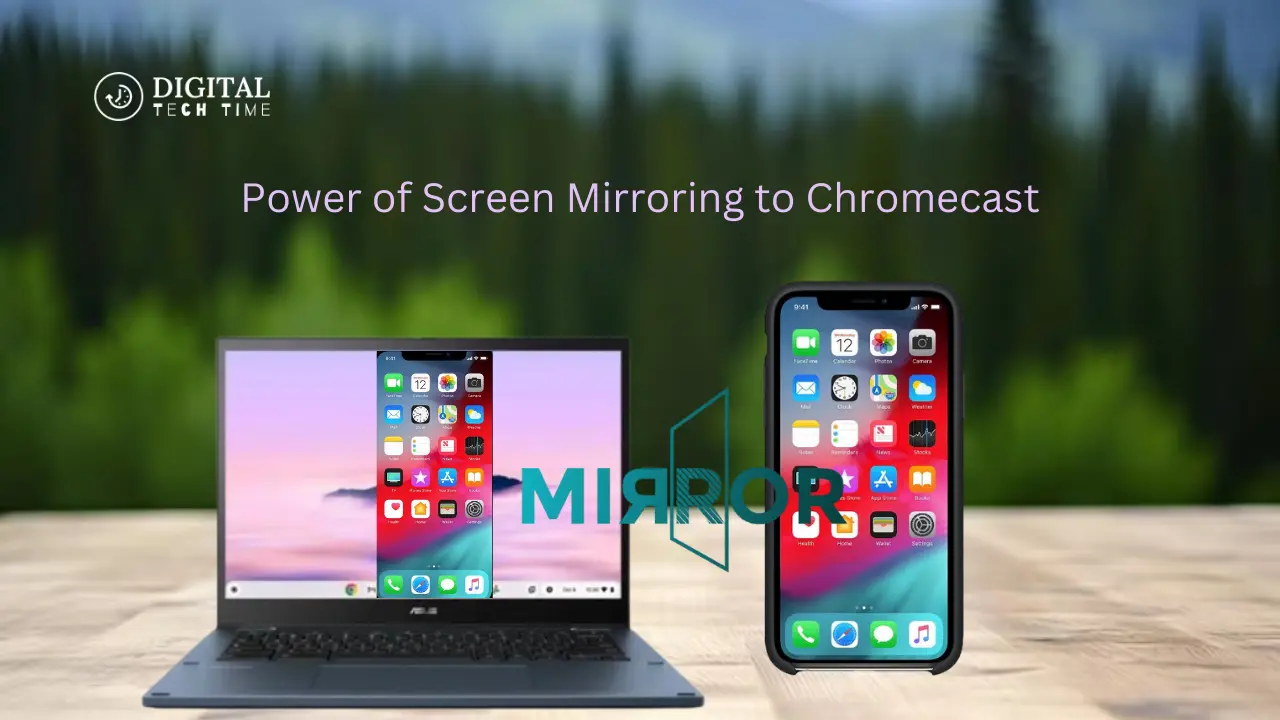
Power of Screen Mirroring to Chromecast: Your Ultimate Guide
In today’s digital world, where technology has become an integral part of our lives, the ability to seamlessly share content from our devices to a larger screen has become increasingly important. Whether you’re presenting a business proposal, streaming your favorite movies, or simply sharing family photos, the need for an efficient and reliable screen mirroring solution is undeniable.
Enter Chromecast, Google’s innovative device that revolutionized how we interact with our digital content. Chromecast has become a game-changer in home entertainment and productivity by allowing you to mirror your screen or cast specific apps and media directly to your TV. In this comprehensive guide, we’ll explore the power of screen mirroring with Chromecast, providing you with the knowledge and tools to unlock its full potential.
Table of Contents
How to Set Up Screen Mirroring on Your Device
Setting up screen mirroring with Chromecast is a straightforward process. With our step-by-step instructions, you’ll be up and running quickly. Here’s what you need to do:
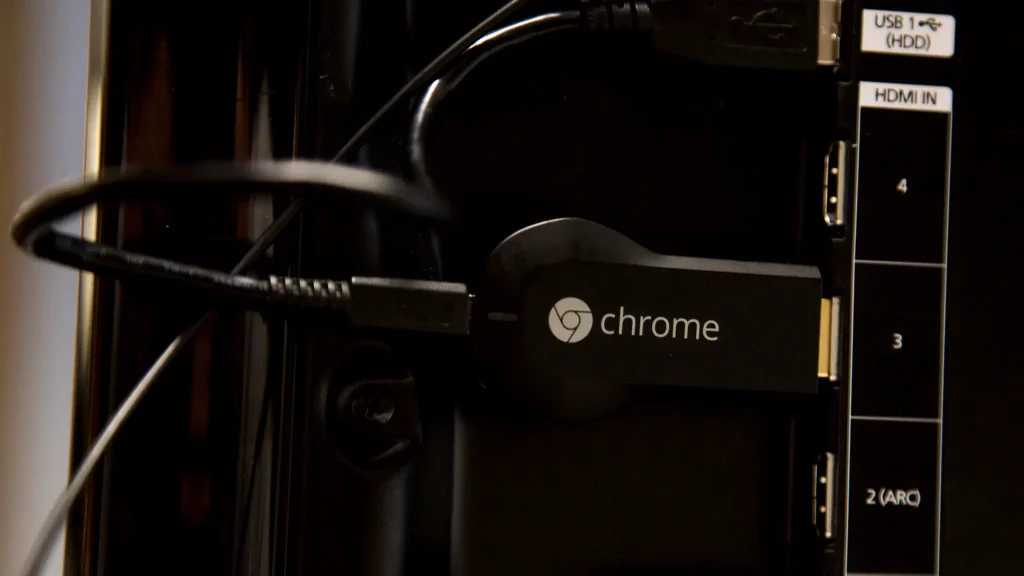
- Connect Your Chromecast Device: Connect your Chromecast device to your television’s HDMI port and ensure it is powered on.
- Download the Google Home App: On your mobile device or computer, download the Google Home app, which will serve as the central hub for managing your Chromecast.
- Connect to the Same Network: Make sure your Chromecast and the device you want to mirror are connected to the same Wi-Fi network.
- Pair Your Devices: Open the Google Home app, locate your Chromecast device, and follow the on-screen instructions to pair it with your device.
- Start Mirroring: Once the devices are paired, you can initiate screen mirroring by selecting the “Cast” option on your device and choosing your Chromecast from the list.
Screen Mirroring Options for Different Operating Systems
Chromecast’s versatility extends to its compatibility with a wide range of operating systems, allowing you to enjoy the benefits of screen mirroring across various devices. Let’s explore the specific steps for each platform:
Windows
- Install the Google Chrome Browser: If you haven’t already, download and install the Google Chrome browser on your Windows device.
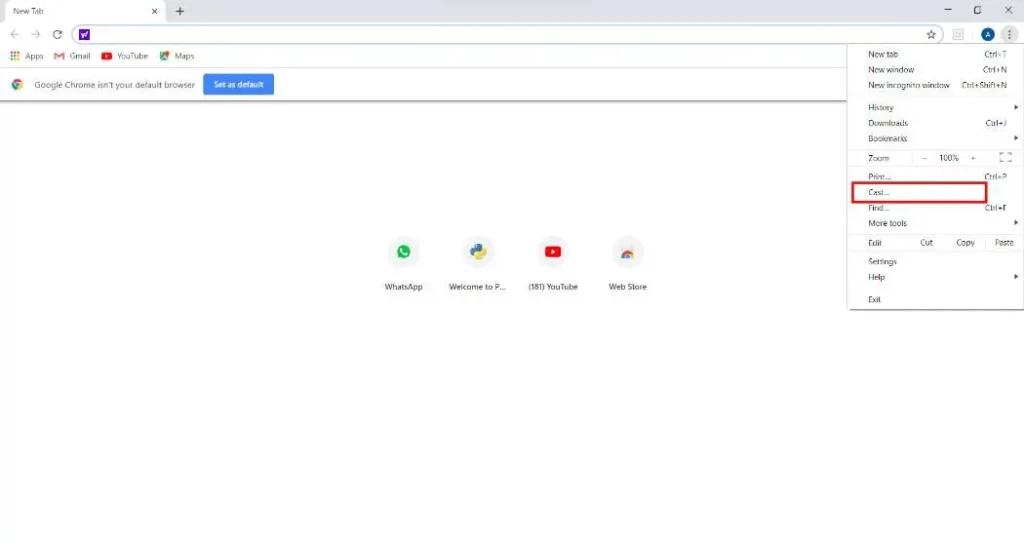
- Enable Screen Mirroring: In the Chrome browser, click on the three-dot menu in the top-right corner and select “Cast…” to initiate the screen mirroring process.
Mac
- Install the Google Chrome Browser: Like Windows, you must download and install the Google Chrome browser on your Mac.
- Enable Screen Mirroring: In the Chrome browser, click on the three-dot menu in the top-right corner and select “Cast…” to start mirroring your screen.
Android
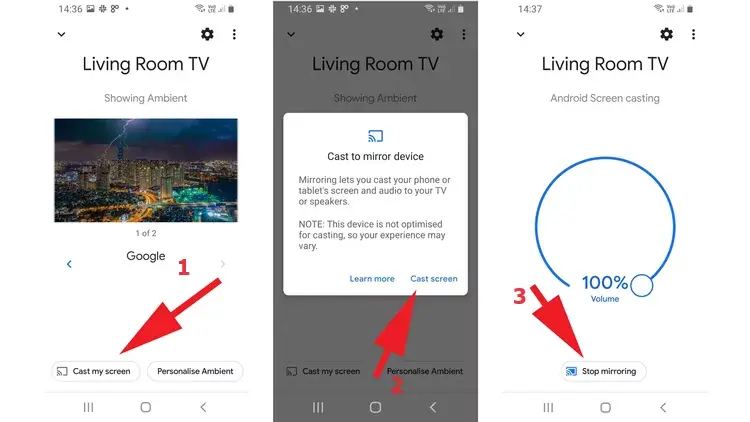
- Open the Google Home App: On your Android device, open the Google Home app and select your Chromecast device.
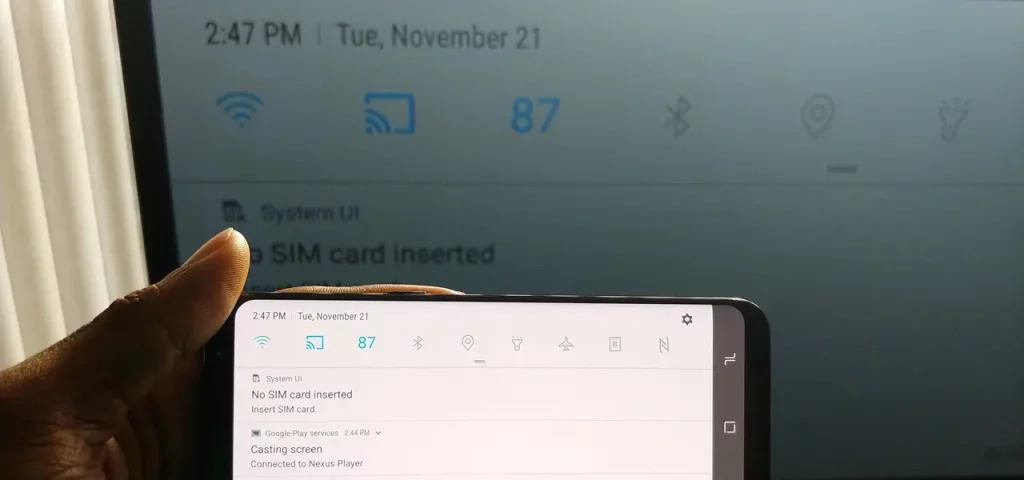
- Tap the “Cast” Icon: Look for the “Cast” icon (it resembles a TV with a Wi-Fi symbol) and tap it to initiate the screen mirroring process.
iOS/iPadOS
- Install the Google Home App: Download the Google Home app from the App Store on your iOS or iPadOS device.
- Tap the “Cast” Icon: In the Google Home app, locate your Chromecast device and tap the “Cast” icon to start mirroring your screen.
Troubleshooting Common Screen Mirroring Issues
While screen mirroring with Chromecast is generally a seamless experience, you may occasionally encounter some common issues. Here are a few troubleshooting tips to help you overcome these challenges:
- Connectivity Issues: Ensure that your Chromecast and your mirroring device are connected to the same Wi-Fi network. If the connection is unstable, try moving your devices closer to the router or resetting the network.
- Audio/Video Sync Problems: If you notice a delay between the audio and video, try adjusting the display settings on your device or the Chromecast itself.
- Resolution or Aspect Ratio Mismatch: If the mirrored content doesn’t fit properly on your TV screen, check the display settings on both your device and the Chromecast to ensure they are compatible.
- Lagging or Stuttering Playback: If you experience any performance issues, try closing other resource-intensive apps running on your device or consider upgrading your Wi-Fi network to a faster connection.
Exploring the Benefits of Screen Mirroring with Chromecast
Chromecast’s screen mirroring capabilities offer many benefits that can enhance your digital experience. Let’s dive into some of the key advantages:
- Versatility: Chromecast’s compatibility with various devices, including smartphones, tablets, and computers, makes it a versatile solution for sharing content across multiple platforms.
- Seamless Collaboration: Whether presenting in a meeting or hosting a family movie night, Chromecast’s screen mirroring feature allows you to effortlessly share your device’s screen with others, fostering collaboration and engagement.
- Improved Viewing Experience: By mirroring your device’s screen to a larger TV display, you can enjoy a more immersive and comfortable viewing experience, especially for activities like streaming movies, playing games, or viewing photos.
- Increased Productivity: Chromecast’s screen mirroring capabilities can enhance your productivity by allowing you to share your computer screen during presentations, video conferences, or when working on collaborative projects.
- Convenient Content Sharing: With Chromecast, you can easily share your device’s content, such as photos, videos, or even live social media updates, with friends and family, creating a more engaging and connected experience.
Tips and Tricks for a Seamless Screen Mirroring Experience
To ensure you get the most out of your Chromecast screen mirroring experience, here are some tips and tricks to keep in mind:
- Optimize Your Network: Ensure your Wi-Fi network is strong and stable to minimize any potential lag or video quality issues.
- Manage Device Compatibility: Check the compatibility of your devices and Chromecast to ensure a smooth mirroring experience.
- Utilize Gesture Controls: Use Chromecast’s gesture controls, such as pinch-to-zoom or swipe gestures, to enhance your viewing experience.
- Leverage Casting Shortcuts: Familiarize yourself with the various casting shortcuts available on your device’s operating system to initiate screen mirroring quickly.
- Customize Display Settings: Experiment with the display settings on both your device and the Chromecast to find the optimal configuration for your specific needs.
Best Apps and Websites for Screen Mirroring to Chromecast
To further enhance your Chromecast screen mirroring experience, here are some of the best apps and websites to consider:
- YouTube: Seamlessly cast your favorite YouTube videos, playlists, and live streams directly to your TV.
- Netflix: Enjoy your Netflix content on the big screen by mirroring your device’s screen to Chromecast.
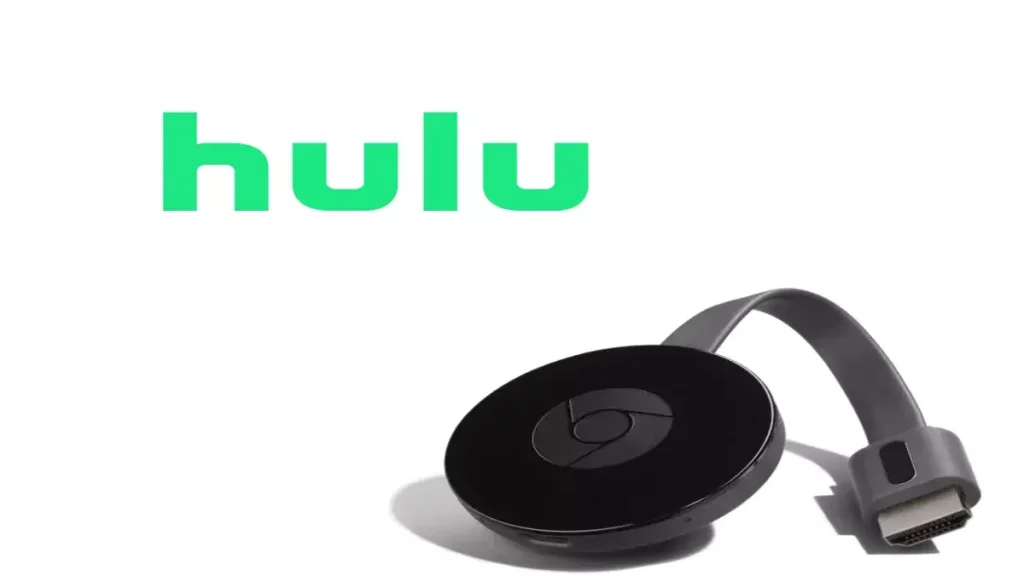
- Hulu: Cast your Hulu streaming content, including movies, TV shows, and live TV, to your TV using Chromecast.
- Amazon Prime Video: Easily mirror your Amazon Prime Video content to your Chromecast-enabled TV.
- Google Slides: Utilize Chromecast’s screen mirroring capabilities to present your Google Slides presentations on a larger display.
Advanced Features and Customization Options for Chromecast Screen Mirroring
Chromecast offers a range of advanced features and customization options to enhance your screen mirroring experience. Explore the following:
- Guest Mode: This allows guests to easily connect and cast to your Chromecast device without requiring access to your Wi-Fi network.
- Ambient Mode: Transform your Chromecast into a digital photo frame, displaying a curated selection of images or artwork when not in use.
- Multi-Room Audio: Synchronize audio playback across multiple Chromecast-enabled devices for a seamless, whole-home audio experience.
- Chromecast with Google TV: Upgrade to the latest Chromecast model, which offers a dedicated user interface and advanced features for a more comprehensive streaming experience.
- Voice Control: Leverage the power of Google Assistant to control your Chromecast and initiate screen mirroring using voice commands.
Comparison Between Chromecast and Other Screen Mirroring Devices
While Chromecast is a popular choice for screen mirroring, it’s not the only option available. Let’s explore how it compares to some other leading screen mirroring devices:
| Feature | Chromecast | Apple AirPlay | Roku Wireless Display | Amazon Fire TV Stick |
|---|---|---|---|---|
| Compatibility | Wide range of devices | Primarily Apple ecosystem | Limited to Roku devices | Amazon Fire TV ecosystem |
| Ease of Use | Straightforward setup | Requires Apple device | Relatively easy setup | Straightforward setup |
| Video Quality | Up to 4K resolution | Up to 1080p resolution | Up to 1080p resolution | Up to 4K resolution |
| Latency | Generally low latency | Can experience higher latency | Relatively low latency | Low latency |
| Wireless Connectivity | Reliable Wi-Fi connection | Relies on Apple AirPlay protocol | Wireless display protocol | Wireless display protocol |
| Additional Features | Advanced customization options | Limited customization | Basic mirroring features | Some additional streaming features |
Also Read: Discover the Convenience: Does Chrome Have a Reader Mode?
Frequently Asked Questions
Q: Can I mirror my entire computer screen to Chromecast?
A: You can mirror your computer screen to Chromecast using the Google Chrome browser on both Windows and Mac devices.
Q: Does Chromecast support 4K resolution?
A: Yes, the latest Chromecast models support 4K resolution, allowing you to enjoy high-quality content on your TV.
Q: Can I use Chromecast without a Wi-Fi connection?
A: No, Chromecast requires a stable Wi-Fi connection to function properly. It cannot be used without an internet connection.
Q: Can I cast content from multiple devices to the same Chromecast?
A: Chromecast allows you to cast content from multiple devices simultaneously, enabling collaborative viewing and sharing experiences.
Q: Does Chromecast work with all streaming apps?
A: While Chromecast is compatible with a wide range of streaming apps, the availability of specific apps may vary depending on your device and location.
Conclusion
In today’s digital landscape, the ability to seamlessly mirror your device’s screen to a larger display has become increasingly valuable. With its intuitive design and powerful screen mirroring capabilities, Chromecast has emerged as a game-changer in home entertainment and productivity.
By following the steps outlined in this comprehensive guide, you can unlock Chromecast’s full potential and enjoy a seamless screen mirroring experience across various devices and platforms. From setting up your Chromecast to troubleshooting common issues and exploring advanced features, this guide has given you the knowledge and tools to make the most of your Chromecast screen mirroring journey.
As you continue to explore Chromecast’s capabilities, I encourage you to experiment with the various tips and tricks, as well as the recommended apps and websites, to enhance your digital experience. Whether presenting in a professional setting, streaming your favorite content, or simply sharing memories with loved ones, Chromecast’s screen mirroring functionality will empower you to connect, collaborate, and enjoy your digital world like never before.
Ready to enhance your screen mirroring experience? Visit the Google Store to explore the latest Chromecast devices and accessories and unlock the full potential of your digital content. [Click here to shop now].