How to Fix Netflix Not Working on Apple TV
As an avid Netflix user, I’ve encountered my fair share of frustrations when the service doesn’t work as expected on my Apple TV. From buffering issues to error messages, there can be various reasons why Netflix might not function properly on your device. In this article, I’ll guide you through the most common troubleshooting steps to get your Netflix back up and running on your Apple TV.
Table of Contents
Troubleshooting steps for Netflix not working on Apple TV
Check your internet connection.
One of the primary reasons Netflix does not work on your Apple TV is a poor internet connection. Ensure that your internet is stable and fast enough to support streaming. You can check your internet speed by running a test on a different device. Netflix recommends a minimum of 3 Mbps for standard definition (SD) streaming and 5 Mbps for high definition (HD) streaming.
If your internet connection is slow or unstable, try restarting your modem and router or contacting your internet service provider (ISP) for assistance.
Update the Netflix app on Apple TV.
Keeping your Netflix app up-to-date is essential for optimal performance. Apple TV automatically updates apps, but you can manually check for updates by going to the App Store, selecting the “Updates” tab, and looking for the Netflix app.
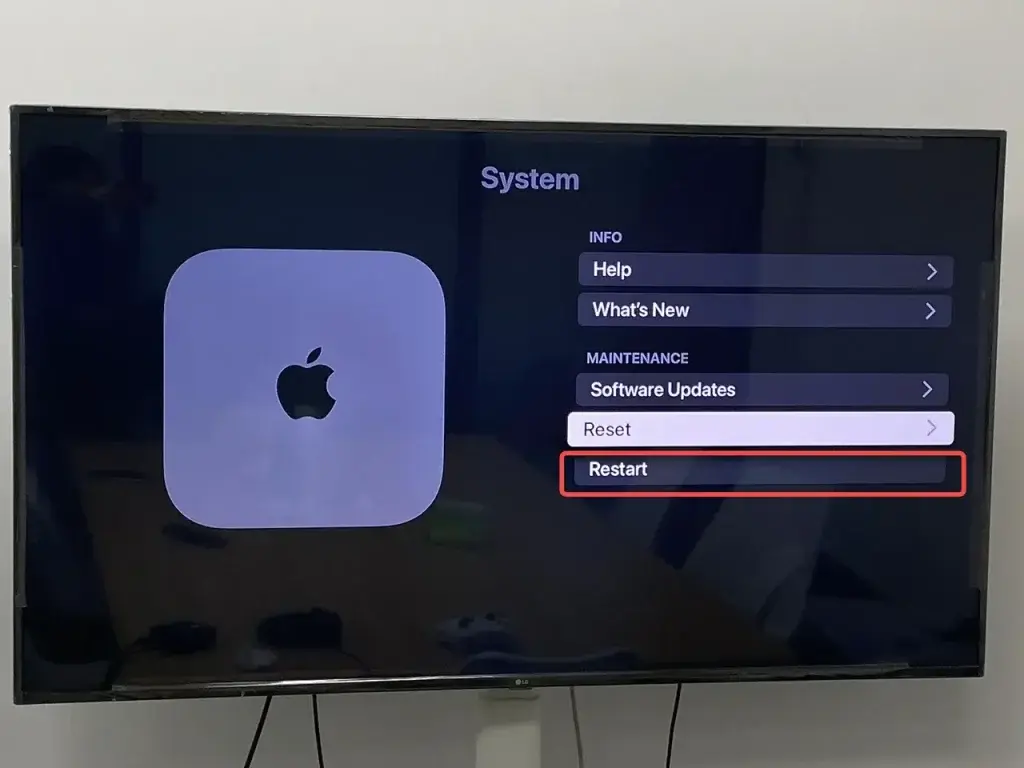
Restart your Apple TV and modem/router.
Sometimes, a simple restart can resolve various issues with your Apple TV and the Netflix app. Please turn off your Apple TV, unplug it from the power source, and wait a minute before plugging it back in. Do the same for your modem and router.
Clear the cache and data on the Netflix app.
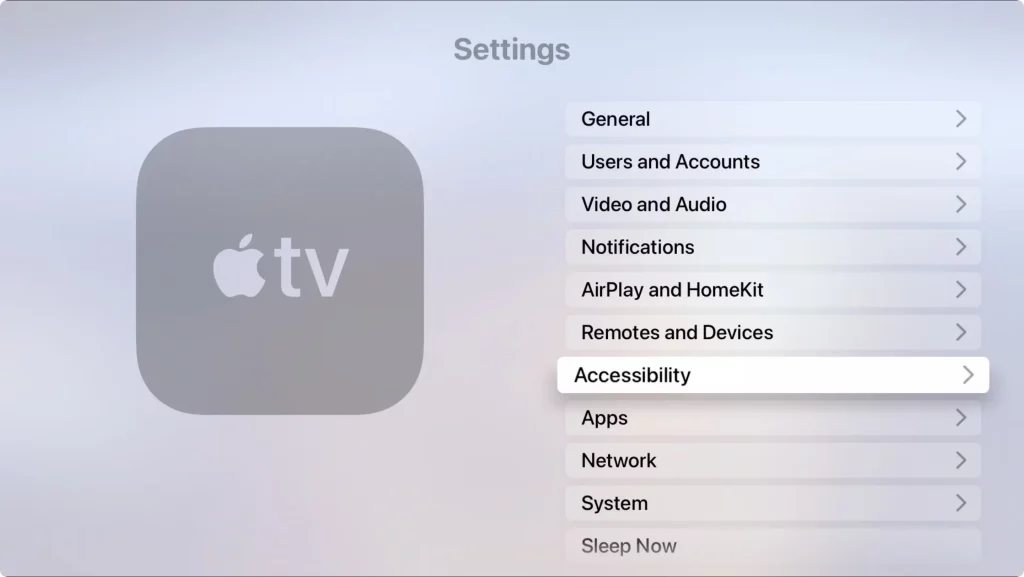
Clearing the cache and data on the Netflix app can help resolve issues such as login problems, playback errors, or the app not loading correctly. To do this:
- Go to the Settings app on your Apple TV.
- Select “Apps” and then “Netflix.”
- Choose “Clear Cache” and “Clear Data.”
Check for Apple TV software updates.
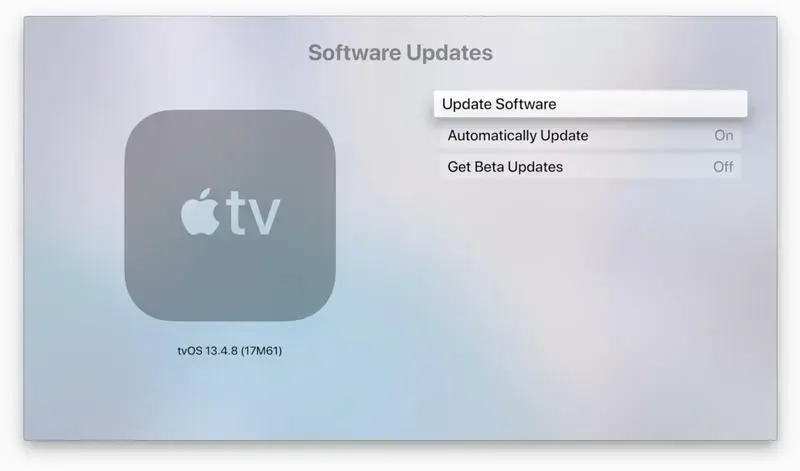
Outdated software on your Apple TV can also cause issues with the Netflix app. Go to the Settings app, select “System,” and then “Software Updates” to check for any available updates. If an update is available, install it and see if that resolves the problem.
Reset your Apple TV settings.
If none of the above steps have worked, you may need to reset your Apple TV settings. Remember that this will erase all your custom settings, so you must set them up again. To reset your Apple TV:
- Go to the Settings app.
- Select “General” and then “Reset.”
- Choose “Reset All Settings” and confirm the action.
Contact Netflix or Apple support for further assistance.
Suppose you’ve tried all the troubleshooting steps and are still experiencing issues with Netflix on your Apple TV. In that case, it’s time to contact the experts. You can contact Netflix support or Apple support for further assistance. They can provide more specific guidance or identify any underlying hardware or software issues.
Also Read: How to Taking Screenshots on Chrome Browser: Step-by-Step
Frequently Asked Questions
Q: Why is Netflix not working on my Apple TV?
A: There can be several reasons why Netflix is not working on your Apple TV, such as a poor internet connection, an outdated Netflix app, or a software issue with your Apple TV.
Q: How do I fix Netflix not working on my Apple TV?
A: To fix Netflix not working on your Apple TV, you can try the following steps:
- Check your internet connection
- Update the Netflix app
- Restart your Apple TV and modem/router
- Clear the cache and data on the Netflix app
- Check for Apple TV software updates
- Reset your Apple TV settings
- Contact Netflix or Apple support for further assistance
Q: Will I reset my Apple TV and delete my Netflix account?
A: Resetting your Apple TV settings will not delete your Netflix account. However, it will erase all your custom settings, so you must set them up again, including your Netflix login credentials.
Conclusion
Dealing with a malfunctioning Netflix app on your Apple TV can be frustrating. Still, with the right troubleshooting steps, you can get it back up and running. By following the steps outlined in this article, you should be able to resolve the most common issues and enjoy your favorite Netflix shows and movies on your Apple TV once again.
If you still need help with Netflix on your Apple TV, please contact our support team for further assistance. We’re here to help you get your streaming experience back on track.