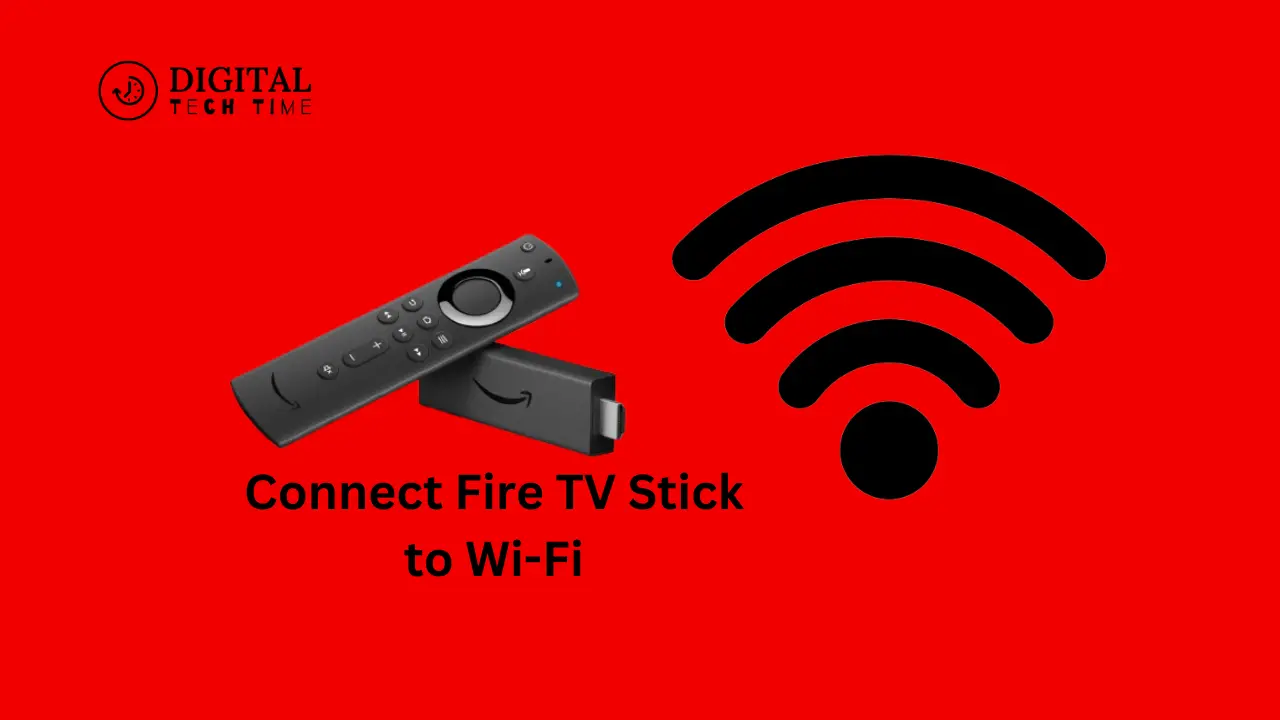
How to Connect Fire TV Stick to Wi-Fi: A Step-by-Step Guide
The Amazon Fire TV Stick is a popular streaming device that allows you to access a vast array of content, from movies and TV shows to live TV and sports. To fully enjoy the capabilities of your Fire TV Stick, it’s essential to connect it to a reliable Wi-Fi network. In this comprehensive guide, I’ll walk you through the steps to set up your Fire TV Stick and connect it to your home Wi-Fi network, as well as provide troubleshooting tips and advice for getting the best performance from your device.
Table of Contents
Troubleshooting common Wi-Fi connection issues
If you encounter any difficulties connecting your Fire TV Stick to Wi-Fi, try the following troubleshooting steps:
- Restart your devices: Power off your Fire TV Stick and your Wi-Fi router, wait a few seconds, and then turn them back on. This can often resolve temporary connectivity issues.
- Check your Wi-Fi network settings: Ensure that your Wi-Fi network is broadcasting and that the password you’re entering is correct. Try connecting another device to the same network to rule out any issues with the network itself.
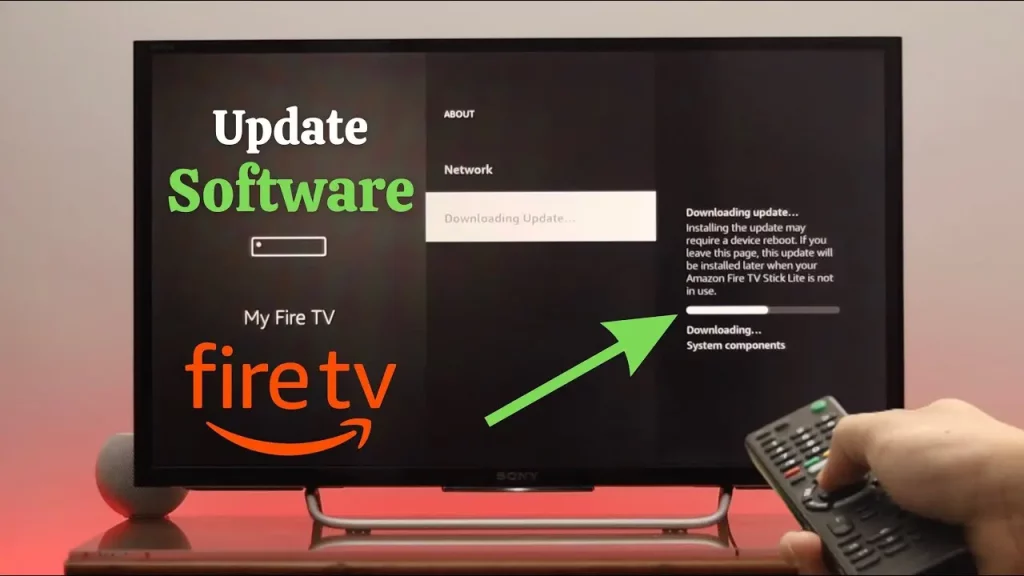
- Update your Fire TV Stick: Check for and install any available software updates for your Fire TV Stick, as these may include bug fixes or performance improvements.
- Move your devices closer: If your Fire TV Stick is too far from your Wi-Fi router, the signal strength may be too weak. Try moving the devices closer together and see if that improves the connection.
Step 1: Setting up your Fire TV Stick
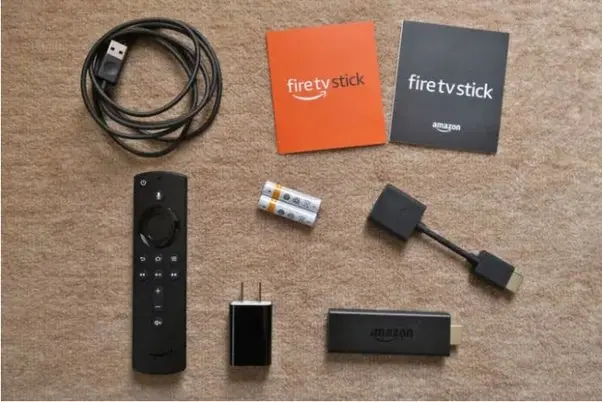
- Unbox and connect your Fire TV Stick: Remove the Fire TV Stick from the packaging and connect it to your TV’s HDMI port. Ensure the device is securely plugged in and your TV is set to the correct input.
- Power on your Fire TV Stick: Use the included power adapter to plug in your Fire TV Stick, and then turn on your TV. The Fire TV Stick will start and guide you through the initial setup process.
- Complete the initial setup: Follow the on-screen instructions to set up your Fire TV Stick. This may include connecting to your Amazon account, configuring your language and location settings, and customizing your device preferences.
Step 2: Connecting your Fire TV Stick to Wi-Fi
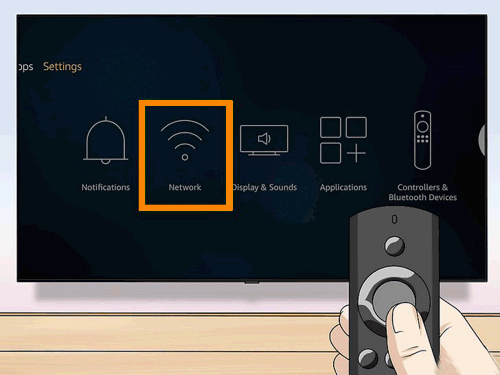
- Navigate to the Wi-Fi settings: From the Fire TV Stick’s main menu, navigate to the “Settings” option, then select “Network” or “Wi-Fi”.
- Choose your Wi-Fi network: The Fire TV Stick will display a list of available Wi-Fi networks. Select the network you want to connect to.
- Enter your Wi-Fi password: If your network is password-protected, you’ll be prompted to enter the correct password. Use the on-screen keyboard to type in the password, then select “Connect”.
- Verify the connection: Once the Fire TV Stick has successfully connected to your Wi-Fi network, you should see a confirmation message on the screen.
Tips for improving Wi-Fi performance with Fire TV Stick
To get the best possible performance from your Fire TV Stick, consider the following tips:
- Use a wired Ethernet connection: If your Wi-Fi network is not providing a reliable connection, you can use an Ethernet adapter to connect your Fire TV Stick directly to your router via a wired Ethernet cable. This can provide a more stable and faster connection.
- Optimize your Wi-Fi network: Ensure your Wi-Fi router is positioned centrally, away from potential interference sources like microwaves or cordless phones. Adjust the router’s antenna position or switch to a less crowded Wi-Fi channel.
- Upgrade your Wi-Fi hardware: If your Wi-Fi network is outdated or struggling to keep up with your streaming needs, consider upgrading to a newer router or mesh Wi-Fi system, which can provide faster and more reliable connectivity.
Also Raed: How to Find WiFi Password on Android, iPhone, and PC
Frequently Asked Questions
Q: Can I connect my Fire TV Stick to a 5GHz Wi-Fi network?
A: The Fire TV Stick is compatible with 2.4GHz and 5GHz Wi-Fi networks. If your router supports 5GHz, connecting your Fire TV Stick to this network can provide faster speeds and better performance.
Q: How do I know if my Fire TV Stick is connected to Wi-Fi?
A: You can check the connection status by navigating to the “Settings” menu on your Fire TV Stick and selecting the “Network” or “Wi-Fi” option. The screen will display the name of the connected Wi-Fi network and the signal strength.
Q: Can I use my Fire TV Stick without a Wi-Fi connection?
A: While you can use some basic features of the Fire TV Stick without a Wi-Fi connection, such as playing local media or using pre-installed apps, many of the device’s advanced features and streaming capabilities require a stable internet connection. For the full range of functionality, connecting your Fire TV Stick to a Wi-Fi network is recommended.
Conclusion
Connecting your Fire TV Stick to a reliable Wi-Fi network is a crucial step in unlocking the full potential of this powerful streaming device. Following the steps outlined in this guide, you can easily set up your Fire TV Stick, connect it to your home Wi-Fi network, and troubleshoot any connectivity issues. Optimize your Wi-Fi settings and consider using a wired Ethernet connection or a mobile hotspot for the best possible performance. With a seamless Wi-Fi connection, you’ll enjoy a vast library of content and a truly immersive entertainment experience on your Fire TV Stick.