How to Properly Power Down Your Roku Device
Roku devices have become increasingly popular in recent years, offering a wide range of streaming capabilities and seamless integration with various content providers. Whether you’re using a Roku Smart TV, Roku Streaming Stick, or any other Roku device, it’s essential to understand how to correctly power down your device to ensure its longevity and optimal performance.
Table of Contents
Understanding the Power Options on a Roku Device
Roku devices offer several power options, each with its purpose and impact on the device’s functionality. These options include:
- Standby Mode: This mode allows your Roku device to enter a low-power state, where it remains connected to the network and is ready to respond to remote control commands or voice commands.
- Power Off: This option completely shuts down the Roku device, disconnecting it from the power source and network.
- Restart: This option reboots the Roku device, closing all active apps and channels before restarting the device.
Why It Is Important to Power Down Your Roku Device Properly
Properly powering down your Roku device is crucial for several reasons:
- Prolonged Device Lifespan: Regularly powering off your Roku device can help extend its lifespan by reducing the strain on its internal components.
- Improved Performance: A complete power-off cycle can help clear any temporary glitches or issues accumulated during use, leading to better overall performance.
- Energy Efficiency: Fully powering down your Roku device when not in use can help reduce your energy consumption and lower electricity bills.
Step 1: Navigating to the Settings Menu on Your Roku Device
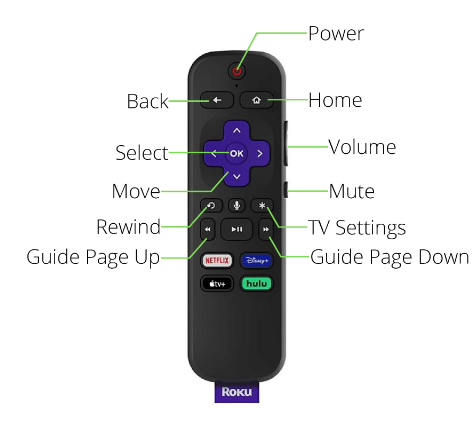
To correctly power down your Roku device, you’ll need to navigate to the settings menu. Here’s how:
- Locate the home button on your Roku remote and press it to access the main menu.
- Scroll down to the “Settings” option and select it.
- You’ll find various options within the settings menu, including the power settings.
Step 2: Accessing the Power Options
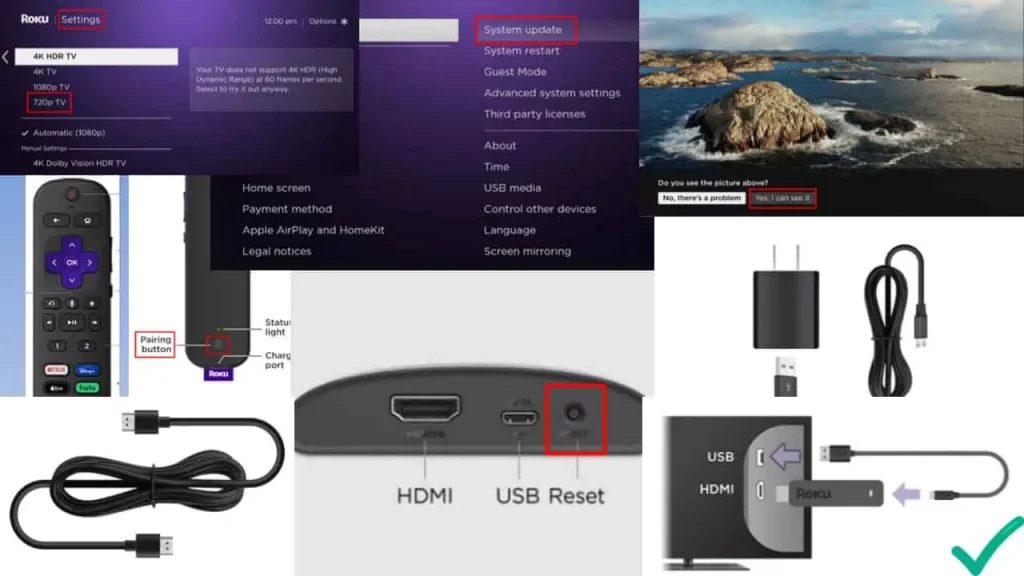
Once you’re in the settings menu, follow these steps to access the power options:
- Locate the “System” option and select it.
- Scroll down until you find the “Power” option, then select it.
Step 3: Choosing the Proper Power Down Option
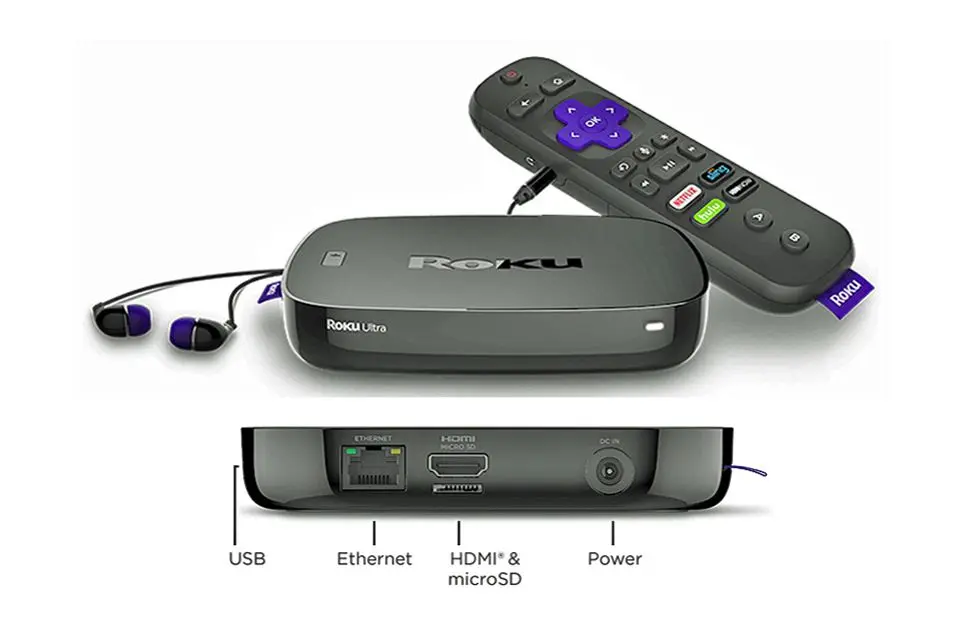
In the power options menu, you’ll typically find two choices:
- Power Off: This option completely shuts down your Roku device, disconnecting it from the power source and network.
- Restart: This option reboots your Roku device, closing all active apps and channels before restarting the device.
Depending on your needs, you can choose the appropriate power-down option.
Step 4: Confirming the Power Down Process
After selecting the desired power-down option, your Roku device will begin the shutdown or restart process. During this time, you may see a progress indicator or a message indicating that the device is powering off or restarting.
Step 5: Ensuring a Complete Power Off
To ensure that your Roku device is fully powered off, observe the following:
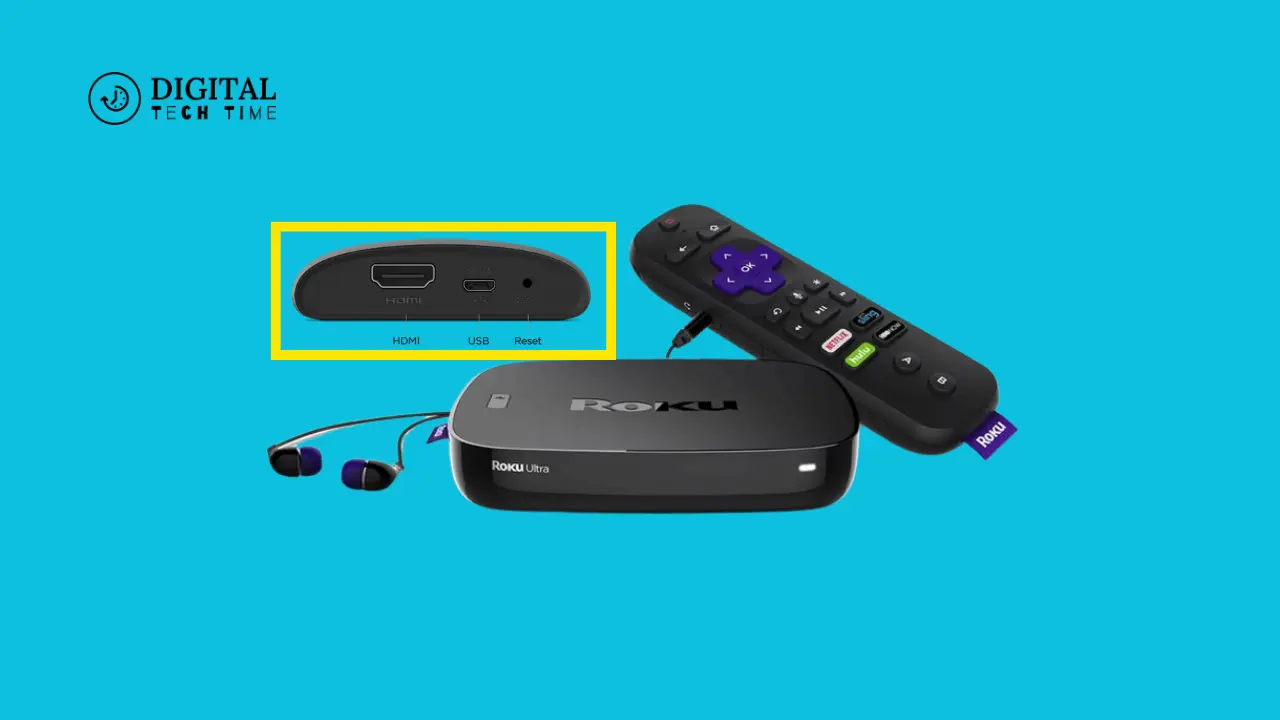
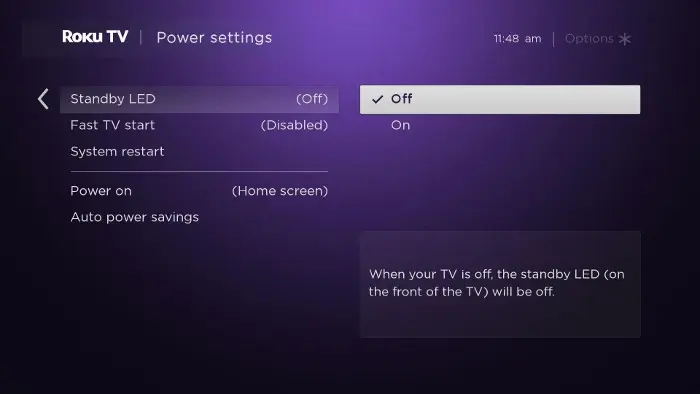
- The device’s LED indicator light should turn off, indicating that the device is no longer receiving power.
- The device should no longer be responsive to remote control or voice commands.
- If you’ve chosen the “Power Off” option, the device should be disconnected from the power source and network.
Also Read: How to Cast Zoom to Roku: A Complete Guide
Frequently Asked Questions
Q: Can I power down my Roku device using the remote control?
A: You can power down your Roku device using the remote control. Hold the home button on your remote for a few seconds, and you’ll see the power options appear on the screen.
Q: What happens if I must power down my Roku device correctly?
A: If you don’t correctly power down your Roku device, it may experience performance issues, such as slower response times, app crashes, or even hardware malfunctions over time. Following the proper power-down procedure is recommended to ensure your Roku device’s longevity and optimal performance.
Q: Can I leave my Roku device in standby mode when unused?
A: You can leave your Roku device in standby mode when not in use. This mode allows the device to remain connected to the network and ready to respond to remote control or voice commands while consuming less power than when fully powered on.
Conclusion
Properly powering down your Roku device is a simple yet essential task that can help extend its lifespan, improve its performance, and reduce energy consumption. Following the step-by-step guide outlined in this article, you can ensure that your Roku device is powered down correctly and enjoy a seamless streaming experience for years.
If you found this guide helpful, check out our other Roku-related content for more tips and tricks to maximise your streaming experience. Remember to subscribe to our newsletter for the latest updates and exclusive offers!