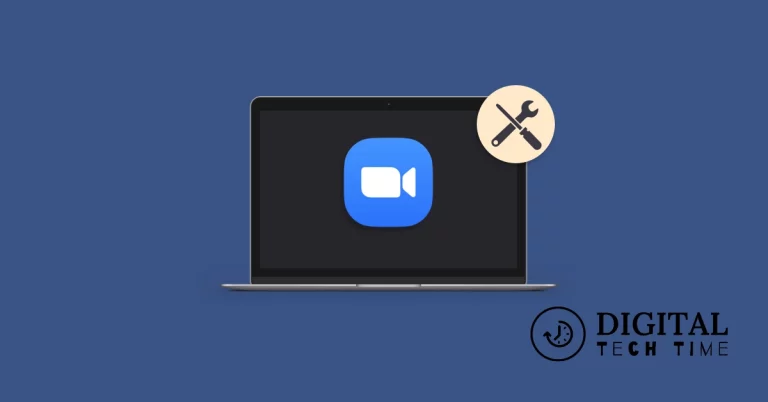
Control Your Zoom Volume on Windows
Do you need help with voices that are too loud or too quiet in your Zoom meetings while your overall system volume is just right? This detailed guide will show you how to adjust the volume on Zoom independently, enhancing your meeting experience without disrupting other computer audio outputs.
Table of Contents
The Challenge with Zoom Audio Settings
Explore the common issues users face with audio management in Zoom and why adjusting the volume directly within the app is crucial for personal and professional virtual interactions.
Step-by-Step Guide to Adjusting Zoom Volume on Windows
Using the Volume Mixer
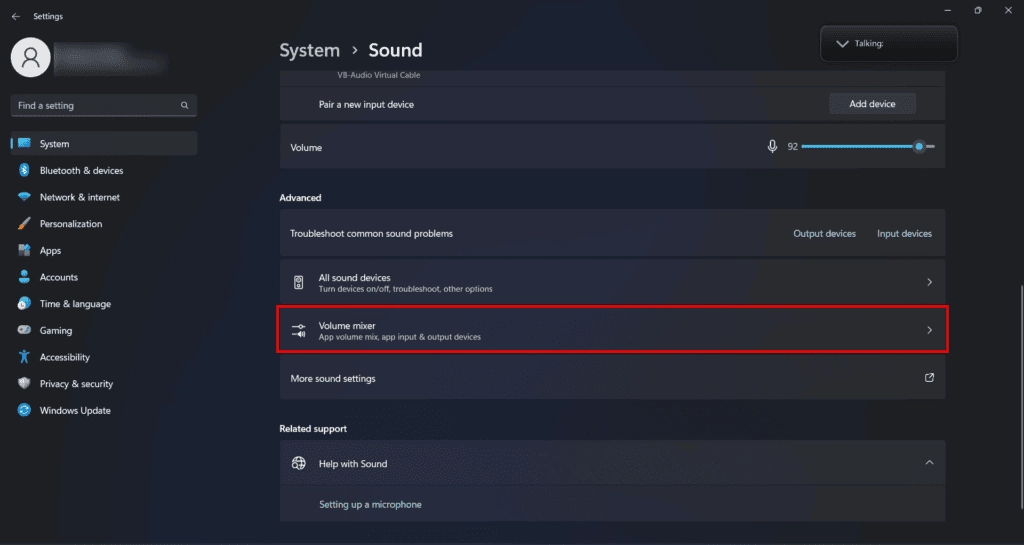
- Step 1: Accessing the Speaker Icon
- Navigate to the taskbar and locate the speaker icon.
- Step 2: Opening Sound Settings
- How do you find the More Volume settings option?
- Step 3: Adjusting Zoom Volume in Volume Mixer
- Detailed instructions on lowering the Zoom app volume without affecting the overall system sound.
Tips for Optimizing Sound Quality
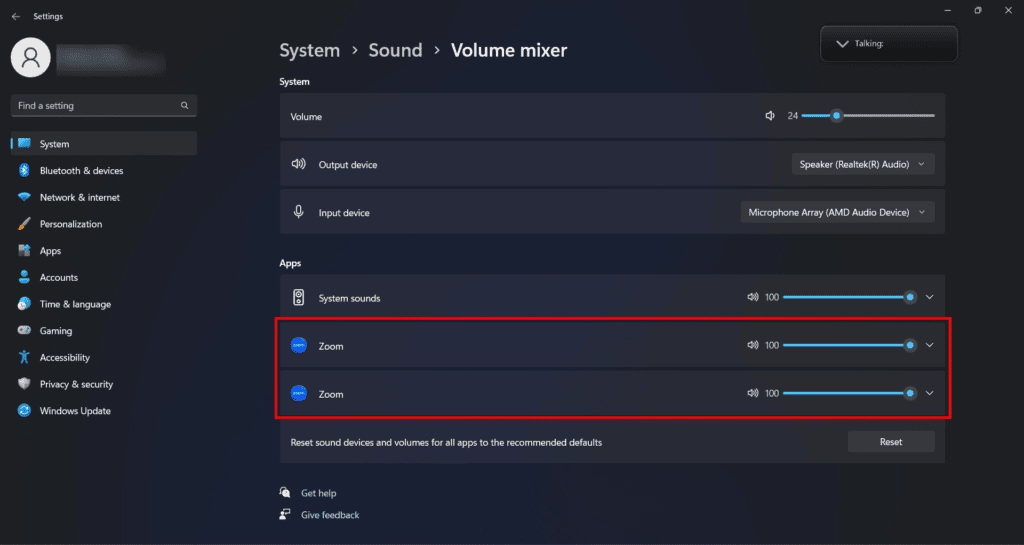
- Adjusting for Clarity: Balancing sound for clear audio.
- Preventing Feedback: How to avoid annoying echoes during calls.
How to Control the Volume through Zoom Audio Settings
Adjust volume outside of a meeting
- Sign in to the Zoom desktop client.
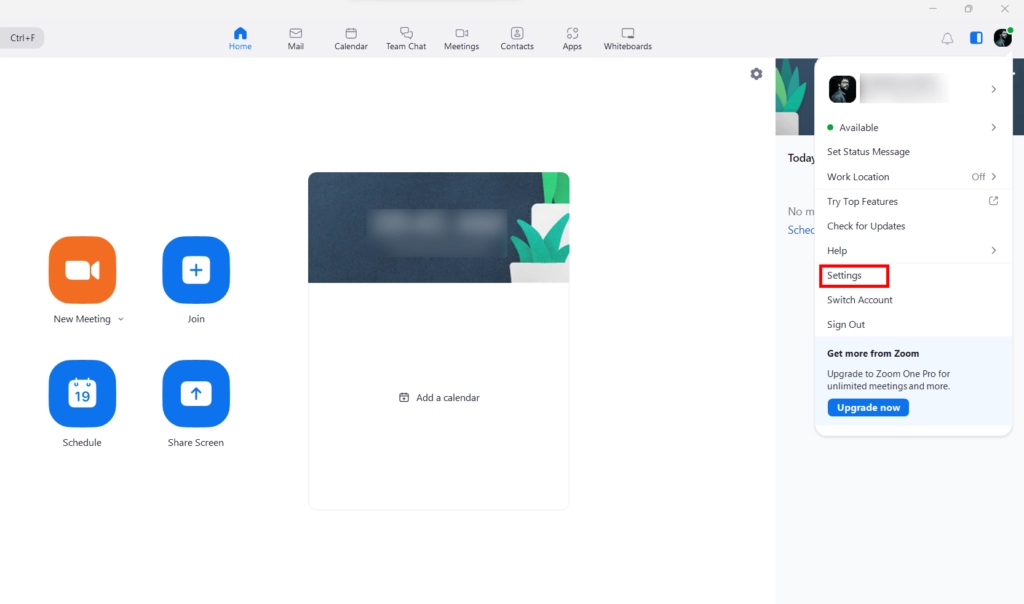
- In the top-right corner, click your profile picture.
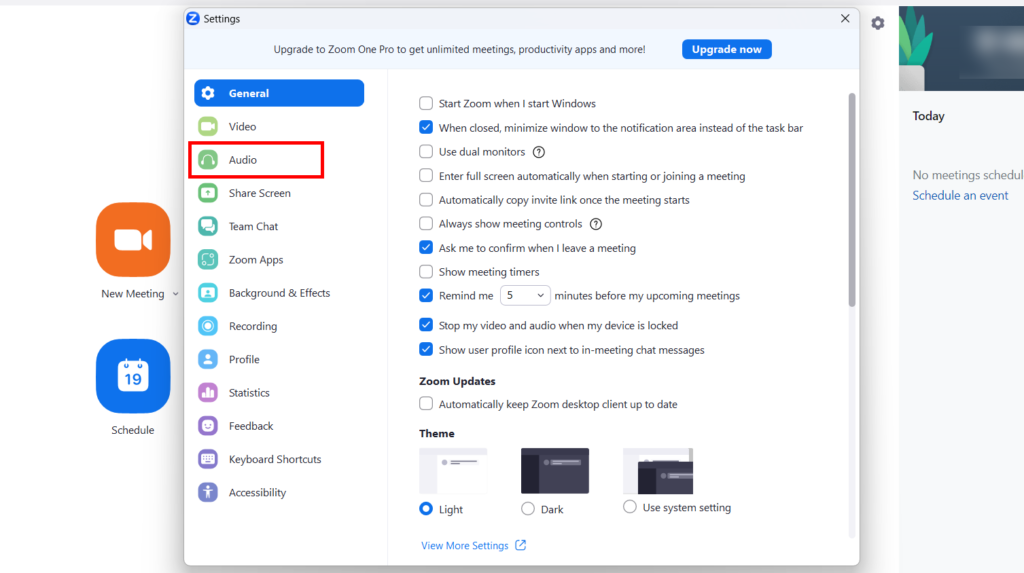
- Click Settings.
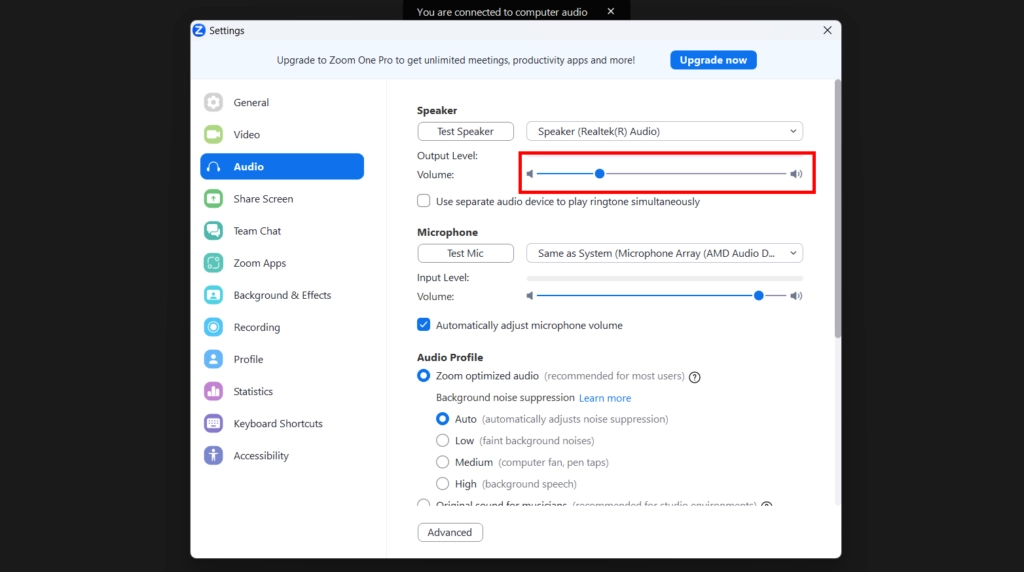
- Click the Audio tab
 .
. - (Optional) In the Speaker section, click Test Speaker to play a test tone.
- Adjust the volume slider
 as needed.
 - In the top-right corner of the Settings window, click ✖ to close.
Adjust volume during a meeting
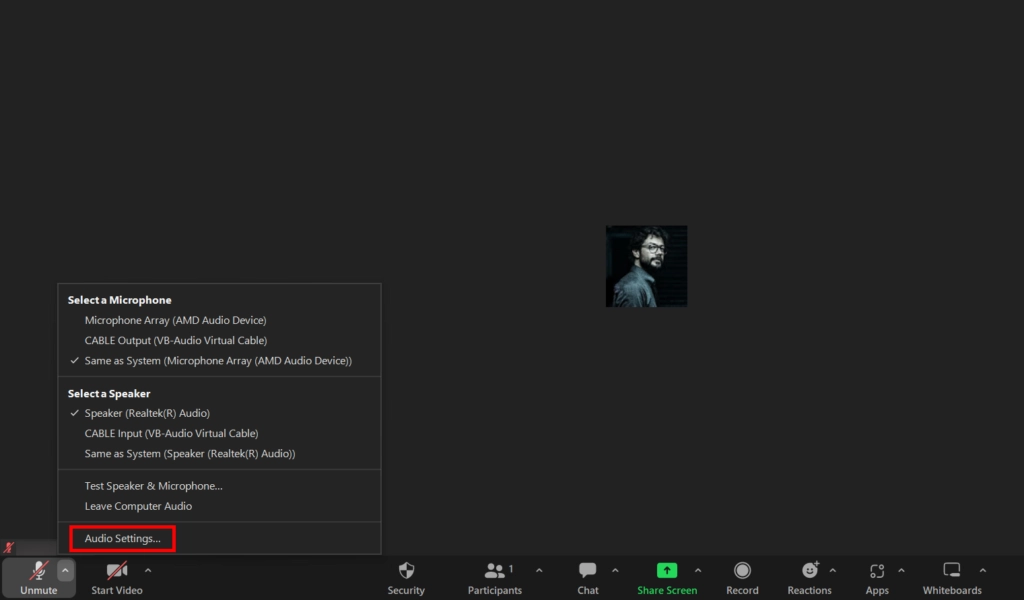
- While in a Zoom meeting, next to Mute/Unmute, click the up arrow icon
 .
. - Click Audio Settings.
- (Optional) In the Speaker section, click Test Speaker to play a test tone.
- Adjust the volume slider as needed.
- In the top-right corner of the Settings window, click ✖ to close and return to the meeting window.
Managing Zoom Volume on Other Devices
Adjusting Zoom settings appropriately on different devices ensures a consistent and comfortable audio experience regardless of your platform. Here’s how Mac and mobile device users can tailor their Zoom audio settings.
Adjustments on Mac
Differences in the process for Mac users, if applicable:
MacOS offers a slightly different path to managing individual application volumes, as it doesn’t provide a built-in application volume mixer like Windows. However, users can still adjust Zoom audio settings directly within the app or use third-party applications to manage volume more granularly.
- Within Zoom App Settings:
- Open Zoom, navigate to Zoom.us in the menu bar and select Preferences.
- Go to the Audio tab to adjust the speaker and microphone volume. Although this won’t affect the Zoom volume independently of the system, it allows for adjustments that minimize disruptions.
- Using Third-Party Apps:
- Applications such as BackgroundMusic or Audio Hijack can be installed on MacOS. These apps allow users to control the audio levels of individual applications, much like Windows’ volume mixer.
- Shortcut for Quick Adjustments:
- Hold down the Command key and use the Up or Down arrow keys to adjust the Zoom meeting volume quickly during a meeting. This shortcut helps rapidly manage sound levels as needed during a call.
Handling Volume on Mobile Devices
Tips for managing sound settings on iOS and Android when using the Zoom mobile app:
Mobile devices handle app-specific volume controls differently, and adjustments are usually made within the app or through the device’s physical buttons.
- iOS Devices:
- Open the Zoom app and start/join a meeting.
- Use the physical volume buttons on the side of your iPhone or iPad to adjust the volume during the meeting. iOS does not separate system and app volume, so these adjustments affect overall volume.
- Access Settings within the Zoom app and adjust your microphone and speaker levels under the Meetings tab for more granular control.
- Android Devices:
- Similar to iOS, start or join a Zoom meeting on your Android device.
- Use the physical volume buttons to adjust the meeting volume. Android offers a volume mixer that can be accessed by pressing the volume buttons and then tapping on the settings gear to open the full volume settings. Here, you can adjust media volume, which will also affect Zoom.
- Within the Zoom app, go to Settings. Meet and adjust the Always Mute My Microphone and Use Device’s Audio settings to optimize sound levels.
Related Post: Show Your Profile Picture on Zoom
Frequently Asked Questions About Managing Zoom Volume
1. Can I save my Zoom audio settings so I don’t have to adjust them whenever I join a meeting?
- Answer: Yes, you can save your preferred audio settings in Zoom. Once you adjust the speaker or microphone levels in the Zoom settings, these preferences should apply to all future Zoom meetings unless the app is updated or settings are reset.
2. Why is my Zoom volume low even after I adjust the settings?
- Answer: Low volume issues can sometimes be attributed to external factors like outdated audio drivers, the physical condition of speakers or microphones, or even system settings that limit the volume. Check your device’s audio settings and update your drivers. Also, ensure that Zoom has permission to use your microphone and speakers.
3. How do I ensure that my changes to Zoom’s volume only affect Zoom and not other applications?
- Answer: On Windows, you can use the Volume Mixer to adjust Zoom’s volume independently of other applications. On Mac, you may need a third-party application like BackgroundMusic or Sound Control to manage app-specific volumes. Mobile users can adjust the volume during a meeting, which won’t affect other app volumes.
4. What should I do if I experience audio feedback or echo during my Zoom meetings?
- Answer: Audio feedback can be caused by having multiple devices with active microphones close to each other. To resolve this, mute the microphone on one device or use headphones. You can also adjust the Echo Cancellation setting in Zoom’s audio settings to ‘Auto’ or ‘Aggressive’ to help mitigate feedback.
5. Is there a way to automatically adjust volume levels based on the noise level in my environment?
- Answer: Zoom offers an ‘Automatically adjust microphone volume’ option that can be enabled in the audio settings. This feature adjusts your microphone’s volume based on the ambient noise levels it detects, which can be particularly useful in varying noise environments.
Conclusion
Summarize the importance of mastering individual app volume controls for Zoom and how it can lead to more effective communication in virtual environments.