Fixing Network Not Available on Chromebook: A Step-by-Step Guide
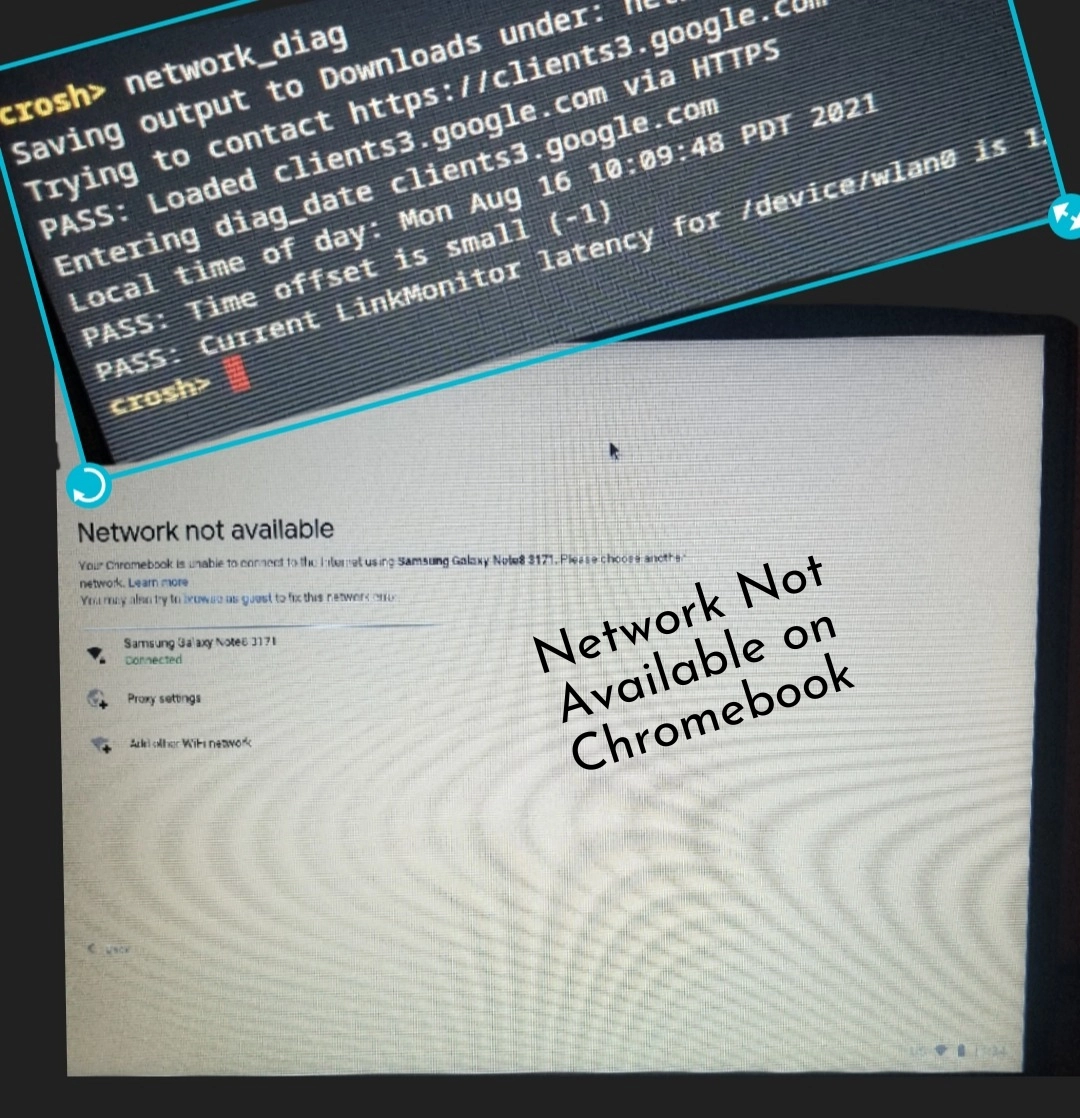
As a user with numerous years of experience using Chromebooks, I understand how irritating a “Network Not Available” error is. Indeed, at such a moment, being unable to access the internet and the world online is quite pesky. Here is the complete guide, where I shall outline the common causes of this problem and provide step-by-step troubleshooting solutions to help you regain your network connectivity.
Table of Contents
Common Causes of Network Not Available on Chromebook
There are several potential reasons your Chromebook may be experiencing a “Network Not Available” error. Some of the most common causes include:
- Wi-Fi Connection Issues: Your Chromebook may be unable to establish a stable connection with your Wi-Fi network due to weak signal strength, outdated network drivers, or incorrect network settings.
- Chrome OS Glitches: Occasional software or system issues within Chrome OS can disrupt your network connectivity, leading to the “Network Not Available” error.
- Network Configuration Problems: Incorrect network settings, such as incorrect proxy or VPN configurations, can prevent your Chromebook from accessing the internet.
- Hardware Malfunctions: In rare cases, a hardware component, such as the network adapter or Wi-Fi card, may malfunction, causing the network connectivity problem.
Troubleshooting Steps to Fix Network Not Available on Chromebook
Now that we’ve identified the common causes let’s dive into the step-by-step troubleshooting process to resolve the “Network Not Available” issue on your Chromebook.
Step 1: Check your Wi-Fi Connection
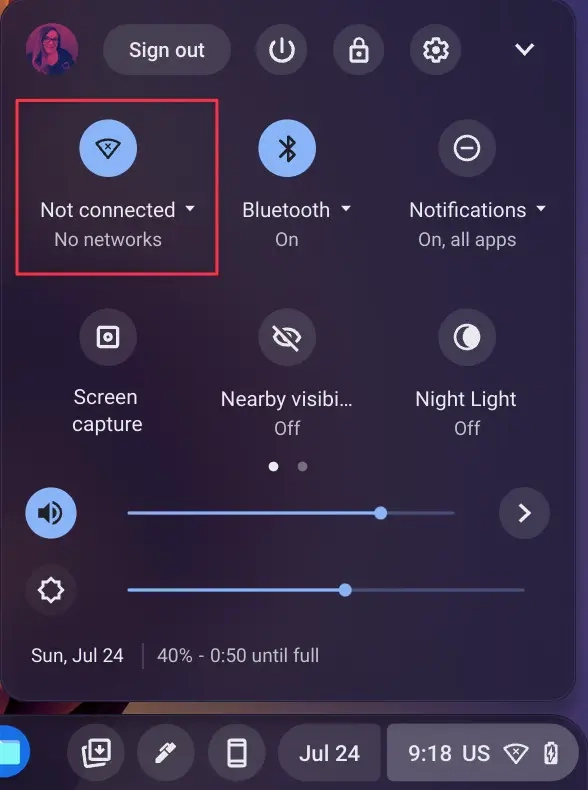
The first step is ensuring your Chromebook is correctly connected to your Wi-Fi network. Here’s what you can do:
- Check the Wi-Fi icon in the system tray. If it shows a “No Internet” or “Network Not Available” message, proceed to the next steps.
- Verify that your Wi-Fi router is powered on and functioning correctly.
- Ensure that your Chromebook is within range of your Wi-Fi network and that the signal strength is adequate.
- Try connecting to a different Wi-Fi network to rule out any issues with your primary network.
Step 2: Restart your Chromebook
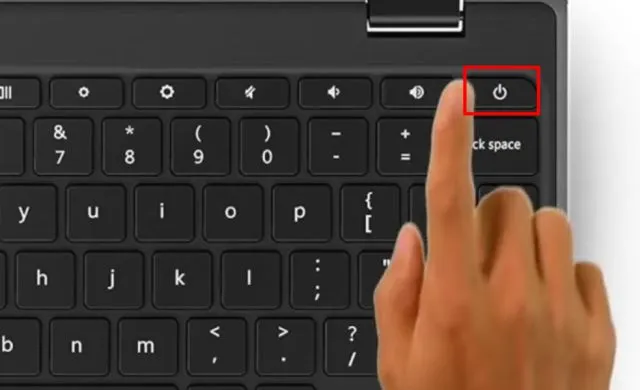
Sometimes, a simple restart can resolve network connectivity issues. Follow these steps to restart your Chromebook:
- Click the time in the bottom right corner of your Chromebook’s screen to open the quick settings menu.
- Select the “Power off” option and wait for your Chromebook to shut down completely.
- After a few seconds, press the power button to turn your Chromebook back on.
- Check if the “Network Not Available” error has been resolved.
Step 3: Clear your Browser Cache
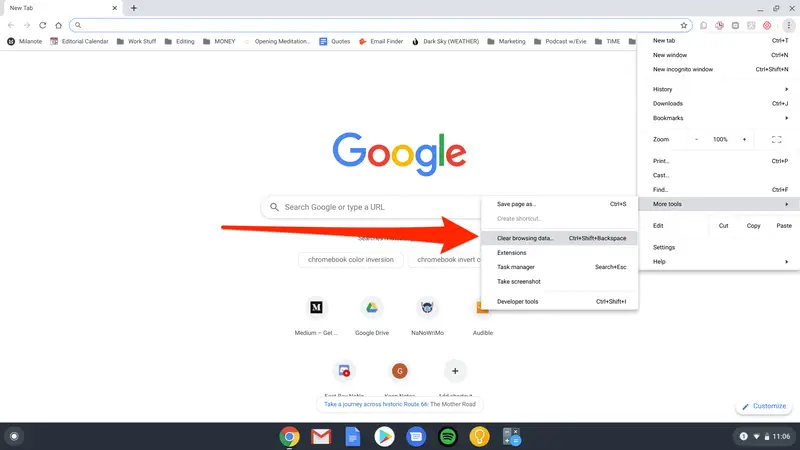
Clearing your browser cache can help resolve various Chrome OS issues, including network connectivity problems. Follow these steps:
- Open the Chrome browser on your Chromebook.
- Press the “Ctrl + Shift + Delete” to open the “Clear browsing data” menu.
- Select the “All time” time range and ensure that the “Cached images and files” option is checked.
- Click the “Clear data” button to clear your browser cache.
- Restart your Chromebook and check if the issue has been resolved.
Step 4: Reset Network Settings on Chromebook
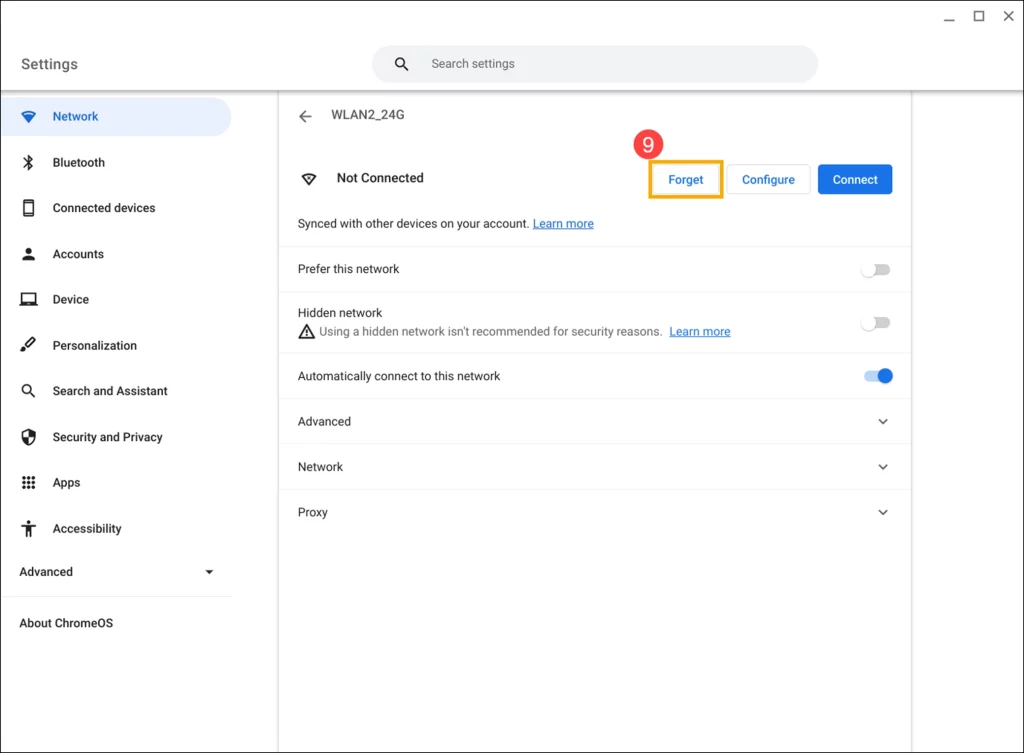
Resetting your Chromebook’s network settings can help resolve any configuration-related issues. Here’s how to do it:
- Click the time in the bottom right corner of your Chromebook’s screen to open the quick settings menu.
- Select the “Settings” option.
- In the Settings menu, scroll down and click on “Network and Internet.”
- Scroll to the “Internet connection” section and click “Network settings.”
- Click on the “Reset network settings” option and confirm the action.
- Restart your Chromebook and try connecting to your Wi-Fi network again.
Step 5: Update Chrome OS
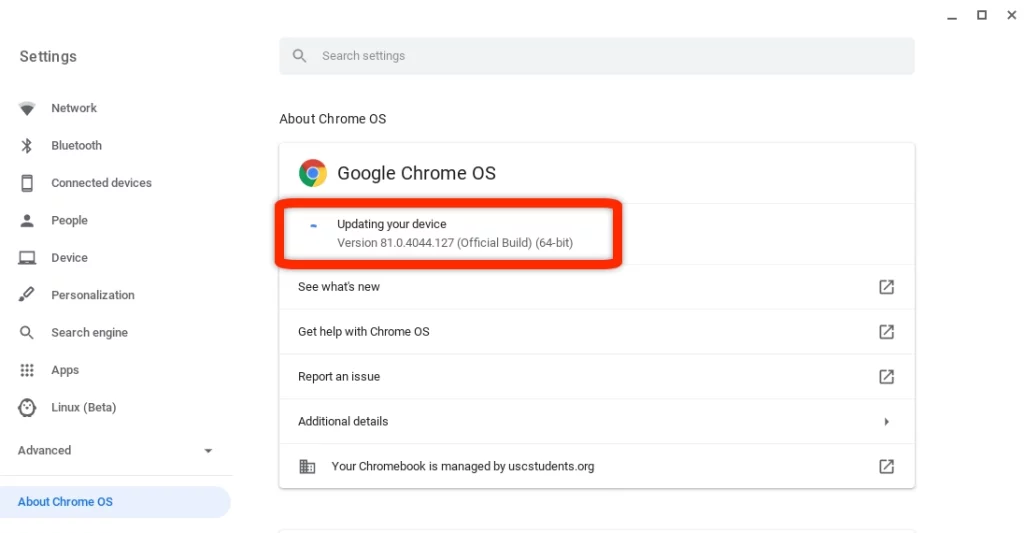
Keeping your Chrome OS up-to-date can help resolve various software-related issues, including network connectivity problems. Here’s how to update your Chromebook:
- Click the time in the bottom right corner of your Chromebook’s screen to open the quick settings menu.
- Select the “Settings” option.
- In the Settings menu, scroll down and click on “About Chrome OS.”
- Click the “Check for updates” button and wait for the update process to complete.
- Once the update is finished, restart your Chromebook and check if the “Network Not Available” error has been resolved.
Step 6: Disable VPN or Proxy Settings
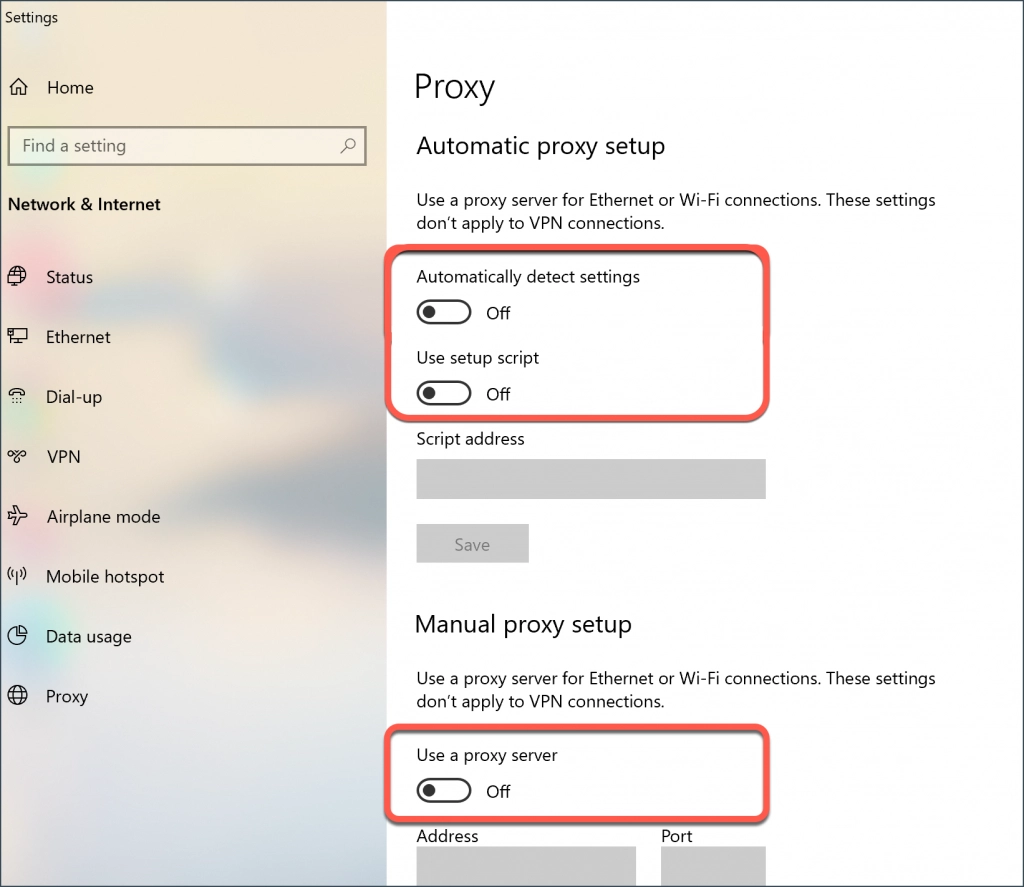
If you have a VPN or proxy configured on your Chromebook, it could be interfering with your network connectivity. Follow these steps to turn off any VPN or proxy settings:
- Click the time in the bottom right corner of your Chromebook’s screen to open the quick settings menu.
- Select the “Settings” option.
- In the Settings menu, scroll down and click on “Network and Internet.”
- Click “VPN” or “Proxy” to ensure the settings are disabled or correctly configured.
- Restart your Chromebook and check if the network issue has been resolved.
Step 7: Contact Your Network Administrator
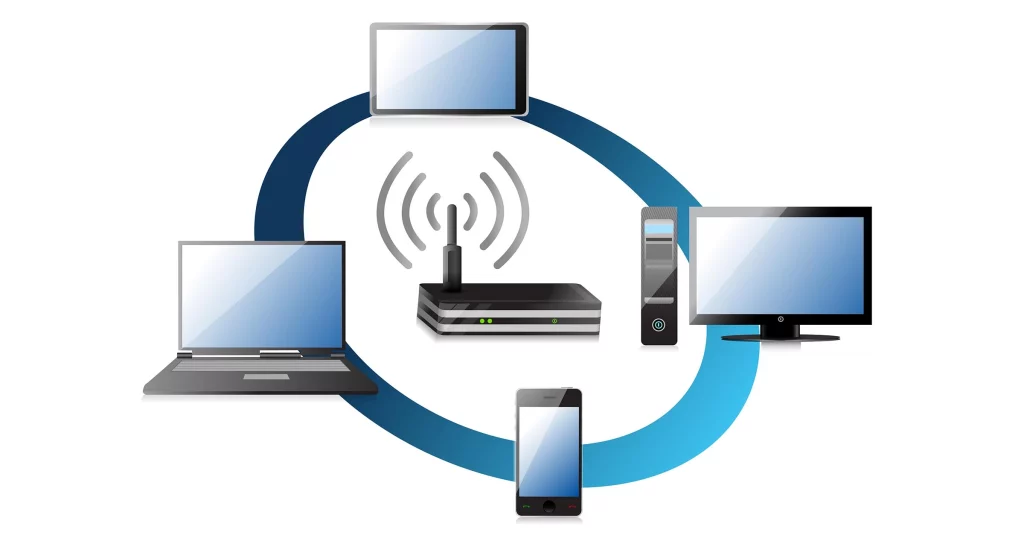
If you’ve tried all the above troubleshooting steps and the “Network Not Available” error persists, the issue may be related to your network configuration or infrastructure. In such cases, it is recommended that you contact your network administrator or IT support team for further assistance.
Additional Tips to Prevent Network Not Available Issue on Chromebook
- Keep Chrome OS Up-to-Date: Check for any Chrome OS update regularly and install it for the most stable and secure version of your Chromebook operating system.
- Manage Network Connections: Enable only a few network connections on the Chromebook to ensure you connect to trusted and secure Wi-Fi networks.
- Disable Unnecessary Extensions: Some Chrome extensions may conflict with your network connectivity. Disabling or removing unnecessary extensions might solve the problem.
- Check for Hardware Issues: If following all the above steps doesn’t solve the problem, there may be a problem with your Chromebook’s network adapter or the Wi-Fi card. You may want to consult with the manufacturer for further assistance.
Related Post: 10 Steps: How to Secure Your Home Wi-Fi Network
Frequently Asked Questions
Q: My Chromebook reads “Network Not Available.”
A: The “Network Not Available” error in a Chromebook could be caused by issues with Wi-Fi connections, glitches in the Chrome OS, misconfigurations of your networks, or even malfunctioning hardware.
Q: I have gotten the “Network Not Available” on my Chromebook. Are there any solutions for troubleshooting this?
A: Be assured of the following solutions when getting the “Network Not Available” on your Chromebook: check Wi-Fi, restart Chromebook, clear browser cache, reset network settings, update Chrome OS, turn off VPN or proxy settings, and contact network admin.
Q: Can updating the software solve my Chromebook’s “Network Not Available” problem?
A: Well, updating your Chrome OS might fix the problem sometimes because the update would include or represent the bug fixes or improvements to the operating system, particularly the network-related components.
Conclusion
Congratulations! You should now be able to troubleshoot the dreaded “Network Not Available” error on your Chromebook with the step-by-step troubleshooting guide detailed in this article.
Knowing how to troubleshoot this problem begins with methodically going through all the steps, starting with your Wi-Fi connection and ending with contacting your network administrator for possible help. When you understand the causes and have fixed the problems, you’ll be able to keep your Chromebook connected to the Internet and remain productive, entertained, and connected to the digital world.