How to Cast a Zoom Meeting to Your TV: A Detailed Guide
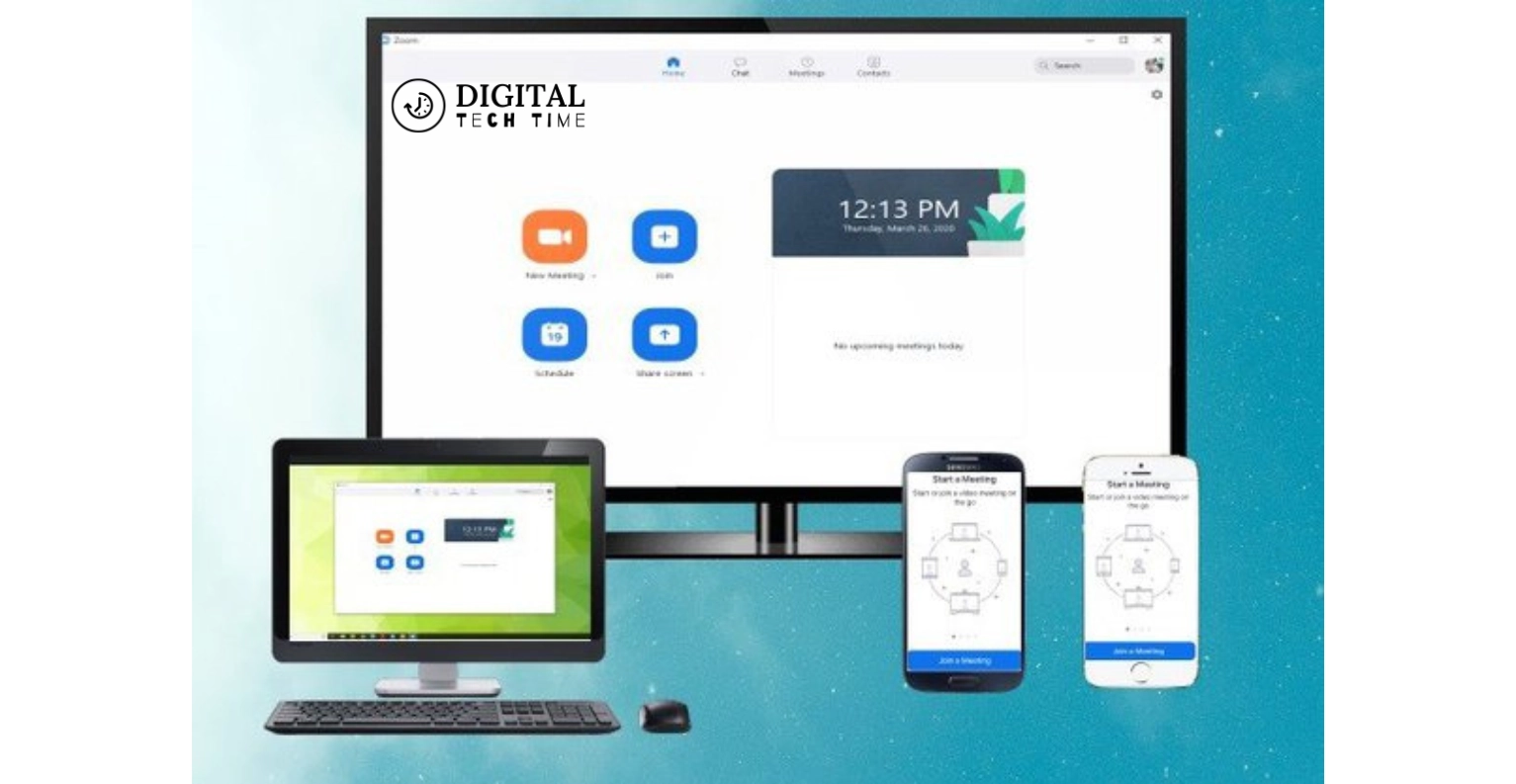
Are you tired of straining your eyes during Zoom meetings on small screens? Discover how to cast your Zoom meetings to your TV for a bigger, clearer view with our comprehensive guide. In this detailed blog post, we explore various methods to cast Zoom meetings from different devices, including Windows PCs, Macs, iOS, and Android devices, using tools like Chromecast, HDMI cables, AirPlay, and wired connections.
Solution: A Step-by-Step Guide to Casting Zoom Meetings to Your TV
Let’s dive into the solution. In this guide, we’ll cover several methods to cast Zoom meetings to your TV, whether you’re using a Windows PC, Mac, iOS, or Android device. By the end of this post, you’ll have the knowledge and confidence to make your Zoom meetings more comfortable and visually accessible.
Casting Zoom Meetings from a Computer
Option 1: Using Chromecast
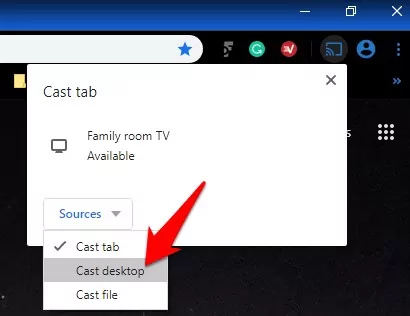
Chromecast is one of the most popular and straightforward ways to cast a Zoom meeting from your computer to your TV. It’s free and supports multiple devices, including Windows, Mac, iOS, and Android. Here’s how to do it:
- Ensure Both Devices are Connected to the Same Wi-Fi Network: Make sure your PC and Chromecast are connected to the same Wi-Fi network.
- Open Chrome Browser and Join Zoom Meeting: Open the Chrome browser on your PC and join your Zoom meeting.
- Access the Casting Feature: Click on the three-dot menu icon in the top right corner of the Chrome browser, then select “Cast.”
- Select Your Chromecast Device: Choose your Chromecast device from the list of available sources.
- Choose What to Cast: Select “Cast desktop” to mirror your entire screen or “Cast tab” to cast only the Zoom meeting tab.
- Start Casting: Click “Share” in the pop-up window, and your Zoom meeting will be displayed on your TV.
Option 2: Using an HDMI Cable
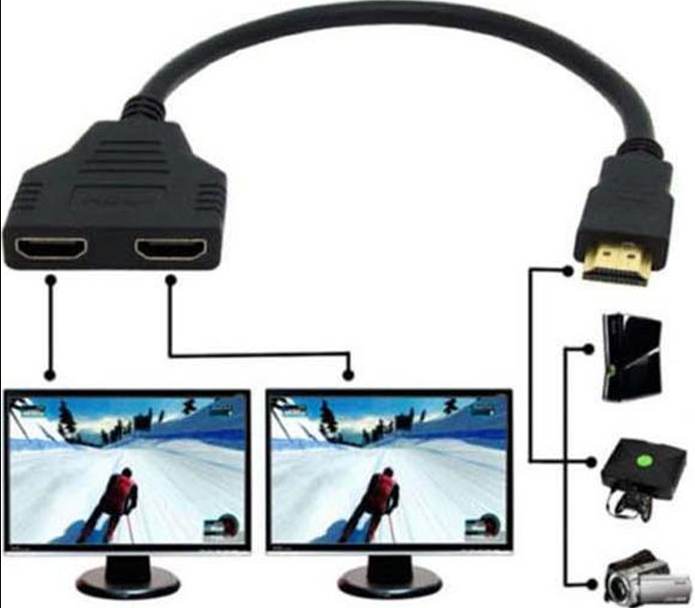
Using an HDMI cable is a reliable and straightforward method to cast your Zoom meeting from your computer to your TV. Here’s how:
- Connect the HDMI Cable: Connect one end of the HDMI cable to your computer’s HDMI output port and the other end to your TV’s HDMI input port.
- Select the Correct HDMI Input on Your TV: Switch your TV’s input source to the corresponding HDMI port.
- Join the Zoom Meeting: Once your computer’s screen is mirrored on your TV, join your Zoom meeting. The meeting will be displayed on your TV screen.
Casting Zoom Meetings from Android or iOS Devices
Option 1: Using Chromecast (Android)
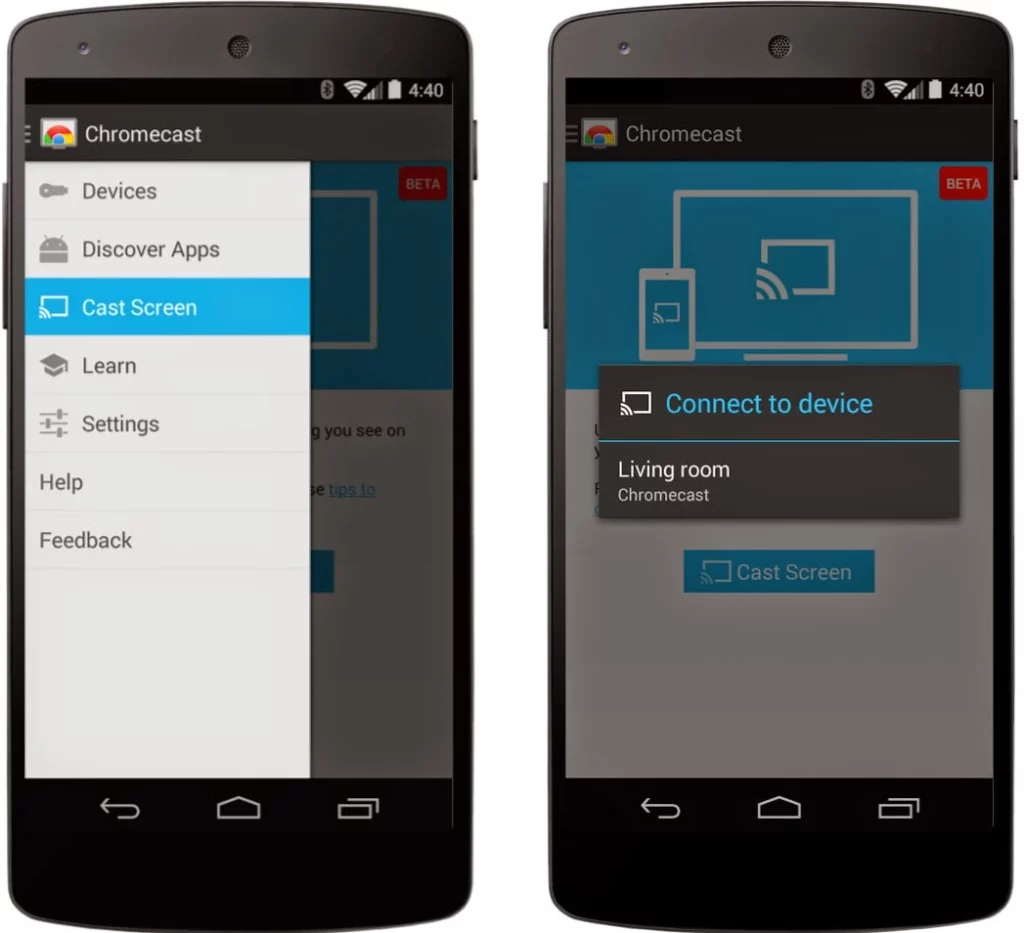
For Android users, Chromecast offers a convenient way to cast Zoom meetings onto your TV. Here’s how:
- Plug in the Chromecast Device: Insert the Chromecast device into the HDMI port on your TV.
- Set Up Chromecast on Your Phone: Install the Google Home app on your phone, sign in, and tap the + icon to set up a new device.
- Connect to Wi-Fi: Navigate to your Wi-Fi settings and select your Chromecast device.
- Start Casting: Open Google Home, choose your casting device, and tap “Cast my screen.” Your Zoom meeting will now appear on your TV.
Option 2: Using AirPlay (iOS)
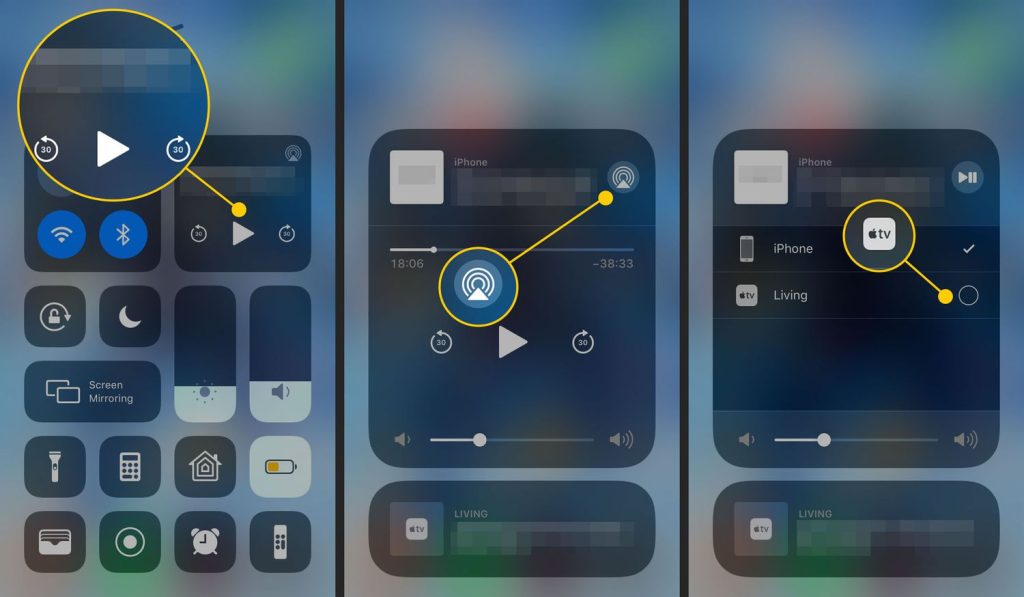
iOS users can use AirPlay to cast Zoom meetings to their TVs, provided the TV supports AirPlay. Here’s how:
- Ensure Devices are Connected to the Same Wi-Fi Network: Make sure your iOS device and Apple TV (or AirPlay-enabled TV) are on the same Wi-Fi network.
- Activate AirPlay: Open the Control Center on your iOS device by swiping down, then tap the Screen Mirroring icon.
- Select Your TV: Choose your Apple TV or AirPlay-enabled TV from the list of available devices.
- Start the Zoom Meeting: Open the Zoom app on your iOS device and join your meeting. It will be mirrored on your TV screen.
Option 3: Using a Wired Connection
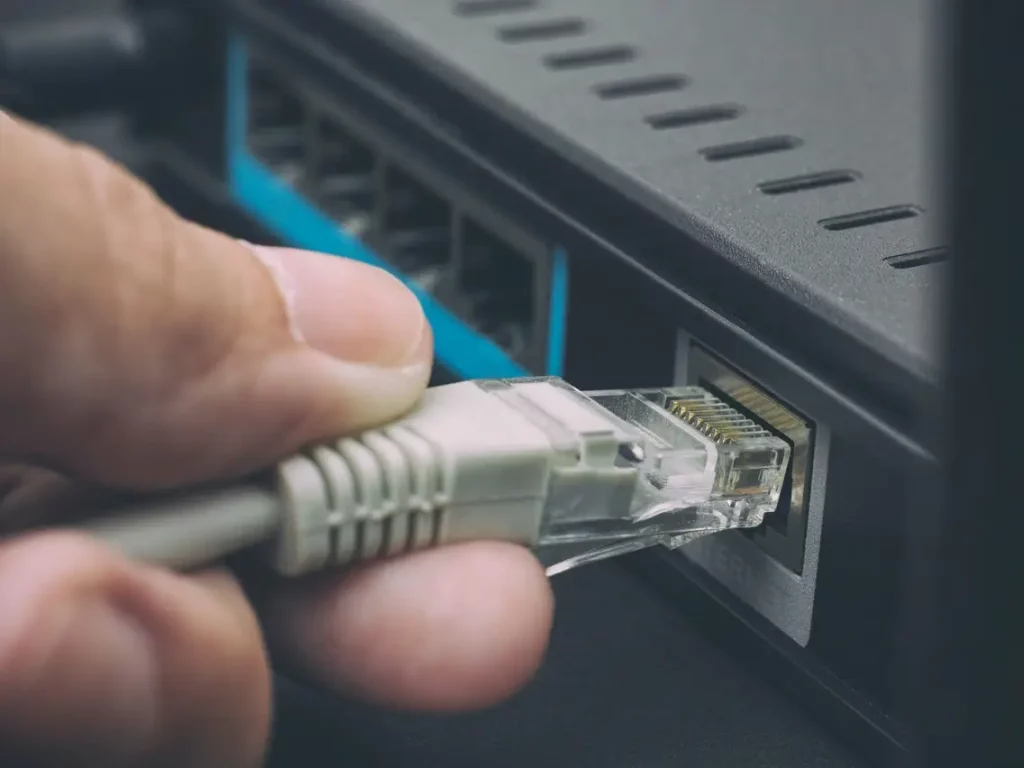
For a stable and straightforward connection, you can use a wired method:
- Get the Right Adapter: You’ll need a USB-C to HDMI adapter for newer Android and iOS devices or a Lightning to HDMI adapter for older iOS devices.
- Connect the Adapter: Connect the adapter to your device and plug the HDMI cable into the adapter and your TV.
- Select the HDMI Input on Your TV: Switch your TV’s input source to the corresponding HDMI port.
- Start the Zoom Meeting: Open the Zoom app and join your meeting, which will be displayed on the TV.
Real-World Case Studies and Factual Data
To add more credibility and practical insights, let’s look at some real-world case studies and data:
- Remote Work Statistics: According to a survey by Buffer, 99% of remote workers expressed a preference for remote work for the rest of their careers. Among these, a significant portion reported that attending virtual meetings on larger screens helped reduce eye strain and improve engagement.
- Online Learning Trends: The National Center for Education Statistics reported that over 60% of college students participated in distance learning during the 2020-2021 academic year. Many students found that casting online classes on TV made it easier to follow lectures and presentations.
- Virtual Events Growth: Eventbrite’s data showed a 1,100% increase in virtual events from March to June 2020. Event organizers noted that participants who cast events to their TVs were more engaged and interacted more during the sessions.
Frequently Asked Questions (FAQs)
Can I cast a Zoom meeting to my TV from any device?
Yes, you can cast a Zoom meeting to your TV from various devices, including Windows PCs, Macs, iOS devices, and Android devices. The methods include using Chromecast, AirPlay, HDMI cables, and wired connections.
What is the easiest way to cast a Zoom meeting from my computer to my TV?
Using Chromecast is one of the easiest methods. Simply ensure your PC and Chromecast are connected to the same Wi-Fi network, open the Chrome browser, join your Zoom meeting, and use the “Cast” feature to mirror your screen to your TV.
Can I use an HDMI cable to cast a Zoom meeting to my TV?
Yes, you can use an HDMI cable. Connect one end of the HDMI cable to your computer and the other end to your TV. Switch your TV’s input source to the corresponding HDMI port, and your computer screen will be mirrored on your TV.
How do I cast a Zoom meeting from my Android device to my TV?
You can use Chromecast to cast a Zoom meeting from your Android device. Plug the Chromecast device into your TV, set it up using the Google Home app, and use the “Cast my screen” feature to display the Zoom meeting on your TV.
Is it possible to cast a Zoom meeting from an iOS device to my TV?
Yes, iOS users can use AirPlay to cast Zoom meetings on their TV. Ensure your iOS device and Apple TV (or AirPlay-enabled TV) are on the same Wi-Fi network, activate AirPlay from the Control Center, and select your TV from the list of available devices.
Do I need any special equipment to cast Zoom meetings on my TV?
Depending on the method you choose, you may need specific equipment like a Chromecast device, an HDMI cable, a USB-C to HDMI adapter, or a Lightning to HDMI adapter. For AirPlay, you need an Apple TV or an AirPlay-enabled TV.
Can I cast a Zoom meeting without a Wi-Fi connection?
Most casting methods require a Wi-Fi connection. However, using an HDMI cable or a wired connection with appropriate adapters allows you to cast a Zoom meeting to your TV without relying on Wi-Fi.
What should I do if the casting is not working properly?
Ensure that both your device and TV are connected to the same Wi-Fi network and that your casting device (Chromecast, Apple TV, etc.) is properly set up. Restarting your devices and checking for software updates can also resolve common casting issues.
Can I still use my device for other tasks while casting a Zoom meeting on my TV?
Suppose you use the “Cast desktop” or “Screen Mirroring” feature. In that case, your entire screen will be mirrored, and any other tasks you perform on your device will also be visible on the TV. Suppose you use the “Cast tab” feature in Chrome. In that case, only the specific browser tab will be cast, allowing you to use other tabs or applications independently.
Is there a way to cast Zoom meetings to a TV without installing additional apps?
Yes, using an HDMI cable or AirPlay (for iOS devices with compatible TVs) are methods that do not require additional app installations on your TV. For Chromecast and AirDroid Cast, you will need to install the respective apps on your device.
Conclusion
Casting your Zoom meetings to a TV can significantly enhance your virtual meeting experience, providing a bigger, clearer view and reducing eye strain. Whether you’re using a computer or a mobile device, there are multiple methods available, such as Chromecast, AirPlay, HDMI cables, and more. By following the step-by-step guides provided, you can easily connect your Zoom meetings to your TV and enjoy a more comfortable and productive virtual environment.