How to Fix Fire TV Remote Not Working Issues
As an experienced Fire TV user, I understand how frustrating it can be when your remote stops working. Whether unresponsive buttons, connection issues, or a dead battery, a malfunctioning remote can seriously impact your streaming experience. In this comprehensive guide, I’ll walk you through the most common reasons for the Fire TV remote not working and provide step-by-step troubleshooting solutions to get your remote back up and running.
Table of Contents
Introduction to Fire TV Remote Issues
The Fire TV remote is an essential component of your streaming setup, allowing you to easily navigate the user interface, control playback, and access a wide range of features. However, like any electronic device, the Fire TV remote can sometimes experience issues that prevent it from functioning properly. These problems range from simple battery depletion to complex software or hardware-related issues.
Common Reasons for Fire TV Remote Not Working
There are several potential reasons why your Fire TV remote may not be working as expected. Some of the most common causes include:
- Dead or Low Batteries: If the batteries in your Fire TV remote are running low or have died, it can cause the remote to become unresponsive.
- Pairing Issues: The remote may have become unpaired from your Fire TV device, preventing it from communicating with the device.
- Software Glitches: Outdated Fire TV or remote software can sometimes lead to connectivity and functionality problems.
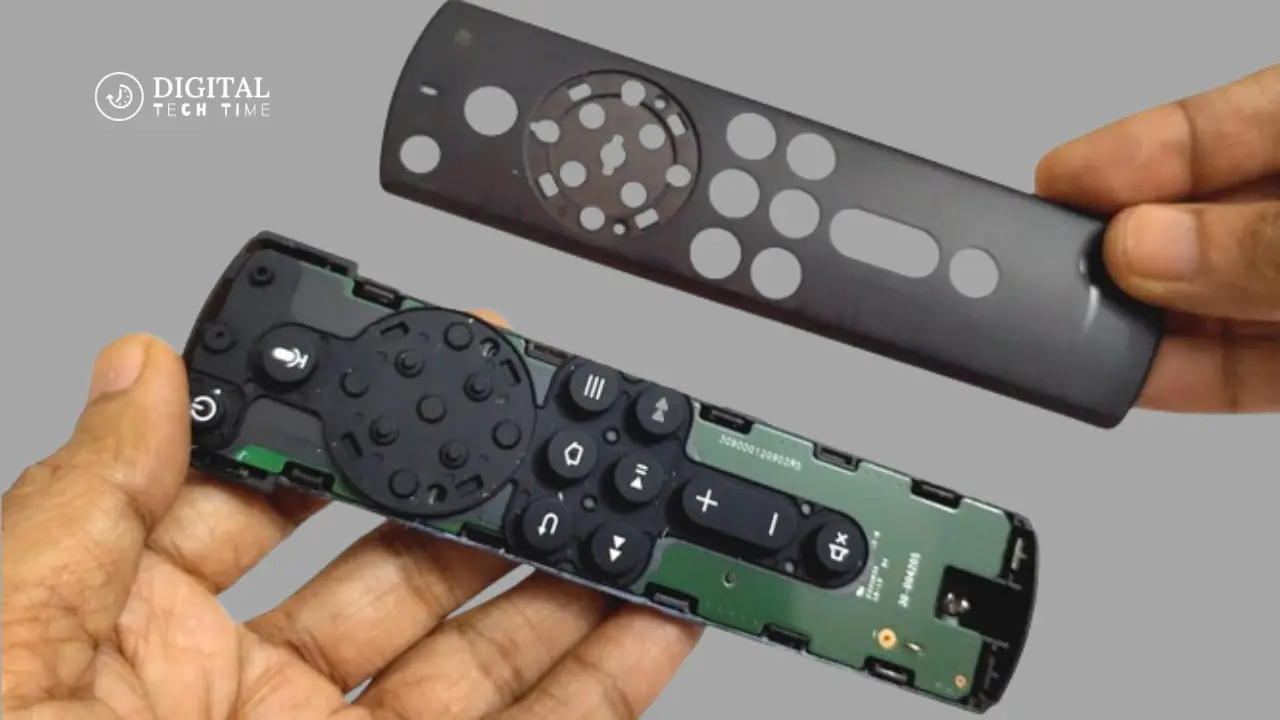
- Hardware Damage: Physical damage to the remote, such as a broken button or a cracked casing, can prevent the remote from working correctly.
- Interference: Nearby electronic devices or obstructions between the remote and the Fire TV device can interfere with the remote’s signal, causing it to become unresponsive.
Troubleshooting Steps for Fire TV Remote Issues
Now that we’ve identified some of the common reasons for the Fire TV remote not working let’s dive into the troubleshooting steps you can take to resolve the issue:
- Reset the Fire TV Remote:
- Locate the reset button on the back of your Fire TV remote.
- Use a small, pointed object to press and hold the reset button for 5-10 seconds.
- This will reset the remote to its factory settings, which may resolve any software-related issues.
- Repair the Fire TV Remote:
- Go to the Settings menu on your Fire TV device.
- Navigate to the “Remotes & Bluetooth Devices” or “Controllers & Bluetooth Devices” section.
- Select “Add New Remote” and follow the instructions to repair your Fire TV remote.
- Check for Software Updates:
- Go to the Settings menu on your Fire TV device.
- Navigate to the “My Fire TV” or “Device” section and select “Check for System Update.”
- If an update is available, install it, as it may resolve any software-related issues with your remote.
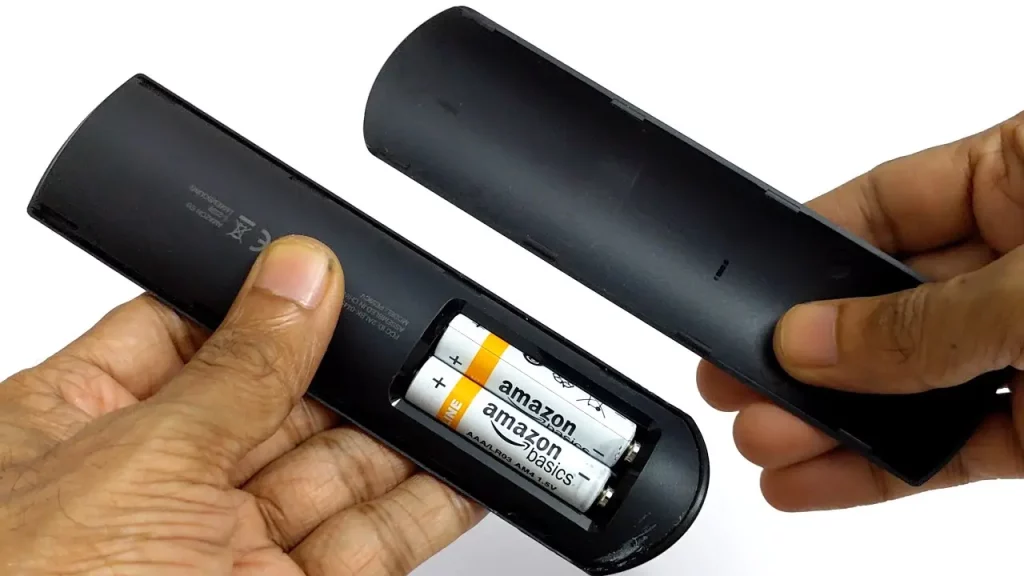
- Replace the Batteries:
- Remove the batteries from your Fire TV remote and check their charge level.
- If the batteries are low or dead, replace them with new, high-quality batteries.
- Ensure the batteries are inserted correctly, following the polarity markings inside the compartment.
- Use the Fire TV App as an Alternative Remote:
- Download the Fire TV app on your smartphone or tablet.
- Connect the app to your Fire TV device as a virtual remote control.
- This can be a useful workaround if your physical remote is malfunctioning.
- Contact Customer Support:
- If none of the above troubleshooting steps resolve the issue, it’s time to contact Amazon’s customer support team.
- They can provide further assistance, including the possibility of a remote replacement if the issue is hardware-related.
Resetting the Fire TV Remote
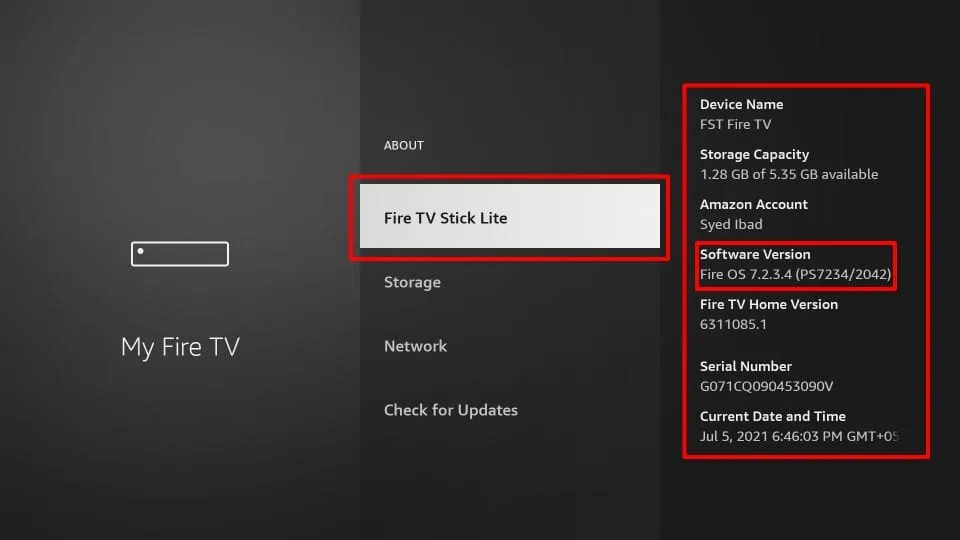
The first step to troubleshoot a non-working Fire TV remote is to reset it. This often resolves minor issues and restores the connection between the remote and your Fire TV device. Here’s how to do it:
- Locate the reset button on the back of your Fire TV remote. It’s usually a small hole or button you’ll need to press with a paperclip or a similar tool.
- Press the reset button for 5-10 seconds until the remote’s LED light blinks.
- Release the reset button, and your remote should now be reset.
Repairing the Fire TV Remote
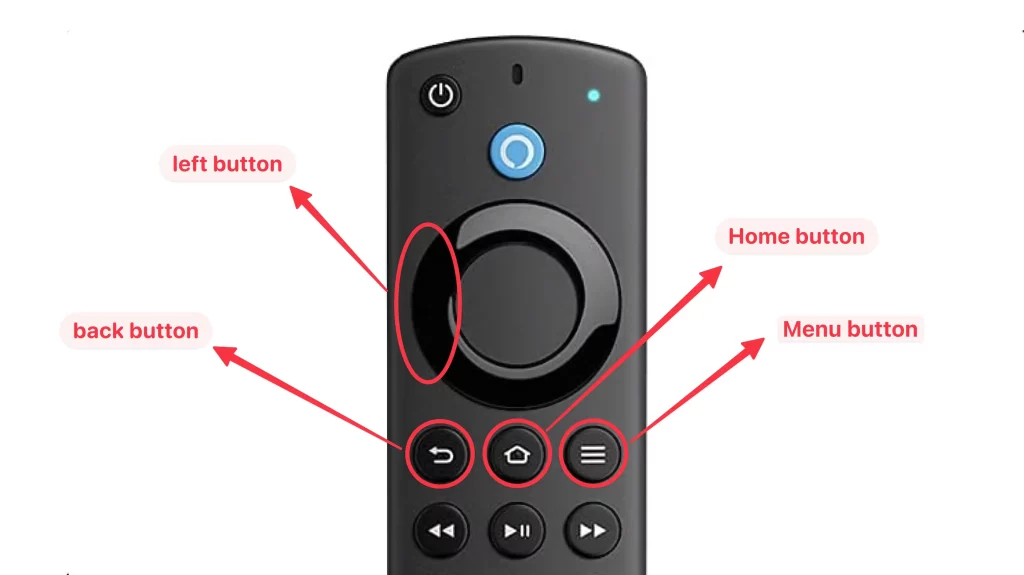
If resetting the remote doesn’t work, the next step is to repair it with your Fire TV device. This process establishes a new connection between the two, which can resolve connectivity issues. Here’s how to repair your Fire TV remote:
- Ensure your Fire TV device is turned on and connected to your TV.
- Press and hold the Home button on your Fire TV remote for about 10-15 seconds until the LED light starts blinking rapidly.
- The remote is now in pairing mode. On your Fire TV device, go to Settings > Controllers & Bluetooth Devices > Amazon Fire TV Remotes > Add New Remote.
- Follow the on-screen instructions to complete the pairing process.
Checking for Software Updates
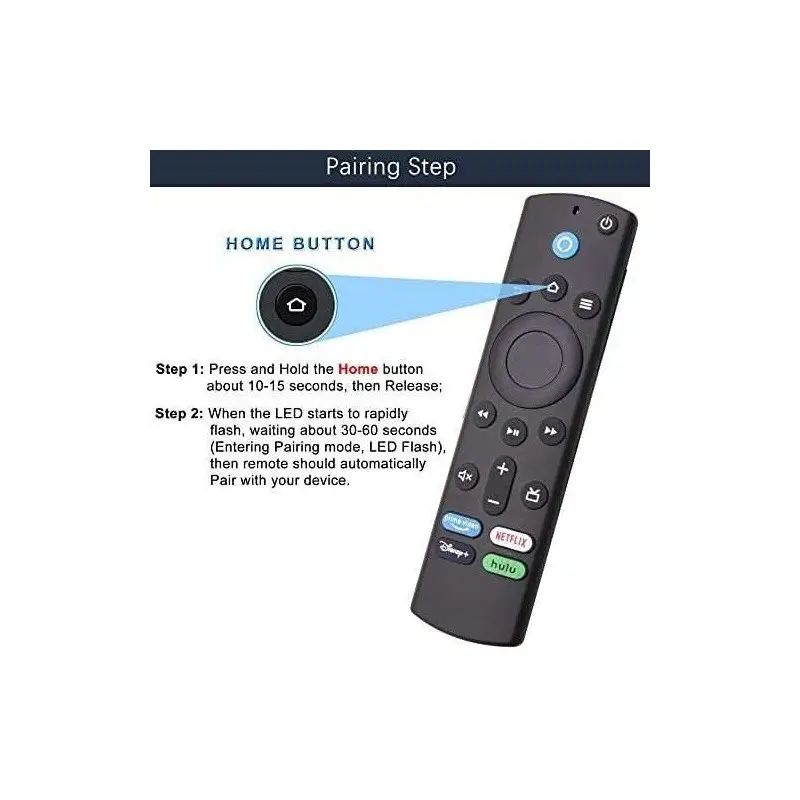
Another potential cause of a non-working Fire TV remote could be outdated software on your Fire TV device. Ensure your Fire TV and the remote are running the latest software version. Here’s how to check for updates:
- Go to Settings > My Fire TV > About > Check for System Update.
- If an update is available, follow the on-screen instructions to install it.
- Once the update is complete, try using your Fire TV remote again.
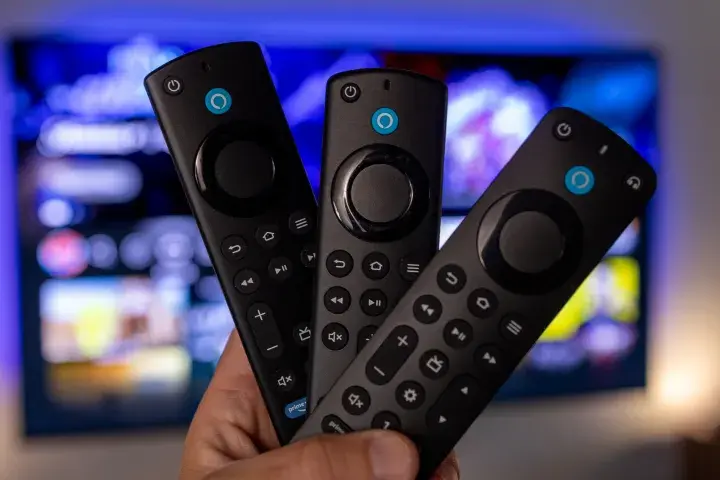
Checking the Batteries in the Fire TV Remote
If your Fire TV remote is still not working, the issue could be with the batteries. Try replacing the batteries with fresh ones and see if that resolves the problem. The batteries may not be the issue if the remote still doesn’t work.
Contacting Customer Support for Further Assistance
Suppose you’ve tried all the troubleshooting steps above, and your Fire TV remote is still not working. In that case, it’s time to contact Amazon customer support for further assistance. They can help you diagnose the issue and provide additional guidance or a replacement remote.
Also Read: Minecraft on a Chromebook: A Guide to Gaming in the Cloud
Frequently Asked Questions
Q: Why is my Fire TV remote not pairing?
A: The common reasons for pairing issues are low batteries, interference, or the remote being too far from the Fire TV device. Try resetting the remote, moving it closer, and replacing the batteries.
Q: How do I reset my Fire TV remote?
A: To reset your Fire TV remote, locate the reset button on the back of the remote and press and hold it for 5-10 seconds. This will reset the remote to its factory settings.
Q: What do I do if my Fire TV remote is not responding?
A: If your Fire TV remote is not responding, try replacing the batteries, reset the remote, repair the remote, and check for software updates on your Fire TV device.
Q: Can I use my smartphone as a Fire TV remote?
A: You can use the Fire TV app on your smartphone or tablet as an alternative remote control. This can be a useful workaround if your physical remote is malfunctioning.
Conclusion
In conclusion, a malfunctioning Fire TV remote can be frustrating, but with the right troubleshooting steps, you can often resolve the problem and get your remote working again. By following the steps outlined in this guide, you should be able to identify and address the root cause of your Fire TV remote not working, whether it’s a simple battery issue or a more complex software or hardware problem.
If you still need help with your Fire TV remote, please get in touch with Amazon’s customer support team for further assistance. They can provide personalized guidance and, if necessary, arrange a replacement remote to get your streaming experience back on track.