Step-by-Step Guide: How to Mirror Your Android Phone to a TV
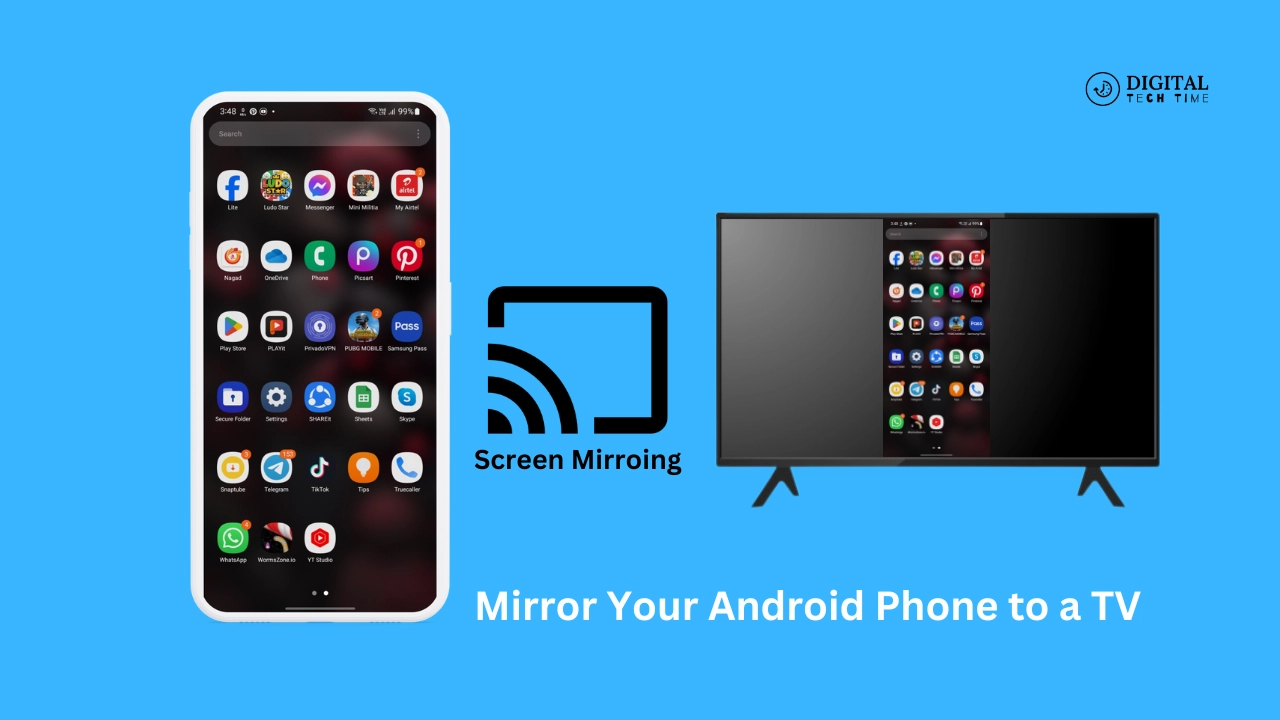
In today’s digital age, smartphones have become an integral part of our lives, serving as a hub for entertainment, communication, and productivity. However, sometimes, the tiny screen of our mobile devices can feel limiting, especially when we want to share content or enjoy multimedia experiences with others. Fortunately, modern technology allows us to mirror our Android phones to a larger screen, such as a TV, providing a more immersive and convenient viewing experience. In this comprehensive guide, I will walk you through mirroring your Android phone to a TV, exploring various methods, troubleshooting common issues, and introducing alternative solutions.
Table of Contents
Understanding the different methods of mirroring
Before we delve into the step-by-step process, it’s essential to understand the different methods available for mirroring your Android phone to a TV. These methods vary depending on your device’s hardware and software capabilities and the available connectivity options. Here are the most common methods:
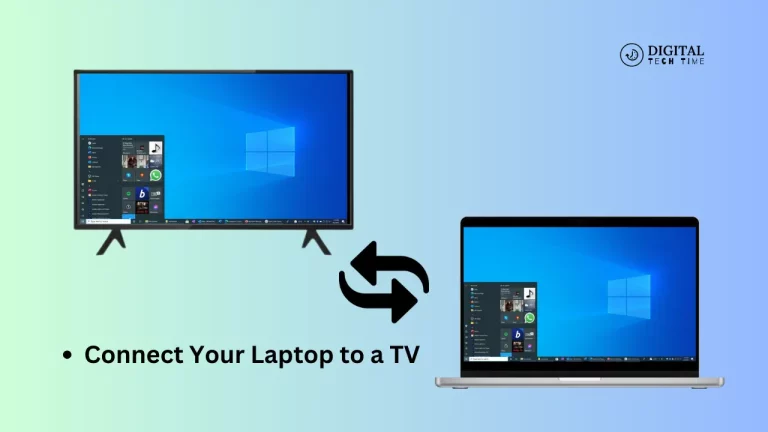
- Wired Connection: This method involves physically connecting your Android phone to the TV using an HDMI cable or a USB-C to an HDMI adapter. It’s a straightforward and reliable option but requires the appropriate cables and ports on both devices.
- Wireless Mirroring: Many modern TVs and Android phones support wireless mirroring technologies, such as Miracast, Chromecast, or Samsung’s Smart View. These technologies allow you to wirelessly mirror your phone’s screen to the TV without cables.
- Third-Party Apps and Devices: Various third-party apps and devices facilitate mirroring your Android phone to a TV. Some popular options include Google Home, Amazon Fire TV Stick, and different screen mirroring apps from the Google Play Store.
Each method has advantages and disadvantages, and the best choice for you will depend on your specific devices and personal preferences.
Step 1: Check your TV’s compatibility
Before attempting to mirror your Android phone to a TV, ensuring that both devices are compatible with the mirroring method you intend to use is crucial. Here are some steps to check your TV’s compatibility:
- Consult the TV’s Manual: Refer to the user manual or manufacturer’s website to determine if your TV supports wireless mirroring technologies like Miracast or has an HDMI input for wired connections.
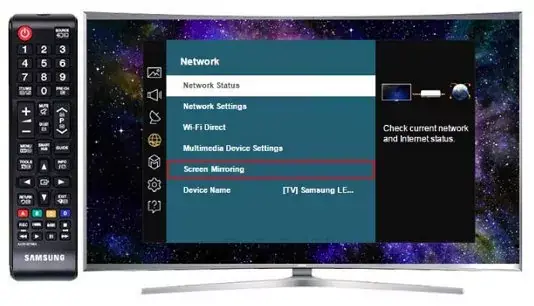
- Look for Mirroring Options: Most modern TVs with mirroring capabilities will have a dedicated option or menu for enabling screen mirroring. Common names for this feature include “Screen Mirroring,” “Wireless Display,” or “Screen Cast.”
- Check for Compatibility Apps: Some TV manufacturers provide dedicated apps or software that facilitate mirroring from Android phones. For example, Samsung TVs often have a “Smart View” app that allows mirroring from compatible Samsung phones.
If your TV does not support mirroring or you’re unsure about its capabilities, you may need to explore alternative methods or consider upgrading to a newer TV model.
Step 2: Choose the proper method for mirroring
Once you’ve confirmed that your TV is compatible with mirroring, it’s time to choose the method that best suits your needs and preferences. Here are some factors to consider:
- Wired or Wireless: Wired connections generally offer better stability and video quality, but they can be less convenient due to the need for cables. On the other hand, wireless mirroring provides more flexibility and mobility, but it may be subject to interference or lag.
- Device Compatibility: Some mirroring methods are specific to certain device brands or models. For example, Samsung’s Smart View is designed for mirroring from Samsung phones to Samsung TVs.
- Ease of Use: Consider each mirroring method’s setup process and user-friendliness. Some methods may require more steps or technical knowledge than others.
- Additional Features: Certain mirroring methods or devices may offer additional features beyond screen mirroring, such as streaming content from various sources or controlling your TV using your phone.
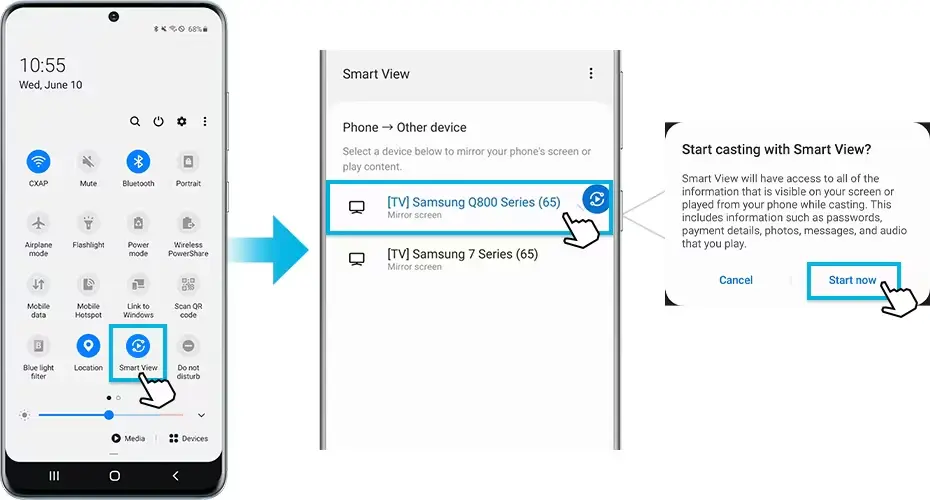
Based on your preferences and your devices’ capabilities, choose the mirroring method that best suits your needs.
Step 3: Connect your Android phone to the TV
Now that you’ve chosen the appropriate mirroring method, it’s time to establish the connection between your Android phone and the TV. The specific steps may vary depending on the method you’ve selected, but here are some general guidelines:
Wired Connection:
- Locate the HDMI port: Locate the HDMI input port on your TV. It’s typically labeled “HDMI” and may have a number or color associated with it.
- Connect the HDMI cable: Connect one end of the HDMI cable to the HDMI port on your TV and the other end to the HDMI output on your Android phone. If your phone doesn’t have an HDMI port, you must use a USB-C to HDMI adapter.
- Select the correct input: Press the “Input” or “Source” button on your TV’s remote control and select the HDMI input you just connected your phone to.
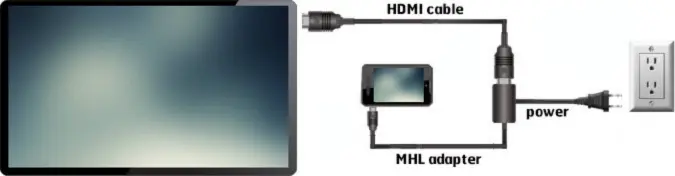
Wireless Mirroring:
- Enable mirroring on your TV: Navigate to your TV’s mirroring or screen casting menu and enable the feature. This may involve turning on “Screen Mirroring,” “Wireless Display,” or a similar option.
- Connect your phone: Go to the screen mirroring or casting settings on your Android phone and select your TV from the list of available devices. The exact steps may vary depending on your phone’s manufacturer and Android version.
- Enter the pairing code (if required): Some TVs may prompt you to enter a pairing code or PIN on your phone to establish a secure connection. Follow the on-screen instructions to complete the pairing process.
Third-Party Apps and Devices:
If you’re using a third-party app or device for mirroring, follow the specific instructions provided by the manufacturer or developer. This may involve installing an app on your Android phone, connecting the device to your TV, and following the on-screen prompts to establish the mirroring connection.
Step 4: Enable mirroring on your Android phone
Once you’ve established the connection between your Android phone and the TV, it’s time to enable mirroring on your phone. The steps may vary slightly depending on your phone’s manufacturer and Android version, but here’s a general guide:
- Open the Settings app: On your Android phone, locate and open the Settings app.
- Navigate to the mirroring or casting settings: Depending on your phone, you may find the mirroring or casting settings under different menus. Common locations include:
- “Connected devices” or “Connections”
- “Display” or “Screen mirroring”
- “Smart View” or “Screen Sharing” (for Samsung phones)
- Enable mirroring: Once you’ve located the mirroring or casting settings, toggle the option to enable it. You may need to select your TV from a list of available devices or enter a pairing code if prompted.
- Adjust mirroring settings (optional): Some phones may offer additional mirroring settings or options, such as resolution, frame rate, or audio output. Explore these settings and adjust them according to your preferences.
- Start mirroring: After enabling mirroring, your phone’s screen should be displayed on the TV. You can use your phone as usual, and the content will be mirrored in real time.
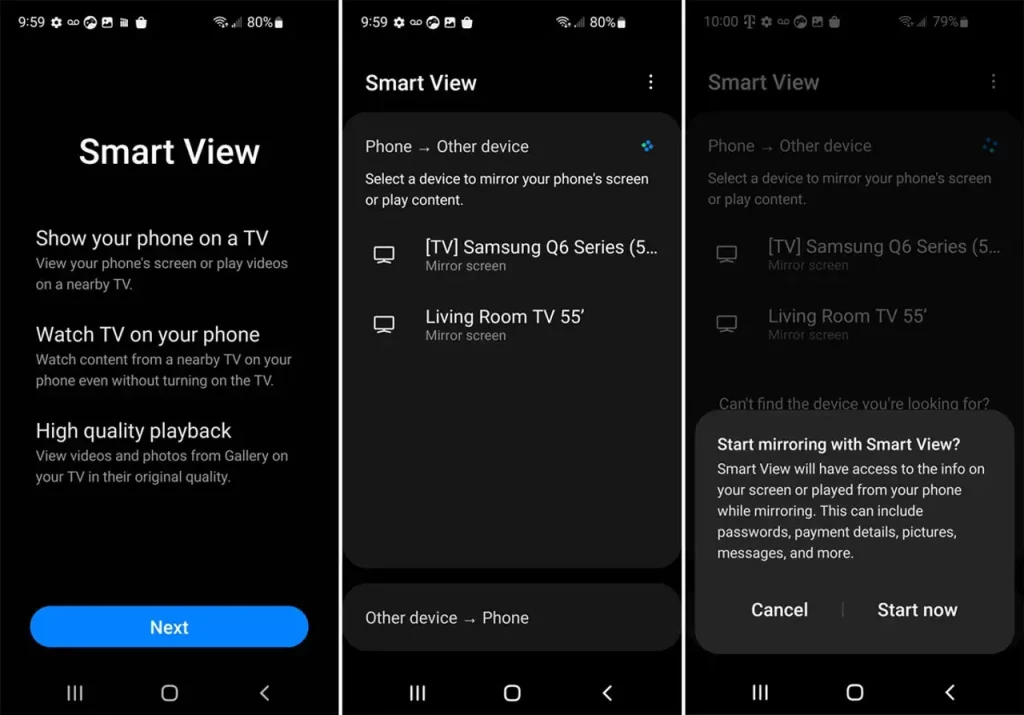
Step 5: Troubleshooting common mirroring issues
While mirroring your Android phone to a TV is generally straightforward, you may encounter some issues or challenges along the way. Here are some common problems and their potential solutions:
- Connection issues: If you’re having trouble establishing a connection between your phone and TV, try the following:
- Ensure that both devices are within range and not obstructed by walls or other obstacles.
- Restart both your phone and TV and then try connecting again.
- Check for software updates for your phone or TV. These may include bug fixes or compatibility improvements.
- Audio issues: If you’re experiencing audio problems, such as no sound or poor audio quality, try the following:
- Check the audio settings on your phone and TV, and ensure that the correct audio output is selected.
- Adjust the volume levels on both devices.
- If using a wired connection, ensure the HDMI cable is connected correctly and not damaged.
- Video quality issues: If the mirrored video appears pixelated, choppy, or laggy, try the following:
- Reduce the resolution or frame rate settings on your phone or TV.
- Move closer to the TV or wireless access point to improve the signal strength.
- Close any unnecessary apps or processes on your phone to free up resources.
- Compatibility issues: If you’re experiencing compatibility issues between your phone and TV, try the following:
- Check for software updates for both devices, as these may improve compatibility.
- Consult the manufacturer’s documentation or support resources for known issues or workarounds.
- Consider using a different mirroring method or a third-party app or device compatible with your devices.
Remember, patience and persistence are key when troubleshooting mirroring issues. If you’re still having trouble after trying these solutions, don’t hesitate to seek further assistance from the manufacturer’s support channels or online forums.
Alternative methods for mirroring Android to TV
While the methods discussed so far are the most common and widely used for mirroring Android phones to TVs, there are also some alternative solutions worth considering:
- Chromecast: Google’s Chromecast is a popular and affordable streaming device that allows you to mirror the screen of your Android phone on a TV. It’s easy to set up and works with many apps and services.
- Amazon Fire TV Stick: Similar to Chromecast, the Amazon Fire TV Stick is a streaming device that supports mirroring from Android phones and provides access to various streaming apps and services.
- Screen Mirroring Apps: Numerous third-party screen mirroring apps are available on the Google Play Store. These apps can facilitate mirroring your Android phone to a TV, often with additional features like remote control or file sharing.
- DLNA (Digital Living Network Alliance): Some Android phones and TVs support DLNA, a standard that allows devices on the same network to share and stream media content. If your phone and TV are DLNA-enabled, you can mirror your phone’s screen using this technology.
- USB Tethering: If your TV has a USB port and supports video input, you can connect your Android phone using a USB cable and enable USB tethering to mirror your phone’s screen.
Research compatibility and user reviews to ensure a smooth mirroring experience when exploring alternative methods.
Also Read: How To Disable Screen Mirroring on Windows 10: Depth Guide
Frequently Asked Questions
Q: Can I mirror my Android phone to a non-smart TV?
A: While mirroring is more straightforward with smart TVs that support wireless mirroring technologies, it’s still possible to mirror your Android phone to a non-smart TV. You must use a wired connection (HDMI or USB) or invest in a streaming device like Chromecast or Amazon Fire TV Stick.
Q: Will mirroring drain my phone’s battery faster?
A: Yes, mirroring your Android phone to a TV can drain your battery faster than usual. The mirroring process consumes additional power for video encoding and wireless transmission. Keeping your phone charged or connected to a power source while mirroring is a good idea.
Q: Can I mirror my phone’s screen while using other apps or taking calls?
A: Yes, most mirroring methods allow you to continue using your Android phone as usual while the screen is mirrored. You can switch between apps, take calls, or perform other tasks, and the mirrored display will reflect these actions in real time.
Q: Is there a way to mirror only specific apps or content instead of the entire screen?
A: Some mirroring methods and third-party apps offer the ability to mirror specific apps or content instead of the whole screen. This can be useful for scenarios where you only want to share certain apps or media files with the TV.
Q: Can I mirror my Android phone to multiple TVs simultaneously?
A: While it’s possible to mirror your Android phone to various TVs simultaneously, the process and requirements may vary depending on the mirroring method and the capabilities of your devices. Some methods may support multi-device mirroring out of the box, while others may require additional software or hardware.
Conclusion
Mirroring your Android phone to a TV can unlock a world of possibilities, allowing you to enjoy your favorite content, games, and apps on a larger screen. By following the step-by-step guide outlined in this article, you’ll be well-equipped to navigate the various mirroring methods and overcome any challenges that may arise.
Remember, the key to a successful mirroring experience lies in understanding your device’s capabilities, choosing the correct method, and being patient during setup. Feel free to experiment with different techniques or seek assistance from online resources or manufacturer support if you encounter any issues.
To ensure a seamless mirroring experience, follow this comprehensive step-by-step guide and confidently navigate the process. Mirroring your Android phone to a TV is a game-changer, whether you want to share your favorite videos, photos, or apps with friends and family or enjoy a more immersive multimedia experience. Embrace the power of technology and unlock a world of entertainment possibilities right at your fingertips.
Happy mirroring!