How to Right-Click on Your Chromebook: A Complete Guide for 2024
Chromebooks are now very famous for their simplicity, user-friendliness, and efficiency. However, every time somebody first gets to use one, they need to clearly know how to do the fundamental things, like right-clicking. In contrast to the regular PC, Chromebooks lack a dedicated right-click button. This could be what makes the device’s interface appear too hard to use in the beginning. But do not worry; right-clicking on a Chromebook is more straightforward than on any other operating system. This guide will take you through some ways how to right-click on your Chromebook, so you always feel like you can find a function.
Table of Contents
Understanding the Right-Click Function on a Chromebook
But before I dive into the methods, let’s try to understand why right-clicking is necessary. Right-clicking does everything from just opening a context menu to accessing shortcuts or other actions, depending on what application a user is running. Most people would think that Chromebooks are totally different from Windows or macOS, so of course, they wouldn’t function in the same way. The truth is, there really is a way of right-clicking efficiently on a Chromebook.
How to Right-Click on Your Chromebook Using the Touchpad
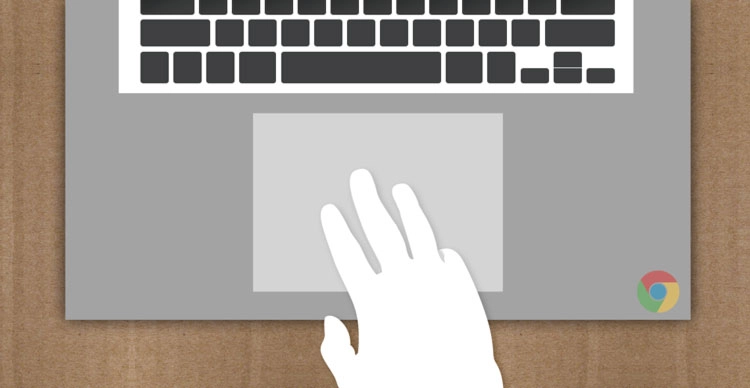
Chromebooks are designed to make everything so user-friendly, and right-clicking with the trackpad is no different. The process is different from what you might be used to on other operating systems, but once you get the hang of it, it’s just as intuitive.
Check if Tap-to-Click is Enabled
Before one starts right-clicking using the touchpad, one should make sure that tap-to-click is turned on. It allows the tap instead of holding down to make clicks.
- Open the Quick Settings Panel:
- Click on the time at the bottom-right corner of your screen to access the Quick Settings panel.
- Go to Settings:
- Click on the cogwheel icon to open the Settings menu.
- Navigate to Touchpad Settings:
- Select “Device” from the left-hand menu.
- Click on “Touchpad” to open the touchpad settings.
- Enable Tap-to-Click:
- Ensure the “Enable tap-to-click” toggle is turned on. This will allow you to right-click using the touchpad.
Performing a Right-Click with the Touchpad
Now that tap-to-click is enabled, here’s how you can right-click:
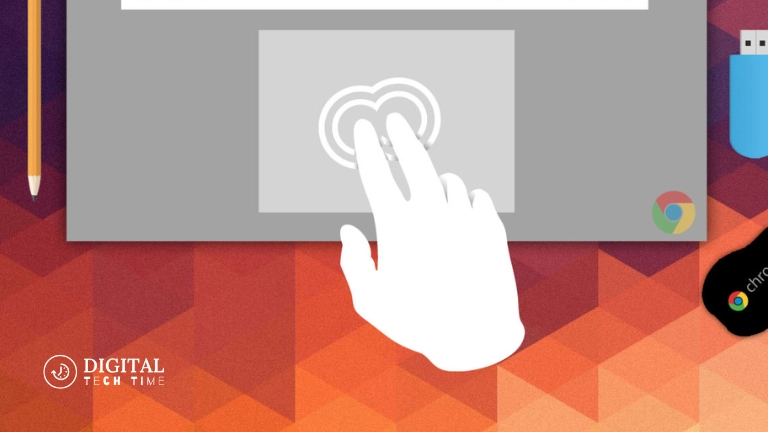
- Two-Finger Tap:
- Lightly tap the touchpad with two fingers simultaneously. This action will open the right-click menu, just like a traditional right-click on a mouse.
- Press with Two Fingers:
- If tapping doesn’t feel comfortable, you can press down on the touchpad with two fingers. This will also trigger the right-click menu.
How to Right-Click on Your Chromebook Using the Keyboard
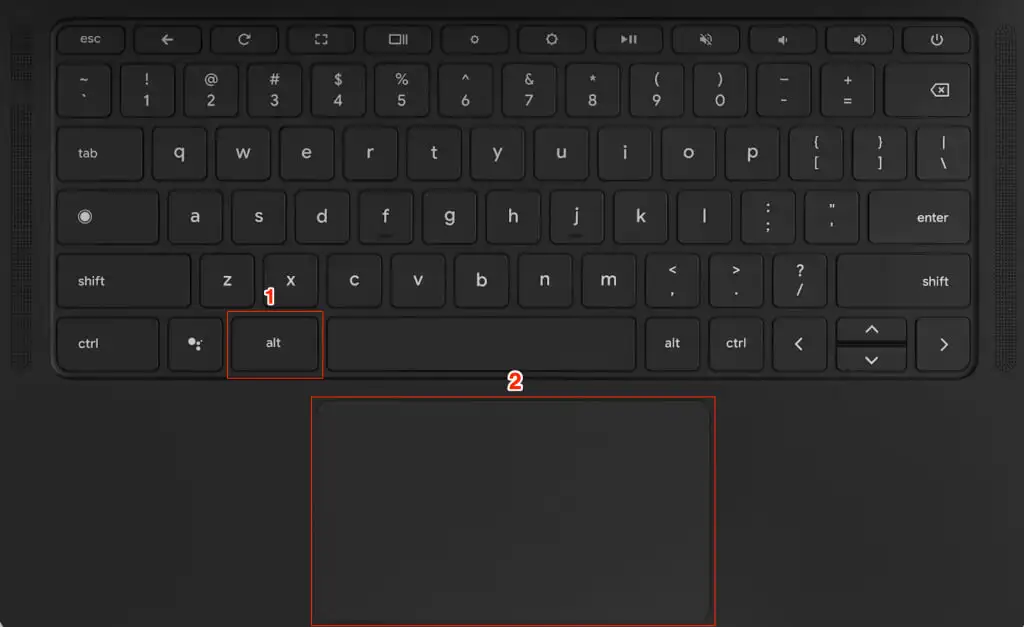
If the touchpad method doesn’t work for you, or if you prefer using the keyboard, Chromebooks offer an alternative way to right-click using a simple keyboard shortcut.
Using the Alt Key to Right-Click
The keyboard method involves holding down the “Alt” key while tapping the touchpad with one finger. Here’s a step-by-step guide:
- Hold the Alt Key:
- Locate the “Alt” key on your keyboard (usually found next to the spacebar).
- Tap the Touchpad:
- While holding down the Alt key, tap the touchpad with one finger. This will simulate a right-click.
Why Use the Keyboard Method?
This method is particularly useful if you find the two-finger tap awkward or if you’re working in a situation where precise control is needed. It’s a quick and reliable alternative to the touchpad method.
Frequently Asked Questions
Q1: Can I right-click on a Chromebook if I don’t have a mouse?
Yes, you can right-click using the touchpad or keyboard. Both the two fingers tap hol, dial the Alt key, and then tap on the touchpad. Do the same job.
Q2: My touchpad doesn’t respond to a two-finger tap.
Make sure that “Enable tap-to-click” is enabled under the touchpad settings of your Chromebook. Otherwise, restart your Chromebook or update the software.
Q3: How can I change the right-click action on a Chromebook?
Yes, you can configure other touchpad settings through Settings > Device > Touchpad. It includes options for adjusting sensitivity and turning tap-to-click and various other features on or off.
Q4: Is there right-click functionality using an external mouse with a Chromebook?
Yes. If you have an external mouse, the right-click button does the same thing that it would on a standard PC or Mac.
Q5: How do I enable right-clicking for accessibility needs?
Chrome OS has an Automatic Clicks feature that will allow you to right-click without actually needing to press the touchpad. This can be found in the Accessibility settings.
Related Post: How to Use an Auto Clicker on a Chromebook for Gaming
Conclusion
The first thing that users who are habituated to the traditional PC or Mac will find very intimidating in a Chromebook is right-clicking. However, it is pretty simple, and you can master it using some straightforward steps. Chrome OS has multiple options, whether you want to use the touchpad, keyboard, or accessibility features.
Mastering these methods will allow you to easily navigate your Chromebook and leverage its powerful, easy-to-use interface. Whether you are a new Chromebook user or just looking to step up your workflow, knowing how to right-click is one of the essential steps toward using your device effectively.
This blog post comes with practical, easy-to-follow instructions and is hence available to all users. The PAS framework ensures that the content addresses the problem, agitation (frustration in searching for a right-click button), and solution with steps clearly and actionably given.