Remote Support: Fix Window Desktop Drawing Issues
As a seasoned remote support professional, I understand the importance of providing seamless and efficient assistance to clients, even when dealing with complex technical issues. One such challenge that often arises is window desktop drawing, which can significantly impact the quality and effectiveness of remote support sessions. In this article, we’ll explore the common causes of window desktop drawing issues, delve into step-by-step troubleshooting techniques, and discover the best practices for preventing these problems in the future.
Table of Contents
Common Window Desktop Drawing Issues in Remote Support
When providing remote support, we often encounter various window desktop drawing issues that can hinder our ability to assist our clients effectively. These issues can manifest in several ways, such as:
- Lagging or Slow Refresh Rates: The client’s desktop may need to be more active, with slow or delayed updates, making it difficult to follow their actions or provide real-time guidance.
- Visual Artifacts and Distortions: The client’s desktop may display visual glitches, such as pixelated images, distorted text, or flickering elements, making it challenging to see the whole picture.
- Disappearing or Unresponsive Elements: Certain desktop elements, such as windows, icons, or taskbars, may vanish or become unresponsive, leaving the client confused and unable to complete their tasks.
- Inconsistent Display Quality: The quality of the desktop display may fluctuate during the remote support session, leading to a frustrating and unpredictable user experience.
Understanding the root causes of these issues is the first step towards resolving them effectively.
Step-by-Step Guide to Fix Window Desktop Drawing Issues
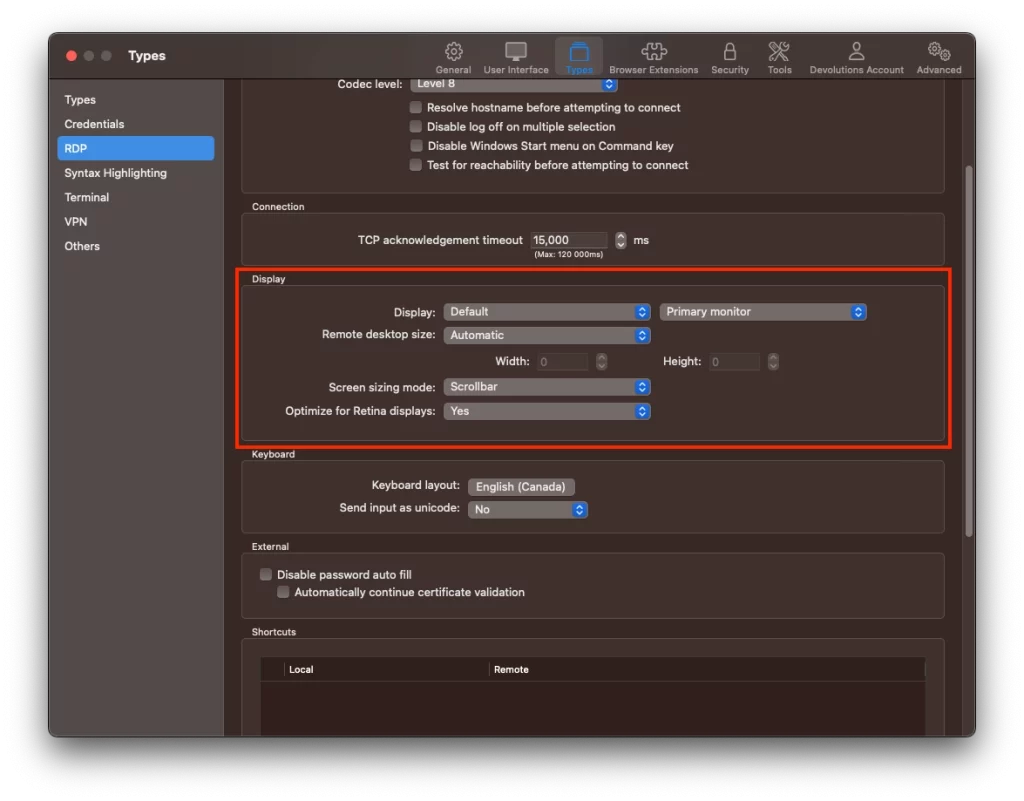
To provide a more detailed guide, let’s walk through the steps to resolve window desktop drawing issues:
- Assess the Network Connection:
- Ask the client to run a speed test and provide the results.
- Recommend that the client temporarily disable any bandwidth-intensive applications or downloads during the remote support session.
- I suggest the client relocate to an area with a stronger internet connection.
- Verify Hardware Compatibility:
- Gather information about the client’s computer, including the operating system, processor, RAM, and graphics card.
- Compare the client’s hardware specifications to the recommended requirements for the remote support software.
- If necessary, recommend hardware upgrades or suggest an alternative remote support solution that better aligns with the client’s system capabilities.
- Optimize Software Configurations:
- Ensure that the client’s operating system and all relevant drivers are up-to-date.
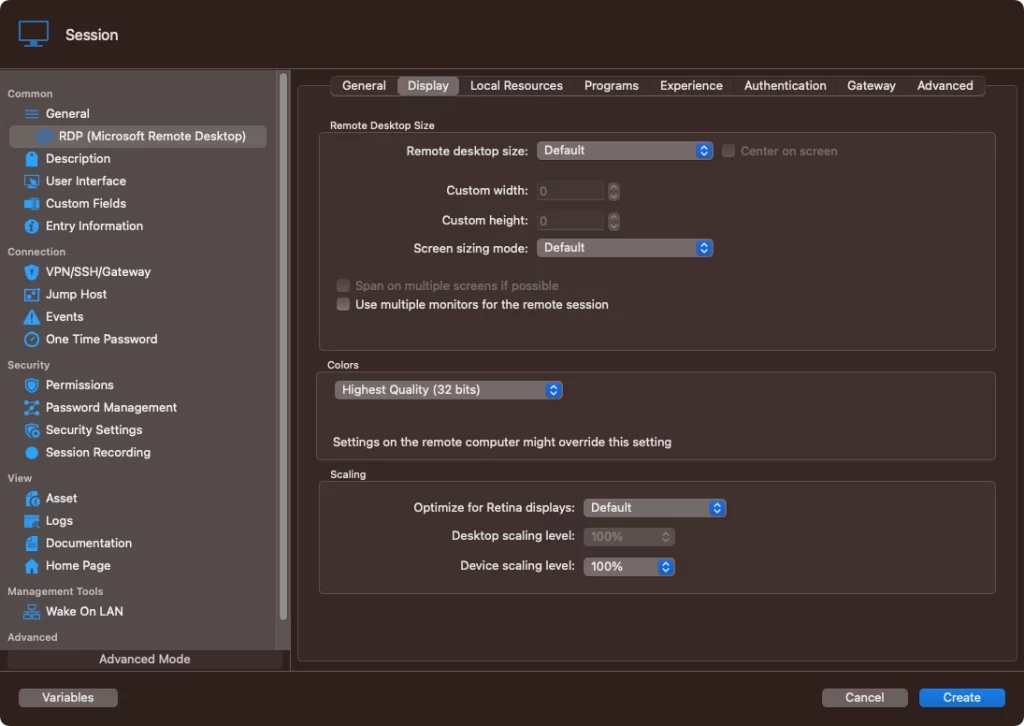
- Check the remote support software’s settings and make adjustments to optimize performance, such as disabling visual effects or adjusting the display quality.
- Recommend that the client close any unnecessary applications or background processes on their machine.
- Manage Resource Utilization:
- Instruct the client to open the Task Manager (or equivalent) and identify resource-intensive processes.
- Guide the client to terminate or pause unnecessary applications or processes to free up system resources.
- I suggest the client clear their browser cache and close unused browser tabs or windows.
- Experiment with Remote Support Settings:
- Explore the remote support software’s advanced settings, including display quality, compression, and hardware acceleration.
- Adjust these settings incrementally and observe the impact on the desktop drawing performance.
- Find the optimal balance between drawing quality and responsiveness for the client’s setup.
- Collaborate with the Client:
- Maintain clear and frequent communication with the client throughout the troubleshooting process.
- Provide step-by-step instructions and guidance, and encourage the client to actively participate in troubleshooting.
- Gather feedback from the client to refine the approach and ensure a satisfactory resolution.
Following this comprehensive step-by-step guide, you can effectively troubleshoot and resolve window desktop drawing issues, delivering your clients a seamless remote support experience.
Troubleshooting Window Desktop Drawing Issues
When faced with window desktop drawing issues during a remote support session, we can follow a systematic troubleshooting approach to identify and address the underlying problems. Here are the steps to guide you through the process:
- Assess the Connectivity: Start by evaluating the client’s network connection. Check for any internet outages, high latency, or bandwidth limitations contributing to the drawing issues.
- Verify Hardware Compatibility: Ensure that the client’s hardware, particularly the graphics card and CPU, are compatible with the remote support software. If necessary, recommend hardware upgrades or suggest alternative remote support solutions.
- Optimize Software Configurations: Review the client’s operating system settings, driver updates, and remote support application configurations. Make necessary adjustments to optimize performance and drawing quality.
- Manage Resource Utilization: Identify and close any resource-intensive applications or background processes on the client’s machine to free up system resources and improve desktop drawing performance.
- Experiment with Remote Support Settings: Explore the settings and options within the remote support software, such as display quality, compression, or hardware acceleration, to find the optimal configuration for the client’s specific setup.
- Collaborate with the Client: Engage the client actively throughout the troubleshooting process, guiding them through any necessary steps and gathering feedback to refine the approach.
By following this structured troubleshooting methodology, you can efficiently identify and resolve window desktop drawing issues, ensuring your clients a seamless remote support experience.
Read Also: How to Sync Roku Remote Without Pairing Button
Frequently Asked Questions
Q: What are the common causes of window desktop drawing issues in remote support?
A: The common causes include network connectivity problems, hardware incompatibilities, software configuration issues, resource constraints, and limitations within the remote support software.
Q: How can I troubleshoot window desktop drawing issues effectively?
A: The key steps include assessing the network connection, verifying hardware compatibility, optimizing software configurations, managing resource utilization, experimenting with remote support settings, and collaborating closely with the client.
Q: What remote support tools can I use to troubleshoot window desktop drawing issues?
A: Useful tools include network diagnostic utilities, system monitoring applications, remote support software’s built-in features, driver update utilities, and performance optimization tools.
Q: How can I prevent window desktop drawing issues in remote support?
A: Best practices include establishing minimum system requirements, optimizing network connectivity, encouraging regular system maintenance, providing comprehensive user guides, leveraging remote support software features, and maintaining ongoing client communication.
Q: What should I do if I cannot resolve the window desktop drawing issues?
A: If the troubleshooting steps do not resolve the issue, consider escalating the case to the remote support software provider’s technical support team or exploring alternative remote support solutions better suited to the client’s system configuration.
Conclusion
Navigating window desktop drawing issues in remote support can be a complex challenge. Still, by understanding the root causes, following a structured troubleshooting approach, and leveraging the right tools and best practices, we can effectively resolve these problems and deliver a seamless remote support experience for our clients.
Contact our team of experts if you’re struggling with window desktop drawing issues during your remote support sessions. We’re here to help you troubleshoot and implement the best solutions to ensure a smooth and efficient remote support experience for you and your clients.