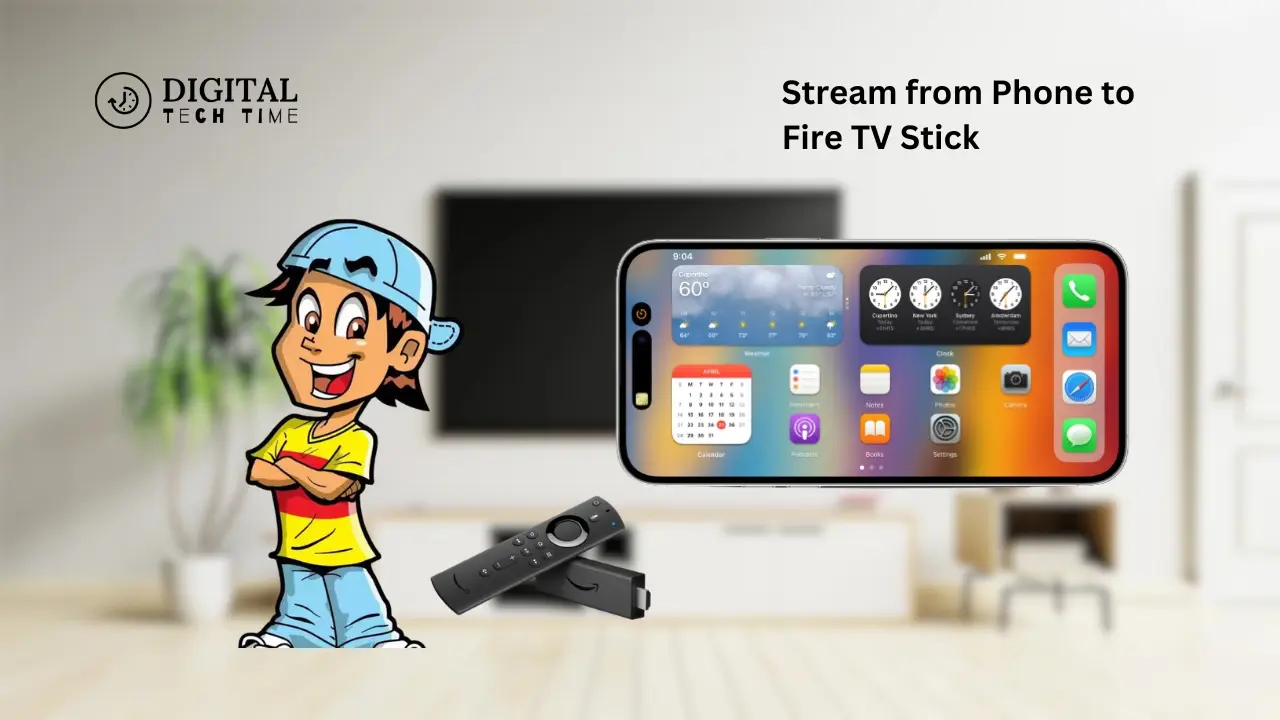
Stream from Phone to Fire TV Stick: Quick Tips
As technology continues to evolve, how we consume media has significantly transformed. Gone are the days when we were limited to watching content solely on our televisions. Today, we can seamlessly stream content directly from our smartphones and tablets to our Fire TV Stick, unlocking a world of entertainment possibilities.
In this comprehensive guide, I will walk you through the step-by-step process of casting from your phone to your Fire TV Stick, highlighting the benefits, the various methods, and the best apps to enhance your streaming experience. Whether you’re an Android or iOS user, you’ll find the information you need to make the most of your Fire TV Stick and transform your living room into a state-of-the-art entertainment hub.
Table of Contents
Benefits of casting to Fire TV Stick
Casting your content from your phone to your Fire TV Stick offers many benefits that can significantly enhance your viewing experience. Here are some of the key advantages:
- Larger Screen: By casting your phone’s screen to the Fire TV Stick, you can enjoy your favorite content on a much larger and more immersive display, providing a cinematic experience in the comfort of your own home.
- Hands-free Control: With the Fire TV Stick’s voice-controlled remote, you can easily navigate, search, and control your content without the need to interact with your phone constantly.
- Expanded Content Library: The Fire TV Stick provides access to a vast array of streaming apps and services, allowing you to explore a more comprehensive selection of movies, TV shows, live TV, and more.
- Seamless Multitasking: While your content is playing on the Fire TV Stick, you can continue to use your phone for other tasks, such as browsing the web, sending messages, or even taking calls.
- Improved Audio Quality: By casting your phone’s Audio to the Fire TV Stick, you can enjoy a more immersive and high-quality sound experience through your television’s speakers or a connected sound system.
How to cast to Fire TV Stick using Android devices
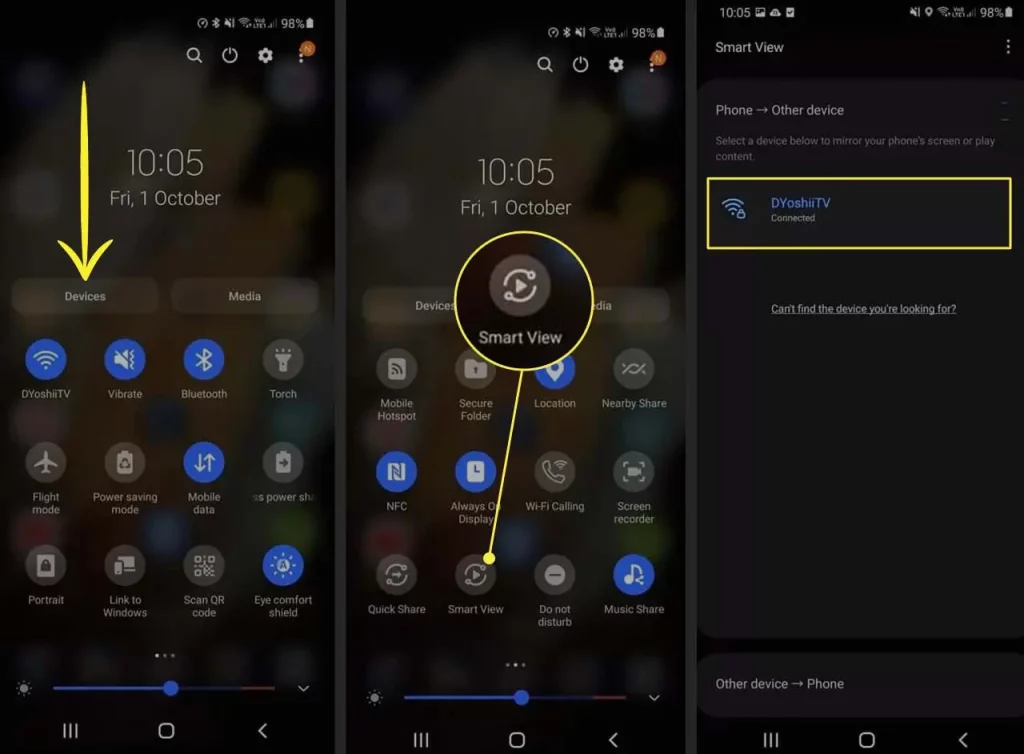
Casting from your Android device to your Fire TV Stick is straightforward. Here’s how you can do it:
- Connect both devices to the same Wi-Fi network: Ensure that your Android device and Fire TV Stick are connected to the same wireless network for a seamless casting experience.
- Enable casting on your Android device: Locate the “Cast” or “Screen Mirroring” option in your Android device’s settings or quick settings menu, and turn it on.
- Select your Fire TV Stick: Your Fire TV Stick should appear in the list of available devices. Select it to initiate the casting process.
- Adjust the display settings (optional): Depending on your preferences, you can adjust the display settings, such as the resolution or orientation, to optimize the viewing experience.
- Start casting: Once the connection is established, you can cast your phone’s screen, apps, or specific content to your Fire TV Stick.
How to cast to Fire TV Stick using iOS devices
Casting from your iOS device to your Fire TV Stick is different but relatively straightforward. Here’s how you can do it:
- Install the Amazon Fire TV app: Download the Amazon Fire TV app from the App Store on your iOS device.
- Connect both devices to the same Wi-Fi network: Ensure your iOS device and Fire TV Stick are connected to the same wireless network.
- Open the Amazon Fire TV app: Launch the app and sign in to your Amazon account.
- Select your Fire TV Stick: Your Fire TV Stick should appear in the list of available devices. Tap on it to connect.
- Start casting: Once the connection is established, you can cast your phone’s screen, apps, or specific content to your Fire TV Stick.
Alternative methods for streaming to Fire TV Stick
While casting from your phone is a popular and convenient method, there are other ways to stream content to your Fire TV Stick:
- Use streaming apps: The Fire TV Stick offers a wide range of streaming apps, such as Netflix, Hulu, Amazon Prime Video, and more. You can download these apps directly on your Fire TV Stick and use them to stream content.
- Connect external devices: You can connect other devices, such as a laptop, gaming console, or external storage, to your Fire TV Stick using HDMI or USB ports and stream content directly from those sources.
- Utilize screen mirroring: Some Android and iOS devices support screen mirroring, allowing you to mirror your entire device’s screen directly to the Fire TV Stick without casting.
- Explore third-party apps: Various third-party apps, such as Plex, Kodi, and Emby, can be installed on the Fire TV Stick to provide additional streaming options and features.
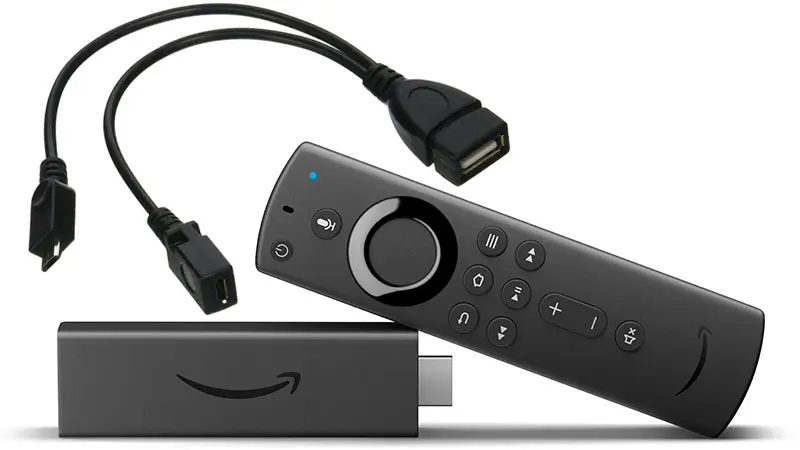
Recommended apps for streaming to Fire TV Stick
To enhance your streaming experience on the Fire TV Stick, here are some recommended apps to consider:
- Netflix: The popular streaming service offers a wide selection of movies, TV shows, and original content.
- Hulu: Hulu provides access to a vast library of TV shows, movies, and live TV channels.
- Amazon Prime Video: As the Fire TV Stick’s native streaming platform, Amazon Prime Video offers diverse content, including original series and movies.
- Disney+: For fans of Disney, Pixar, Marvel, and Star Wars, Disney+ is a must-have streaming app.
- Plex: This media server app lets you stream your personal media collection to your Fire TV Stick.
- Kodi: A highly customizable media center app that offers a wide range of streaming options and add-ons.
- YouTube: The go-to platform for online videos, with a dedicated app for the Fire TV Stick.
Tips for optimizing your streaming experience
To ensure a seamless and enjoyable streaming experience on your Fire TV Stick, consider the following tips:
- Ensure a stable internet connection: A reliable, high-speed internet connection is crucial for smooth streaming. Consider upgrading your internet plan or using a wired Ethernet connection for the Fire TV Stick.
- Update your devices: Keep your Fire TV Stick and the devices you’re using for casting (e.g., your smartphone) up-to-date with the latest software updates to ensure compatibility and optimal performance.
- Manage background apps: Close any unnecessary apps running in the background on your phone to free up resources and improve the casting quality.
- Adjust video quality settings: Experiment with the video quality settings on your Fire TV Stick and the casting device to find the optimal balance between picture quality and streaming performance.
- Use a compatible HDMI cable: Ensure you use a high-quality one to connect your Fire TV Stick to your television for the best audio and video quality.
- Reboot your devices: If you encounter any issues, try rebooting your Fire TV Stick and the casting device to resolve any potential connectivity or performance problems.
Also Read: How to Fix a Chromebook Keyboard Not Working Issue
Frequently Asked Questions
Q: Can I cast content from my phone to the Fire TV Stick even if they are not on the same Wi-Fi network?
A: No, casting from your phone to the Fire TV Stick requires both devices to be connected to the same Wi-Fi network to work seamlessly.
Q: Does the Fire TV Stick support 4K streaming?
A: Yes, the Fire TV Stick supports 4K Ultra HD streaming, provided that your internet connection and television can also handle 4K content.
Q: Can I use the Fire TV Stick’s voice control feature with my phone?
A: No, the voice control feature on the Fire TV Stick is specific to the included remote control. You cannot use your phone’s voice assistant to control the Fire TV Stick.
Q: Will casting drain my phone’s battery faster?
A: Yes, casting your phone’s screen to the Fire TV Stick will consume more battery power than regular use. It’s recommended to keep your phone plugged in or have a backup power source available during extended casting sessions.
Q: Can I cast content from multiple devices to the same Fire TV Stick?
A: Yes, you can cast content from various devices (e.g., smartphones, tablets) to the same Fire TV Stick, but only one device can be actively cast at a time.
Conclusion
In today’s digital landscape, the ability to seamlessly stream content from our phones to our Fire TV Stick has become an essential feature. Following the steps outlined in this comprehensive guide, you can now enjoy a more immersive and convenient viewing experience, whether you’re an Android or iOS user.
Remember, the key to a successful streaming setup is ensuring a stable internet connection, keeping your devices up-to-date, and utilizing the right apps and settings. With these tips and tricks, you’ll be well on your way to unlocking the full potential of your Fire TV Stick and transforming your living room into a true entertainment powerhouse.
So, what are you waiting for? Start casting and enjoy the ultimate streaming experience today!