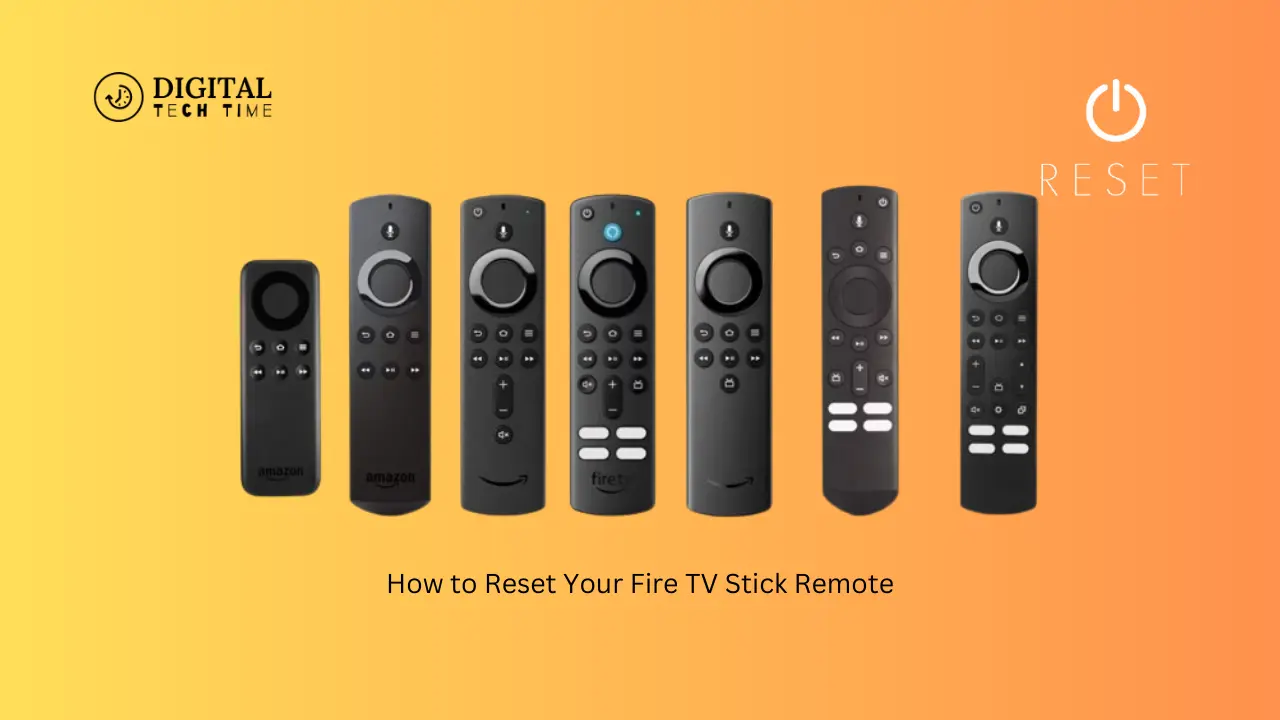
How to Reset Your Fire TV Stick Remote Like a Pro
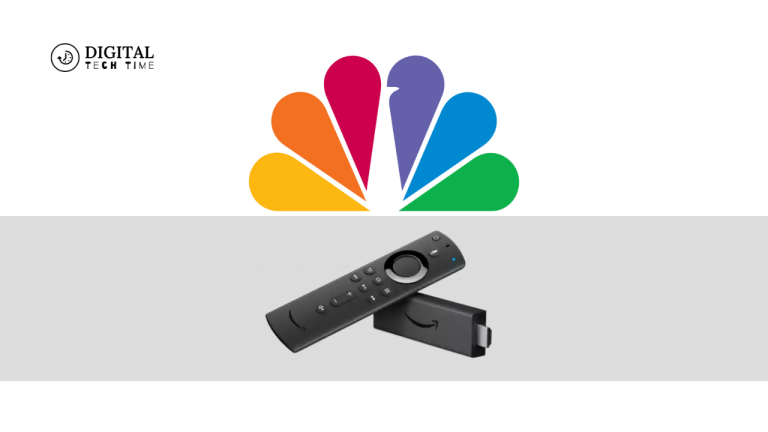
As an avid streamer, I’ve been using the Amazon Fire TV Stick for years, and I’ve grown to love its convenience and versatility. The Fire TV Stick is a compact yet powerful device that allows you to access a vast library of movies, TV shows, live channels, and more right from the comfort of your living room. At the heart of this experience is the Fire TV Stick remote, a sleek and intuitive controller that puts all the controls you need right at your fingertips.
However, as with any electronic device, there may come a time when your Fire TV Stick remote needs a reset. Whether due to connectivity issues, unresponsive buttons, or simply needing to start fresh, resetting your remote can be a game-changer. In this article, I’ll guide you through the step-by-step process of resetting your Fire TV Stick remote like a pro and provide some troubleshooting tips and tricks to enhance its performance.
Table of Contents
Reasons for resetting your Fire TV Stick remote
There are several reasons why you might need to reset your Fire TV Stick remote:
- Connectivity Issues: If your remote is having trouble connecting to your Fire TV Stick, a reset can help re-establish the Bluetooth connection.
- Unresponsive Buttons: Over time, the buttons on your remote may become less responsive or even stop working altogether. A reset can help restore their functionality.
- Glitches or Malfunctions: Sometimes, your remote may experience software or hardware issues that a reset can resolve.
- Pairing a New Remote: If you’ve recently purchased a replacement remote or want to pair a secondary remote, resetting the existing one can help with the pairing process.
Regardless of the reason, resetting your Fire TV Stick remote is straightforward and can often resolve a wide range of issues.
Step-by-step guide on resetting your Fire TV Stick remote
Resetting your Fire TV Stick remote is a simple process that can be completed in just a few steps. Here’s how to do it:
- Remove the Batteries: First, remove the batteries from your Fire TV Stick remote. This will ensure that the reset process is successful.
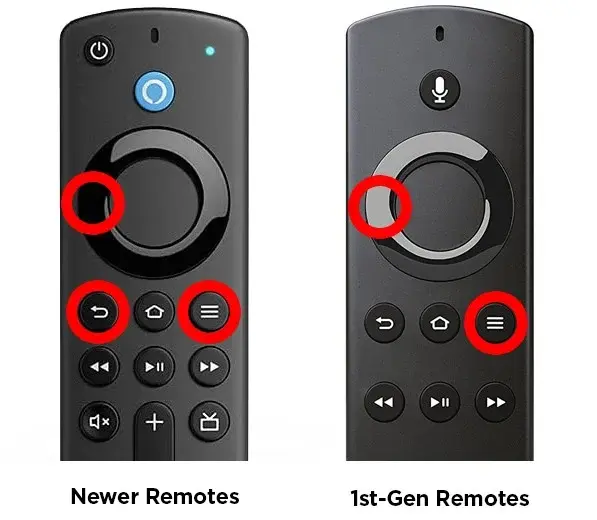
- Press and Hold the Home Button: With the batteries removed, press and hold the Home button on your remote for at least 10-15 seconds. This will initiate the reset process.
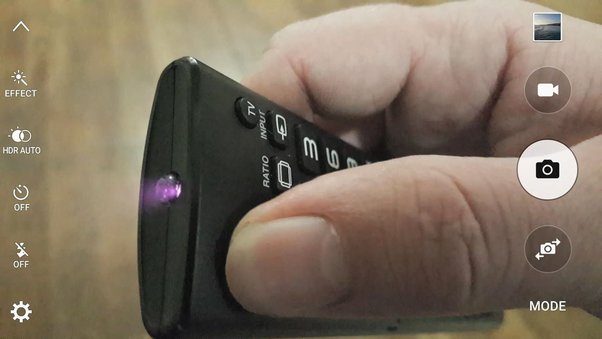
- Wait for the LED Light to Blink: During resetting, you should see the LED light on your remote start blinking. This indicates that the reset is in progress.
- Reinsert the Batteries: Once the LED light stops blinking, reinsert the batteries into your Fire TV Stick remote.
- Pair the Remote with Your Fire TV Stick: Pair your remote with your Fire TV Stick after the reset. Turn on your Fire TV Stick and follow the on-screen instructions to complete the pairing process.
It’s important to note that resetting your Fire TV Stick remote will clear any custom settings or preferences you had previously set. However, this is necessary to resolve any issues you may be experiencing with your remote.
Troubleshooting common issues with the Fire TV Stick remote
While resetting your Fire TV Stick remote is often an effective solution, there may be some instances where you encounter additional issues. Here are some common problems and how to troubleshoot them:
Issue: Remote is not pairing with the Fire TV Stick
- Ensure that the batteries in your remote are fresh and properly installed.
- Check if your Fire TV Stick is powered on and connected to the internet.
- Try moving your remote closer to the Fire TV Stick during pairing.
- If the issue persists, try resetting the Fire TV Stick itself.
Issue: Remote buttons are not responding
- Check for any physical damage or obstructions on the remote.
- Ensure that the remote is properly paired with the Fire TV Stick.
- Try resetting the remote as described in the previous section.
- If the issue persists, you may need to replace the remote.
Issue: Remote is draining batteries quickly
- Check if you’re using high-quality, fresh batteries in the remote.
- Ensure the remote is not left in direct sunlight or near heat sources, which can drain the batteries faster.
- Consider using rechargeable batteries to save money in the long run.
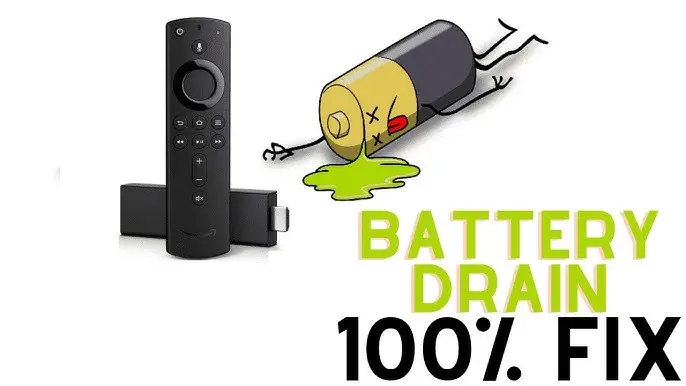
Addressing these common issues can often restore your Fire TV Stick remote to its optimal performance.
Tips to enhance the performance of your Fire TV Stick remote
In addition to resetting your Fire TV Stick remote, there are a few other tips and tricks you can use to enhance its performance:
- Keep the Remote Clean: Regularly wipe down the surface of your remote with a soft, dry cloth to remove any dirt, dust, or debris that may be interfering with the button’s responsiveness.
- Use Rechargeable Batteries: As mentioned earlier, switching to rechargeable batteries can save you money in the long run and help prevent the remote from draining batteries quickly.
- Avoid Interference: Keep your Fire TV Stick remote away from other wireless devices, such as Bluetooth speakers or Wi-Fi routers, as they can interfere with the remote’s Bluetooth connection.
- Update the Fire TV Stick Firmware: Ensure that your Fire TV Stick is running the latest firmware version, as updates can sometimes improve the remote’s performance.
- Consider a Remote Replacement: If your Fire TV Stick remote is consistently giving you trouble, it may be worth investing in a replacement remote to ensure a smooth and reliable streaming experience.
By implementing these tips, you can help extend the lifespan and performance of your Fire TV Stick remote, ensuring that you can continue to enjoy your favorite content with ease.
Alternative methods to reset your Fire TV Stick remote
While the step-by-step guide I provided earlier is the most common way to reset your Fire TV Stick remote, there are a few alternative methods you can try:
- Reset Using the Fire TV Stick Menu: If you can access the Fire TV Stick menu, you can navigate to the “Settings” > “Controllers & Bluetooth Devices” > “Fire TV Remotes” menu and select the option to “Unpair” your remote. This will effectively reset the remote and allow you to re-pair it with your Fire TV Stick.
- Reset Using the Fire TV Stick App: The Amazon Fire TV app, available for iOS and Android, allows you to manage your Fire TV Stick and its connected devices, including the remote. You can use the app to reset your remote by navigating to the “Remotes & Devices” section and selecting the option to “Unpair” your remote.
- Reset Using the Fire TV Stick Voice Commands: If your remote is still responsive enough to use voice commands, you can try resetting it by saying, “Alexa, unpair my Fire TV remote.” This will initiate the reset process and allow you to re-pair the remote with your Fire TV Stick.
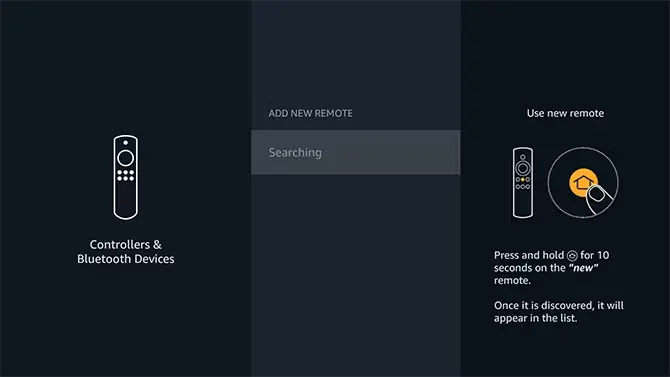
These alternative methods can be helpful if you can’t physically access your Fire TV Stick remote or if the standard reset process isn’t working.
Also Read: Discover the Convenience: Does Chrome Have a Reader Mode?
Frequently Asked Questions
Q: How do I know if my Fire TV Stick remote needs reset?
A: There are a few signs that your Fire TV Stick remote may need a reset, such as connectivity issues, unresponsive buttons, or general malfunctions. A reset is a good place to start if you’re experiencing any of these problems.
Q: Will resetting my Fire TV Stick remote erase any of my settings or preferences?
A: Resetting your Fire TV Stick remote will clear any custom settings or preferences you had previously set. This is a necessary step to resolve any issues with the remote.
Q: How long does the reset process take?
A: The reset process only takes a few seconds as you press and hold the Home button on the remote. However, the entire process can take a few minutes, including removing and reinserting the batteries.
Q: Can I use any batteries in my Fire TV Stick remote?
A: For best results, it’s recommended to use high-quality, alkaline batteries. Rechargeable batteries can also be used, but they may not last as long as alkaline batteries.
Q: What should I do if my Fire TV Stick remote still doesn’t work after a reset?
A: If your Fire TV Stick remote still doesn’t function properly after a reset, you may need to replace it. You can purchase a replacement remote directly from Amazon or a compatible third-party remote.
Suppose you’re experiencing issues with the Fire TV Stick remote. In that case, this guide has provided the information and steps you need to reset it like a pro. Remember, a reset can often resolve many problems, so don’t hesitate to try. Please get in touch with me or check out the Amazon Fire TV support resources if you have further questions or need assistance.
Conclusion
Resetting your Fire TV Stick remote is straightforward and can help resolve various issues, from connectivity problems to unresponsive buttons. By following the step-by-step guide I’ve provided, you can reset your remote like a pro and easily enjoy your favorite content.
Remember, regular maintenance and troubleshooting can help keep your Fire TV Stick remote performing at its best. Whether it’s keeping the remote clean, using rechargeable batteries, or exploring alternative reset methods, there are plenty of ways to enhance the remote’s performance and ensure a seamless streaming experience.
So, the next time you encounter any problems with your Fire TV Stick remote, don’t hesitate to implement these tips and tricks. With a little know-how and patience, you’ll have your remote back in shape quickly.