How to Connect Canon Pixma Printer to New WiFi
The key benefits of connecting your printer to a new Wi-Fi network include printing wirelessly with any device, provided the device is within the network range, without messing around with cables. Additionally, remote access to certain settings and features within your printer will give you ease in managing and maintaining your printer.
This guide will help you connect canon pixma printer to new wifi network. Whether you are into technology or not, this post will give you the basic information needed to ensure your connection is successful.
Step-by-step Guide on Connecting Canon Pixma Printer to New WiFi
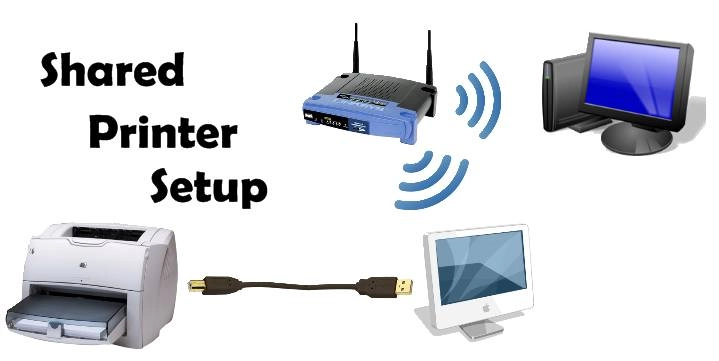
You can connect your Canon Pixma to a new Wi-Fi within seconds. Follow this guide closely, and in seconds, your printer will join the new network:
Setting the Printer:
- Turn your Canon Pixma printer on. Ensure that it is in ready mode.
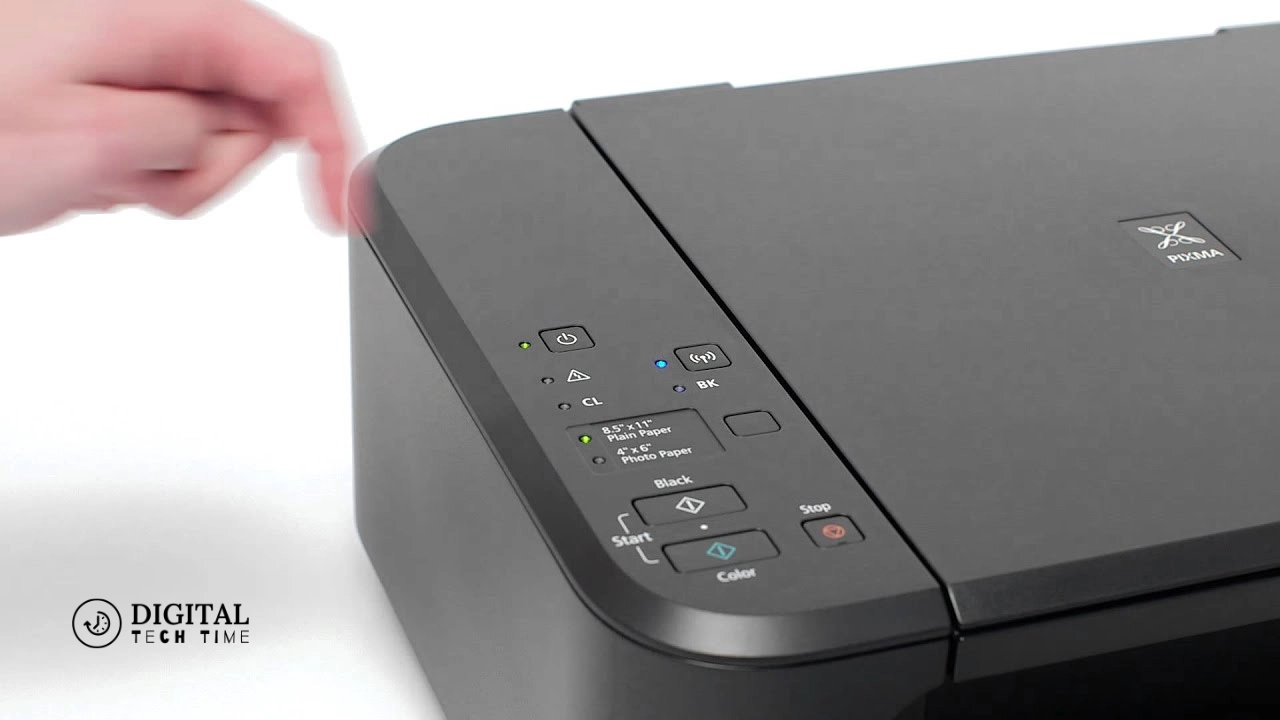
- On your printer, locate the button or option for Wi-Fi setup. Since each model is different, refer to the inside of your printer’s manual if you cannot find it.
- Accessing Wireless Setup Menu
- Access the wireless setup menu using your printer’s control panel, which could also be called the Wi-Fi settings menu.
- Select the option that says something related to connecting to a new wireless network or router.
Select the Wireless Network:
- Your printer should now show you the list of available wireless networks around.
- Scroll down to find and select your newly created Wi-Fi network.
Enter the Network Password:
- If your Wi-Fi network is secured with a password, you will be prompted for it.
- Using the printer’s keypad or touchscreen, navigate to the appropriate network password or security key and press nothing extra.
Confirm the Connection:
- After typing in the password, your printer will try to connect to the new Wi-Fi network.
- Please wait until it says that the printer has established a connection.
Print Test Page (Optional):
- You may also print a test page on your printer to see whether the connection has been established.
- This step is optional, but it is recommended that you ensure your printer is connected and will work appropriately on the new Wi-Fi network.
By the end of these steps, your Canon Pixma printer should be connected to your new Wi-Fi network. Now, you can enjoy wireless printing or remote access over any compatible device within its range.
Troubleshooting Common Issues while Connecting Canon Pixma Printer to New WiFi
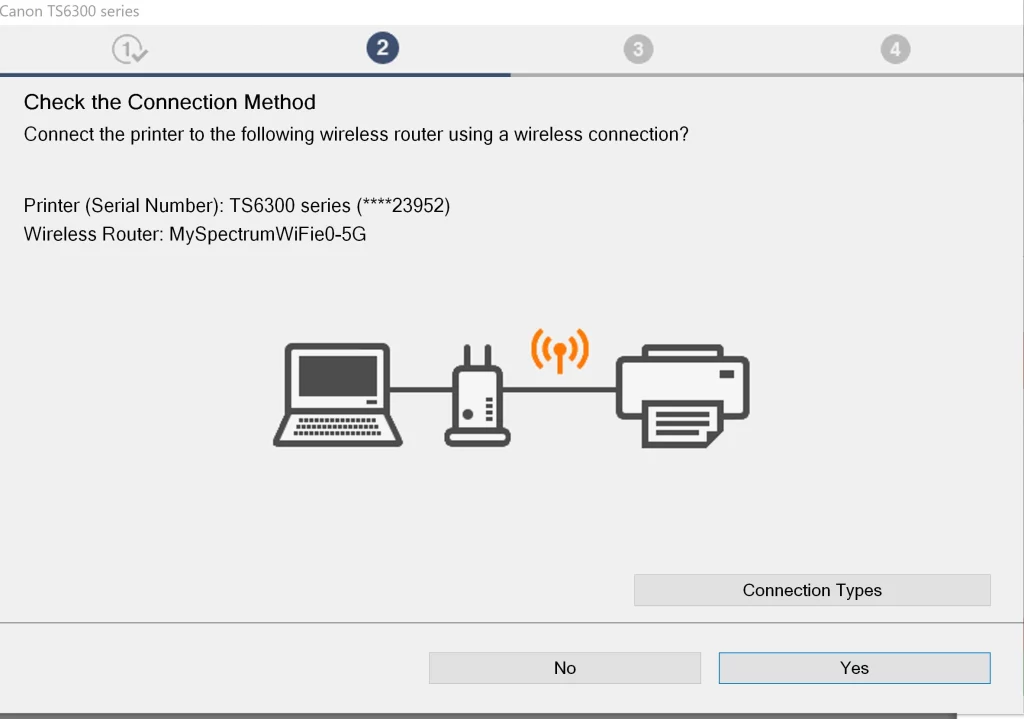
Though connections of Canon Pixma printers to a new Wi-Fi network are by no means painful, they may go through some minor shortcomings. Here is a series of troubleshooting steps to help you overcome most of the potential issues:
Problems with Network Passwords:
- Check whether the network password or security key is accurate.
- Make sure to type your password, considering capitalization and special characters.
- If it still does not accept it, you have to restart your router or access the router settings to check the correct password.
Problems in Signal Strength:
- A weak Wi-Fi signal could cause your printer to be unable to connect or maintain a stable connection.
- Move the printer closer to the router or access point for stronger signals.
- You may use the Wi-Fi range extender or Wi-Fi repeater at places with poor coverage.
Interference Issues:
- The interference and disconnection may result from other wireless devices or appliances operating on the same frequency as your Wi-Fi network.
- Try changing your router’s wireless channel to a less crowded one or switch to a less full Wi-Fi band, such as 5GHz instead of 2.4GHz.
Firmware Updates:
- Sometimes, outdated printer firmware can conflict with new Wi-Fi networks.
- Search your computer for any available firmware updates for your Canon Pixma printer and install them, if any.
- You can look for the steps to update the firmware in your printer manual or get it from the Canon website.
Router Settings:
- A few settings within the router may cause your printer not to connect over the Wi-Fi network, such as MAC address filtering or wireless isolation.
- Access your router settings and ensure these features are turned off or configured in such a way as to permit your printer to connect to it.
If you continue to experience issues after trying these troubleshooting steps, don’t hesitate to contact Canon’s customer support or seek assistance from a qualified technician.
Reconnecting Canon Pixma IX Printer on New WiFi
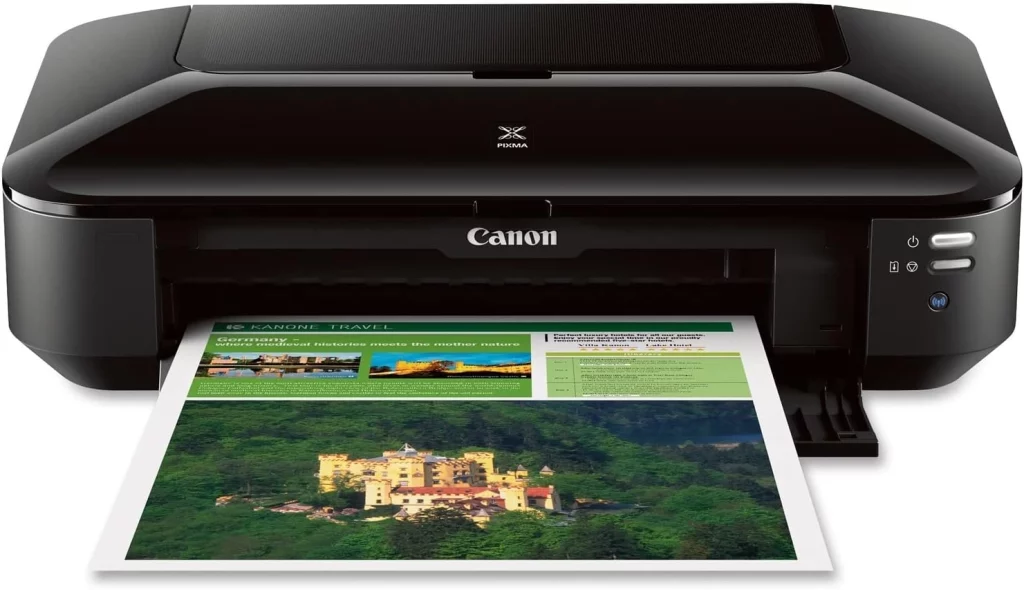
Suppose you have a Canon Pixma IX series printer and must reconnect it to a new Wi-Fi network. In that case, the process is similar to the general steps outlined earlier. However, there are a few model-specific considerations to keep in mind:
Access the Wi-Fi Setup Menu:
- Press the “Setup” button on the Canon Pixma IX control panel.
- Using the arrow keys and the “OK” key, navigate to the menu “Wireless LAN Setup” or “Wi-Fi Setup.”
Choose a Connection Method:
- Then, select the option to connect to a wireless network or router.
- If prompted by the printer, choose the type of connection method, such as “Standard Setup” or “WPS Push Button Method.”.
Connect to the New Wi-Fi Network:
- If you select the “Standard Setup” method, a list of available wireless networks will appear on the printer display.
- Select your new Wi-Fi network from the ones in the list and, if asked, provide the network password.
- If you selected the “WPS Push Button Method, follow the on-screen instructions to initiate the WPS connection process on both your router and the printer.
Confirm Connection:
- Once this connection is established, your printer should indicate that it has connected successfully.
- You can also print a network configuration page to verify the status and settings of the printer’s connection.
Update Printer Software Options:
- At times, Canon releases updates for their Pixma IX series printers that may enhance compatibility and performance.
- Look for any available updates on the Canon website and follow the instructions for installing them on your printer.
By following these steps, you should be able to successfully reconnect your Canon Pixma IX printer to your new Wi-Fi network. Remember to consult your printer’s manual or Canon’s support resources if you encounter any issues or require additional assistance.
Connecting Canon Pixma MX Printer to New WiFi
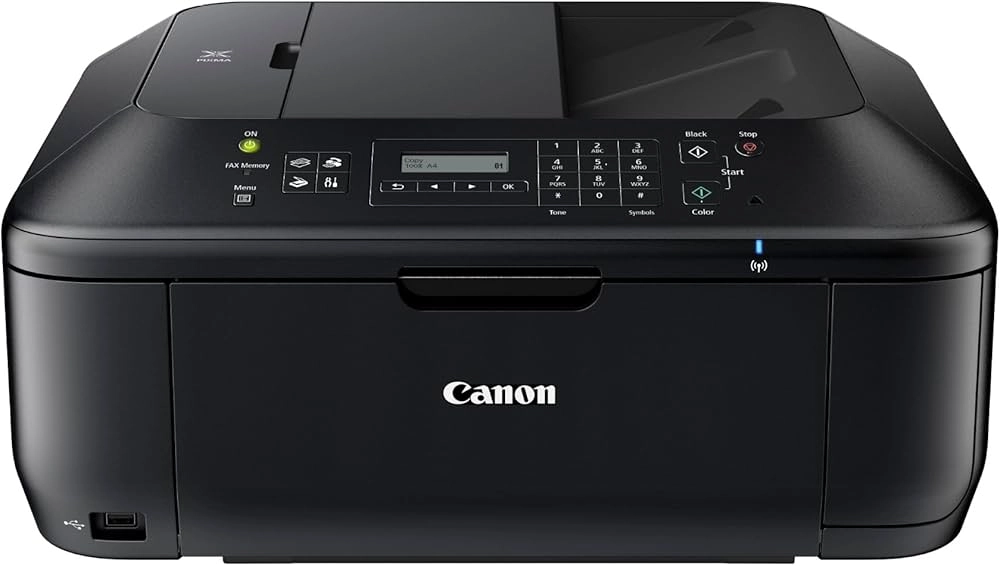
In the case of a Canon Pixma MX series printer, connecting it to a new Wi-Fi network generally proceeds as described above, with a few considerations specific to the model:
Access the Wi-Fi Setup Menu:
- Depending on the model of your Canon Pixma MX printer, press either the “Setup” or “Menu” button on the control panel.
- Using the arrow keys and the “OK” button, go down to locate the “Wireless LAN Setup” or “Wi-Fi Setup” menu option.
Choose Connection Method:
- Locate and select the menu option for connecting to a wireless network or a router.
- In the process of detection, you may be asked to choose the connection method, for example, “Standard Setup,” “WPS Push Button Method,” or “Access Point Mode.”
Connect to New Wi-Fi Network:
- If you choose “Standard Setup,” then the printer will show you the list of available wireless networks.
- Choose the name of your new Wi-Fi network from the list and connect to it by giving its password.
- If you selected “WPS Push Button Method,” then click Next and follow any on-screen instructions to initiate the WPS connection process on both your router and the printer.
- If you select “Access Point Mode,” then the printer will create a temporary wireless network that you are supposed to connect to in order to configure its Wi-Fi settings.
Confirm Connection:
- Once the connection is set up properly, it should say so on the printer.
- You can also print out a network configuration page to confirm the status and the printer’s connectivity settings.
Update Printer Software Optional:
- From time to time, Canon releases software updates for its Pixma MX series printers. These software updates can be used to enhance compatibility and performance.
- See the Canon website for available updates, then download and follow instructions to install on your printer.
If you have gone through these measures, then your Canon Pixma MX has been successfully reconnected to the new Wi-Fi network. And, like always, the printer manual or any other support from Canon could really be much more helpful if you’re seeking aid or if any trouble arises.
Frequently Asked Questions about Connecting Canon Pixma Printer to New WiFi
Does it need additional software when connecting my Canon Pixma to another Wi-Fi network?
Normally, it doesn’t need any additional software. Canon Pixma printers have integrated wireless options, and attaching them to a new Wi-Fi network can be done directly from the control panel or display of the printer.
Can my Canon Pixma printer be connected to a Wi-Fi network if it has no password?
You can connect to an unsecured Wi-Fi network, but it is not recommended for security reasons. Always connect to a secured Wi-Fi network with a strong password in order to protect your printer and data from unauthorized access.
My printer isn’t detecting my new Wi-Fi network?
Also, make sure your printer is within range of this new Wi-Fi network and that the network is broadcasting its SSID or network name. If you’re still having this problem, restart your printer and your router.
Can I have several Canon Pixma printers connected to the same Wi-Fi network?
Yes, multiple Canon Pixma printers can be connected to the same Wi-Fi network. Each printer will be set up separately to connect to the network.
Does it mean the performance and print quality of the Canon Pixma printer degrade when connecting to a new Wi-Fi network?
No, connecting your printer to any other new Wi-Fi network shouldn’t overtly affect performance or print quality. However, ensure the new network has substantial bandwidth and signal strength for better performance.
Can I scan documents or photos using the wireless capability of my Canon Pixma printer to my computer or mobile device?
Well, yes, most Canon Pixma printers can scan wirelessly to compatible devices connected to the same Wi-Fi network. Please refer to your printer’s manual or Canon’s support resources for instructions on how to set up and use this feature.
I am having an issue setting up my Canon Pixma printer to the new Wi-Fi network. What if I need extra support?
You may check with your printer’s manual, visit Canon’s support site, or call the Canon customer support group in case of any problem or difficulty at this stage.
Additional Resources for Connecting Canon Pixma Printer to New WiFi
While this guide provides a comprehensive overview of connecting your Canon Pixma printer to a new Wi-Fi network, there may be times when you need additional resources or support. Here are some helpful resources that can assist you further:
- Canon Pixma Printer Manuals:
- Each Canon Pixma printer model comes with a detailed user manual that includes specific instructions for wireless setup and troubleshooting.
- You can find the manual for your specific printer model on Canon’s website or in the documentation that came with your printer.
- Canon Support Website:
- Canon’s official support website (https://www.canon.com/support/) is a valuable resource for troubleshooting, software updates, and additional guidance.
- You can search for your printer model and find step-by-step guides, FAQs, and even video tutorials related to wireless connectivity and other printer features.
- Canon Community Forums:
- Canon maintains active community forums where users can ask questions, share tips, and seek advice from other Canon product owners and experts.
- These forums can be particularly helpful if you encounter specific issues or have unique setup scenarios.
- Third-Party Tutorials and Guides:
- There are numerous third-party websites, blogs, and YouTube channels that offer tutorials and guides on connecting Canon Pixma printers to new Wi-Fi networks.
- While not official Canon resources, these can provide additional perspectives and solutions from experienced users.
- Canon Customer Support:
- If you continue to experience difficulties or have specific questions, you can contact Canon’s customer support team directly.
- Canon offers various support channels, including phone, email, and live chat, depending on your location and preference.
- Router Manufacturer Resources:
- In some cases, you may need to refer to your router manufacturer’s documentation or support resources for specific instructions on configuring your router for printer connectivity.
- Many router manufacturers provide guides and troubleshooting tips for connecting various devices to their wireless networks.
Assuming that you have these extra resources, you will get further insight into how to set up your wireless effectively, troubleshoot problems, and successfully connect your Canon Pixma printer to your newly established Wi-Fi network. Here’s a simple process by which you can enjoy the convenience of wireless printing and seamless connectivity using proper information and support. If this procedure does not work for you to connect your Canon Pixma printer to the new Wi-Fi network, please feel free to contact us. We’ll be glad to walk you through a well-functioning and successful setup with personalized support and assistance.
Related Post: How to Link Your Android Phone with a Wireless Printer
Conclusion
Now, it may not seem very safe to reconnect your Canon Pixma printer to a new Wi-Fi network, but trust me. With the right directions and a little following, it becomes quite easy. You can follow the detailed procedure illustrated below and enjoy the benefits of having wireless printing anywhere, anytime, and at the same time, secure.
Remember, connection success involves the correct setup of your printer’s wireless settings, a good and stable Wi-Fi signal, and minimizing problems or interference as much as possible. You are free to look for help through further consultation or professional support in case you find the procedure cumbersome.
So, connect your Canon Pixma printer to your new Wi-Fi network today and finally realize its full potential. You can finally unlock your printer’s full potential and enjoy the ease and convenience of wireless printing right in your very home or office space.