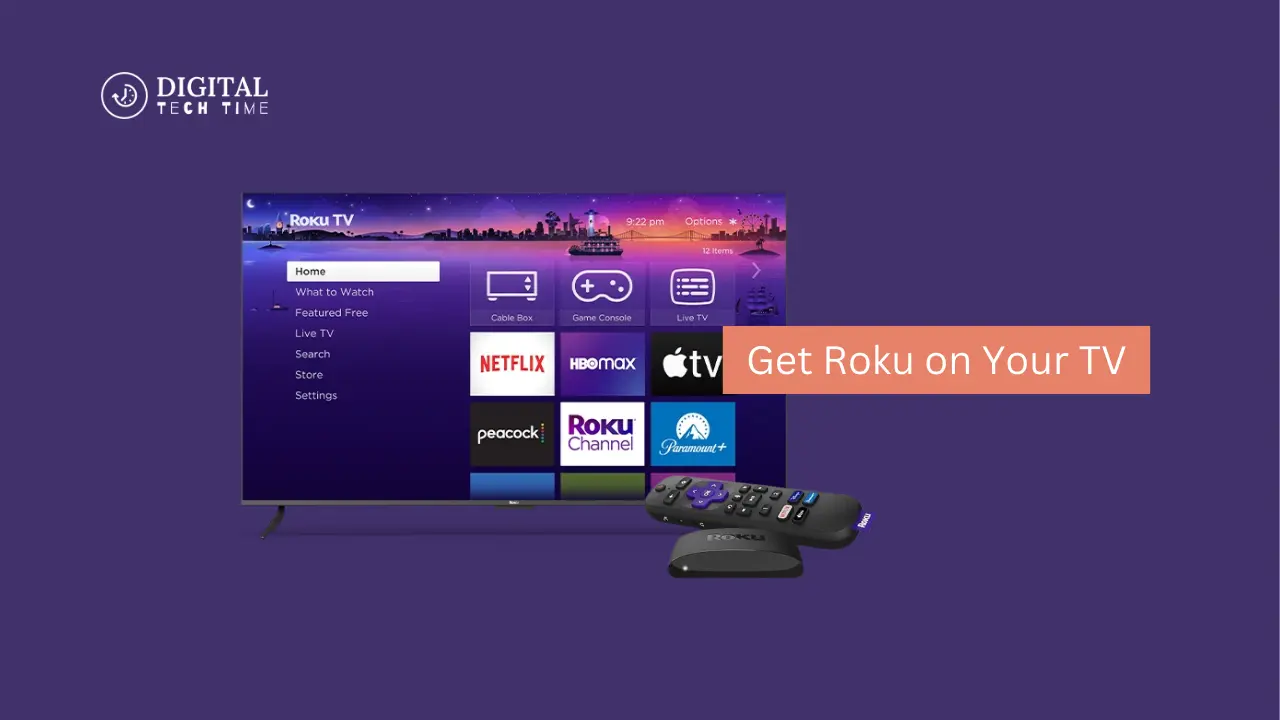
How to Get Roku on Your TV: A Step-by-Step Guide
As entertainment is fast-moving, the need for more personalized and convenient stream modes seems to continue. Along comes Roku, the game-changing platform changing how we watch television. With its easy-to-use UI, vast content library, and seamless device integration, Roku has become an instant king in the streaming game.
This step-by-step guide to Get Roku on a TV takes you through knowing the various Roku devices available and setting up an account to help maximize your viewing. Whether you’re a tech-savvy early adopter or a streaming newbie, this walkthrough is developed to put you in the driver’s seat with Roku and help you unlock its potential in upgrading your home entertainment.
Table of Contents
A step-by-step guide to connecting Roku to your TV
This guide will walk you through how to get Roku right on your TV. It’s pretty easy, and we’re going to make sure each step is covered so that you have a smooth setup.
- Select your Roku: Select the model you like and the kind of TV set you have.
- Connect the Roku: Insert your Roku in an MHL-enabled HDMI port and then into power.
- Turn on your TV and Roku: Power on your TV set and the device; your TV set should automatically switch to the correct input.
- Follow the on-screen setup instructions: The Roku device will guide you through the initial setup process, which includes connecting to your Wi-Fi network and creating a Roku account.
- Activate your Roku device: If requested, activate your Roku device following the instructions on the screen by visiting the website provided and entering the activation code.
- Personalize your Roku experience: Customize your Roku home screen by including your most frequently watched channels in the extensive content category.
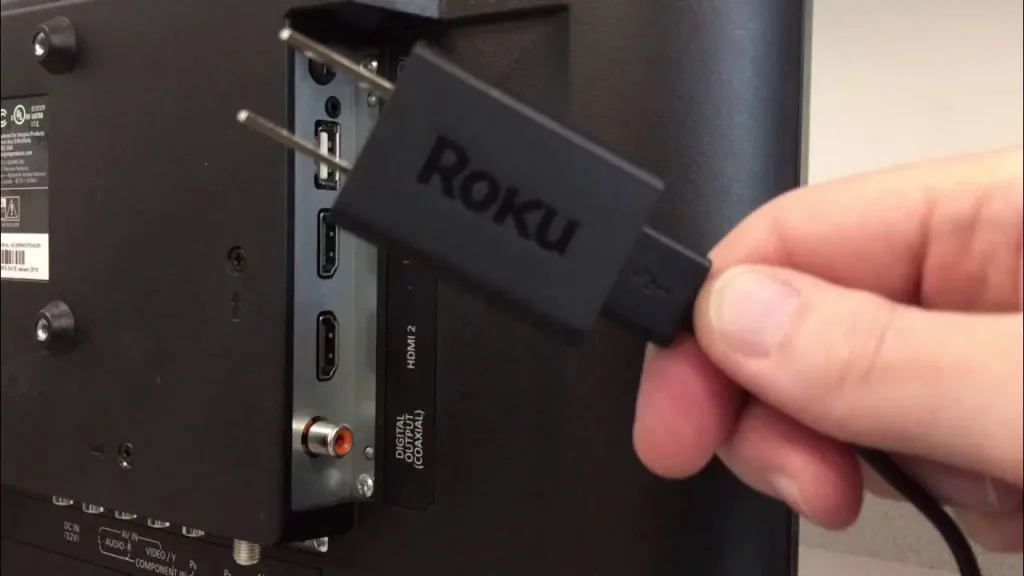
These are quite simple steps; so, it should not take you too much time to get your Roku player up and running, with your TV now converted into a central location with a myriad of streaming opportunities at your fingertips.
Setting up your Roku account
Want to get the most out of Roku? No problem, just create a Roku account. You’ll be all set up with these quick and easy steps:
- Head over to Roku and click “Sign Up.”
- Enter your info: Enter your name and email address, then create a secure password for your Roku account.
- Verify your email address: An email with a verification link should be sent to your inbox. Open the mail from Roku and follow the instructions to confirm your account.
- Link your Roku player: First-time setup screen or Settings > select Link a device. This is where you’ll want to link your Roku player to the newly created account.
- Set up payment options: If you want to rent or buy, you will want to add a payment method like a credit card or PayPal to your profile.
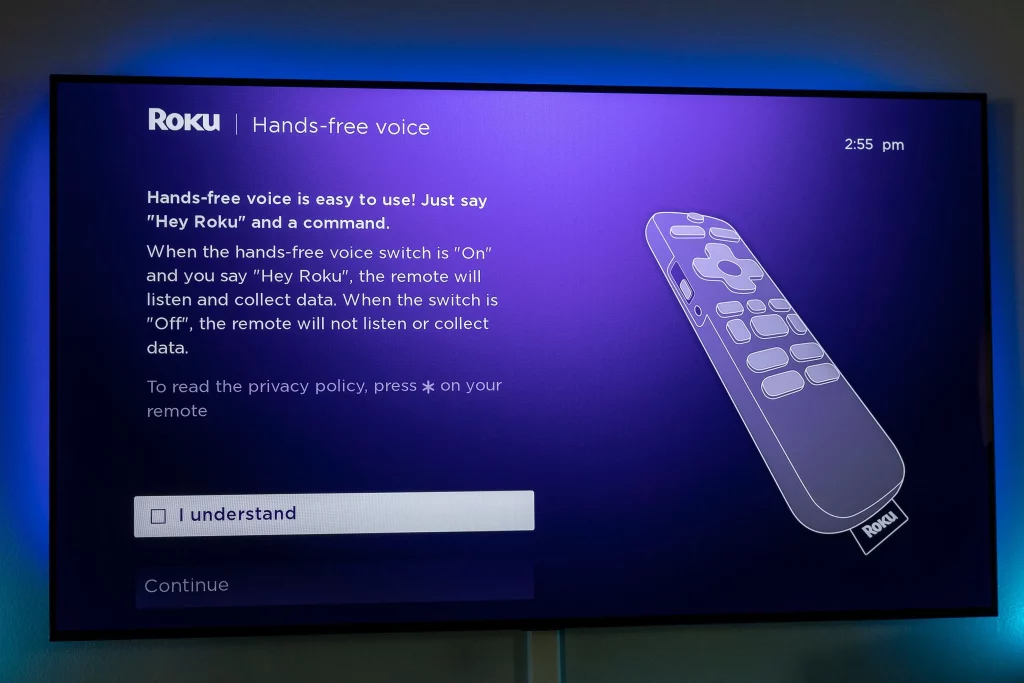
After setting up your Roku account, you have access to tons of streaming content that you can play on your device and really customize to your liking.
Exploring the Roku interface and features
On the other hand, Roku offers an enjoyable experience with its intuitive interface and plenty of features. Now, let’s get into some of the critical elements that will help you make the most out of this Roku experience:
- Home Screen: The Roku home screen is the central hub, providing easy access to your installed channels, search functionality, and various settings.
- Voice Search: Roku’s voice search feature lets you quickly find content, launch channels, and control your device using simple voice commands.
- Private Listening: Roku’s mobile app enables private listening, allowing you to stream audio through your smartphone or tablet’s headphones for a more discreet viewing experience.
- Roku Feed: The Roku Feed keeps you up-to-date on the latest movies, TV shows, and content releases, helping you stay informed about new and trending titles.
- Cross-Platform Search: Roku’s universal search function scans multiple streaming services to find the content you’re looking for, saving you time and effort.
- Roku TV Wireless Speakers: For an immersive audio experience, you can pair Roku’s dedicated wireless speakers with your Roku TV for rich, high-quality sound.
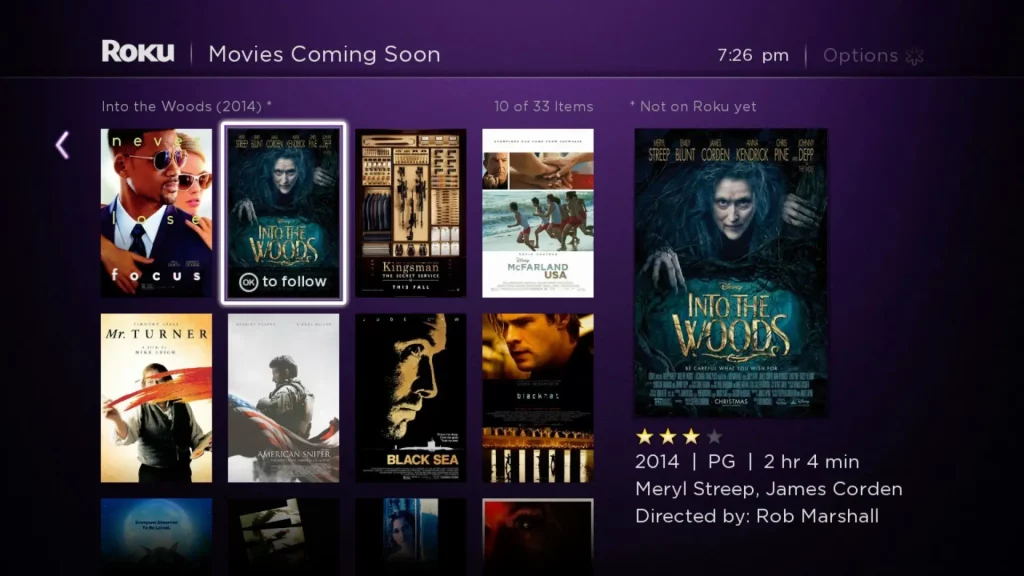
These features, along with the ability to customize the Roku interface, will give a user the ability to personalize their viewing and really get the most out of their Roku device.
Comparison of Roku with other streaming devices
With the continuous evolution of streaming, it becomes very important to understand how Roku stands against other crowd-pleasers. Let’s break things down a bit more closely:
| Feature | Roku | Amazon Fire TV | Apple TV |
|---|---|---|---|
| Content Library | Extensive, with access to thousands of channels | Vast, with a focus on Amazon Prime Video and other Amazon-owned services | Curated, with a emphasis on Apple’s own content and services |
| 4K and HDR Support | Available on select Roku models | Available on select Fire TV models | Available on Apple TV 4K |
| Voice Control | Built-in voice search and control | Alexa integration | Siri integration |
| Ecosystem Integration | Agnostic, works with various smart home and connected devices | Tightly integrated with Amazon’s ecosystem | Tightly integrated with Apple’s ecosystem |
| Pricing | Highly affordable, with options starting at $29.99 | Competitively priced, with options starting at $39.99 | Premium pricing, with the latest Apple TV 4K model starting at $179.99 |
While choosing a streaming gadget, keep in mind your content preference, budget, and the level of ecosystem integration that is best aligned with your needs. For versatility and cost, it provides more channels and is pretty hard to beat at this price. The fact it’s one of the more affordable devices without issues about installation or additional hardware makes Roku very popular with a lot of people.
Also Read: How to Easily Access the Internet on Roku TV: Detailed Guide
Frequently Asked Questions
Q: Do I need a Roku account to use a Roku device?
A: You’ll need to create a Roku account to fully utilize your Roku device and access the vast content library.
Q: Can I use Roku on any TV?
A: Roku devices can be connected to most TVs with an available HDMI port. However, Roku TV models are only available on select television brands and models.
Q: How much does a Roku device cost?
A: Roku offers a range of devices at various price points, starting as low as $29.99 for the Roku Express and going up to $99.99 for the top-of-the-line Roku Ultra.
Q: Can I use my existing streaming subscriptions with Roku?
A: Absolutely! Roku seamlessly integrates with various popular streaming services, allowing you to access your existing subscriptions through the Roku platform.
Q: Is Roku compatible with smart home devices?
A: Yes, Roku devices can be integrated with various smart home ecosystems, enabling you to control compatible devices and access features like voice control through your Roku setup.
Conclusion
In this fast-paced world of home entertainment, Roku can make a very strong case for being a game-changer in terms of its seamless and extremely personalized streaming experience that one can have. With the help of this article, one will have Roku up and running on a TV in no time, unlocking endless content, intuitive features, and unparalleled convenience.
Want to turn your TV into an ultra-streaming machine? Check out the newest Roku devices by clicking here, and get the right one for your home entertainment needs. Be it a seasoned streaming enthusiast or a first-timer with Roku, this in-depth guide has equipped you with the resources and knowledge to get the most from your Roku device. Join the evolution of television, and take your home entertainment to a whole new level with Roku.